
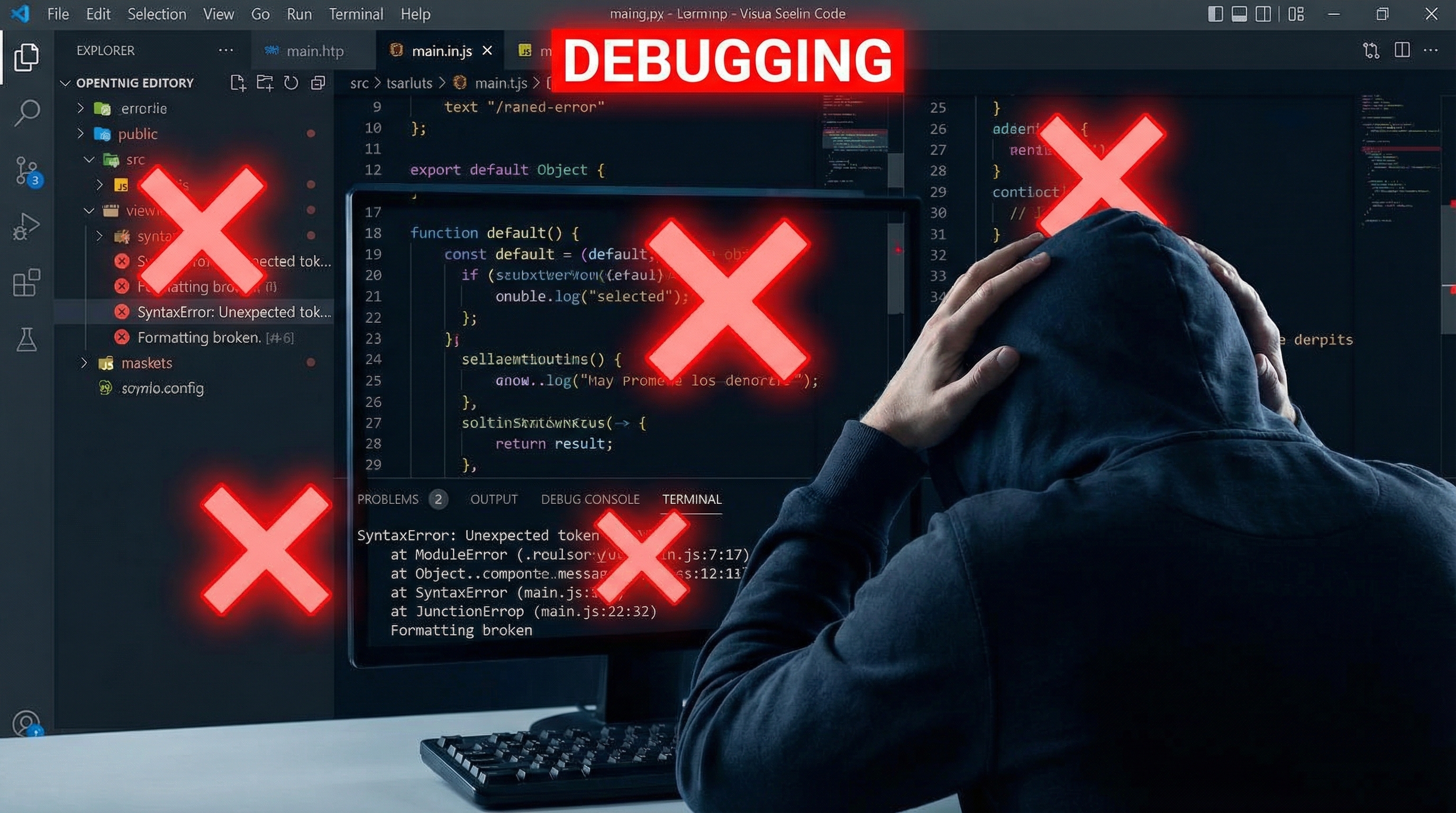
How to Fix Broken Code Blocks When Copying from ChatGPT to Notion
You just got the perfect code solution from ChatGPT. You copy it to Notion. And… the formatting is completely broken. Sound familiar?
If you’re a developer who uses ChatGPT for coding help, you’ve probably experienced this frustration dozens of times. In this guide, you’ll learn exactly why this happens and discover 3 solutions to preserve perfect code formatting.
The Problem: Why Code Formatting Breaks
What You See in ChatGPT:
def binary_search(arr, target):
    left, right = 0, len(arr) - 1

    while left <= right:
        mid = (left + right) // 2
        if arr[mid] == target:
            return mid
        elif arr[mid] < target:
            left = mid + 1
        else:
            right = mid - 1

    return -1
What You Get in Notion After Copy-Paste:
def binary_search(arr, target): left, right = 0, len(arr) - 1 while left <= right: mid = (left + right) // 2 if arr[mid] == target: return mid elif arr[mid] < target: left = mid + 1 else: right = mid - 1 return -1Everything is on one line. Indentation is gone. Syntax highlighting is missing.
Why Does This Happen?
Technical Explanation:
1. Clipboard Format Mismatch
- ChatGPT copies code as plain text
- Notion expects markdown-formatted code blocks
- The clipboard loses formatting information during transfer
2. Notion’s Markdown Parser
- Notion doesn’t automatically detect code blocks from plain text
- You need to explicitly create a code block in Notion
- Language detection doesn’t work with pasted content
3. Whitespace Handling
- Line breaks are converted to spaces
- Indentation (tabs/spaces) is stripped
- Code structure is destroyed
Solution 1: Manual Fix (Free but Time-Consuming)
Step-by-Step:
Step 1: Create a Code Block in Notion
- Type
/codein Notion - Press Enter to create a code block
Step 2: Set the Programming Language
- Click the language selector (top-left of code block)
- Choose your language (Python, JavaScript, etc.)
Step 3: Paste the Code
- Paste your code into the code block
- Notion will apply syntax highlighting
Step 4: Fix Indentation Manually
- Go through each line
- Add proper indentation (spaces or tabs)
- Ensure code structure is correct
Time Required:
- Simple code: 2-3 minutes
- Complex code: 5-10 minutes
- Multiple code blocks: 15-30 minutes
Pros:
- ✅ Free
- ✅ No tools required
- ✅ Works for any code
Cons:
- ❌ Extremely time-consuming
- ❌ Error-prone (easy to miss indentation)
- ❌ Not scalable for multiple conversations
- ❌ Frustrating for daily use
Solution 2: Use Notion’s Code Block Import (Partial Fix)
Step-by-Step:
Step 1: Save Code to a File
- Copy code from ChatGPT
- Save to a
.py,.js, or other code file
Step 2: Import to Notion
- In Notion, type
/file - Upload your code file
- Notion will create a code block with proper formatting
Time Required:
- Per conversation: 3-5 minutes
Pros:
- ✅ Preserves formatting
- ✅ Automatic language detection
- ✅ Syntax highlighting works
Cons:
- ❌ Still requires manual steps
- ❌ Need to create files for each code snippet
- ❌ Not practical for multiple code blocks
- ❌ Clutters your file system
Solution 3: ChatGPT to Notion Extension (Recommended)
How It Works:
Step 1: Install the Extension
- Visit ChatGPT to Notion
- Install the Chrome extension (2 minutes)
Step 2: Connect Notion
- Click the extension icon
- Authorize access to your Notion workspace
Step 3: Export with One Click
- While viewing any ChatGPT conversation
- Click “Export to Notion”
- Done! Code formatting is perfectly preserved
Time Required:
- Setup: 5 minutes (one-time)
- Per export: 5 seconds
What Gets Preserved:
✅ Code Blocks
- All code blocks are preserved
- Proper indentation maintained
- Line breaks intact
✅ Syntax Highlighting
- Automatic language detection
- Color-coded syntax
- Same highlighting as ChatGPT
✅ Code Structure
- Indentation levels preserved
- Comments maintained
- Whitespace handled correctly
✅ Multiple Code Blocks
- All code blocks in a conversation
- Mixed languages supported
- Inline code preserved
Pricing:
- Free: 10 exports per month
- Pro: $9/month (unlimited exports)
Pros:
- ✅ Perfect formatting preservation
- ✅ 5-second export time
- ✅ Automatic language detection
- ✅ Scales to any number of conversations
- ✅ No manual work required
Cons:
- ⚠️ Requires Chrome extension
- ⚠️ Free tier limited to 10 exports/month
Comparison: Which Solution Should You Choose?
| Feature | Manual Fix | File Import | ChatGPT to Notion |
|---|---|---|---|
| Time per Export | 5-10 min | 3-5 min | 5 seconds |
| Formatting Quality | ⚠️ Error-prone | ✅ Good | ✅ Perfect |
| Syntax Highlighting | ✅ Yes | ✅ Yes | ✅ Yes |
| Indentation | ❌ Manual | ✅ Preserved | ✅ Preserved |
| Multiple Code Blocks | ❌ Tedious | ❌ Tedious | ✅ Automatic |
| Cost | Free | Free | $0-9/month |
| Best For | 1-2 exports/month | Occasional use | Daily use |
Real-World Use Cases
Case 1: Daily Coding Help
Scenario: You use ChatGPT 5-10 times per day for coding help.
Manual Fix Cost:
- 10 exports × 5 minutes = 50 minutes per day
- 50 minutes × 20 workdays = 16.7 hours per month
ChatGPT to Notion Cost:
- 10 exports × 5 seconds = 50 seconds per day
- $9/month
ROI: If your time is worth $10/hour, you save $167/month in time. The $9 tool pays for itself 18x over.
Case 2: Building a Code Snippet Library
Scenario: You want to save all coding solutions from ChatGPT to build a personal reference library.
Manual Fix: Impractical. You’ll give up after a few exports.
ChatGPT to Notion: Enable auto-sync. Every conversation is automatically saved with perfect formatting. Build a comprehensive library effortlessly.
Case 3: Team Knowledge Sharing
Scenario: Your team uses ChatGPT for coding help. You want to share solutions in a shared Notion workspace.
Manual Fix: Team members won’t bother. Knowledge stays siloed.
ChatGPT to Notion: One-click export to shared workspace. Team builds collective knowledge base automatically.
Advanced Tips
Tip 1: Create Code-Specific Notion Templates
Set up a Notion template for code exports:
Title: [Problem Description]
Language: [Programming Language]
Date: [Auto-filled]
Tags: [Algorithm, Data Structure, etc.]

Problem:
[Description]

Solution:
[Code Block]

Explanation:
[ChatGPT's explanation]

Complexity:
- Time: O(?)
- Space: O(?)

Test Cases:
[Examples]

Status: [To Test / Working / Implemented]
Tip 2: Tag by Programming Language
Create tags in Notion:
- Python
- JavaScript
- Java
- C++
- SQL
- etc.
Filter by language when searching for solutions.
Tip 3: Link Related Code Snippets
Use Notion’s relation property to connect:
- Similar algorithms
- Related data structures
- Follow-up conversations
Tip 4: Add Personal Notes
After exporting, add your own notes:
- Why this solution works
- Edge cases to consider
- Performance considerations
- When to use this approach
Troubleshooting Common Issues
Issue 1: Code Still Breaks After Manual Fix
Cause: Notion’s markdown parser is sensitive to formatting.
Solution:
- Ensure you’re using a proper code block (
/code) - Check that language is set correctly
- Verify indentation uses consistent spaces or tabs
Issue 2: Syntax Highlighting Doesn’t Work
Cause: Language not detected or set incorrectly.
Solution:
- Manually select the language from the dropdown
- Use standard file extensions (
.py,.js, etc.) - Check if Notion supports your language
Issue 3: Large Code Blocks Are Truncated
Cause: Notion has limits on block size.
Solution:
- Break large code into smaller blocks
- Use ChatGPT to Notion (handles large code automatically)
- Consider linking to external files for very large code
Conclusion
Broken code formatting when copying from ChatGPT to Notion is frustrating, but it’s easily solved.
Quick Recommendations:
- Occasional users (1-2 exports/month): Manual fix or file import
- Regular users (5+ exports/month): ChatGPT to Notion Free
- Daily users (15+ exports/month): ChatGPT to Notion Pro
The Math:
- Manual fix: 5 minutes per export
- ChatGPT to Notion: 5 seconds per export
- Time saved: 4 minutes 55 seconds per export
If you export 20 conversations per month, that’s 98 minutes saved. At $9/month, you’re paying $0.09 per minute saved. If your time is worth more than $5.50/hour, the tool pays for itself.
Stop wasting time fixing code formatting. Try ChatGPT to Notion free today.
Related Articles: