
How to Export AI Chats to Joplin as Markdown Notes
Joplin is a practical place to keep long-term notes.
AI chat apps are practical places to think, research, write, debug, summarize, and plan.
The problem is that AI chat history is not a durable notebook.
If you use ChatGPT, Claude, Gemini, Perplexity, or Grok for serious work, some conversations deserve to become searchable notes in Joplin.
The easiest bridge is Markdown:
AI chat conversation
        |
Markdown export
        |
Joplin import
        |
Searchable notebook archive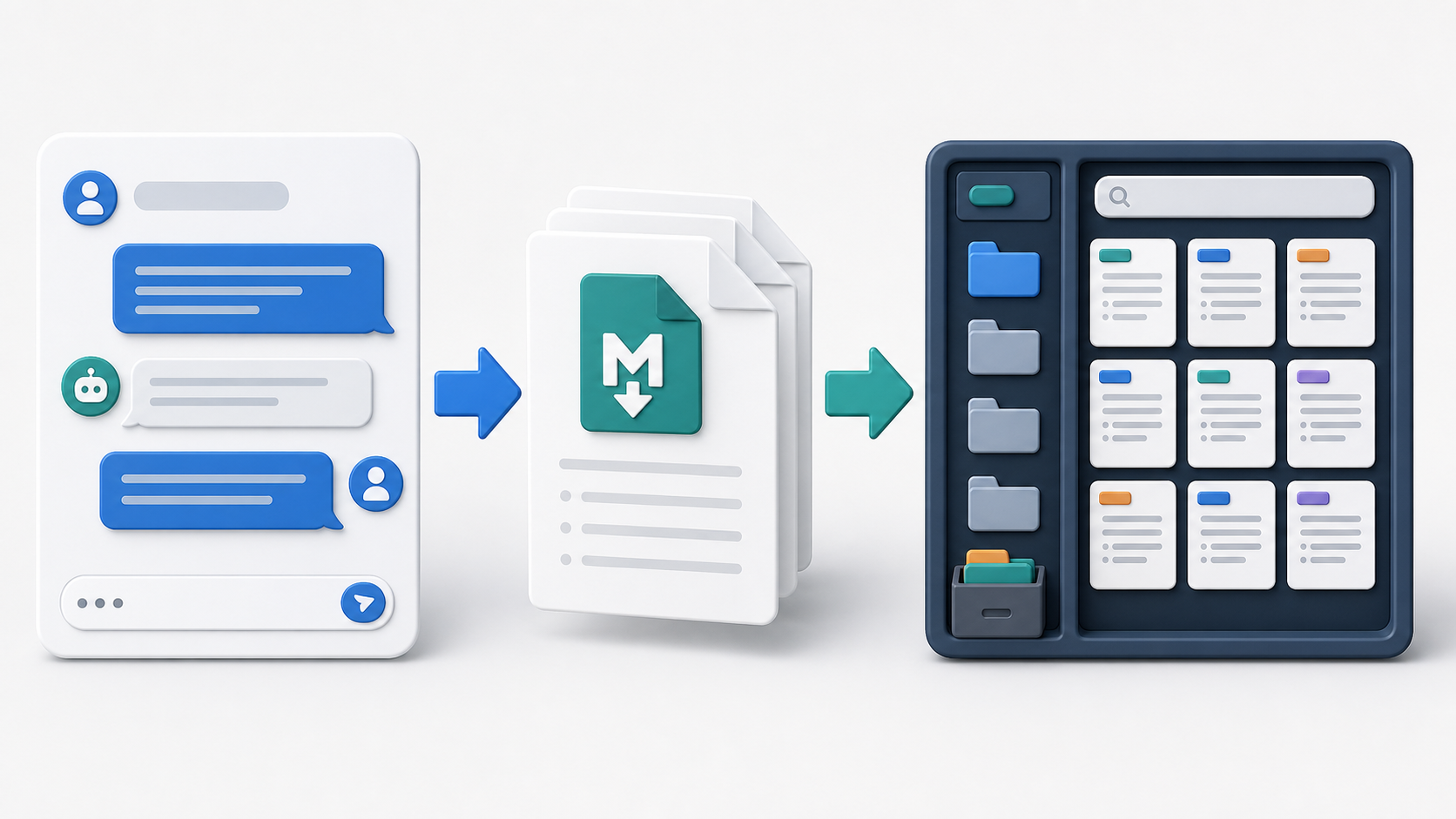
Why Use Joplin for AI Chat Archives?
Joplin is a good fit when you want a notebook-style archive instead of a graph-first or database-first workspace.
It works well for:
- Research notes
- Project notebooks
- Study material
- Meeting preparation
- Writing drafts
- Technical explanations
- Prompt collections
- Local knowledge archives
Joplin also has a clear Markdown import path. The official Joplin importing and exporting help explains that the desktop app can import a single Markdown file or a complete directory of Markdown files, preserving directory structure as notebooks and sub-notebooks.
That makes it a strong destination for exported AI conversations.
What You Need
You need three things:
- An AI conversation worth keeping.
- A Markdown export of that conversation.
- Joplin desktop installed.
For ChatGPT, you can use ChatGPT to Obsidian to export clean Markdown files.
For other AI platforms, use the relevant Markdown or Obsidian-style exporter:
Even if the product name mentions Obsidian, the Markdown file can be reused in Joplin.
Step 1: Export the AI Chat as Markdown
Open the conversation you want to save.
Export it as a .md file.
Good conversations to export include:
- Long research sessions
- Code explanations
- Prompt experiments
- Client notes
- Study summaries
- Product planning chats
- Meeting preparation
- Legal or policy research notes
Do not export every random chat. A useful Joplin archive should be searchable and curated.
Step 2: Organize the Markdown Files Before Import
Before importing into Joplin, organize the exported Markdown files in folders.
Example:
AI Chat Archive/
  ChatGPT/
    Research/
    Coding/
    Writing/
  Claude/
    Drafts/
    Analysis/
  Gemini/
    Study Notes/
  Perplexity/
    Source Research/
This matters because Joplin can import a Markdown directory and preserve the folder structure as notebooks and sub-notebooks.
If you only have one file, you can import a single Markdown file directly into the selected notebook.
Step 3: Import Markdown into Joplin
In the Joplin desktop app:
- Open Joplin.
- Choose the notebook where the AI chat should live, or create a new notebook.
- Go to
File > Import. - Choose
MD - Markdown (file)for one file. - Choose
MD - Markdown (directory)for a folder of exported chats. - Select the file or folder.
- Let Joplin import the notes.
For large archives, start with a small test folder first.
Check whether your headings, bullet lists, code blocks, and links look right before importing hundreds of files.
Step 4: Review the Imported Notes
After import, open a few notes and check:
- Is the full conversation present?
- Are headings readable?
- Did code blocks keep their indentation?
- Are tables still understandable?
- Are links clickable?
- Are images or attachments handled the way you expect?
- Is the notebook structure useful?
If the first test looks good, import more files.
If the structure feels messy, adjust the Markdown files before importing the rest.
Recommended Note Structure
An AI chat note is more useful when it has a consistent structure.
Example:
# ChatGPT Research Session: AI Knowledge Base

Source: ChatGPT
Exported: 2026-07-04
Topic: AI knowledge management

## Summary

Short summary of the conversation.

## Key Takeaways

- ...
- ...
- ...

## Original Conversation

### You

...

### ChatGPT

...

## Follow-up Tasks

- [ ] ...
This keeps the full transcript but makes the note easier to scan.
What Works Well in Joplin
Joplin is a strong destination for AI chat exports that need to be:
- Searchable
- Organized into notebooks
- Available for long-term reference
- Editable after import
- Stored outside the original AI platform
- Synced through your Joplin setup
Markdown exports are especially useful for code-heavy conversations because code blocks remain easier to preserve than with manual copy-paste.
What May Need Extra Attention
AI chat exports can include complex formatting.
Check these areas after import:
- Long tables
- Nested bullet lists
- Code fences
- Math expressions
- Images
- File attachments
- YAML frontmatter
- Very long conversations
If an imported note is too long, split it into:
- Summary note
- Full transcript note
- Prompt library note
- Follow-up task note
This makes the archive easier to navigate.
Joplin vs Obsidian vs Logseq for AI Chats
Use Joplin if you want a notebook archive.
Use Obsidian if you want a local Markdown vault with backlinks and plugins.
Use Logseq if you want outline-first thinking and block references.
Use Notion if you want searchable databases and team workflows.
Joplin is strongest when you want your exported AI conversations to feel like organized notes, not a graph or project database.
Tips for a Better AI Chat Notebook
Use consistent tags:
ai-chatchatgptclaudegeminiresearchcodingwritingmeeting-notes
Use consistent file names:
2026-07-04-chatgpt-client-research.md
2026-07-04-claude-writing-draft.md
2026-07-04-perplexity-market-sources.md
Keep a top-level index note:
# AI Chat Archive Index

## Research

- ...

## Coding

- ...

## Writing

- ...
This gives you a starting point when the archive grows.
FAQ
Can Joplin import Markdown files?
Yes. Joplin’s desktop app can import individual Markdown files and complete Markdown directories.
Can I import a whole folder of AI chat exports?
Yes. Use MD - Markdown (directory) in Joplin. Test with a small folder first so you can confirm the notebook structure.
Will Joplin preserve my AI chat formatting?
Basic Markdown formatting such as headings, bullets, links, and code blocks should be preserved well. Complex tables, images, and attachments should be checked after import.
Is this only for ChatGPT?
No. This workflow works for any AI platform if you can export the conversation as clean Markdown.
Final Thought
Joplin is a good home for AI conversations that you want to keep, search, and revisit.
The workflow does not require a dedicated AI-to-Joplin exporter.
Export the conversation as Markdown, organize the files, import them into Joplin, and turn temporary AI chats into a durable notebook archive.