
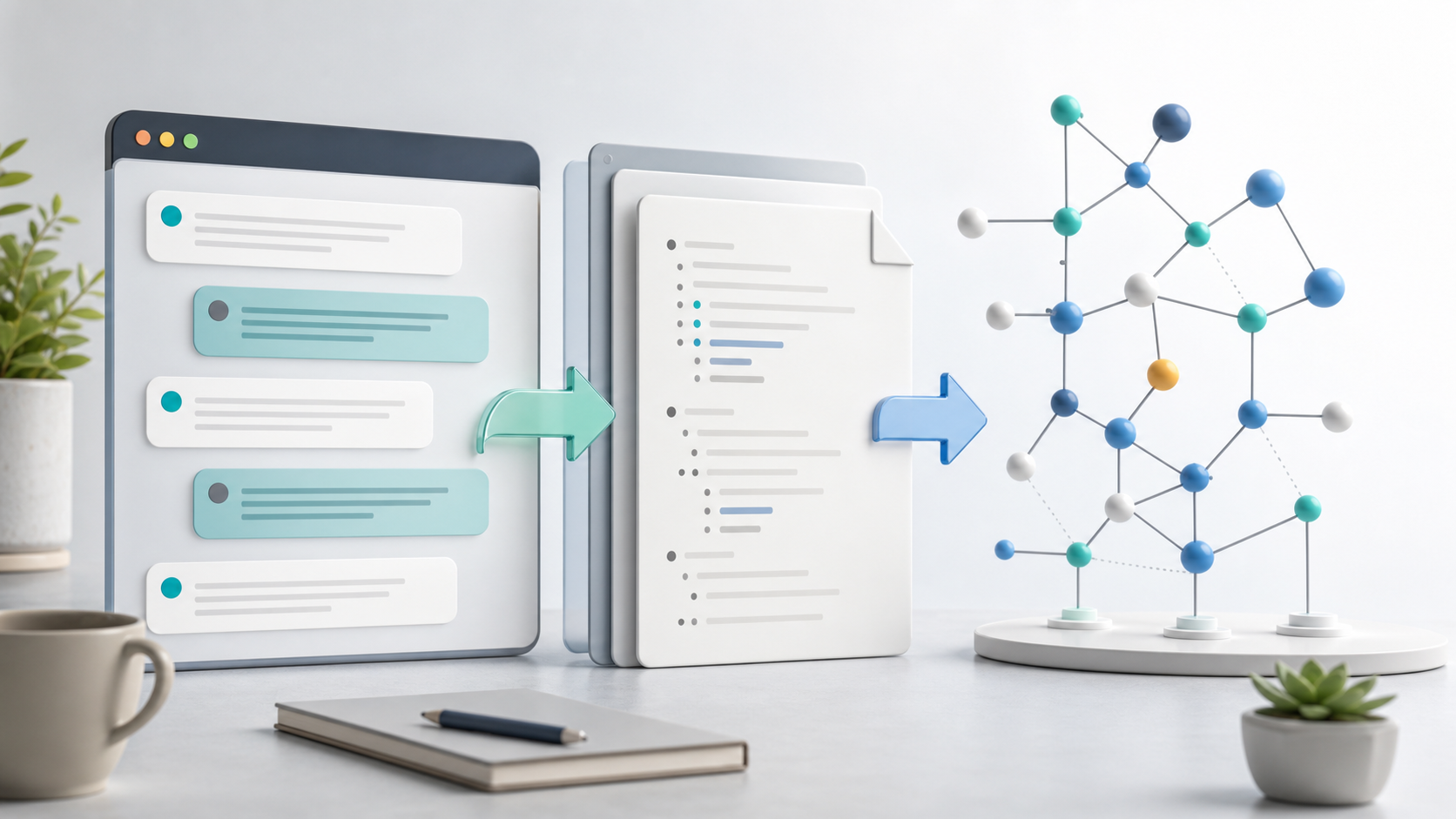
How to Export ChatGPT Conversations to Roam Research
Roam Research is built around networked thinking.
ChatGPT is built around conversations.
That combination can be powerful, but only if your best ChatGPT threads actually make it into Roam instead of staying buried in chat history.
ChatGPT does not offer a native “export to Roam Research” button. The practical workaround is to export the conversation as clean Markdown, then import or paste the Markdown into Roam.
This guide shows a simple workflow:
ChatGPT conversation
        |
Markdown export
        |
Roam Research page or daily note
        |
Linked research knowledge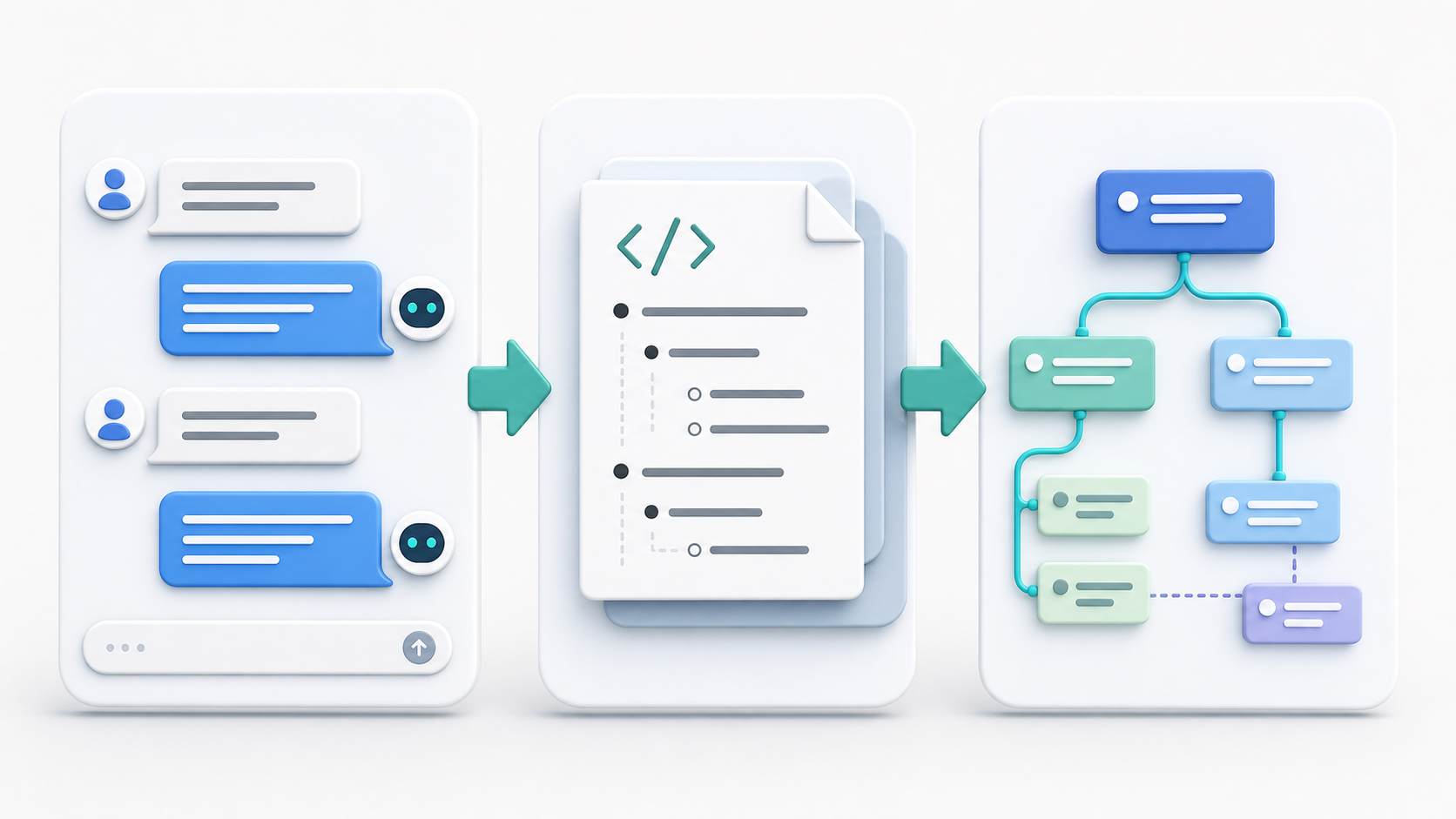
Why Save ChatGPT Conversations in Roam?
Roam is useful when your notes need to stay connected.
That makes it a strong place to store AI conversations that are part of a larger thinking process:
- Research questions
- Literature notes
- Product decisions
- Writing outlines
- Strategy sessions
- Coding explanations
- Meeting preparation
- Learning notes
- Personal knowledge logs
A single ChatGPT answer can be useful once. A saved ChatGPT conversation inside Roam can become part of a larger network of pages, backlinks, references, and future work.
The goal is not just backup. The goal is reuse.
The Best Format: Markdown
Markdown is the most practical bridge between ChatGPT and Roam Research.
It can preserve the parts of an AI conversation that matter most:
- Headings
- Bullet points
- Numbered lists
- Code blocks
- Links
- Tables
- Conversation structure
- Plain-text readability
For Roam, Markdown is especially useful because the format is already close to an outline. A ChatGPT conversation can become a structured page instead of one large pasted wall of text.
Step 1: Export the ChatGPT Conversation as Markdown
First, open the ChatGPT conversation you want to keep.
Use a Markdown export workflow such as ChatGPT to Obsidian to save the conversation as a .md file.
Even though the product name mentions Obsidian, the important part for this workflow is the Markdown output. Markdown files are portable and can be reused in Roam, Logseq, Joplin, Obsidian, VS Code, and other note systems.
For best results, export conversations that have a clear structure:
- A focused topic
- Useful headings
- Follow-up questions
- Code examples or research references
- A meaningful conversation title
If the chat is messy, ask ChatGPT to summarize or restructure the thread before exporting it.
Step 2: Review the Markdown File
Open the exported .md file in a plain-text editor.
You are checking for three things:
- The full conversation is present.
- Headings, bullets, code blocks, and links are readable.
- Any frontmatter or metadata at the top is useful for Roam.
A clean export may look like this:
# ChatGPT Research Session

## You

Summarize the main arguments in this paper.

## ChatGPT

Here are the main arguments:

- The first argument is...
- The second argument is...
- The limitation is...

## You

Turn this into reusable literature notes.
If the file includes YAML frontmatter, you can keep it for archival context or remove it before pasting into Roam.
For example:
---
source: ChatGPT
exported: 2026-07-04
tags:
  - ai-chat
  - research
---
Roam users often prefer turning this metadata into normal blocks, page references, or tags instead of leaving it as raw YAML.
Step 3: Bring the Markdown into Roam Research
There are two practical approaches.
Option A: Paste the Markdown into a Roam Page
This is the simplest path.
- Open Roam Research.
- Create a new page for the conversation.
- Open the exported Markdown file.
- Copy the useful content.
- Paste it into Roam.
- Clean up indentation if needed.
- Add page references, tags, and backlinks.
This works well for individual conversations and curated research notes.
Option B: Use Roam’s Markdown Import or Paste Workflow
Roam has publicly discussed improvements to Markdown imports and pastes in a product update, but the exact workflow can vary by account state and interface updates. If your Roam workspace exposes Markdown import options, test with one small exported file before importing a large batch.
Start with a short conversation that includes:
- One heading
- A nested bullet list
- A code block
- A link
Then check whether the result matches your preferred Roam structure.
Step 4: Convert the Export into Roam-Friendly Blocks
A raw ChatGPT transcript is useful, but a Roam-ready page is better.
After importing or pasting, clean the note into blocks that match your workflow:
- [[ChatGPT Research Session]]
  - Source:: ChatGPT
  - Exported:: 2026-07-04
  - Topic:: [[AI knowledge management]]
  - Key takeaways
    - ...
  - Questions to revisit
    - ...
  - Useful prompts
    - ...
This gives you a conversation archive that is also useful for future research.
What Works Well
Markdown export is a good fit for Roam when your conversation contains:
- Research summaries
- Outlines
- Prompt libraries
- Decision logs
- Study notes
- Meeting prep
- Code explanations
- Writing drafts
These formats are already block-like and can be reorganized after import.
What Needs Manual Cleanup
Roam is not a generic document archive. It is an outline-based thinking tool.
Expect to do some cleanup when importing long AI conversations:
- Long paragraphs may need to be split into smaller blocks.
- Deeply nested Markdown can require indentation adjustment.
- YAML frontmatter may be better converted into Roam attributes.
- Large code blocks may be better stored in a linked reference page.
- Images and attachments need separate handling unless your export workflow creates accessible links.
This is normal. The point of Markdown export is to avoid losing structure before you start editing.
Recommended Roam Structure for AI Chats
Use a predictable structure so your saved conversations are easy to find later.
Example:
- [[AI Chat Archive]]
  - [[ChatGPT]]
    - [[2026-07-04 ChatGPT Research Session]]
      - Summary
      - Original conversation
      - Useful prompts
      - Follow-up tasks
      - Related pages
You can also tag by use case:
#research#writing#coding#meeting-notes#prompt-library#project-log
When to Use Roam Instead of Obsidian or Notion
Use Roam when the exported conversation belongs inside a network of ideas.
Use Obsidian when you want local Markdown files, folders, and long-term file ownership.
Use Notion when you want databases, team sharing, and structured project management.
For a broader comparison, read PDF vs Markdown vs Notion: Which AI Chat Export Format Is Best?.
FAQ
Can ChatGPT export directly to Roam Research?
Not natively. The practical workflow is to export ChatGPT conversations as Markdown, then paste or import that Markdown into Roam.
Does Roam preserve Markdown formatting?
Basic Markdown structures such as headings, bullets, links, and code-style text can usually be adapted, but the final result depends on your Roam import or paste workflow. Test one small file before moving many conversations.
Should I keep the whole transcript?
For important research or decision records, yes. For everyday chats, it is often better to keep a summary, key takeaways, useful prompts, and links back to related Roam pages.
Can I batch export ChatGPT conversations for Roam?
You can batch export conversations as Markdown first, then decide which files are worth bringing into Roam. Importing everything into Roam may create noise, so curate before adding large archives.
Final Thought
Roam Research does not need a dedicated ChatGPT exporter to benefit from AI conversations.
If you can save the conversation as clean Markdown, you already have a practical bridge from ChatGPT into Roam.
Start with one high-value conversation, export it as Markdown, paste it into Roam, and turn it into linked blocks. That is enough to validate whether this workflow belongs in your knowledge system.