
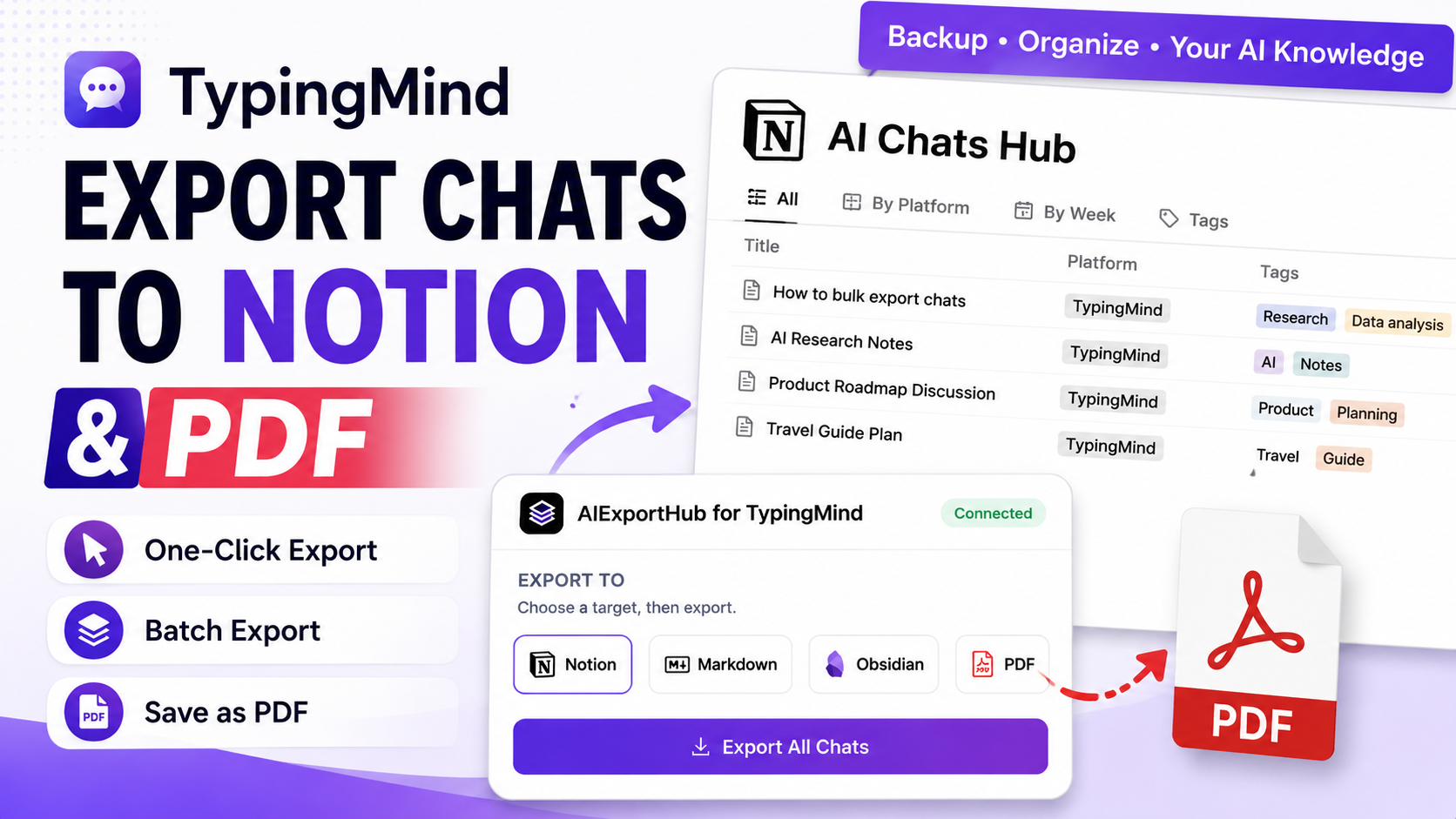
TypingMind is a strong workspace for people who use multiple AI models in one place. You might use GPT, Claude, Gemini, OpenRouter, custom API models, folders, tags, and saved prompts in the same interface.
That convenience creates a second problem: the more useful TypingMind becomes, the more important it is to back up the conversations that contain your research, code, decisions, drafts, and client notes.
AIExportHub for TypingMind is built for that job. It exports TypingMind chats to Notion, Markdown, Obsidian-ready Markdown, and PDF.
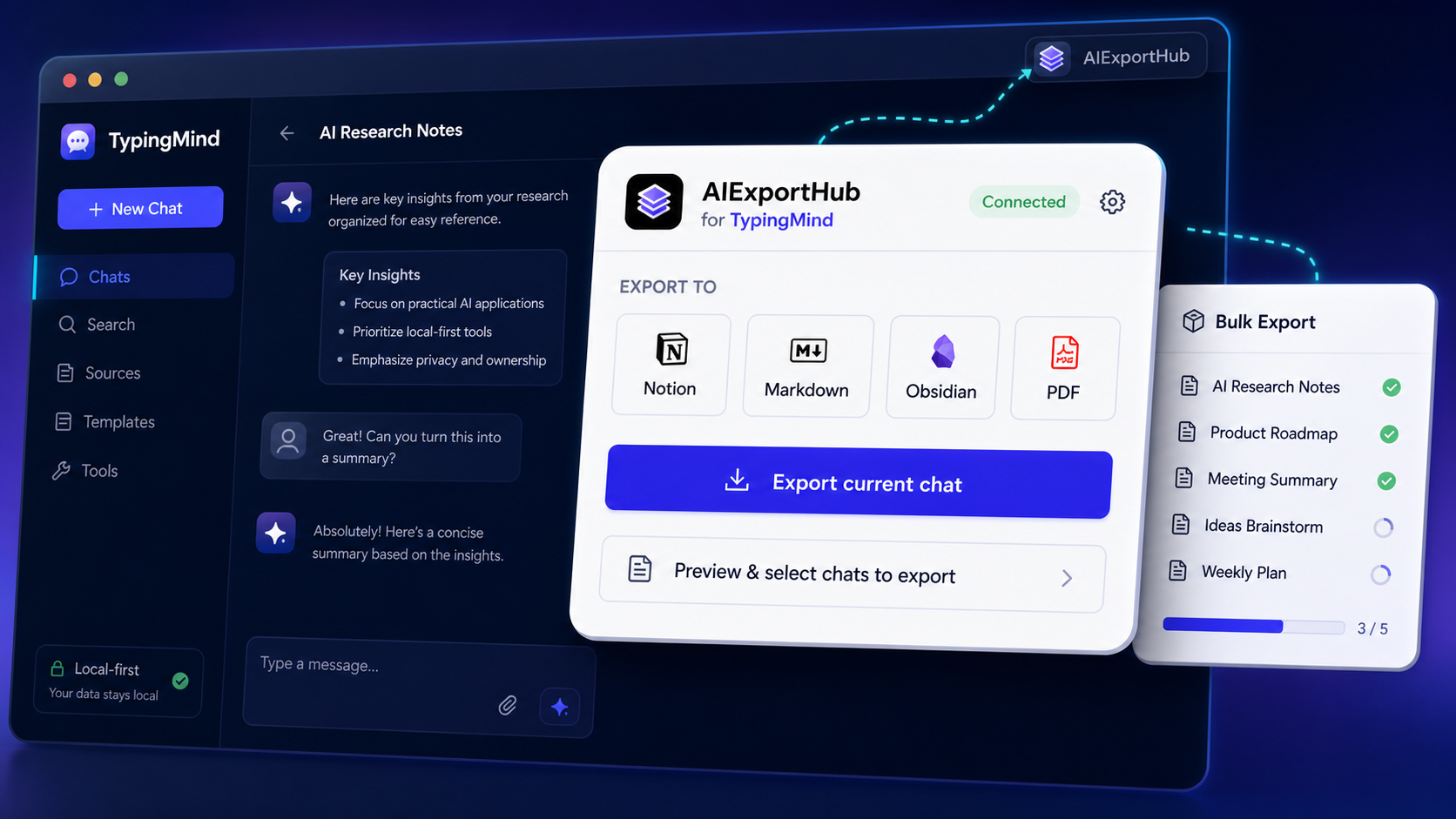
Why export TypingMind chats?
TypingMind conversations often become working memory for real projects:
- Research threads with source notes and conclusions.
- Product planning sessions.
- Debugging and coding conversations.
- Client deliverables and strategy drafts.
- Prompt experiments across different AI models.
- Personal knowledge work organized by folder and tag.
Manual copy-paste works for one short answer, but it does not scale to dozens of conversations. It also tends to break structure, lose metadata, and make old chats hard to search later.
Choose the right export format
| Destination | Use it when |
|---|---|
| Notion | You want a searchable database with metadata, tags, views, and team-friendly review |
| Markdown | You want portable local files that can live in Git, folders, or any Markdown editor |
| Obsidian | You want TypingMind conversations inside a private second-brain vault |
| You need stable documents for sharing, offline reading, audits, or client delivery |
Most users should start with Markdown for a quick formatting test, then configure Notion or Obsidian once the output looks right.
Export the current TypingMind conversation
Use current chat export when you only need the active TypingMind conversation.
- Open TypingMind and sign in.
- Open the conversation you want to save.
- Click the AIExportHub for TypingMind extension icon.
- Choose Notion, Markdown, Obsidian, or PDF.
- Click the direct export button for the active chat.
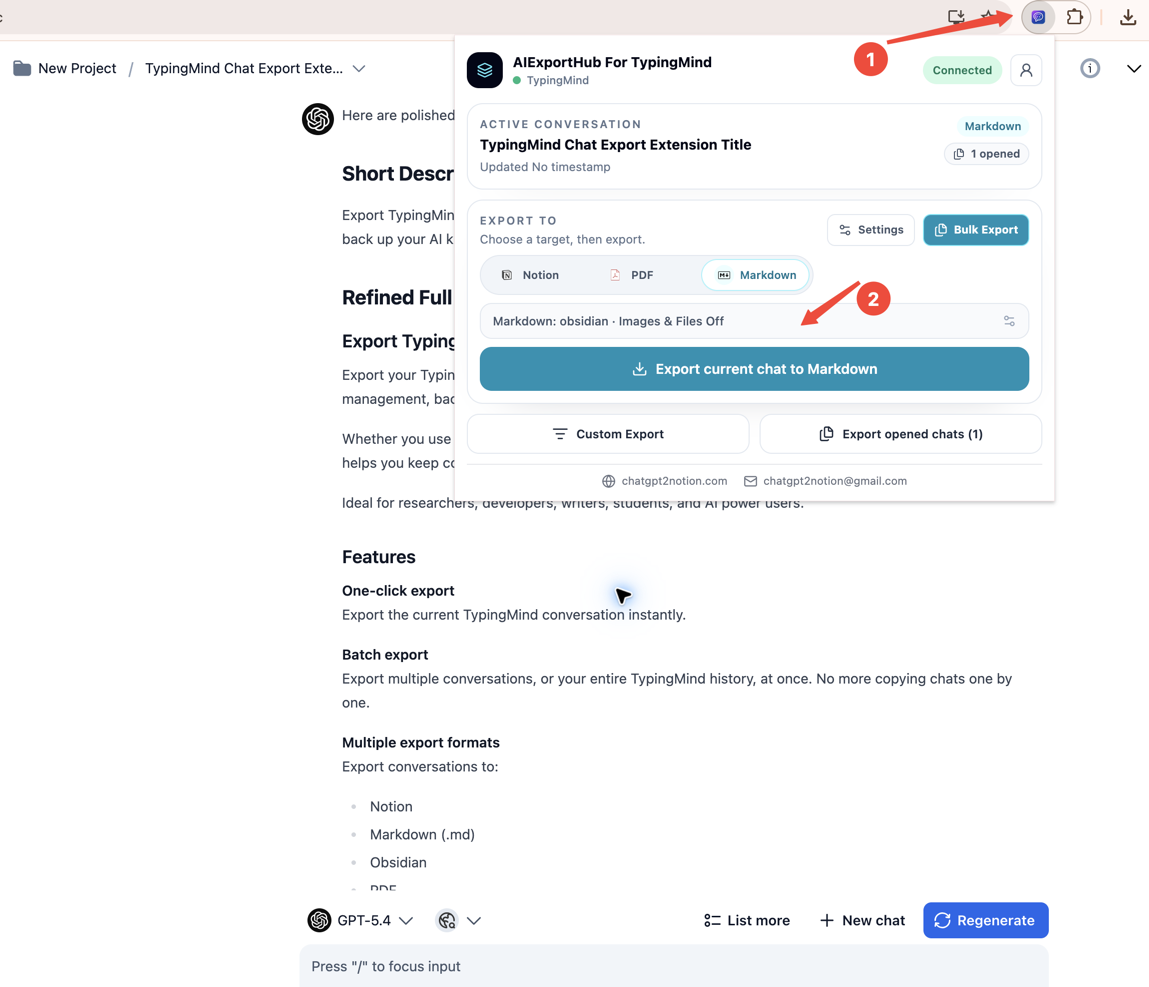
This workflow is useful for important one-off chats: a final research answer, a coding session you want in your notes, or a client-ready PDF.
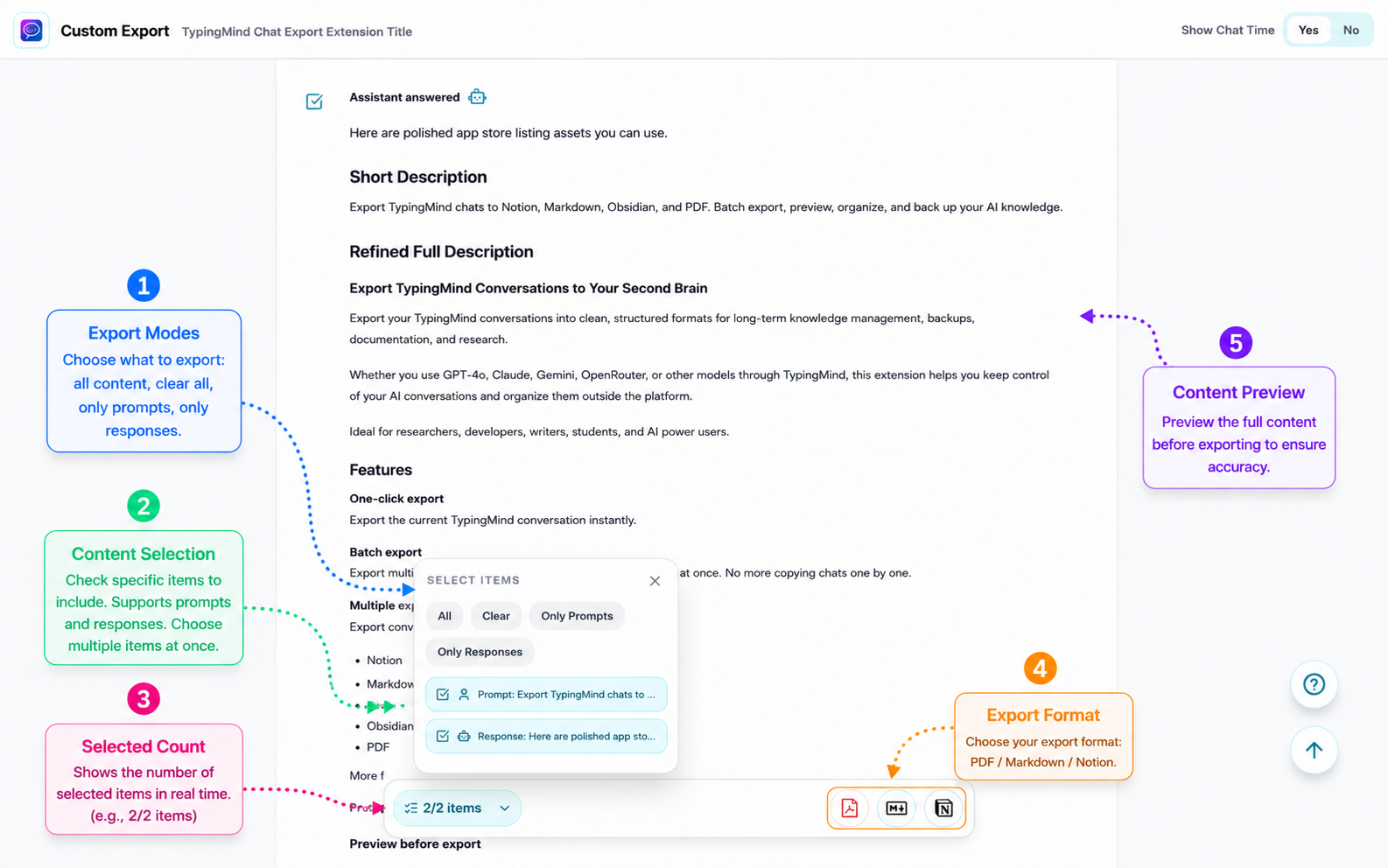
Preview and select before exporting
Preview is a separate single-chat workflow. Use Custom Export when you want to inspect the conversation first, select only certain prompts or responses, and then export the selected items.
Bulk export TypingMind conversations
Bulk export is for archiving many chats at once.
Open the AIExportHub workspace, confirm the source is TypingMind, choose the scope, select the export target, review the summary, then start the export job.
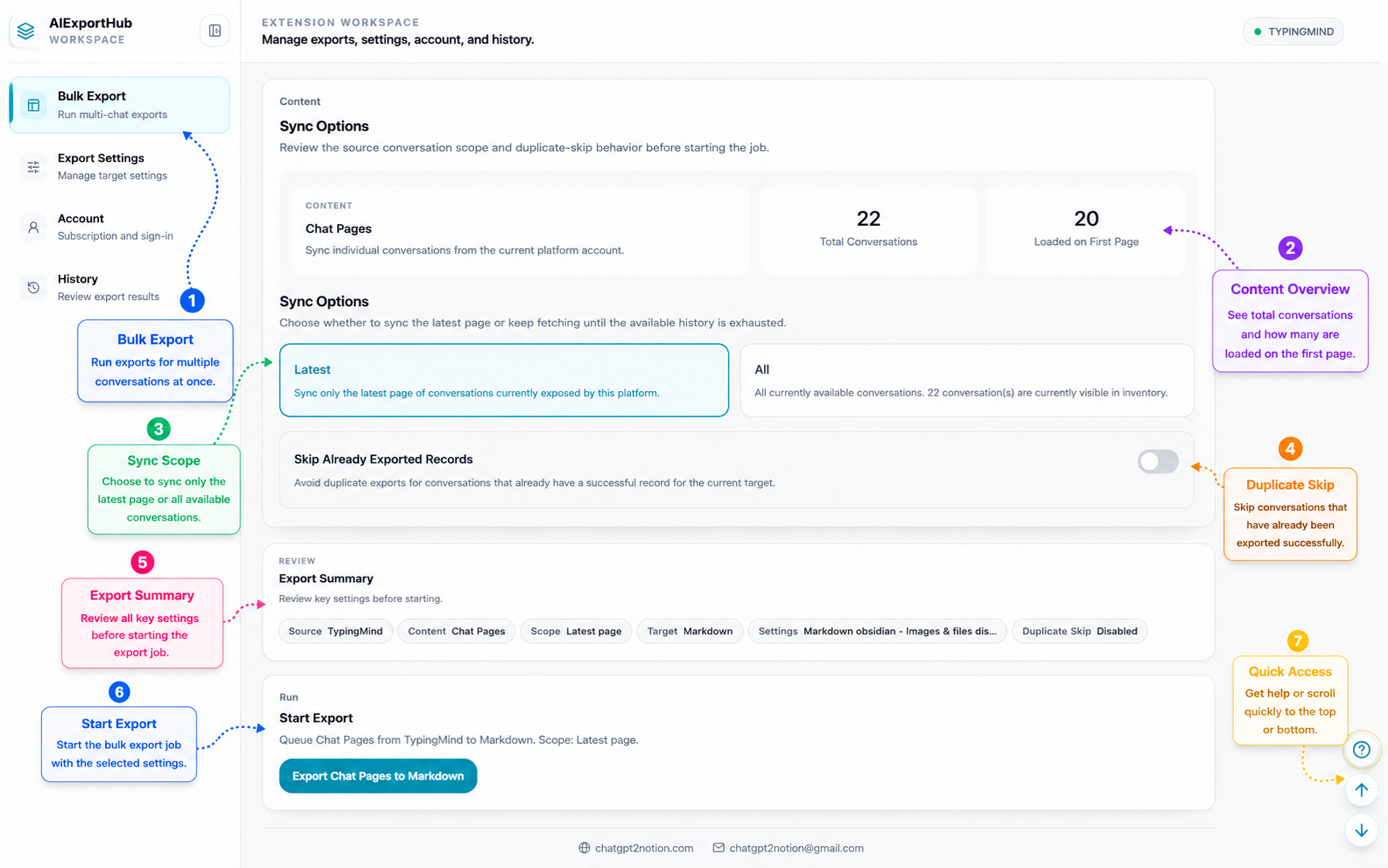
For large archives, start with a small export first. Check the formatting, filename behavior, folder organization, and target settings before exporting everything.
Export TypingMind chats to Notion
Notion is best when you want a structured, searchable knowledge base.
A good TypingMind Notion database should include:
- Title.
- Platform.
- Source URL.
- Tags.
- Folder or workspace context.
- Created time.
- Exported time.
- Message count.
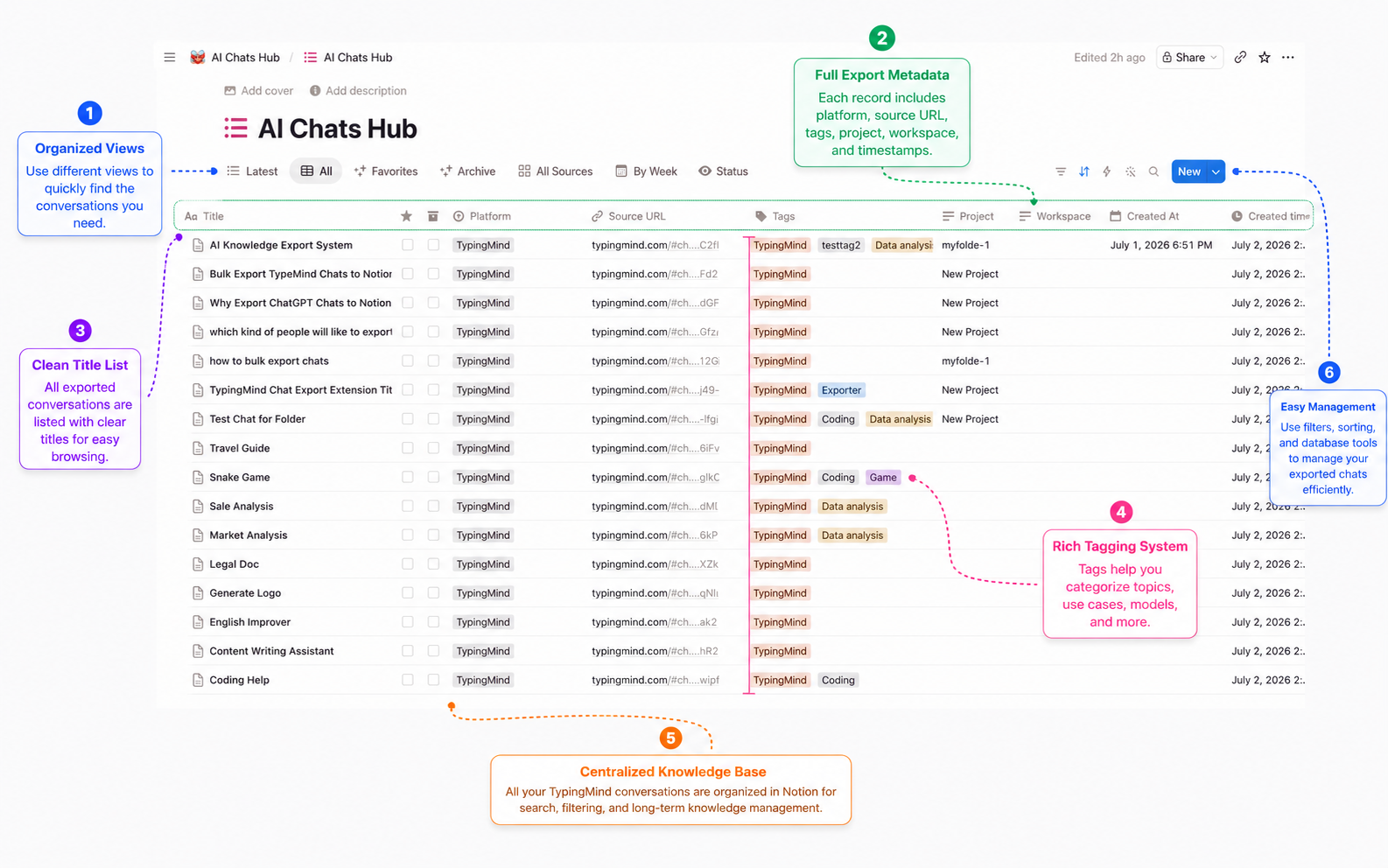
Once exported, you can build views by tag, folder, week, project, or archive status.
Export TypingMind chats to Markdown or Obsidian
Markdown is the best default for local ownership. It is portable, readable, and easy to store in a normal folder.
For Obsidian, keep metadata in YAML frontmatter when possible, then use TypingMind folder names or tags to organize your vault.
Recommended workflow:
- Export a few sample chats to Markdown.
- Review line breaks, code blocks, lists, and tables.
- Confirm filenames are readable.
- Move the files into your Obsidian vault.
- Use tags and folders to connect the exported chats to your existing notes.
If TypingMind folder context is available, folder-aware exports can save Markdown and PDF files into subdirectories that match your TypingMind organization.
Export TypingMind chats to PDF
PDF is useful when the output needs to be stable.
Use PDF for:
- Team review.
- Client delivery.
- Compliance records.
- Offline reading.
- Final versions of important research or plans.
After exporting, always open the PDF and check that long prompts, code blocks, and response line breaks remain readable.
Privacy notes
Markdown and PDF exports are generated in the browser and saved through Chrome downloads. Those local file exports do not require a middleman server.
Notion sync only runs when you explicitly connect your own Notion workspace and choose Notion as the export target.
Best practices
- Start with one current chat before running a bulk job.
- Use Markdown as a quick output sanity check.
- Use Notion when you need filtering, views, and review workflows.
- Use Obsidian when you want local-first knowledge management.
- Use PDF only for stable snapshots, not active notes.
- Keep duplicate skip enabled for recurring backups.
- Keep the TypingMind tab open while a bulk export is running.
Final thought
TypingMind is where many users do the work. Notion, Markdown, Obsidian, and PDF are where that work can become durable.
Use AIExportHub for TypingMind to move valuable conversations out of chat history and into a knowledge system you control.