
How to Sync Archived ChatGPT Chats to Obsidian
Archived ChatGPT chats are easy to forget.
They may not appear in your normal sidebar, but they can still contain useful research, old project decisions, writing drafts, prompts, and debugging history. If you are building a serious AI knowledge archive, archived chats should not be ignored.
This guide explains how to sync archived ChatGPT chats to Obsidian using ChatGPT to Obsidian.
Why Archived Chats Matter
People archive chats for many reasons:
- The project is finished.
- The chat is old but still useful.
- The sidebar is too crowded.
- The conversation contains reference material.
- The work should be hidden from daily view but not deleted.
That makes Archived Chats a high-value backup target.
How Archived Chats Export Works
ChatGPT to Obsidian includes an Archived Chats mode in Bulk Download.
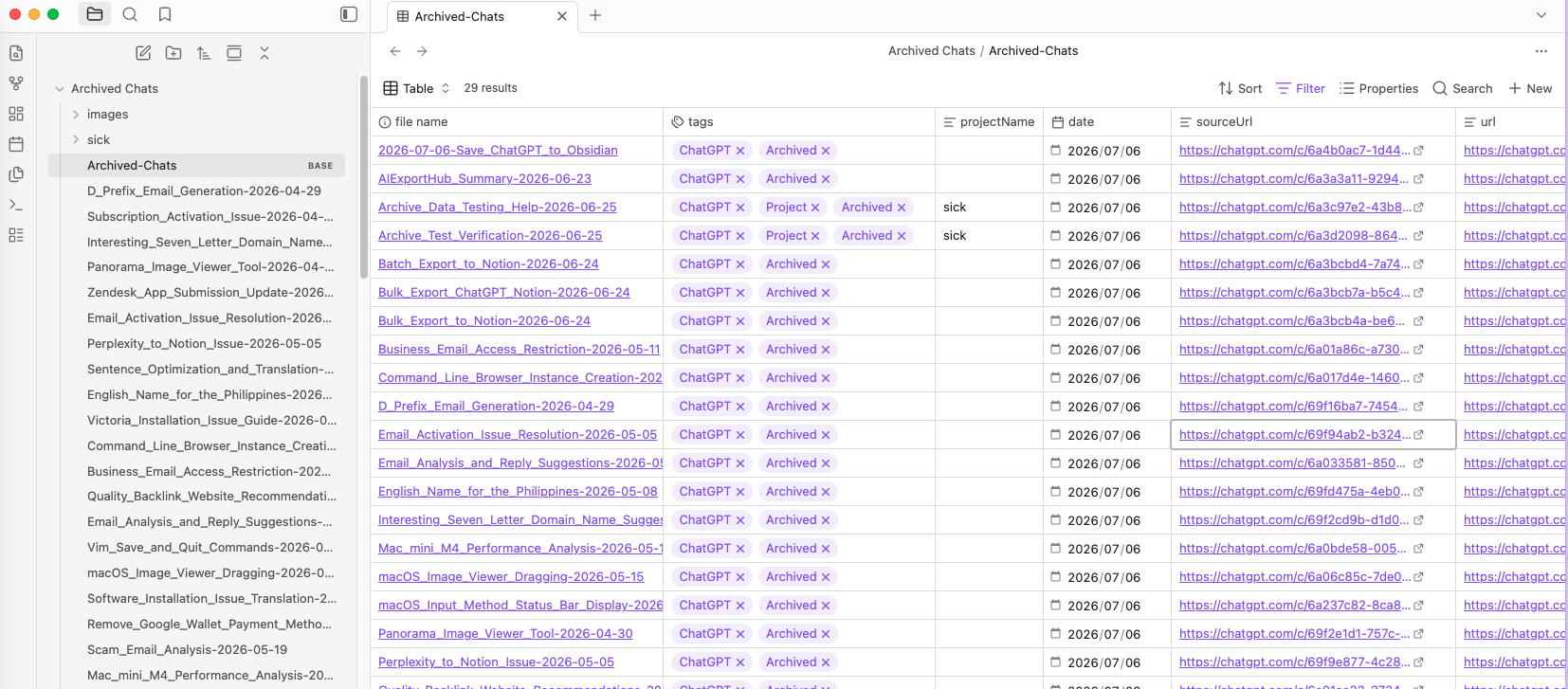
Archived exports are saved under a dedicated Archived Chats folder. When project context is available, project folders can be preserved too.
This keeps archived conversations separate from active notes, which is important for vault hygiene.
Suggested Vault Structure
Use a clear folder:
AI Chats/
  ChatGPT/
    Active Chats/
    Projects/
    Archived Chats/
If you have a large archive, add subfolders by year:
Archived Chats/
  2024/
  2025/
  2026/
You can also use tags instead of year folders if you prefer a flatter vault.
Keep Metadata for Traceability
Archived chats are harder to remember later, so metadata matters even more.
Use frontmatter like:
---
title: "Old onboarding flow discussion"
date: 2026-07-06
originalDate: 2025-11-18
updatedDate: 2025-12-02
platform: ChatGPT
sourceUrl: https://chatgpt.com/c/...
sourceId: conversation-id
messageCount: 47
tags:
  - archived
  - chatgpt
projectName: "Product Onboarding"
---
The originalDate tells you when the conversation began. The updatedDate tells you whether it changed later. The sourceUrl lets you return to the original ChatGPT page when available.
Step-by-Step Workflow
1. Open Bulk Download
Open ChatGPT to Obsidian and go to the bulk export workspace.
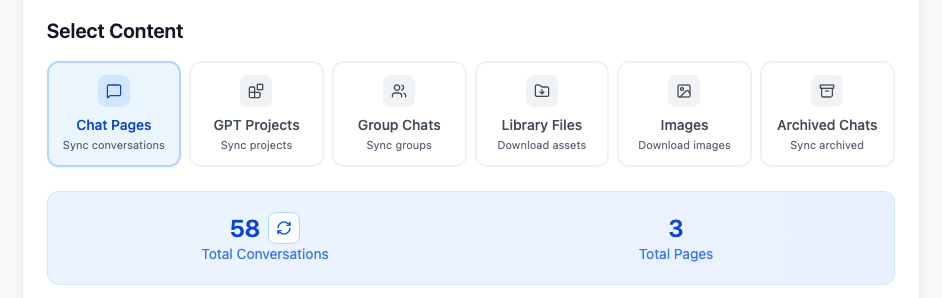
2. Choose Archived Chats
Select Archived Chats mode.
3. Export the latest page or full archived history
Use the export range that fits your goal. For a quick backup, export the latest archived page. For a complete archive, export all archived history when available.
4. Move the folder into Obsidian
Place the Archived Chats folder inside your AI archive area.
5. Review high-value old chats
Not every archived chat deserves a permanent note. After export, scan for chats that should be linked to active projects, decision logs, or research notes.
Avoid Duplicate Work
If you already exported some chats before, use skip settings carefully.
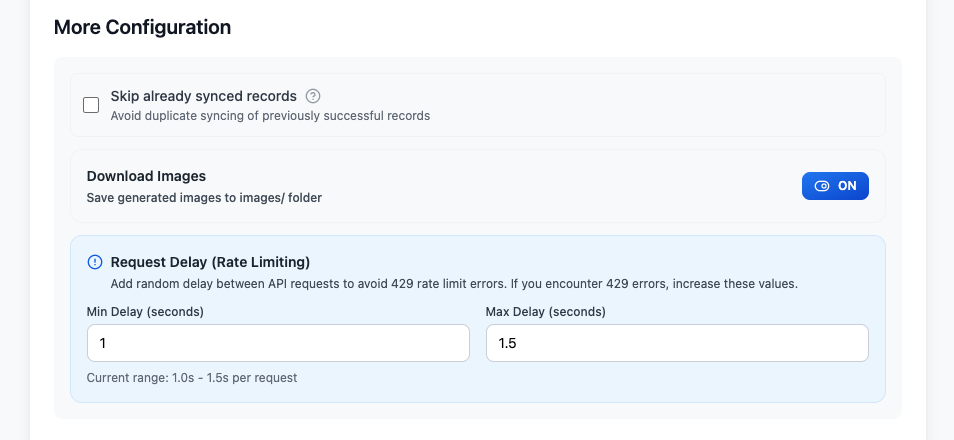
The safer behavior is to skip unchanged records but allow re-export when ChatGPT shows a newer updated time. That helps avoid both duplicate files and stale backups.
What to Check After Export
After syncing archived chats, check:
- Files are under
Archived Chats. - Project folders are preserved when available.
- Markdown opens in Obsidian.
- YAML frontmatter is present.
- Source URLs are included.
- Old but important chats are linked from active project notes.
When to Keep Archived Chats Separate
Keep archived chats separate when:
- You want a clean active workspace.
- The chat is reference material, not active work.
- The conversation belongs to an old project.
- You are doing a full historical backup.
Move an archived note into an active project folder only when you will use it again.
Final Thought
Archived chats are part of your AI memory.
Use ChatGPT to Obsidian to export them into a dedicated folder, keep source metadata, and link the few high-value conversations back into your active vault.