
Using several AI assistants creates a predictable archive problem.
ChatGPT holds coding sessions and Projects. Claude holds long writing threads, Artifacts, and Project conversations. Gemini may organize work through Gems. Perplexity stores source-backed research inside threads and Spaces.
Exporting everything as one flat list throws away that context. Exporting one conversation at a time takes too long.
AIExportHub provides one Chrome workspace for current-chat export, complete supported history, Selective Export, and platform collections, with Notion, Markdown, Obsidian-compatible Markdown, and PDF as destinations.
Start with the archive goal
Choose the smallest scope that produces a useful archive.
| Goal | Recommended scope |
|---|---|
| Save one completed conversation | Current conversation |
| Back up recent work | Latest loaded history |
| Create a complete account archive | Complete supported history |
| Migrate one topic or client | Selective Export |
| Preserve ongoing work context | Project, Gem, or Space |
| Download ChatGPT media separately | Library downloader |
A complete-history export is not automatically better. A smaller, verified archive is more useful than thousands of files you never inspect.
What each platform supports
ChatGPT
AIExportHub can export regular conversations, selected chats, Projects, group chats, and archived conversations.
ChatGPT Library has a separate bulk downloader because images and files are not conversation records. It supports filters, paged loading, cancellation, skip-downloaded behavior, organized folders, export summaries, and an offline HTML index.
Claude
Claude supports current chat, latest or complete history, selected conversations, entire Projects, and selected conversations inside a Project.
Supported attachments, generated files, linked assets, images, SVG visualizations, and readable Artifacts can follow the conversation into the chosen destination.
Gemini
Gemini supports individual conversations, complete history, selected conversations, Gems, and selected conversations from a Gem.
Supported images and media are handled across Notion, Markdown, and PDF rather than being limited to a single export format.
Perplexity
Perplexity supports all threads, selected threads, and conversations from selected Spaces. Date filters can narrow the history before the queue is created.
A useful Perplexity export should preserve answers, citations, sources, related questions, generated images, uploaded files, research documents, and code assets when those records are available.
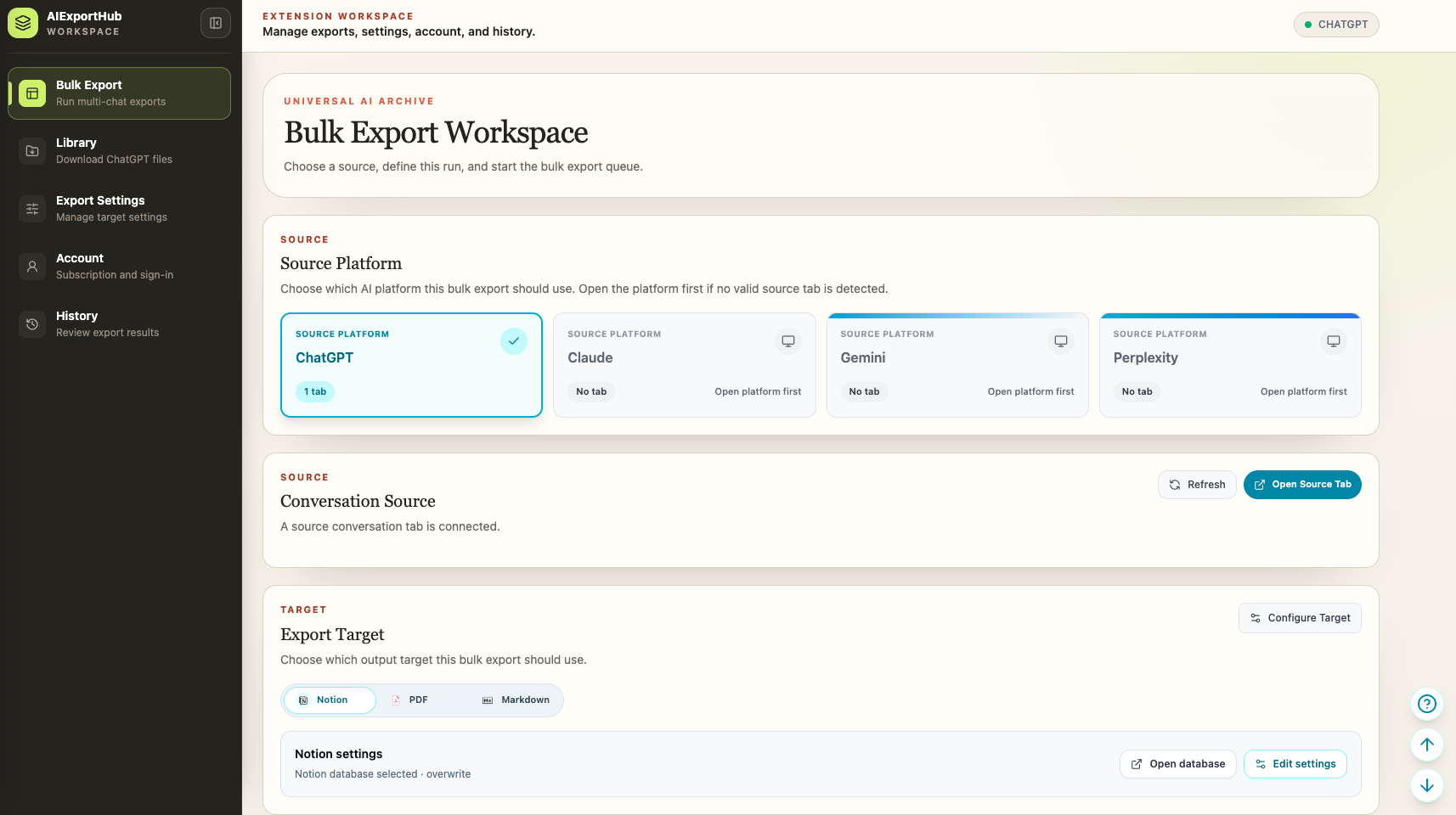
Step 1: Connect the source tab
Open the AI platform in Chrome, sign in, and keep that tab open.
The connected tab does two jobs:
- Loads conversation lists and details.
- Retrieves supported protected assets that depend on the signed-in source session.
Closing it after the list loads can still break a later attachment stage.
Step 2: Choose the export mode
Open Bulk Export and choose the platform.
Then select:
- Latest or complete history
- Selective Export
- A platform collection
- ChatGPT Library when the goal is asset download
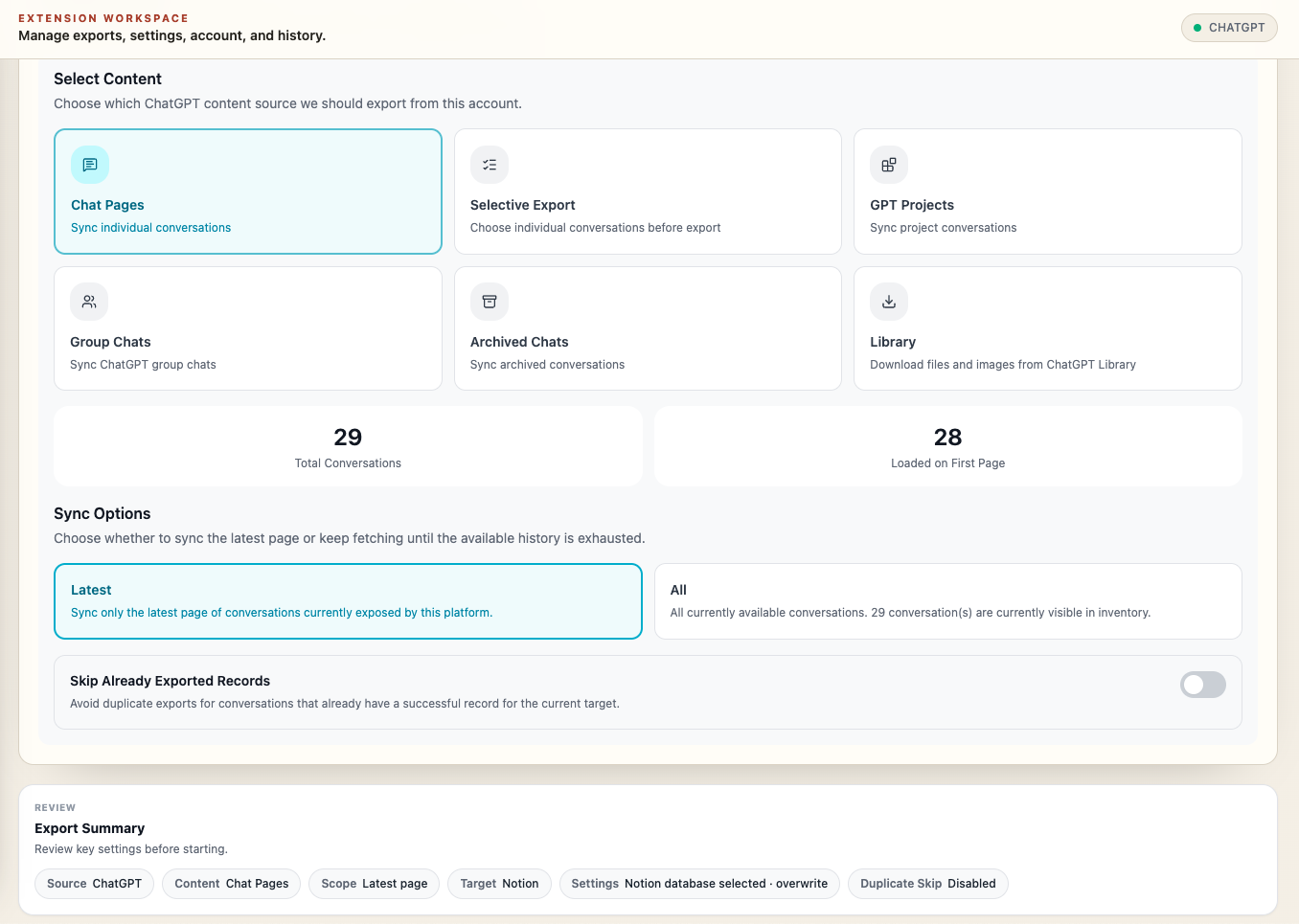
For a first run, choose a small selection containing the kinds of code, tables, images, or files you actually care about.
Step 3: Choose Notion, Markdown, or PDF
Choose Notion for structured knowledge
Notion works best when you want a shared database with source URL, platform, timestamps, message count, tags, and collection metadata.
Supported images and files can be uploaded. Readable generated Markdown, text, JSON, HTML, code, or SVG content can become child pages near the message that created it.
Choose Markdown or Obsidian for portability
Markdown works well for local archives, code editors, Git repositories, and Obsidian vaults.
Supported images and attachments are downloaded into sibling folders, and available links are rewritten to local paths. The result stays readable without a proprietary application or cloud workspace.
Choose PDF for stable review copies
PDF works well for client deliverables, research archives, documentation, and offline reading.
Supported images are embedded in the document. Supported non-image files are downloaded beside the PDF as attachments.
Step 4: Configure duplicate and stability controls
Enable Skip Already Exported Records for recurring backups.
Use an export delay when a long history needs more time between conversation detail requests. Perplexity jobs stop cleanly when the platform explicitly rate limits the workflow; wait, reduce the scope, and retry failed records instead of immediately restarting everything.
Step 5: Review the summary
Before starting, verify:
- Correct account and source tab
- Export mode
- Selected conversation count
- Target and destination folder or database
- Duplicate behavior
- Image and file settings
- Delay and date range
This thirty-second check can prevent a complete history from being written to the wrong Notion database or local folder.
Step 6: Monitor and verify
During the job, watch completed, failed, skipped, and warning counts.
Afterward, open a representative result and check:
- First and last message
- Source URL
- Code and tables
- Project, Gem, or Space metadata
- Images and attachments
- Generated documents or Artifacts
- Citation and source links
Retry failed items rather than recreating the complete queue.
A practical backup schedule
Use a layered routine:
- Export important conversations when they are completed.
- Run Selective Export weekly for anything you missed.
- Back up active Projects, Gems, or Spaces at milestones.
- Run complete history less frequently with duplicate protection enabled.
- Download ChatGPT Library assets on a separate schedule.
This keeps the archive current without repeatedly processing every historical record.
Final checklist
- Source tab stayed open and signed in
- Scope matched the archive goal
- Correct destination was selected
- Media handling was enabled when needed
- Complete history was tested with a small batch first
- Warnings and failed items were reviewed
- Output works after leaving the source platform
Install AIExportHub or follow the complete Bulk Export documentation.