
Bulk Export AI Chats
Bulk export complete or recent ChatGPT, Claude, Gemini, and Perplexity histories to Notion, Markdown, Obsidian, or PDF with progress, retry, and rate-limit controls.
Bulk Export is designed for initial backups, recurring archives, research collections, and other jobs that contain more conversations than a practical one-by-one workflow.
Before you start
- Install AIExportHub and refresh the supported source platform tab.
- Sign in to the source platform and keep that tab open.
- Choose Notion, PDF, or Markdown as the target.
- For Notion, connect a workspace and select a database.
- Test one representative conversation before starting a complete history job.
Step 1: Open the workspace
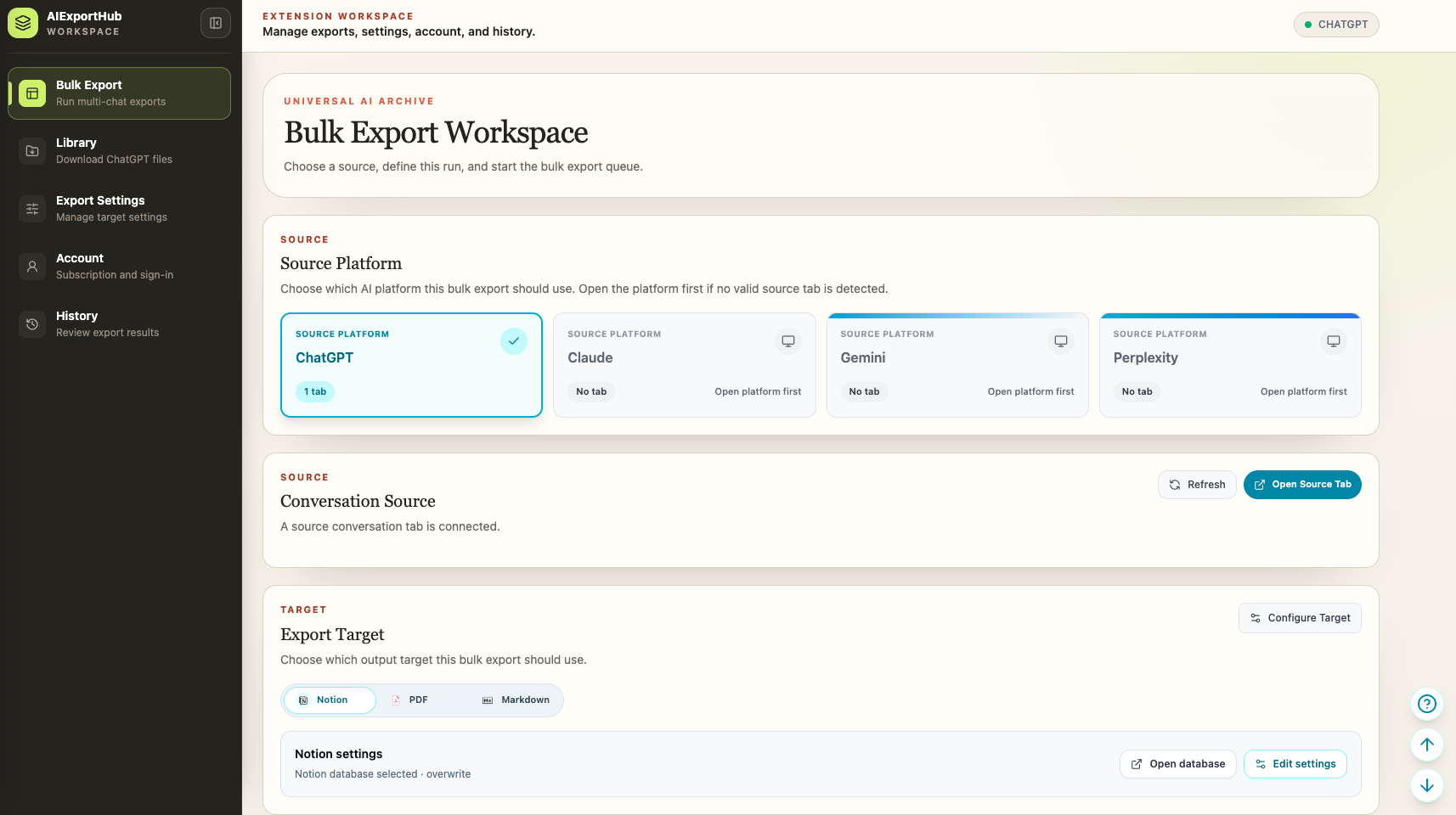
Open AIExportHub and choose Bulk Export, or open the extension options page directly.
The workspace separates five decisions:
- Source platform
- Export mode
- Conversation or collection scope
- Export target
- Job and duplicate settings
Step 2: Connect a source tab
Choose an open, signed-in tab for:
- ChatGPT
- Claude
- Gemini
- Perplexity
The same connected tab is used to load conversation details and retrieve supported authenticated assets. If the status is disconnected, refresh the source page and reconnect before loading history.
Step 3: Choose a platform mode
ChatGPT
AIExportHub supports:
- Regular conversation history
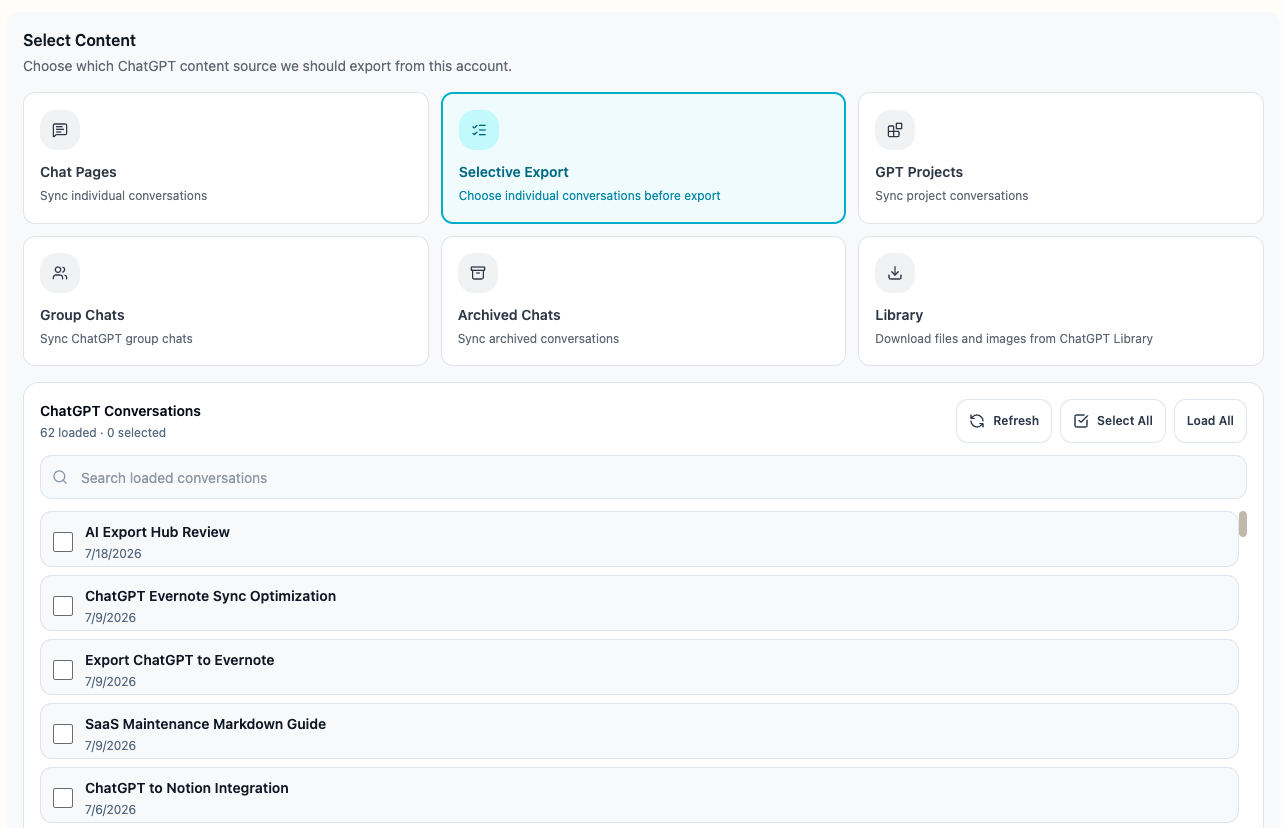
- Selective conversation export
- Projects
- Group chats
- Archived conversations
- ChatGPT Library images and files
Library uses its own downloader. The other modes create conversation export jobs for Notion, PDF, or Markdown.
Claude
AIExportHub supports:
- Latest loaded history
- Complete history
- Selective conversation export
- Complete Claude Projects
- Selected conversations inside a Claude Project
Claude attachments, generated files, linked assets, images, SVG visualizations, and readable Artifacts are preserved when available.
Gemini
AIExportHub supports:
- Individual or complete conversation history
- Selective conversation export
- Gems
- Selected conversations from a Gem
Supported Gemini images and media flow through the same Notion, Markdown, and PDF delivery pipeline.
Perplexity
AIExportHub supports:
- All Threads
- Selective thread export
- Conversations from selected Spaces
- Date filtering for history jobs
Perplexity jobs preserve sources, citations, related questions, generated images, uploaded media, research documents, code assets, and downloadable binary files when those records are available.
Step 4: Choose latest, all, or selected
Use the smallest scope that satisfies the backup goal:
| Scope | What it does | Best use |
|---|---|---|
| Latest | Exports the currently loaded conversation page | First test or recent backup |
| All | Continues loading until supported history is exhausted | Complete archive |
| Selective | Exports only checked conversations | Topic, client, course, or migration batch |
| Collection | Exports all or selected records from a Project, Gem, or Space | Preserve platform organization |
For Selective Export details, read Selective and Collection Export.
Step 5: Choose the export target
- Notion creates structured pages in the selected database and uploads supported media or files.
- PDF creates readable conversation documents, embeds supported images, and downloads supported non-image files alongside them.
- Markdown creates portable notes with images and attachments in sibling folders.
Image and file handling is enabled by default. Review Export Settings if you need different folder or media behavior.
Step 6: Configure duplicate and stability controls
Skip already exported records
Enable Skip Already Exported Records for recurring backups. AIExportHub compares the current target and local job records before queueing work.
Export delay
Use the configured delay when a platform needs more time between detail requests. A delay can improve stability for large archives and reduce avoidable rate-limit errors.
Perplexity date range
For Perplexity history or Space workflows, use date filters to limit the queue before export starts.
Step 7: Review the export summary
Before running a large job, confirm:
- Platform and connected source tab
- Export mode and item count
- Selected target
- Notion database or local directory
- Duplicate behavior
- Image and file settings
- Delay or date filters
Step 8: Run and monitor the job
AIExportHub reports:
- Total items
- Completed items
- Failed items
- Skipped items
- Warnings
- Current conversation or attachment stage
You can cancel an active job. After completion or failure, retry only the failed items instead of restarting the entire archive.
What happens when a platform rate limits the job
AIExportHub uses controlled sequential work rather than flooding a source platform with simultaneous requests.
When Perplexity explicitly rate limits a history job, AIExportHub stops cleanly and reports a retry message instead of continuing to send requests. Wait, reduce the scope, increase the delay, and retry the failed records.
Keep authenticated files available
Some generated files and attachments cannot be fetched from an unrelated extension page because they depend on the source platform session.
Keep the original signed-in source tab open until the job and all attachment stages finish. This is particularly important for protected ChatGPT generated files and other session-bound assets.
Bulk export access
Single export and Custom Export are free. Bulk Export includes a per-platform free quota, then requires an active Pro or Lifetime plan for unlimited use.
If the workspace shows Upgrade required for bulk export, open AIExportHub Pricing and sign in with the same account after upgrading.
Best practices
- Test a media-rich conversation, not only a short text chat.
- Use Selective Export for the first multi-chat run.
- Keep the source tab and Bulk Export Workspace open.
- Use duplicate protection for recurring backups.
- Add a delay before retrying a rate-limited job.
- Check warnings for unavailable source assets.
- Verify the first and last message, source URL, images, files, and collection metadata in the output.
Ready to try Aiexporthub Hero?
Open the product page for feature details, screenshots, pricing, and the Chrome Web Store install link.