
Images, Files, and Generated Assets
Understand how AIExportHub retrieves and exports ChatGPT files, Claude Artifacts, Gemini media, and Perplexity images or research assets to Notion, Markdown, and PDF.
AI conversations often contain more than text. A durable export may need images, uploaded documents, generated Markdown, code, SVG visualizations, PDFs, research files, and other downloadable assets.
AIExportHub uses one shared media pipeline while respecting the way each source platform exposes its assets.
Default behavior
Media handling is enabled by default:
- Markdown downloads supported images and files.
- PDF embeds supported images and downloads non-image attachments alongside the document.
- Notion uploads supported images and files to your authorized workspace.
You can change these options in Export Settings.
Why the connected source tab matters
Some files use temporary or authenticated URLs. They cannot be downloaded reliably from the extension options page, popup, or an unrelated background request.
AIExportHub retrieves supported protected assets through the connected source tab that loaded the conversation. Keep that tab open and signed in until the export finishes.
ChatGPT assets
AIExportHub can preserve supported:
- Uploaded attachments
- Generated documents
- Generated Markdown files
- Images
- Sandbox files linked from conversation content
- ChatGPT Library images and files
Generated sandbox links require a two-stage authenticated flow: resolve the interpreter download through the connected ChatGPT tab, then retrieve the signed file while the same source session remains available.
If the source tab is missing or signed out, AIExportHub reports the original download problem instead of pretending the file had no bytes.
Claude assets
AIExportHub can preserve supported:
- Attachments
- Generated files
- Linked assets
- Images
- SVG visualizations
- Readable Artifacts
Claude may return the same attachment through multiple internal records. AIExportHub deduplicates those records before export.
For Notion, generated child pages are inserted near the message that created them without adding a second duplicate page link at the top.
Gemini media
Supported Gemini images and media are routed through Notion, Markdown, and PDF rather than being limited to one target.
For PDF, supported images are included with the selected light, dark, or eye-care theme and readable message style.
Perplexity assets
Perplexity can expose one generated image through several data structures, including assets, plan results, media blocks, inline media, canvas data, and unified asset responses.
AIExportHub scans the supported structures and deduplicates repeated URLs before export. It can preserve supported:
- Generated images
- Uploaded images
- Uploaded files
- Generated research documents
- Code assets
- Document files
- Downloadable binary assets
- Citations and source links
Markdown and Obsidian output
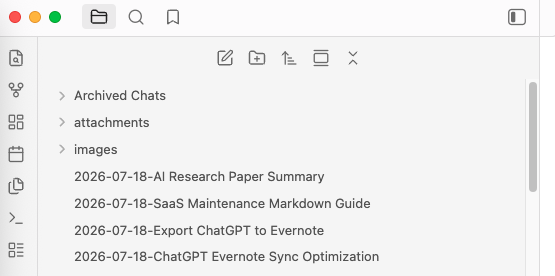
Markdown keeps the transcript portable while placing binary assets beside the note.
A typical export can look like:
AI-Exports/
  conversation-title.md
  images/
    generated-chart.png
    uploaded-reference.webp
  attachments/
    analysis-report.md
    source-data.csv
AIExportHub rewrites supported links to the downloaded local asset paths. Readable generated documents may also appear inline when that makes the note more useful.
PDF output
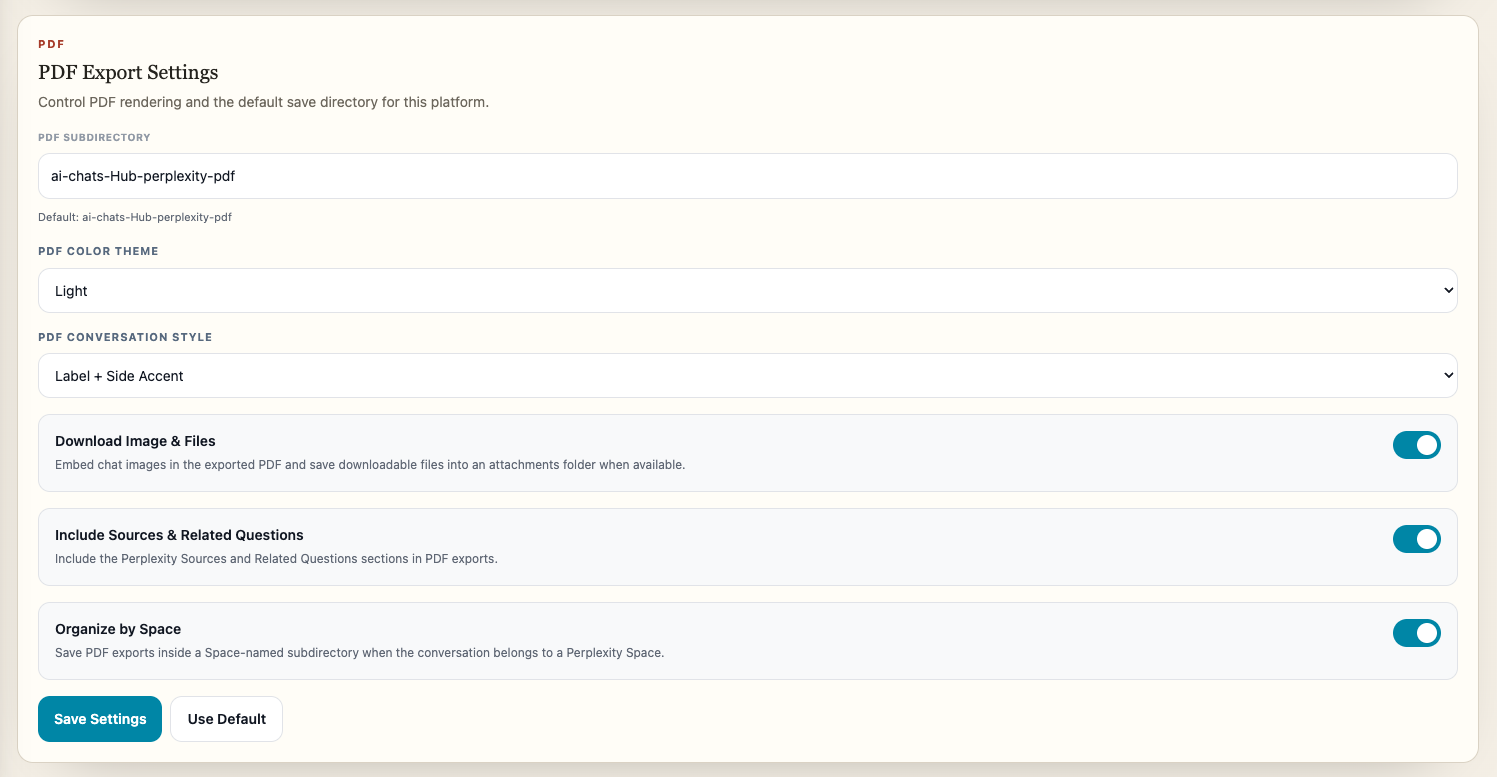
PDF uses two delivery strategies:
- Supported images are embedded directly in the conversation document.
- Supported non-image files are downloaded alongside the PDF as attachments.
This keeps the PDF readable while avoiding opaque or unreliable embedded file behavior.
Notion output
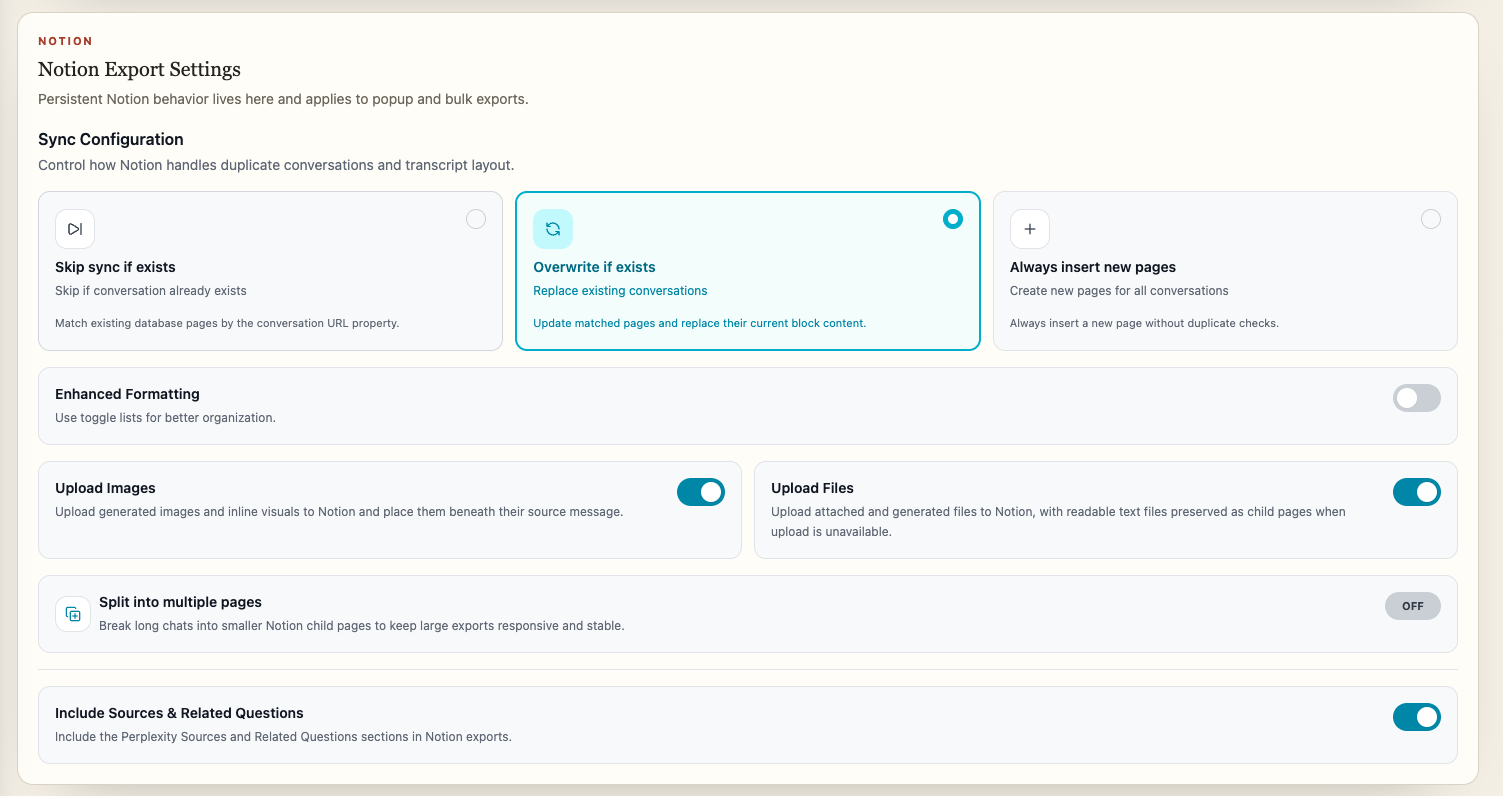
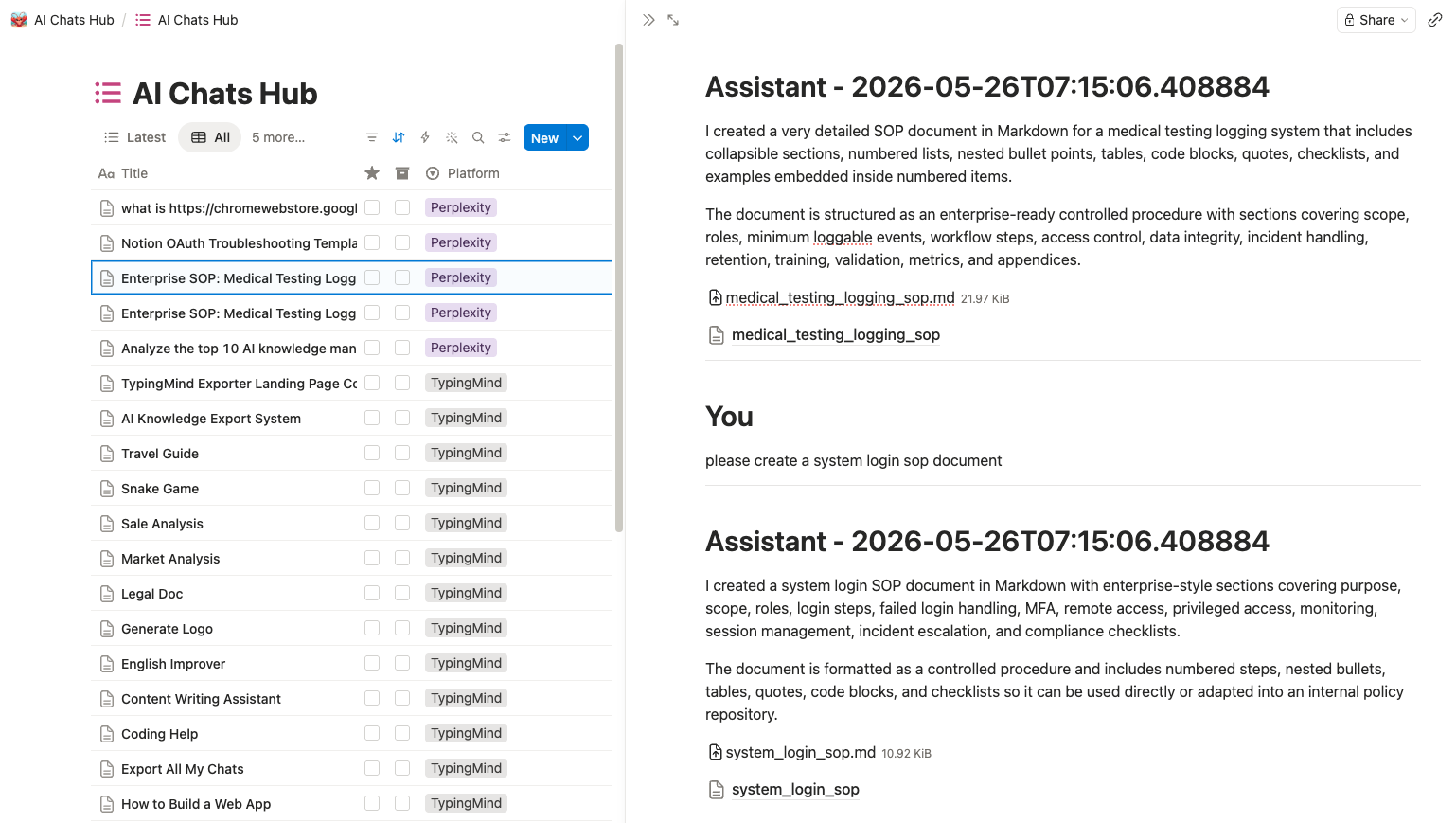
For supported assets, AIExportHub can:
- Upload images
- Upload documents, PDFs, and other files
- Preserve readable text-based assets as child pages
- Normalize SVG content before rendering it into a useful page
- Position generated child pages near the source message
- Report per-file progress, warnings, and failures
Readable fallbacks can include Markdown, text, JSON, HTML, code, and SVG content.
When an asset cannot be exported
An asset may fail when:
- The source tab is closed or signed out
- The temporary source URL expired
- The source platform no longer returns file bytes
- The conversation or asset was deleted
- Notion rejects the upload
- A network request is interrupted
- The platform rate limits the detail request
AIExportHub cannot reconstruct bytes that the source platform no longer provides.
Verification checklist
After a media-rich export, confirm:
- The image is visible offline or inside Notion
- The filename is recognizable
- The attachment opens
- Local Markdown links point to the sibling asset folder
- PDF images are embedded and non-image attachments exist beside the document
- Notion child pages appear once and near the correct message
- Duplicate Perplexity or Claude asset records were not rendered twice
- The job summary has no unresolved attachment warnings
Troubleshooting
Keep the source tab open, confirm the original conversation still displays the file, refresh the tab, and retry the failed item.
If the same problem repeats, copy the specific attachment-stage error from the export details and read Troubleshooting.
Ready to try Aiexporthub Hero?
Open the product page for feature details, screenshots, pricing, and the Chrome Web Store install link.