
AI Logo
AI Exporter Hub

Gemini export hub

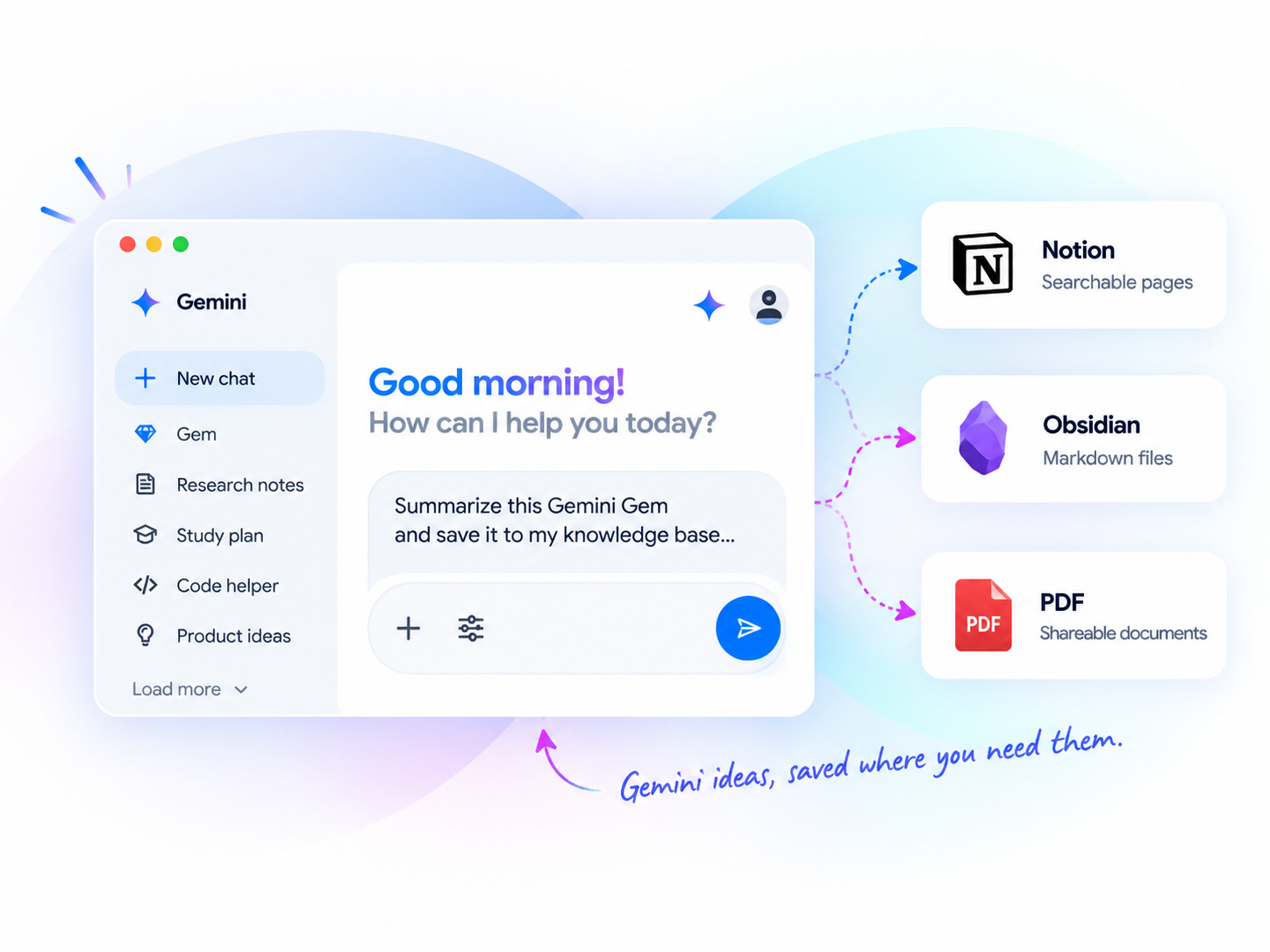
Export Gemini Chats to Obsidian, Markdown, PDF, or Notion

Turn your Gemini conversations and Gemini Gems into a real knowledge base. Export them as Markdown files, clean PDFs, or searchable Notion database pages.

One Gemini conversation. Three ways to save it.

Why export Gemini chats

Your Gemini chats are valuable, but hard to reuse later.

Gemini conversations often contain research, code, ideas, summaries, and project decisions. But if they stay inside Gemini history, they are difficult to organize, search, share, or archive.

Exporting your Gemini chats lets you turn temporary AI conversations into long-term knowledge assets.

Hard to find old Gemini answers

Difficult to organize Gemini Gems conversations

Copy-paste breaks formatting

Images, code blocks, and tables may be lost

No clean way to archive or share important AI conversations

Gemini export chooser

Choose the best way to save your Gemini conversations

Choose the best Gemini export format for your workflow.

Gemini to Obsidian / Markdown

Best for researchers, developers, writers, and knowledge workers who want a local Markdown knowledge base.

  • Export Gemini chats as clean Markdown files
  • Save conversations into your Obsidian vault
  • Preserve code blocks, tables, and formatting
  • Export images locally
  • Great for Gemini Gems and long-term knowledge management

Gemini to PDF

Best for archiving, printing, sharing, reviewing, or delivering Gemini conversations as clean PDF files.

  • Export Gemini chats as clean PDF documents
  • Preserve images, tables, code blocks, and formatting
  • Great for reports, research sessions, client delivery, and offline reading
  • Easy to store, print, or share

Gemini to Notion

Best for users and teams who want to organize Gemini conversations inside a searchable Notion database.

  • Export Gemini chats to Notion database pages
  • Organize conversations by project, topic, date, or use case
  • Search and manage Gemini research in Notion
  • Useful for teams, consultants, creators, and project managers

Note: Image export is not supported in Gemini to Notion. Use Obsidian / Markdown or PDF if you need images.

Compare formats

Gemini Export Comparison

Use this table to choose between Gemini to Obsidian, Gemini to Markdown, Gemini to PDF, and Gemini to Notion workflows.

Feature Gemini to Obsidian / Markdown Gemini to PDF Gemini to Notion
Export current Gemini chat Yes Yes Yes
Batch export Gemini chats Yes Yes Yes
Export Gemini Gems conversations Yes Yes Yes
Export format Markdown PDF Notion database pages
Best for Local knowledge base Archive / share / print Team database / Notion workflow
Image export Yes Yes No
Code block support Yes Yes Yes
Table / Markdown formatting Yes Yes Yes
Local files Yes Yes No
Searchable knowledge base Obsidian search PDF search Notion search
Best user type Researchers / developers / writers Students / consultants / researchers Teams / creators / project managers

If you want a local AI knowledge base, choose Obsidian / Markdown.

If you want a clean archive or shareable document, choose PDF.

If you want a structured team database, choose Notion.

Use cases

Which Gemini exporter should you use?

Pick the exporter that matches how you reuse Gemini conversations after the chat is done.

For researchers

Use Gemini to Obsidian / Markdown to build a local research knowledge base. Use PDF when you need to archive or share a research session.

For students

Use Gemini to PDF to save study sessions, summaries, and explanations as printable files. Use Notion if you want to organize learning notes by subject.

For developers

Use Gemini to Markdown or Obsidian to save coding discussions, prompts, debugging notes, and technical explanations with code blocks preserved.

For consultants

Use Gemini to PDF for client-ready documents and Gemini to Notion for project-based knowledge management.

For teams

Use Gemini to Notion to keep Gemini conversations in a shared searchable database.

Video tutorials

Watch Gemini Export Tutorials

Learn how to export Gemini chats, Gemini Gems, and Gemini research sessions into Obsidian, Markdown, PDF, and Notion.

How to Export Gemini Chats to Obsidian as Markdown Files

Learn how to turn Gemini conversations into clean Markdown files for Obsidian.

Open Obsidian exporter

How to Export Gemini Chats to PDF with Images

Save Gemini conversations as clean PDF files with images, code blocks, and tables.

Open PDF exporter

How to One-Click Bulk Export of Gemini Chats to Notion | Chrome Extension Full Demo

Organize Gemini conversations inside a searchable Notion database.

Open Notion exporter

FAQ

Gemini Export FAQ

Can I export Gemini chats to Obsidian?

Yes. You can export Gemini conversations as Markdown files and save them into your Obsidian vault.

Can I export Gemini Gems conversations?

Yes. The Gemini export tools are designed to help you save Gemini chats and Gemini Gems conversations for long-term use.

Which format should I choose: Markdown, PDF, or Notion?

Choose Markdown or Obsidian if you want a local knowledge base. Choose PDF if you want clean archives for sharing or printing. Choose Notion if you want a searchable database for team or project workflows.

Does Gemini to Notion support image export?

No. Gemini to Notion focuses on structured database export. If you need image export, use Gemini to Obsidian / Markdown or Gemini to PDF.

Can I batch export Gemini chats?

Yes. The Gemini export tools support batch export workflows for saving multiple Gemini conversations more efficiently.

Is my Gemini data uploaded to your server?

The Gemini to Obsidian / Markdown and Gemini to PDF workflows are local-first. Gemini to Notion sends content directly from your browser to your connected Notion account, based on the same privacy model described on the product pages.

Turn Gemini chats into your knowledge base

Stop leaving valuable Gemini answers inside chat history. Export them to the format that fits your workflow.