
Gemini to Obsidian / Markdown
Use Gemini to Obsidian / Markdown if you want a local knowledge base, clean Markdown files, image export, and long-term note management.
Export current chats, selected messages, full history, or Gem conversations from Google Gemini into clean PDFs with Custom Preview, flexible naming, and local-only processing.
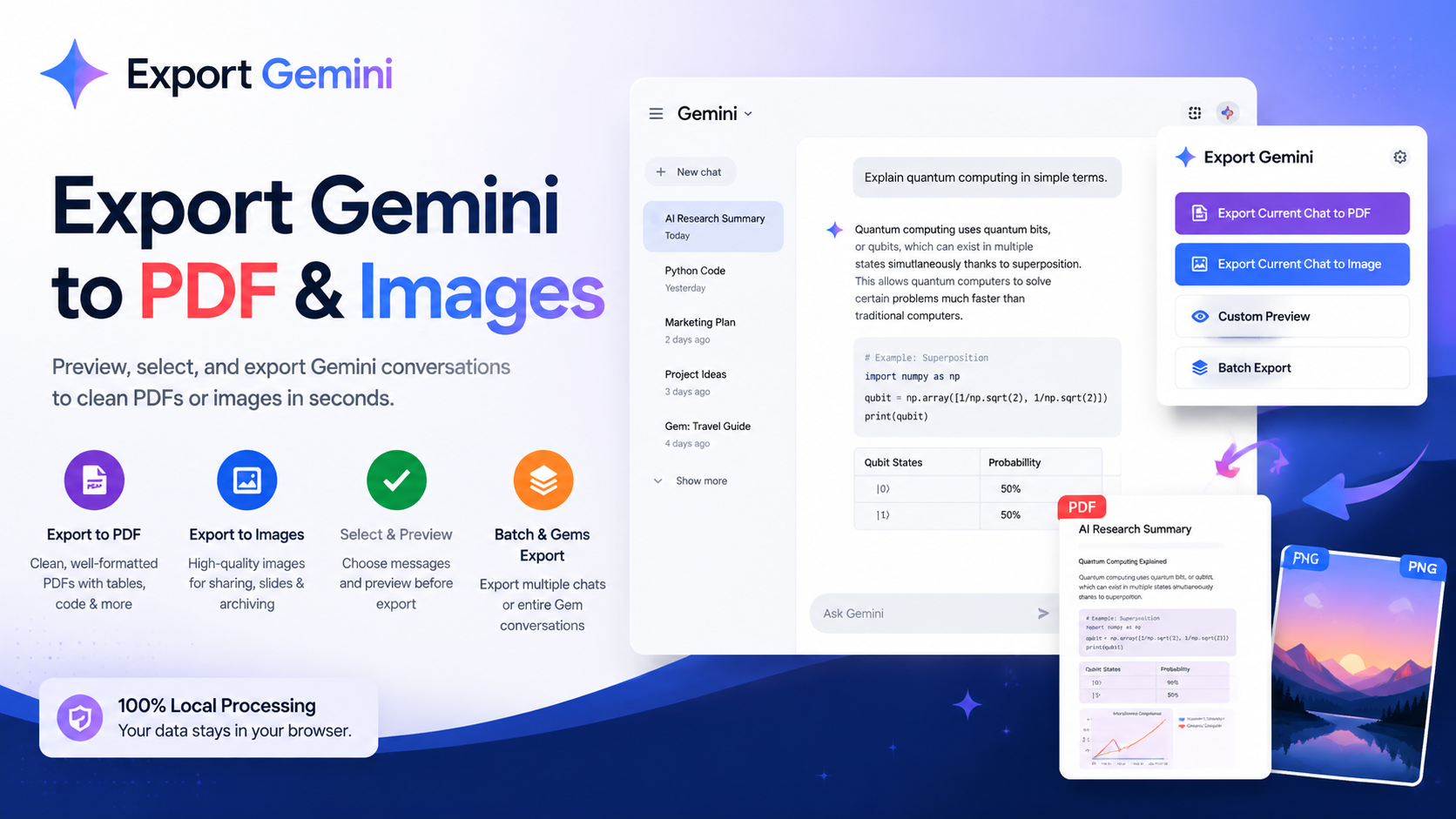
Export Gemini to PDF is built around practical backup workflows: popup export, selective cleanup, and Gem-based archiving.
Compatibility matrix
A practical support table for real Gemini content types, edge cases, and destination behavior in PDF.
| Content type | Support | Export result | Notes |
|---|---|---|---|
| Standard Gemini conversations | Supported | Exports the current conversation or includes it in batch workflows. | Works with the popup export flow and bulk export list loading. |
| Gem conversations | Supported | Gem conversations can be exported individually or through Gems Export. | Optional Gem subfolders help keep project exports organized. |
| Multi-account Gemini URLs | Supported | The extension detects account-slot variants such as /u/0/ and /u/1/. | If several accounts are open, export uses the most recently active valid Gemini tab. |
| Code blocks and markdown structure | Supported | Code, headings, lists, quotes, and structured replies stay readable in the PDF. | No special setup required. |
| Markdown tables | Supported | Tables render with visible borders and wrapped content. | No special setup required. |
| Gemini images and uploaded images | Supported | Images are embedded in the PDF when Gemini exposes exportable image data. | Wait for images to load before exporting. |
| Linked documents and attachment sections | Supported | Document sections and metadata can be included in the exported PDF when available. | No special setup required. |
| Image-rich PDF export | Supported | Gemini-generated images and uploaded images can be integrated into the exported PDF when Gemini exposes exportable image data. | This product is centered on PDF export, with image content preserved inside the PDF instead of being dropped from the output. |
Output proof
Use these examples to verify what exported files, folders, or destination pages look like before installing.
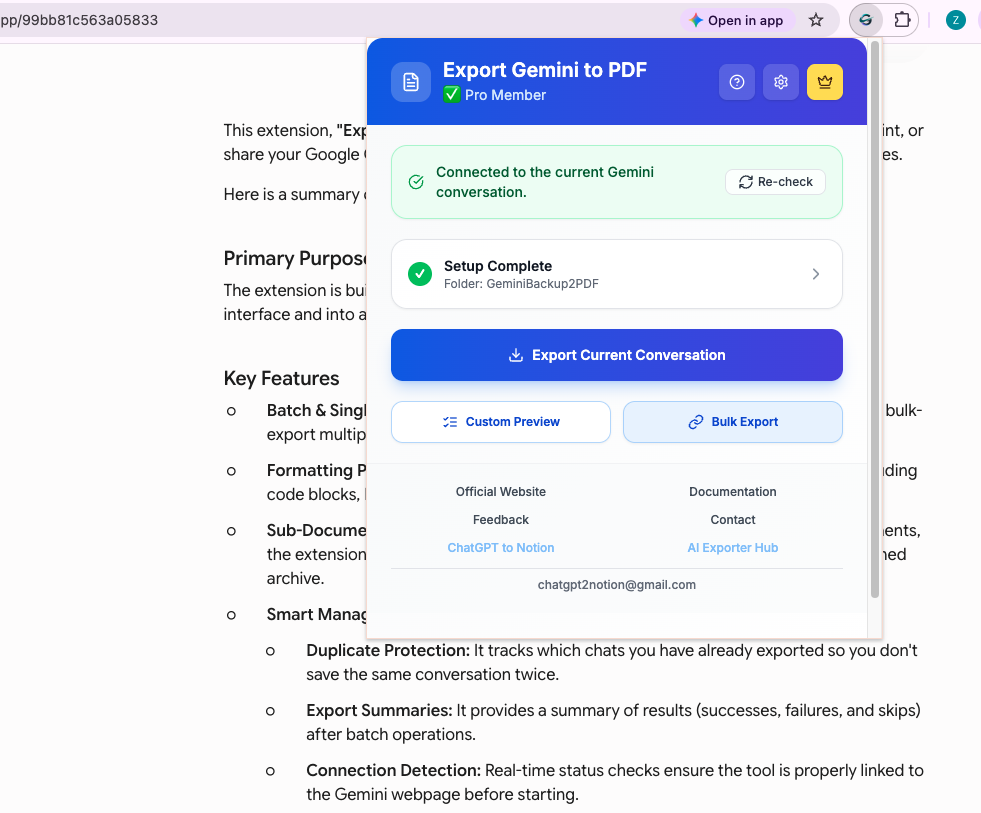
Use this slot for the popup showing connection status and the primary export actions.
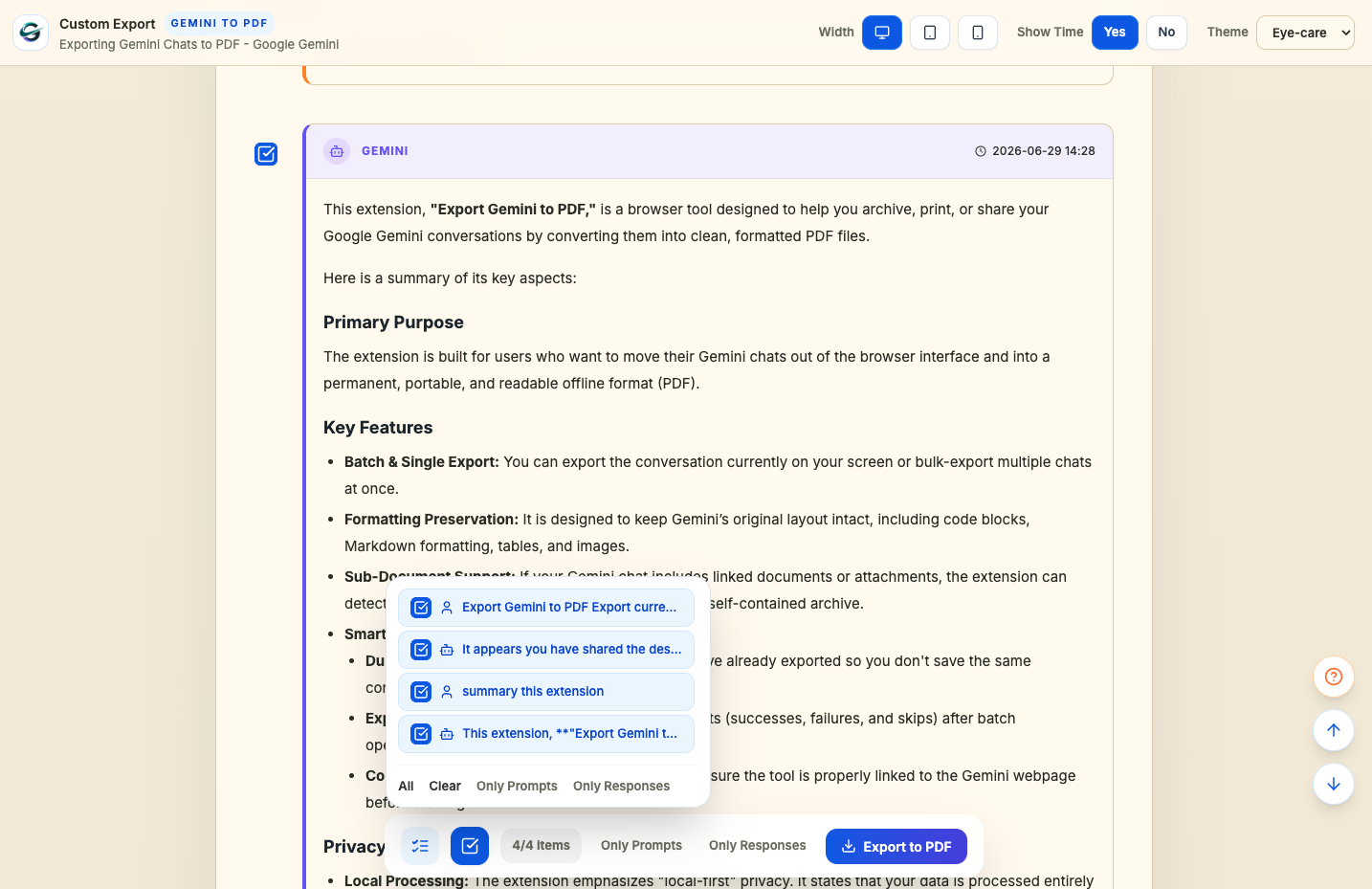
Use this slot for the Custom Preview page with selected and deselected messages.
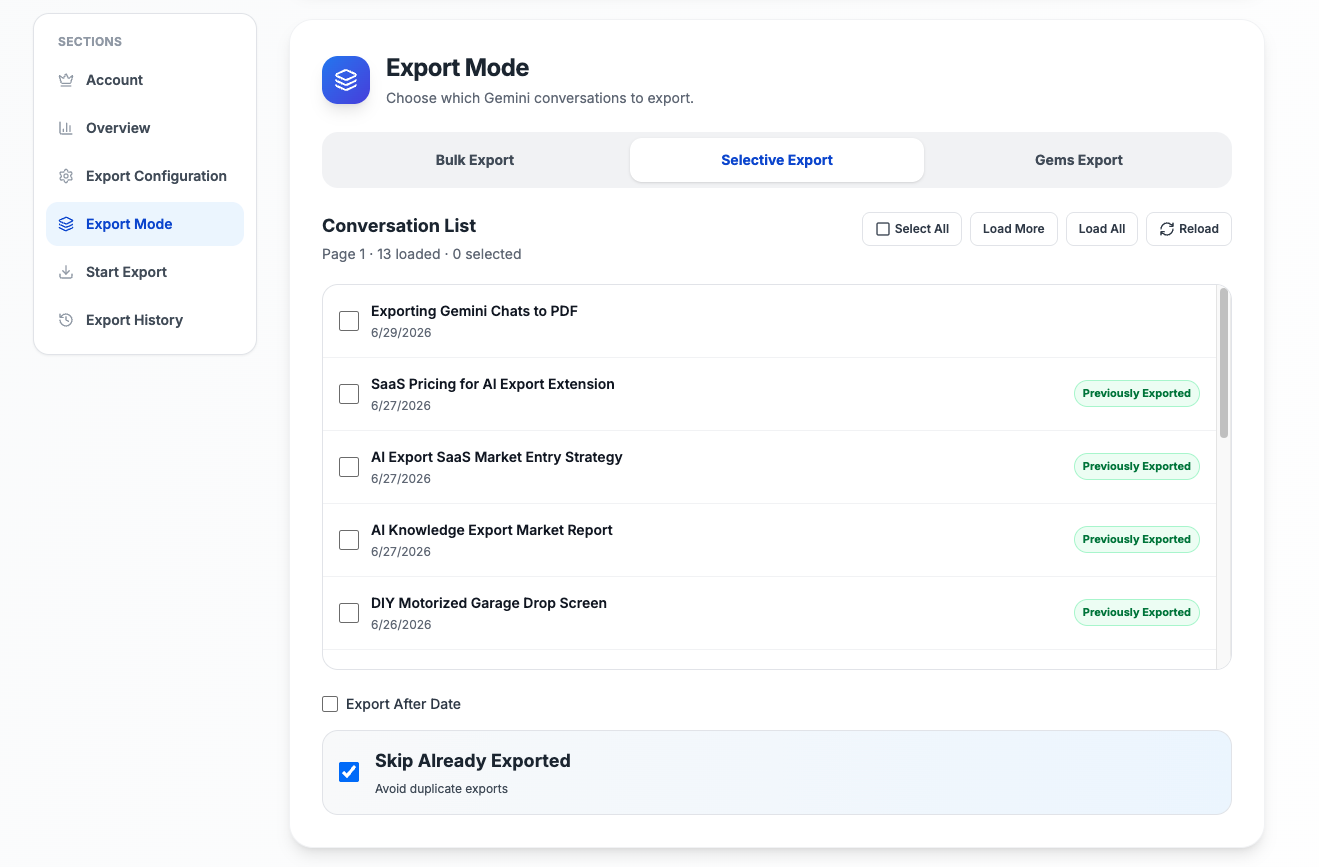
Use this slot for the options page showing either Selective Export or Gems Export.
Use the popup for full-conversation PDF export, or open Custom Preview to review the parsed chat, select only the messages you want, and save a cleaner PDF.
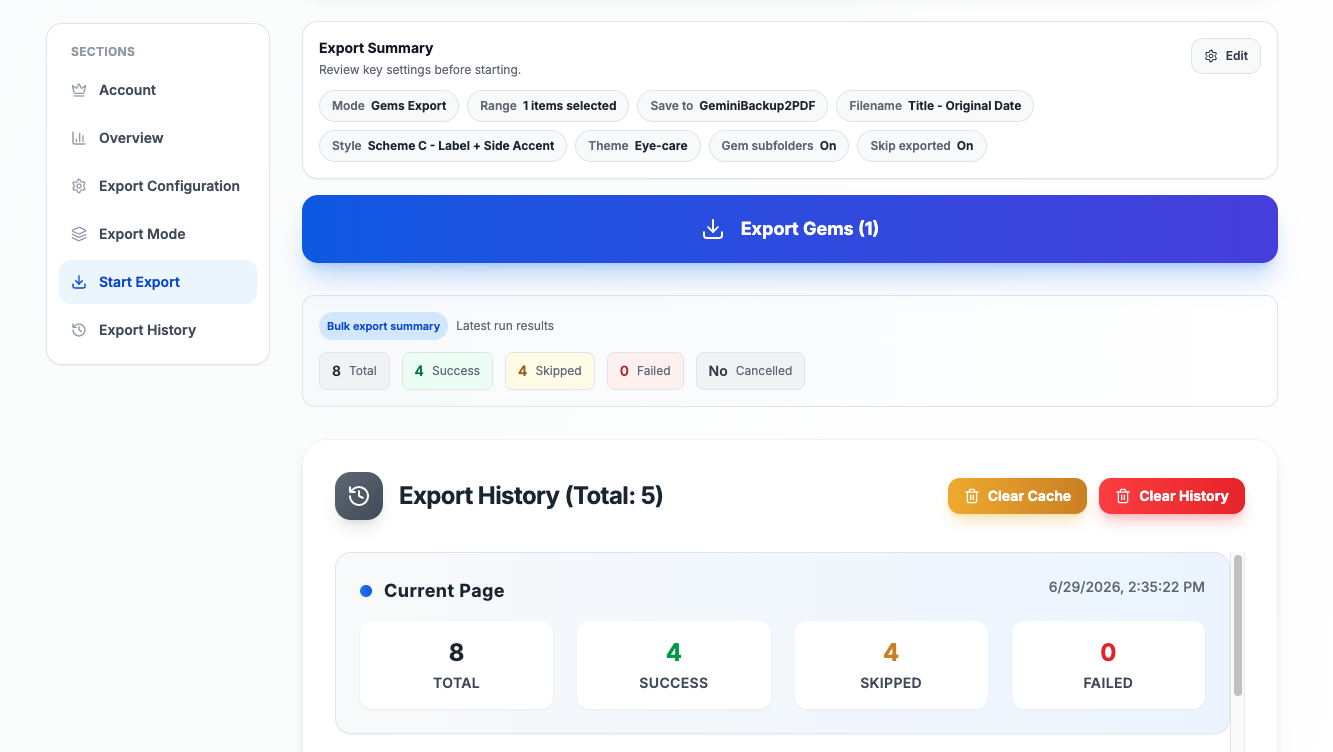
The options page supports standard bulk export, Selective Export for chosen conversations, and Gems Export for Gemini Gem workflows, all with duplicate skipping and export history.
The PDF pipeline is built for structured output, including code blocks, markdown tables with visible borders, Gemini images when exportable, attachment sections, timestamps, and a conversation outline.
Everything you need to organize your Gemini conversations quickly and efficiently.
Export large sets of Gemini conversations in one workflow instead of saving chats one by one. This is the core workflow for backups, research archives, and recurring knowledge capture.
Export the Gemini conversation you are viewing directly from the popup after the connection check passes.
Preview the parsed conversation, select only the messages you want, and save a cleaner PDF instead of exporting the full thread every time.
Load the conversation list, choose exactly which chats to include, and run a more controlled batch export without pulling in every conversation.
Export conversations by Gemini Gem, including full-Gem exports or selected conversations from a specific Gem, so project-based archives stay grouped together.
Choose from four filename patterns, three PDF themes, multiple message styles, and optional Gem subfolders.
Preserve Gemini-generated images, uploaded images, and linked document sections when Gemini exposes exportable data.
Avoid duplicate downloads during repeated batch runs by tracking what was already exported for the active Gemini account scope.
Review total, success, failed, skipped, and cancelled runs after export, then rerun only the missing items instead of repeating the full batch.
Gemini export chooser
Choose the best Gemini export format for your workflow.
Use Gemini to Obsidian / Markdown if you want a local knowledge base, clean Markdown files, image export, and long-term note management.
Use Gemini to PDF if you want printable, shareable, and archive-ready Gemini conversations with images and formatting preserved.
Use Gemini to Notion if you want to organize Gemini conversations inside a searchable Notion database for projects, teams, or research.
Note: Image export is not supported in Gemini to Notion. Use Obsidian / Markdown or PDF if you need images.
Known limits
Clear limits build trust. These are the cases to check before running large exports.
The extension uses Chrome's print-to-PDF capability through the debugger API, so Chrome may display a debugging prompt during export.
This is expected for the current PDF pipeline and does not mean the chat is uploaded to a remote server.
Troubleshooting guideIf the extension cannot find credentials for the current Gemini account slot, export will fail until the Gemini tab is refreshed.
Refresh the active Gemini conversation tab, wait for it to finish loading, and try again.
Troubleshooting guidePopup export, Custom Preview saves, and successful batch items all count toward the same daily cap for free users.
Use Selective Export and Skip Already Exported to spend the quota on the conversations that matter.
Troubleshooting guide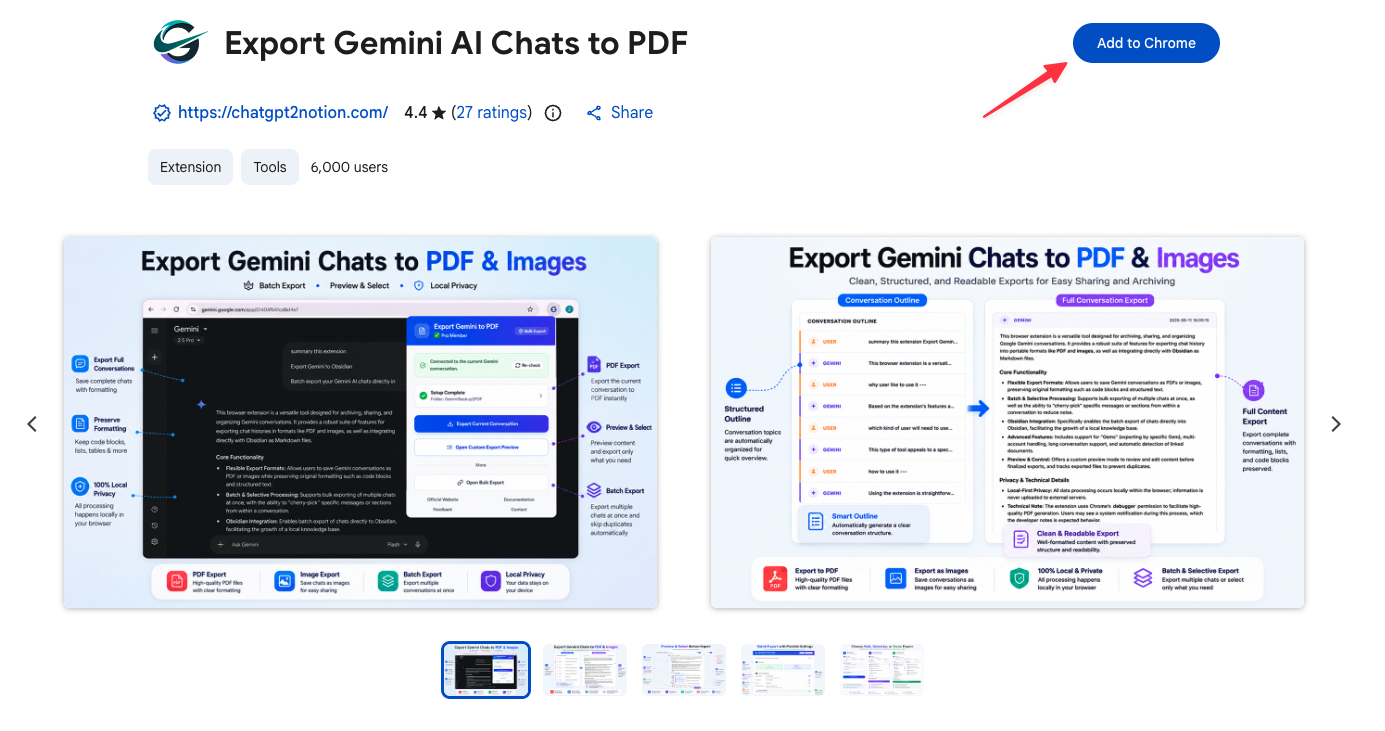
Use these guides and docs to solve common export, backup, and troubleshooting workflows.
Improved image handling, table rendering, PDF themes, Custom Preview consistency, and response-header styling.
Added Selective Export and Gems Export for more precise batch workflows.
Added Custom Preview with per-message selection and preview-first export.
Have another question? Contact us on Discord or by email.
Open a Gemini conversation, click the extension icon, confirm the connection status looks ready, and click Export Current Conversation.
Yes. Use Custom Preview to review the parsed conversation, select only the messages you want, and save the selected content as a PDF.
Bulk Export is for general backup runs, Selective Export lets you choose individual conversations from the list, and Gems Export lets you export full Gems or conversations inside a specific Gemini Gem.
Yes. It is designed to keep images, code blocks, markdown tables, and linked document sections readable in the exported PDF when Gemini exposes the required data.
Chrome's print-to-PDF pipeline requires the debugger permission. The notification is expected during export and is part of how the PDF is generated locally.
Yes. The PDF generation flow is local-first and runs through browser capabilities rather than uploading the conversation to a remote export service.
Free users can export up to five conversations per day. That cap applies across popup export, Custom Preview saves, and batch export results.
Yes. Turn on Create Gem Subfolders and Gem conversations will be saved under a subfolder named after the Gem.
Batch export 100+ chats, Auto-Sync, and priority support with Universal Pass.
Get Universal PassIndependent tool notice
Built for exporting from Google Gemini. This project is independent and is not affiliated with Google LLC.