
Connect Notion
Connect AIExportHub to your Notion workspace, select and open a database, configure duplicate behavior, and upload supported AI chat images and files.
Connect Notion when you want AIExportHub to turn conversations into structured, searchable database pages in your own workspace.
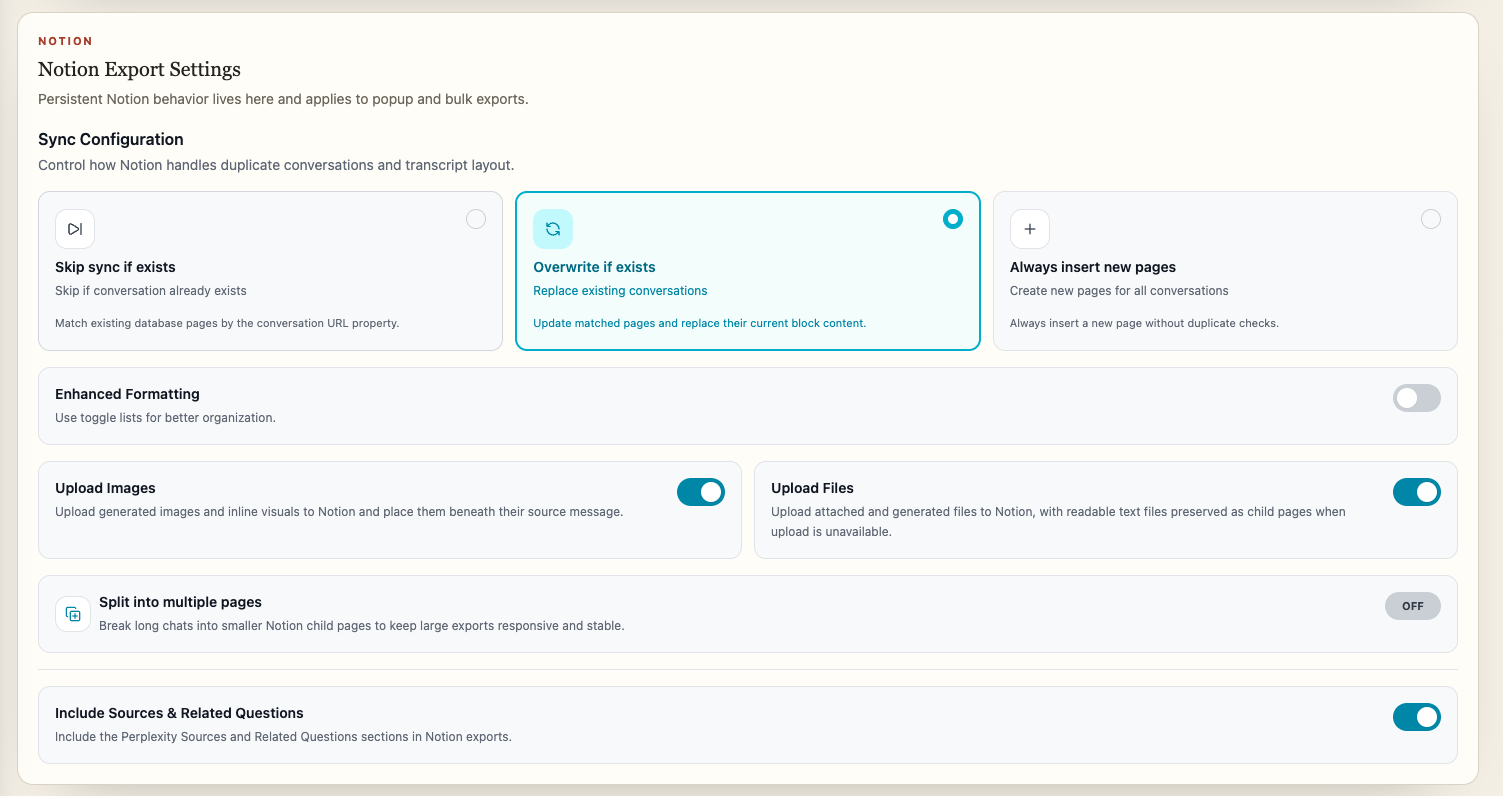
Step 1: Open Notion settings
Open the AIExportHub workspace, choose Export Settings, then select Notion.
Step 2: Authorize your workspace
- Click Connect Notion.
- Sign in to Notion if prompted.
- Choose the workspace and pages or databases AIExportHub may access.
- Confirm authorization.
- Return to AIExportHub.
Cloud synchronization only occurs after you authorize Notion and choose it as the export target.
Step 3: Refresh and select a database
After authorization:
- Click Refresh Databases.
- Open the database selector.
- Choose the destination for exported conversations.
- Save the settings.
If the database does not appear, share it with the integration in Notion and refresh the list again.
Open the selected database
When Notion is the current Bulk Export target and a database is selected, the target summary shows Open database beside Edit settings.
Use it to confirm the destination before a large export or review the results after a job completes. Older saved database configurations are also converted into a usable Notion URL when possible.
Choose duplicate behavior
| Option | What it does | Best for |
|---|---|---|
| Skip sync if exists | Matches the existing conversation and keeps the destination page unchanged | Recurring backups and hand-edited pages |
| Overwrite if exists | Replaces the matched exported page with the current source content | Refreshing one canonical archive copy |
| Always insert new pages | Creates another page on every export | Intentional snapshots and audit records |
Use Skip when teammates edit exported pages in Notion. Overwrite should be an explicit choice because it can replace destination edits.
Image and file uploads
Upload Images and Upload Files are enabled by default.
For supported assets, AIExportHub can:
- Retrieve protected bytes through the connected source platform tab
- Upload images directly to Notion
- Upload supported documents, PDFs, and other files
- Report attachment-level progress and warnings
- Keep unavailable source assets visible as warnings instead of silently dropping them
The exact result depends on whether the source platform still provides usable bytes and whether Notion accepts the file.
Readable child-page fallbacks
Some generated assets are more useful as readable Notion content than as an opaque download.
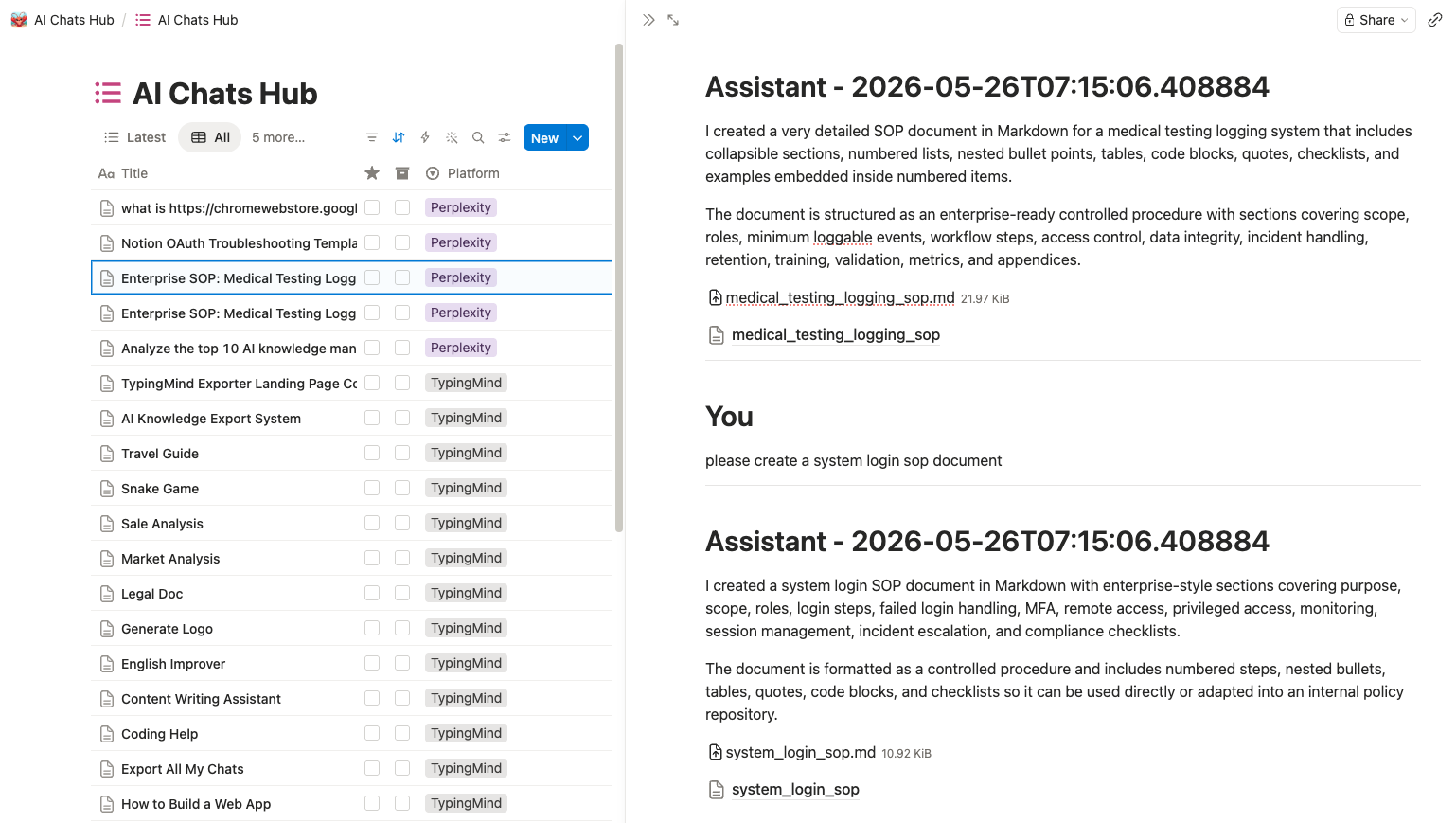
AIExportHub can preserve supported Markdown, plain text, HTML, JSON, code, and SVG content as child pages. Generated child pages are positioned beside the source message when possible, instead of adding duplicate links at the top of the conversation.
Claude attachment records and repeated Perplexity asset records are deduplicated before delivery.
Conversation metadata
AIExportHub stores available metadata such as:
- Title
- Platform
- Source URL
- Created and updated time
- Exported time
- Message count
- Tags
- Project
- Gem
- Space
The available fields vary by source platform and conversation type.
Long conversations
Enable Split into multiple pages when very long transcripts would create an oversized Notion page.
Choose a messages-per-page preset or an allowed custom value. Media and readable generated child pages remain associated with the appropriate transcript section where supported.
Standard and enhanced formatting
Use standard formatting for a direct transcript. Use enhanced formatting when you prefer clearer message separation and richer Notion presentation.
Test one representative conversation before applying a formatting mode to complete history.
Privacy and permissions
AIExportHub does not sync conversations to an intermediate workspace. It writes to the Notion destination you authorized.
Disconnect Notion when you no longer want the extension to use the saved authorization. Local Markdown and PDF exports remain available without Notion.
Troubleshooting
If Notion export is disabled:
- Confirm the source platform tab is connected.
- Reconnect Notion if authorization expired.
- Refresh the database list.
- Select and save a database.
- Use Open database to verify access.
- Retry one conversation before restarting a bulk job.
For file-specific issues, read Images, Files, and Generated Assets. For other fixes, see Troubleshooting.
Ready to try Aiexporthub Hero?
Open the product page for feature details, screenshots, pricing, and the Chrome Web Store install link.