
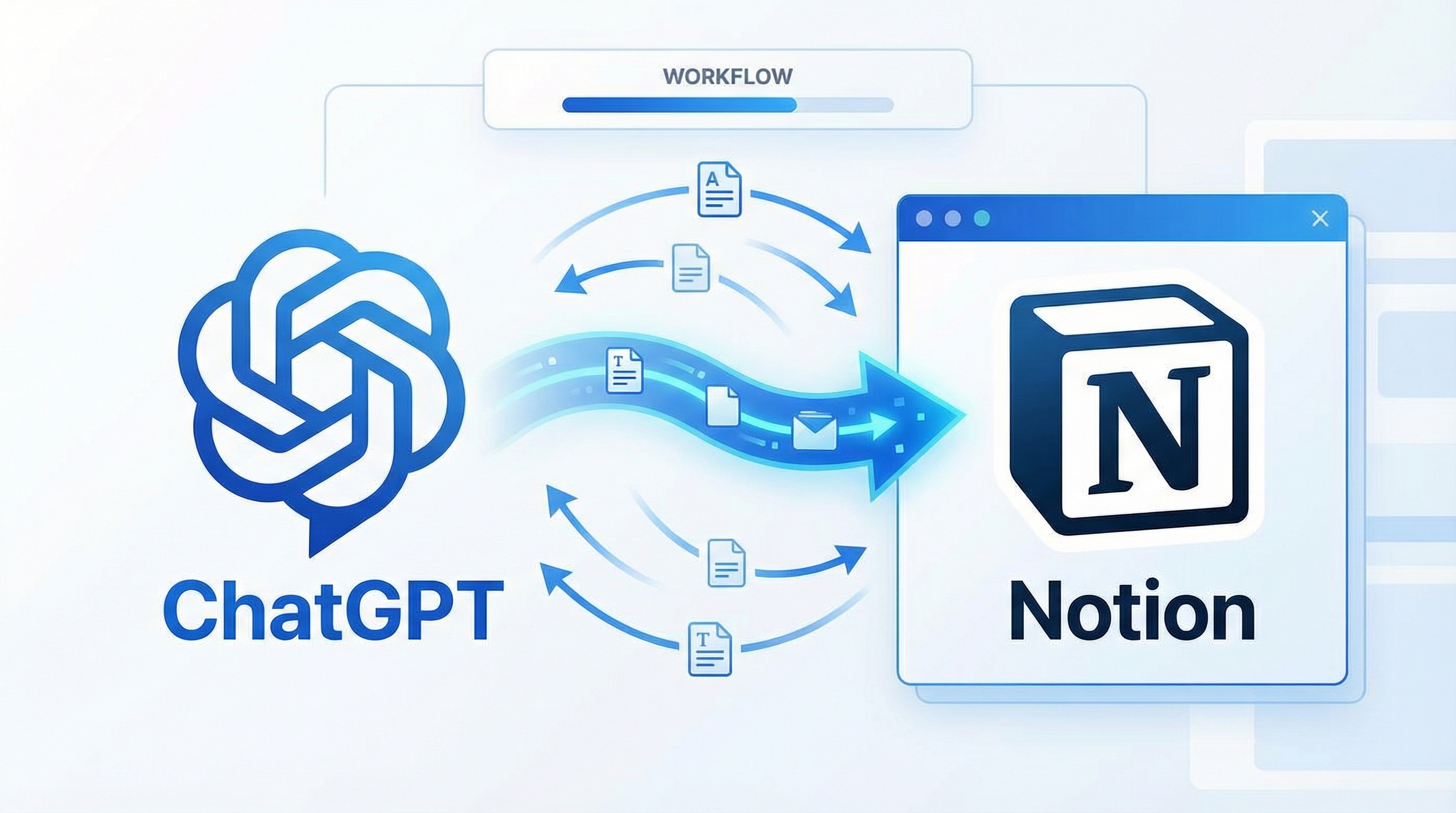
How to Export ChatGPT to Notion: Complete Guide (2026)
If you’re using ChatGPT for brainstorming, research, or content creation, you’ve probably wondered: how do I save all these valuable conversations? The answer is simple: export them to Notion.
In this comprehensive guide, you’ll learn exactly how to export ChatGPT conversations to Notion, why it matters, and how to automate the entire process.
Why Export ChatGPT to Notion?
Before diving into the how-to, let’s understand why this integration is a game-changer:
1. Build Your Second Brain
ChatGPT conversations contain valuable insights, ideas, and solutions. By exporting them to Notion, you create a searchable knowledge base that grows with every conversation.
2. Never Lose Important Conversations
ChatGPT’s conversation history can be accidentally deleted or lost. Notion provides a permanent, organized backup of all your AI interactions.
3. Organize by Project or Topic
Notion’s database features let you tag, categorize, and filter conversations by project, topic, or date—something ChatGPT’s interface doesn’t offer.
4. Share with Your Team
Export conversations to shared Notion workspaces, making it easy to collaborate and share AI-generated insights with colleagues.
Method 1: Manual Export (Free but Time-Consuming)
The simplest way to export ChatGPT to Notion is manually copying and pasting. Here’s how:
Step 1: Open Your ChatGPT Conversation
Navigate to the conversation you want to export in ChatGPT.
Step 2: Copy the Content
Select all the text in the conversation (Cmd+A on Mac, Ctrl+A on Windows) and copy it.
Step 3: Create a New Notion Page
Open Notion and create a new page in your desired database or workspace.
Step 4: Paste and Format
Paste the content into Notion. You may need to manually format headings, code blocks, and lists.
Limitations of Manual Export:
- ❌ Time-consuming for multiple conversations
- ❌ No automatic updates
- ❌ Loses conversation metadata (date, model used, etc.)
- ❌ Formatting issues
Method 2: Automated Export with ChatGPT to Notion (Recommended)
For a seamless, automated solution, use ChatGPT to Notion—a tool designed specifically for this purpose.
Key Features:
- ✅ One-click export from ChatGPT to Notion
- ✅ Automatic syncing of new conversations
- ✅ Preserves formatting (code blocks, lists, headings)
- ✅ Metadata included (date, model, conversation ID)
- ✅ Customizable templates for different use cases
How It Works:
Step 1: Install the Chrome Extension
Visit the ChatGPT to Notion Chrome Web Store page and install the extension.
Step 2: Connect Your Notion Account
Click the extension icon and authorize access to your Notion workspace. You’ll choose which database to export conversations to.
Step 3: Export Conversations
While viewing any ChatGPT conversation, click the “Export to Notion” button. The conversation is instantly saved to your Notion database.
Step 4: Enable Auto-Sync (Optional)
Turn on automatic syncing to export every ChatGPT conversation to Notion without manual intervention.
Pricing:
- Free tier: 10 exports per month
- Pro tier: Unlimited exports, auto-sync, custom templates ($9/month)
Method 3: Using Zapier or Make.com
If you prefer a no-code automation platform, you can use Zapier or Make.com to connect ChatGPT and Notion.
Zapier Setup:
- Create a new Zap with ChatGPT as the trigger
- Add Notion as the action
- Map conversation fields to Notion database properties
- Test and activate
Limitations:
- Requires a paid Zapier/Make.com account
- More complex setup than dedicated tools
- May not preserve all formatting
Best Practices for Organizing ChatGPT Exports in Notion
Once you’re exporting conversations, here’s how to organize them effectively:
1. Create a Dedicated Database
Set up a Notion database specifically for ChatGPT conversations with these properties:
- Title (conversation topic)
- Date (when exported)
- Tags (project, category, topic)
- Model (GPT-4, GPT-3.5, etc.)
- Status (to review, archived, implemented)
2. Use Templates
Create Notion templates for different conversation types:
- Research conversations
- Code generation
- Content creation
- Brainstorming sessions
3. Tag by Project
Use Notion’s multi-select tags to link conversations to specific projects or clients.
4. Set Up Views
Create filtered views in Notion:
- “This Week’s Conversations”
- “Unreviewed Ideas”
- “Code Snippets”
- “Research Notes”
Common Issues and Solutions
Issue 1: Formatting Breaks When Pasting
Solution: Use ChatGPT to Notion’s automated export to preserve formatting, or manually reformat using Notion’s markdown shortcuts.
Issue 2: Large Conversations Don’t Export Completely
Solution: Break long conversations into smaller chunks or use an automated tool that handles large exports.
Issue 3: Can’t Find Exported Conversations
Solution: Set up a consistent naming convention and use Notion’s search function. Add tags for easier filtering.
Advanced Tips
1. Create a ChatGPT Prompt Library
Export your best prompts to a separate Notion database. Reference them when starting new conversations.
2. Link Related Conversations
Use Notion’s relation property to connect related ChatGPT conversations across different projects.
3. Set Up Reminders
Use Notion’s reminder feature to review important ChatGPT insights weekly or monthly.
4. Integrate with Other Tools
Connect your Notion database to tools like Obsidian, Roam Research, or Evernote for a complete knowledge management system.
Comparison: Manual vs Automated Export
| Feature | Manual Copy-Paste | ChatGPT to Notion | Zapier/Make |
|---|---|---|---|
| Setup Time | 0 min | 5 min | 30 min |
| Export Speed | 2-5 min/conversation | 5 seconds | 1-2 min |
| Formatting | ❌ Breaks | ✅ Preserved | ⚠️ Partial |
| Automation | ❌ No | ✅ Yes | ✅ Yes |
| Metadata | ❌ No | ✅ Yes | ⚠️ Limited |
| Cost | Free | $0-9/month | $20+/month |
Conclusion
Exporting ChatGPT conversations to Notion is essential for building a personal knowledge base and never losing valuable AI-generated insights. While manual copy-paste works for occasional exports, automated tools like ChatGPT to Notion save time and preserve formatting.
Quick Recommendations:
- Casual users: Manual export or free tier of ChatGPT to Notion
- Power users: ChatGPT to Notion Pro with auto-sync
- Teams: Zapier/Make.com for custom workflows
Start exporting your ChatGPT conversations today and transform scattered AI insights into an organized, searchable knowledge system.
Related Articles: