
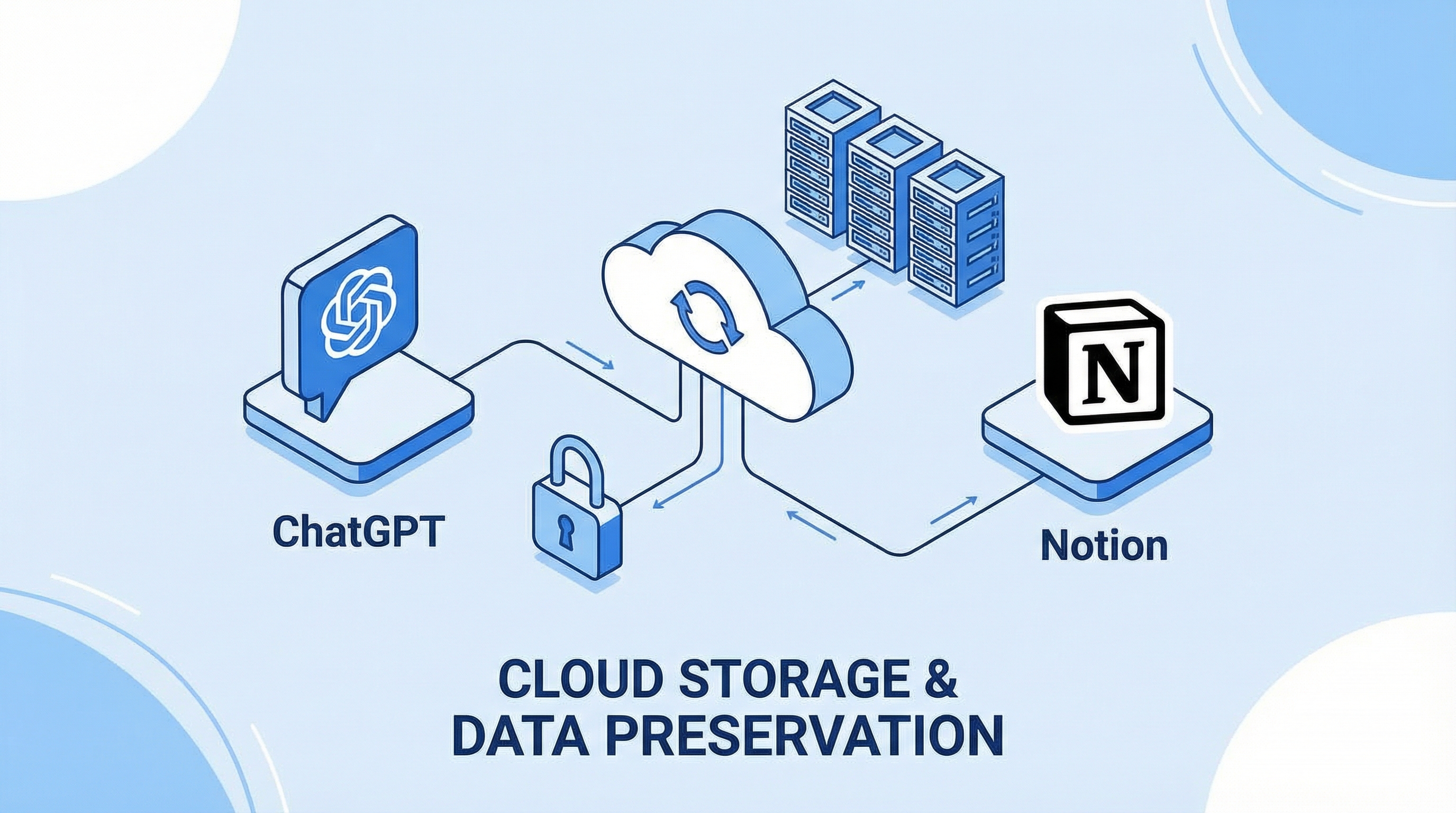
How to Save ChatGPT Conversations to Notion (2026 Guide)
You’ve just had a breakthrough conversation with ChatGPT—a brilliant idea, a complex code solution, or valuable research insights. But where do you save it? Your ChatGPT history is cluttered, and you know you’ll never find it again.
The solution: save your ChatGPT conversations to Notion. In this guide, you’ll learn exactly how to preserve your AI conversations in an organized, searchable knowledge base.
Why Save ChatGPT Conversations to Notion?
1. Permanent Backup
ChatGPT conversations can be accidentally deleted. Notion provides a permanent, cloud-based backup that survives account issues or accidental deletions.
2. Superior Organization
Unlike ChatGPT’s linear history, Notion lets you:
- Tag conversations by project or topic
- Create custom views (by date, status, priority)
- Link related conversations together
- Add notes and follow-up tasks
3. Team Collaboration
Share valuable AI insights with your team by saving conversations to shared Notion workspaces.
4. Search Across All Conversations
Notion’s powerful search finds specific insights across hundreds of saved conversations instantly.
Method 1: Manual Save (Quick but Limited)
The simplest way to save a ChatGPT conversation to Notion:
Step 1: Copy the Conversation
In ChatGPT, select the conversation text (Cmd+A / Ctrl+A) and copy it.
Step 2: Create a Notion Page
Open Notion and create a new page in your desired database.
Step 3: Paste and Add Metadata
Paste the conversation and add:
- Title (conversation topic)
- Date
- Tags (project, category)
- Status (to review, implemented, archived)
Limitations:
- ❌ Time-consuming for multiple conversations
- ❌ Formatting often breaks
- ❌ No automatic updates
- ❌ Loses conversation metadata
Method 2: Automatic Save with ChatGPT to Notion (Recommended)
For seamless, automatic saving, use ChatGPT to Notion.
Key Features:
- ✅ One-click save from any ChatGPT conversation
- ✅ Auto-sync saves new conversations automatically
- ✅ Preserves formatting (code blocks, lists, tables)
- ✅ Includes metadata (date, model, conversation ID)
- ✅ Customizable templates for different use cases
Setup Process:
Step 1: Install the Extension
Visit ChatGPT to Notion and install the Chrome extension.
Step 2: Connect Notion
Authorize the extension to access your Notion workspace. Select which database to save conversations to.
Step 3: Save Conversations
Click the “Save to Notion” button while viewing any ChatGPT conversation. It’s saved instantly with full formatting.
Step 4: Enable Auto-Sync (Optional)
Turn on automatic syncing to save every conversation without manual intervention.
Pricing:
- Free: 10 saves per month
- Pro: Unlimited saves, auto-sync, custom templates ($9/month)
Method 3: Using Zapier Automation
For advanced users, Zapier can automate the save process:
Setup:
- Create a Zap with ChatGPT as trigger
- Add Notion as action
- Map conversation fields to Notion properties
- Test and activate
Pros:
- Fully automated
- Integrates with other tools
Cons:
- Requires paid Zapier account ($20+/month)
- Complex setup
- May not preserve all formatting
Best Practices for Organizing Saved Conversations
1. Create a Dedicated Database
Set up a Notion database specifically for ChatGPT conversations with these properties:
| Property | Type | Purpose |
|---|---|---|
| Title | Text | Conversation topic |
| Date | Date | When saved |
| Tags | Multi-select | Project, category, topic |
| Model | Select | GPT-4, GPT-3.5, etc. |
| Status | Select | To review, implemented, archived |
| Priority | Select | High, medium, low |
2. Use Consistent Naming
Develop a naming convention:
[Project] - [Topic] - [Date]- Example:
Website Redesign - Color Palette Ideas - 2026-02-22
3. Tag Strategically
Create tags for:
- Projects: Website, App, Marketing
- Content Type: Code, Research, Brainstorming, Writing
- Status: Active, Completed, Reference
4. Set Up Views
Create filtered views in Notion:
- This Week: Conversations from the last 7 days
- To Review: Conversations marked for follow-up
- Code Snippets: Filter by “Code” tag
- High Priority: Important conversations needing action
5. Add Context Notes
After saving, add your own notes:
- Why this conversation matters
- Next steps or action items
- Links to related projects or documents
Advanced Tips for Power Users
1. Create Conversation Templates
Set up Notion templates for different conversation types:
Research Template:
- Summary
- Key findings
- Sources to verify
- Follow-up questions
Code Template:
- Problem description
- Solution code
- Testing notes
- Implementation status
Brainstorming Template:
- Initial idea
- ChatGPT suggestions
- Selected approach
- Next steps
2. Link Related Conversations
Use Notion’s relation property to connect:
- Conversations about the same project
- Follow-up conversations
- Conversations that led to implementations
3. Create a Prompt Library
Save your best prompts separately:
- Tag them by use case
- Rate their effectiveness
- Link to conversations where they worked well
4. Set Up Reminders
Use Notion reminders to:
- Review important conversations weekly
- Follow up on action items
- Revisit research conversations monthly
Common Issues and Solutions
Issue 1: Formatting Breaks When Pasting
Solution: Use ChatGPT to Notion’s automatic save feature, or manually reformat using Notion’s markdown shortcuts (/code, /heading, etc.).
Issue 2: Can’t Find Saved Conversations
Solution:
- Use Notion’s search (Cmd+P / Ctrl+P)
- Set up proper tags and views
- Use consistent naming conventions
Issue 3: Too Many Saved Conversations
Solution:
- Archive old conversations regularly
- Use status tags to filter active vs. archived
- Create a “Favorites” view for most important conversations
Issue 4: Losing Context Between Conversations
Solution:
- Add summary notes to each saved conversation
- Use relation properties to link related conversations
- Create project pages that reference multiple conversations
Comparison: Save Methods
| Feature | Manual Copy-Paste | ChatGPT to Notion | Zapier |
|---|---|---|---|
| Setup Time | 0 min | 5 min | 30 min |
| Save Speed | 2-5 min | 5 seconds | Automatic |
| Formatting | ❌ Breaks | ✅ Preserved | ⚠️ Partial |
| Automation | ❌ No | ✅ Yes | ✅ Yes |
| Metadata | ❌ Manual | ✅ Automatic | ⚠️ Limited |
| Cost | Free | $0-9/month | $20+/month |
| Best For | Occasional saves | Regular users | Enterprise workflows |
Real-World Use Cases
For Students:
- Save research conversations for papers
- Organize study notes by subject
- Keep coding help for assignments
For Developers:
- Archive code solutions and debugging help
- Build a personal Stack Overflow
- Track API integration conversations
For Writers:
- Save brainstorming sessions
- Keep character development ideas
- Archive research for articles
For Researchers:
- Organize literature review conversations
- Save methodology discussions
- Track hypothesis development
Security and Privacy
What Gets Saved:
- Conversation text
- Timestamps
- Model information
What Doesn’t Get Saved:
- Your OpenAI account credentials
- Other users’ conversations
- Unrelated ChatGPT data
Best Practices:
- Review conversations before saving sensitive information
- Use private Notion pages for confidential conversations
- Regularly audit saved conversations
Conclusion
Saving ChatGPT conversations to Notion transforms scattered AI insights into an organized knowledge system. Whether you choose manual saving for occasional use or automated tools for regular workflows, the key is consistency.
Quick Recommendations:
- Casual users: Manual save or free tier of ChatGPT to Notion
- Regular users: ChatGPT to Notion Pro with auto-sync
- Teams: Shared Notion workspace with automated saving
Start saving your ChatGPT conversations today and never lose a valuable AI insight again.
Related Articles: