
Complete history export is useful for disaster recovery. It is often the wrong tool for a focused migration.
If you need one client, one research topic, one course, or one quarter of work, exporting every AI conversation creates more sorting than value.
Selective Export lets you search loaded conversations and choose the exact records that should enter Notion, Markdown, Obsidian, or PDF.
AIExportHub provides a shared selection workflow across ChatGPT, Claude, Gemini, and Perplexity, while keeping platform-specific collection modes available.
Selective Export vs complete history
| Workflow | Best for | Main risk |
|---|---|---|
| Current conversation | One finished record | Easy to forget related chats |
| Selective Export | Topic, client, course, or validation batch | Requires intentional selection |
| Complete history | Full account backup | Large, slow, and harder to review |
| Project, Gem, or Space | Preserve collection context | Depends on platform organization |
Selective Export sits between one-chat convenience and complete-history coverage.
Step 1: Connect the correct account
Open the source platform in Chrome and confirm the account before loading history.
Keep the source tab open. The tab supplies both conversation data and supported authenticated assets later in the job.
Step 2: Load the first conversation page
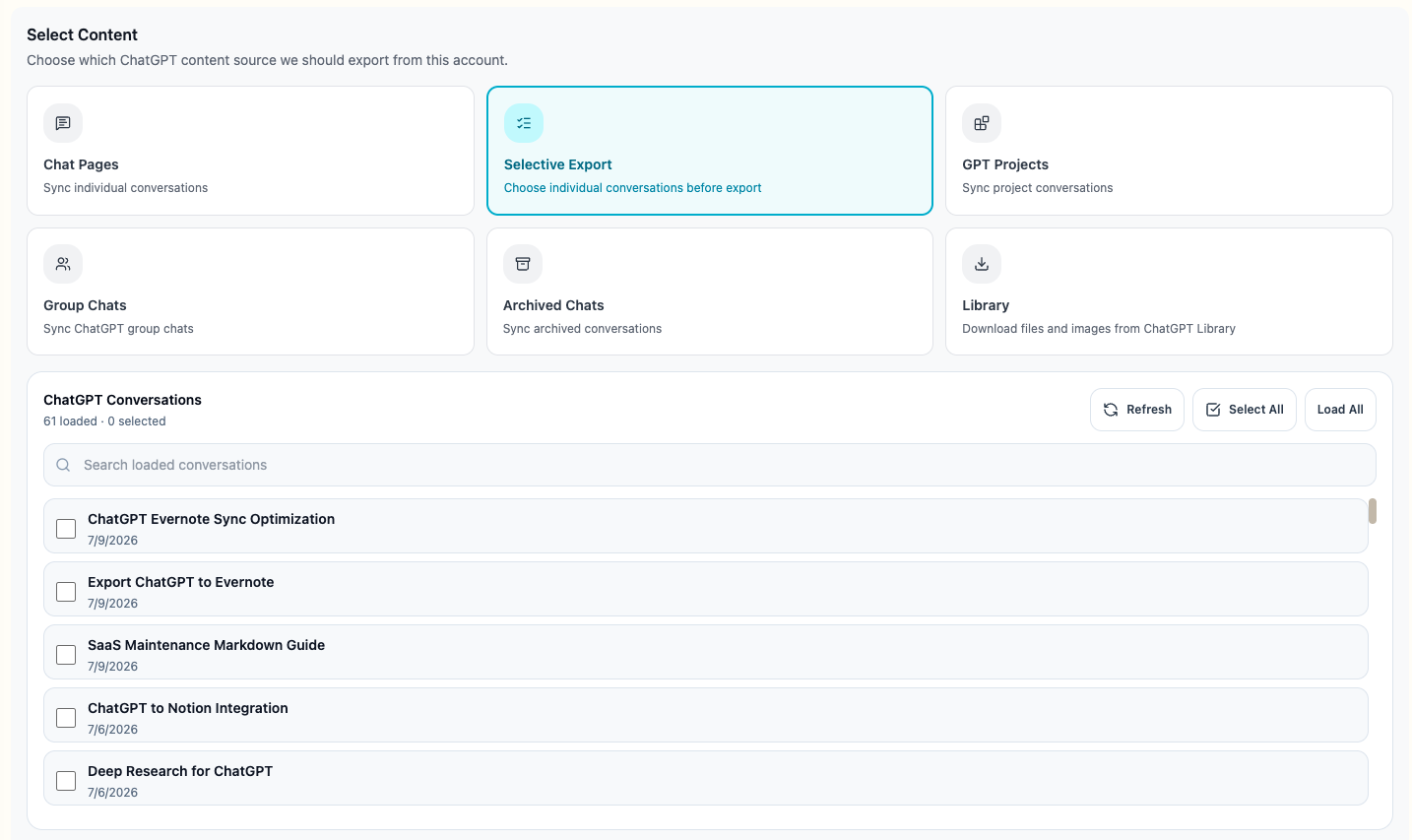
Open Bulk Export and choose Selective Export.
Start with the initial page. If the required conversation is older, choose Load complete history and wait for pagination to finish.
Loading everything before you know the search term is unnecessary. Search the initial page first when the work is recent.
Step 3: Search and select
The conversation picker supports:
- Search across loaded titles
- Individual checkboxes
- Select all visible results
- Deselect all
- Complete-history loading
- Stable selection order
- Duplicate conversation ID protection
Checkboxes appear before the title. Long titles are truncated so the control never disappears off the right edge, and the complete title remains available on hover.
Step 4: Choose the destination
Use Notion when the selected records should become a searchable database or team workspace.
Use Markdown or Obsidian when the archive should remain local, portable, editable, and version-control friendly.
Use PDF when the selected group is a stable review packet, client deliverable, study set, or compliance record.
Images and files are handled by default. Review the target settings if you intentionally need a text-only result.
Step 5: Check the queue summary
Before starting, verify:
- Selected count
- Titles or search result
- Source account
- Target
- Notion database or local folder
- Duplicate behavior
- Image and file settings
The queue should contain only the conversations you checked.
Use collections when selection is not enough
ChatGPT Projects and archived chats
Use a Project when the platform already groups conversations by ongoing work. Use Archived Chats when the needed record no longer appears in normal history.
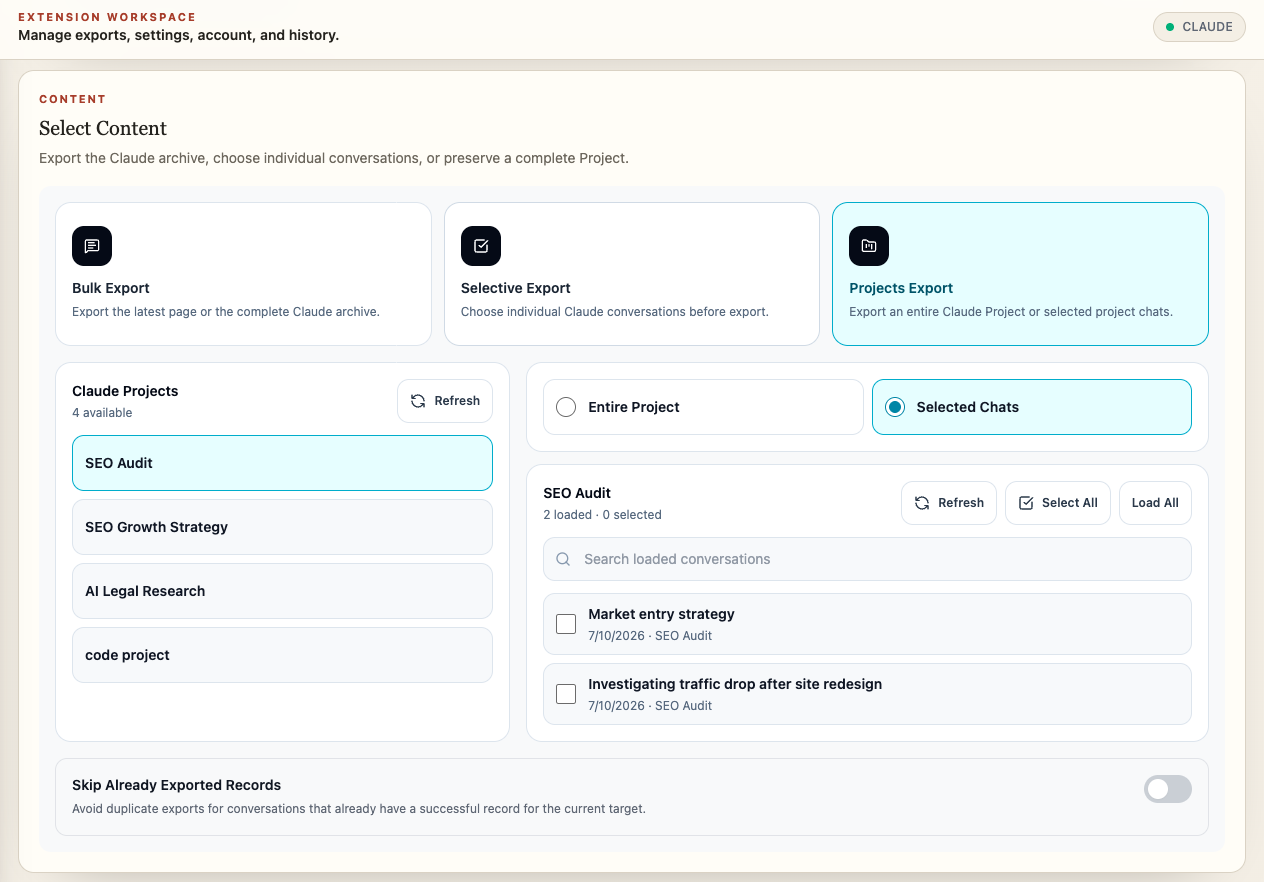
Claude Projects
Export an entire Claude Project or select only specific conversations inside it. This keeps Project context while avoiding unrelated history.
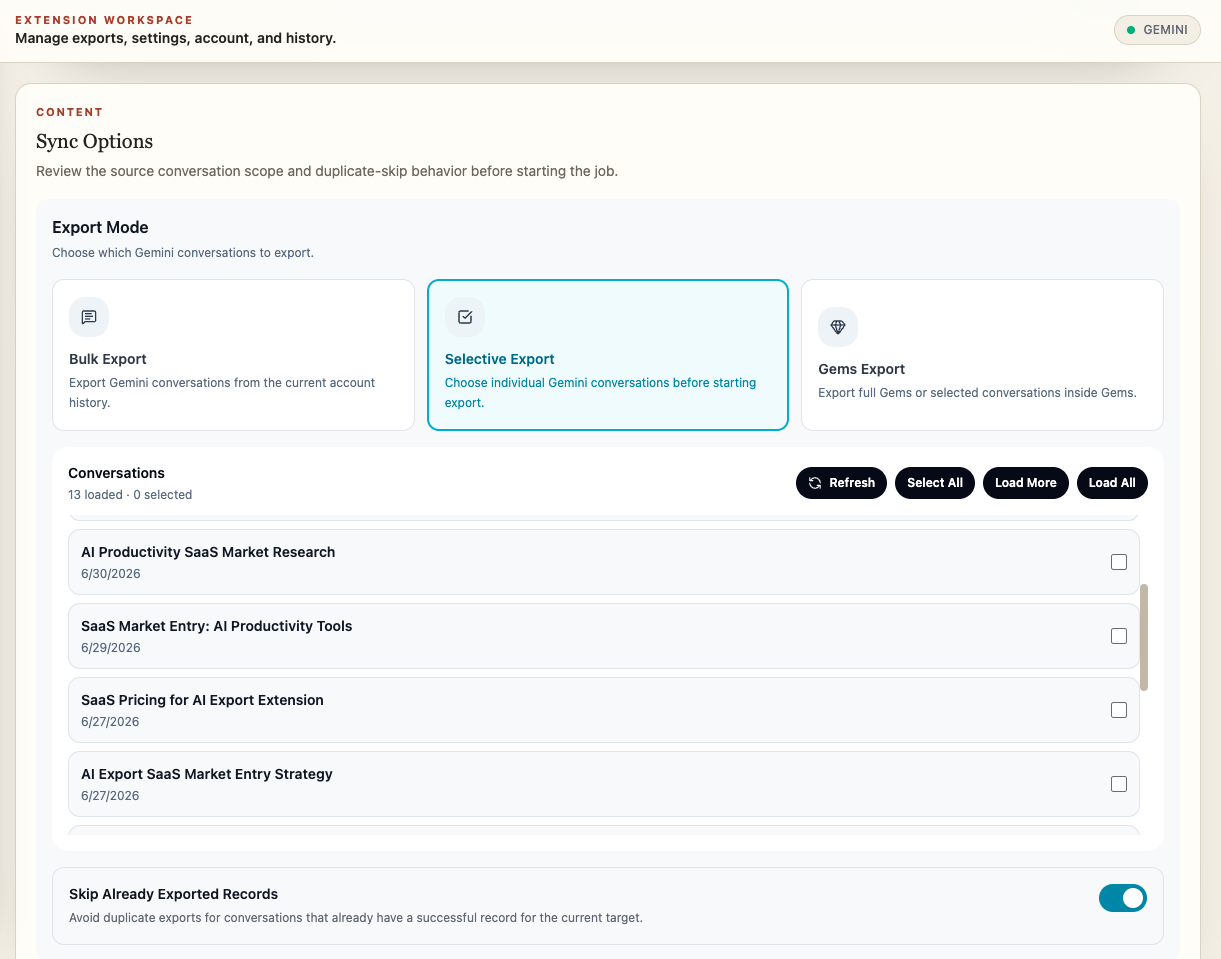
Gemini Gems
Choose a Gem and then export all or selected conversations associated with that purpose or instruction set.
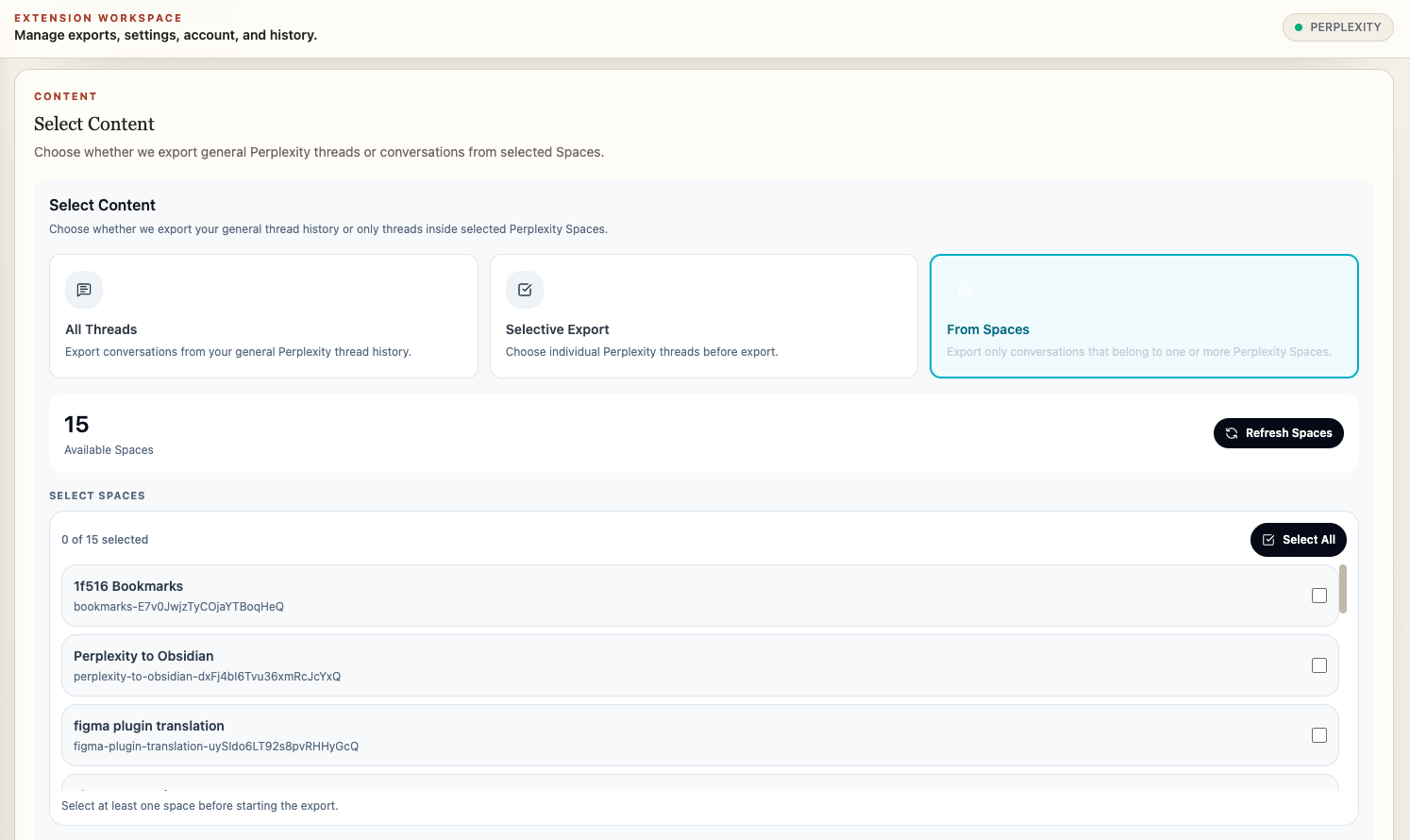
Perplexity Spaces
Choose one or more Spaces, then combine Space selection with a date filter when the collection is large.
A safer migration pattern
Use three passes:
- Validation pass: select two or three media-rich conversations and check the output.
- Focused pass: export the client, project, or topic you need now.
- Archive pass: run complete history later with duplicate protection enabled.
This catches formatting and destination mistakes before they affect hundreds of records.
Avoid duplicate work
Enable Skip Already Exported Records for recurring selective batches.
After a job, retry failed records only. Do not select the entire batch again unless the destination or formatting policy intentionally changed.
For Notion, choose Skip, Overwrite, or Always New based on whether existing destination pages should remain untouched, refresh from source, or become snapshots.
Verify the selected archive
Open at least one result and check:
- The selected conversation is correct
- First and last message are present
- Source URL works
- Collection metadata is accurate
- Code, tables, and citations remain readable
- Required images and files arrived
- No unselected conversations were exported
When complete history is still better
Choose complete history when the goal is disaster recovery, account migration, legal retention, or a first comprehensive backup.
Even then, run a selective validation batch first. The destination, filename pattern, media policy, and duplicate rules should be proven before the largest possible job.
Install AIExportHub or read Selective and Collection Export for the platform-specific modes.