
Introduction
Have you ever needed to backup all your ChatGPT conversations but dreaded the thought of saving them one by one? If you have hundreds or thousands of chats, the manual process can take hours—or even days.
The good news? You don’t have to do it manually anymore.
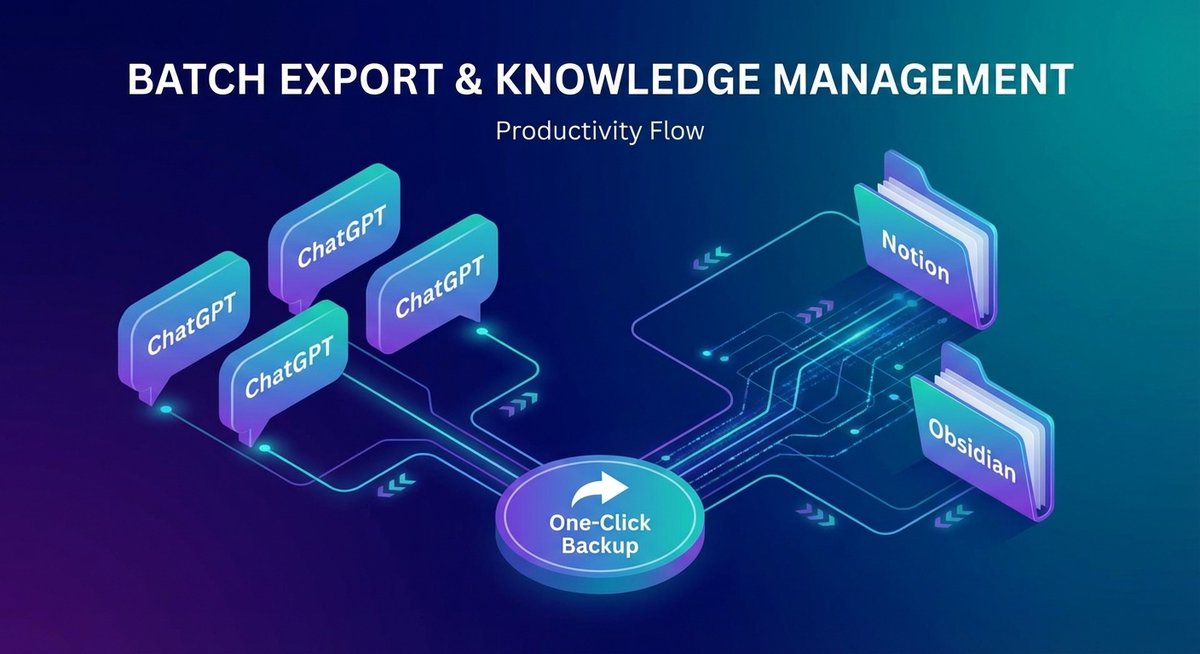
In this guide, I’ll show you how to batch export all your ChatGPT conversations at once, saving you hours of tedious work. Whether you want to backup to Notion, Obsidian, PDF, or Markdown, I’ll cover the fastest and most efficient methods available in 2026.
Why You Need to Batch Export Your ChatGPT Conversations
1. Prevent Data Loss
ChatGPT conversations can disappear for various reasons:
- Account issues or suspensions
- Technical glitches
- Accidental deletions
- OpenAI policy changes
Real story: Many users have reported losing important conversations after account issues. One Reddit user lost 6 months of research notes when their account was temporarily suspended.
2. Build Your Knowledge Base
Your ChatGPT conversations represent valuable intellectual property:
- Research notes and insights
- Code snippets and solutions
- Creative writing and ideas
- Decision-making processes
These conversations deserve to be preserved in your personal knowledge management system (Notion, Obsidian, etc.).
3. Save Time
Manual export is painfully slow:
- Manual method: 30-60 seconds per conversation
- 100 conversations: 50-100 minutes
- 1000 conversations: 8-16 hours 😱
Batch export: All conversations in 5-10 minutes ⚡
4. Comply with Data Portability
You have the right to your data. Batch export ensures you maintain control over your AI conversation history, regardless of platform changes or policy updates.
The Problem with Existing Export Methods
OpenAI’s Official Export (Not Ideal for Regular Use)
OpenAI provides a data export feature, but it’s designed for compliance, not convenience:
The process:
- Request your data through Settings
- Wait for an email (can take hours or days)
- Download a ZIP file
- Manually unzip it
- Parse through HTML files
- Extract what you need
Problems:
- ⏰ Time-consuming and manual
- 📧 Email link expires in 24 hours
- 📄 Exports as HTML (not user-friendly)
- 🔄 Can’t export individual conversations
- 🚫 Not suitable for regular backups
Manual One-by-One Export (Extremely Tedious)
Some Chrome extensions allow you to save conversations, but only one at a time:
The reality:
- Click extension icon
- Select database/folder
- Confirm save
- Wait for processing
- Repeat for EVERY conversation
For 500 conversations: You’ll be clicking buttons for 4+ hours straight. Not practical.
Method 1: Batch Export with AI Exporter Hub (Recommended)
Best for: Users who want the fastest, most reliable batch export with perfect formatting.
What is AI Exporter Hub?
AI Exporter Hub is a comprehensive suite of browser extensions designed to export AI conversations from 20+ platforms (ChatGPT, Claude, Gemini, DeepSeek, Grok, Perplexity, etc.) to Notion, Obsidian, PDF, Markdown, and more.
Key advantage: It’s the only tool that supports true batch export with perfect formatting preservation.
Features
✅ One-Click Batch Export - Export all conversations at once
✅ Perfect Formatting - Preserves code blocks, LaTeX, tables, images
✅ Multiple Destinations - Notion, Obsidian, PDF, Markdown, JSON
✅ Local Processing - Your data stays private
✅ 20+ AI Platforms - ChatGPT, Claude, Gemini, DeepSeek, Grok, Perplexity, and more
✅ Auto-Sync - Automatically backup new conversations
Step-by-Step Guide
Step 1: Install the Extension
- Visit the Chrome Web Store
- Click “Add to Chrome”
- Pin the extension to your toolbar
Step 2: Connect Your Destination
For Notion:
- Click the extension icon
- Select “Connect Notion”
- Authorize access to your Notion workspace
- Choose your target database
For Obsidian:
- Click the extension icon
- Select “Connect Obsidian”
- Choose your vault folder
For Local Files (PDF/Markdown):
- Click the extension icon
- Select your preferred format
- Choose download location
Step 3: Batch Export All Conversations
- Go to ChatGPT
- Click the extension icon
- Select “Batch Export”
- Choose your options:
- ✅ All conversations
- ✅ Date range (e.g., last 30 days)
- ✅ Specific folders/categories
- Click “Start Export”
- Wait 5-10 minutes (depending on volume)
- Done! ✨
Result: All your conversations are now safely backed up with perfect formatting.
What Gets Preserved?
Unlike other tools, AI Exporter Hub preserves everything:
- ✅ Code blocks with syntax highlighting
- ✅ LaTeX formulas (inline and block)
- ✅ Tables with proper formatting
- ✅ Images and screenshots
- ✅ Lists (ordered and unordered)
- ✅ Links and references
- ✅ Conversation metadata (date, model, tokens)
Pricing
- Free Plan: Export single conversations (great for trying it out)
- Single Pro: $9.99/month - Batch export for one platform
- Universal Pass: $19.99/month - Batch export for all 20+ platforms
Method 2: OpenAI Official Export (Free but Limited)
Best for: One-time archival backup (not regular use).
Step-by-Step
- Sign in to ChatGPT
- Click your profile icon (top right)
- Go to Settings → Data Controls
- Click Export Data
- Confirm export
- Wait for email (can take hours)
- Download ZIP file within 24 hours
- Unzip and parse HTML files
Pros
- ✅ Free
- ✅ Official OpenAI feature
- ✅ Includes all data
Cons
- ❌ Slow and manual
- ❌ HTML format (not user-friendly)
- ❌ Can’t select specific conversations
- ❌ Email link expires in 24 hours
- ❌ Not suitable for regular backups
Method 3: DIY with Browser Console (For Developers)
Best for: Developers who want a free, technical solution.
Overview
You can use browser console scripts to extract conversation data directly from ChatGPT’s interface.
Example Script (Simplified)
// WARNING: This is a simplified example. Real implementation is more complex.
const conversations = document.querySelectorAll('[data-testid="conversation-item"]');
const data = Array.from(conversations).map(conv => ({
  title: conv.querySelector('h3').textContent,
  url: conv.querySelector('a').href,
  // ... extract more data
}));

console.log(JSON.stringify(data, null, 2));
Pros
- ✅ Free
- ✅ Full control
- ✅ Customizable
Cons
- ❌ Requires technical knowledge
- ❌ Time-consuming to set up
- ❌ Breaks when ChatGPT updates UI
- ❌ No formatting preservation
- ❌ Manual process for each export
Recommendation: Unless you’re a developer who enjoys tinkering, use Method 1 instead.
Comparison Table: Batch Export Methods
| Feature | AI Exporter Hub | OpenAI Official | DIY Console |
|---|---|---|---|
| Batch Export | ✅ One-click | ⚠️ All or nothing | ❌ Manual |
| Speed | ⚡ 5-10 min | 🐌 Hours | 🐌 Hours |
| Formatting | ✅ Perfect | ❌ HTML only | ⚠️ Basic |
| Ease of Use | ✅ Very easy | ⚠️ Moderate | ❌ Technical |
| Notion Sync | ✅ Direct | ❌ No | ❌ No |
| Obsidian Sync | ✅ Direct | ❌ No | ❌ No |
| Auto-Backup | ✅ Yes | ❌ No | ❌ No |
| Price | 💰 Paid | ✅ Free | ✅ Free |
| Best For | Regular users | One-time backup | Developers |
Best Practices for Batch Exporting ChatGPT
1. Export Regularly
Don’t wait until you have thousands of conversations. Set up a regular backup schedule:
- Weekly: For active users
- Monthly: For casual users
- After important projects: Always backup immediately
2. Organize by Date or Topic
When exporting to Notion or Obsidian, use a clear folder structure:
📁 AI Conversations
  📁 2026
    📁 January
      📄 ChatGPT - Project Planning.md
      📄 ChatGPT - Code Review.md
    📁 February
      📄 ChatGPT - Research Notes.md
  📁 2025
    ...
3. Use Tags and Metadata
Add tags to make conversations searchable:
#coding#research#creative-writing#work#personal
4. Test Your Backup
After batch export, verify:
- ✅ All conversations are present
- ✅ Formatting is preserved
- ✅ Code blocks are readable
- ✅ Images are included
5. Keep Multiple Backups
Follow the 3-2-1 backup rule:
- 3 copies of your data
- 2 different storage types (e.g., Notion + local files)
- 1 off-site backup (e.g., cloud storage)
Common Questions About Batch Export
Q: Can I export conversations from multiple AI platforms at once?
A: Yes, with AI Exporter Hub’s Universal Pass, you can batch export from ChatGPT, Claude, Gemini, DeepSeek, Grok, Perplexity, and 15+ other platforms.
Q: Will batch export slow down my browser?
A: Modern batch export tools process conversations in the background. You can continue working while the export runs.
Q: Can I export only specific conversations?
A: Yes, most tools allow you to:
- Select by date range
- Filter by folder/category
- Choose individual conversations
Q: What happens if the export fails midway?
A: Good batch export tools have resume functionality. If interrupted, they’ll continue from where they left off.
Q: Is my data safe during batch export?
A: With local processing (like AI Exporter Hub), your data never leaves your browser except when syncing to your chosen destination (Notion, Obsidian, etc.).
Q: Can I automate batch exports?
A: Yes, some tools offer auto-sync features that automatically backup new conversations on a schedule.
Real User Stories
Case Study 1: Research Student
Problem: Sarah had 800+ ChatGPT conversations from her PhD research. She needed to backup everything before her subscription expired.
Solution: Used AI Exporter Hub to batch export all conversations to Obsidian in 8 minutes.
Result: “I saved at least 10 hours of manual work. The formatting was perfect, and I could immediately search through all my research notes.”
Case Study 2: Software Developer
Problem: Mike used ChatGPT daily for code reviews and debugging. He had 1,200+ conversations with valuable code snippets.
Solution: Set up weekly auto-backup to Notion using batch export.
Result: “Now I have a searchable database of all my coding solutions. It’s like having a personal Stack Overflow.”
Case Study 3: Content Creator
Problem: Lisa used ChatGPT for brainstorming and drafting. She lost 3 months of work when her account had issues.
Solution: After recovering her account, she immediately batch exported everything and set up daily auto-backup.
Result: “Never again. I sleep better knowing my creative work is safely backed up.”
Conclusion
Batch exporting your ChatGPT conversations doesn’t have to be a painful, manual process. With the right tools, you can:
✅ Save hours of time - Export 1000+ conversations in minutes
✅ Preserve perfect formatting - Keep code, tables, and images intact
✅ Build your knowledge base - Sync directly to Notion or Obsidian
✅ Protect your data - Never lose important conversations again
Recommended Solution
For most users, AI Exporter Hub offers the best balance of speed, features, and ease of use. It’s the only tool that truly supports one-click batch export with perfect formatting preservation.
Get started today:
- Install the extension (free trial available)
- Connect your Notion or Obsidian
- Batch export all your conversations in minutes
Your future self will thank you for backing up your AI conversations today. 🚀
Related Articles
- ChatGPT to Notion: Complete Setup Guide
- OpenAI Launches Prompt Packs: Professional Prompt Libraries for 9 Career Roles
- Anthropic Launches Cowork Plugins: Claude Becomes Your All-in-One Work Assistant
About the Author: This guide was created by the team at ChatGPT2Notion.com, trusted by thousands of power users for AI conversation management.
Last Updated: February 1, 2026