
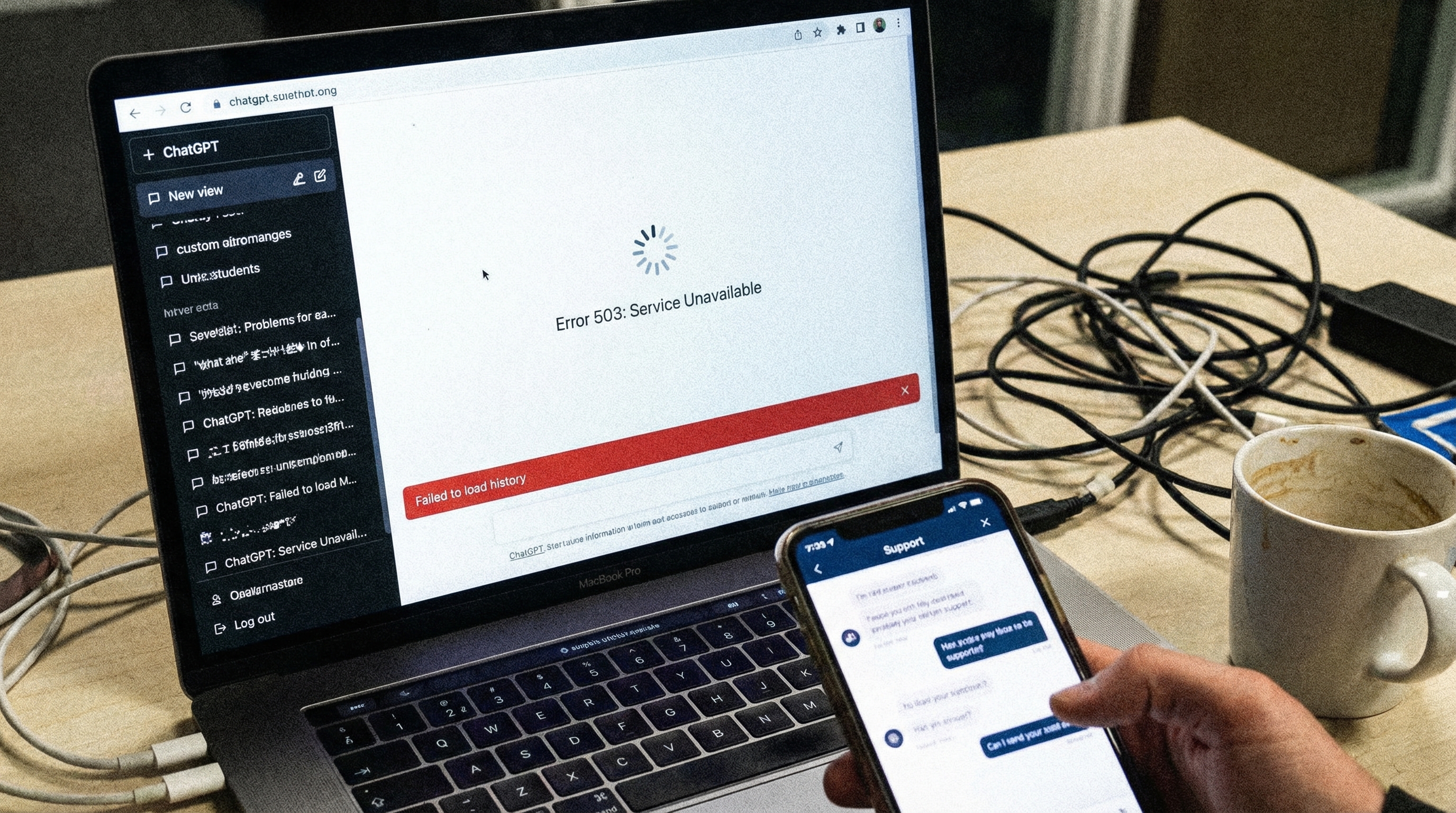
ChatGPT History Not Loading? How to Backup Your Data Locally
You open ChatGPT. The sidebar is blank. Your conversation history won’t load. You refresh. Still nothing. Panic sets in—months of valuable conversations might be gone.
If you’ve experienced ChatGPT history loading issues, you’re not alone. In this guide, you’ll learn why this happens, how to fix it, and most importantly, how to backup your conversations locally so you never lose them again.
The Problem: ChatGPT History Fails to Load
Common Symptoms:
1. Blank Sidebar
- Sidebar shows “Loading…” indefinitely
- No conversations appear
- Refresh doesn’t help
2. Partial Loading
- Only recent conversations show
- Older conversations missing
- History cuts off at a certain date
3. Error Messages
- “Failed to load conversations”
- “Something went wrong”
- “Unable to fetch history”
4. Slow Loading
- Sidebar takes 30+ seconds to load
- Conversations appear one by one slowly
- Interface becomes unresponsive
Why Does ChatGPT History Fail to Load?
Technical Reasons:
1. Server-Side Issues
- OpenAI’s servers are overloaded
- Database query timeouts
- API rate limiting
- Temporary outages
2. Large History Size
- You have 100+ conversations
- Some conversations are very long (500+ messages)
- Total data size exceeds browser limits
- Pagination issues
3. Browser Problems
- Cache corruption
- Cookie issues
- Browser extension conflicts
- Outdated browser version
4. Network Issues
- Slow internet connection
- Firewall blocking requests
- VPN interference
- DNS resolution problems
5. Account Issues
- Subscription status problems
- Account flagged for review
- Data migration in progress
- Regional restrictions
Immediate Fixes to Try
Fix 1: Hard Refresh
Step 1: Clear browser cache
- Chrome: Cmd+Shift+Delete (Mac) / Ctrl+Shift+Delete (Windows)
- Select “Cached images and files”
- Clear data
Step 2: Hard refresh ChatGPT
- Cmd+Shift+R (Mac) / Ctrl+Shift+R (Windows)
- Or: Cmd+R / Ctrl+R multiple times
Success Rate: 30-40%
Fix 2: Try Different Browser
Step 1: Open ChatGPT in a different browser
- If using Chrome, try Firefox or Safari
- Use incognito/private mode
Step 2: Check if history loads
- If yes: Browser-specific issue
- If no: Server-side issue
Success Rate: 20-30%
Fix 3: Disable Browser Extensions
Step 1: Disable all extensions
- Chrome: chrome://extensions
- Toggle off all extensions
Step 2: Refresh ChatGPT
- Check if history loads
Step 3: Re-enable extensions one by one
- Find the conflicting extension
Success Rate: 15-25%
Fix 4: Check OpenAI Status
Step 1: Visit status.openai.com
- Check for ongoing incidents
- Look for “ChatGPT” service status
Step 2: If there’s an outage
- Wait for OpenAI to fix it
- Check back in 30-60 minutes
Success Rate: If outage, 100% (just wait)
Fix 5: Use OpenAI API
Step 1: Access conversations via API
- Requires API key
- Use OpenAI’s API to fetch conversations
- Bypass web interface issues
Step 2: Export data programmatically
- Write script to fetch all conversations
- Save locally
Success Rate: 80-90% (for technical users)
The Real Problem: You Don’t Control Your Data
What You Don’t Realize:
Your ChatGPT conversations are stored on OpenAI’s servers.
This means:
- ❌ You can’t access them if servers are down
- ❌ You can’t control when they’re deleted
- ❌ You can’t backup them easily
- ❌ You’re dependent on OpenAI’s infrastructure
What Can Go Wrong:
1. Temporary Outages
- Servers down for maintenance
- Can’t access conversations for hours
2. Permanent Data Loss
- Account deletion (accidental or intentional)
- OpenAI data retention policy changes
- Server failures without backups
3. Account Issues
- Account suspended or banned
- Lose access to all conversations
- No way to recover data
4. Service Discontinuation
- OpenAI changes or discontinues service
- Conversations may not be migrated
- Historical data may be lost
Solution: Backup Your Conversations Locally
Why Local Backup Matters:
✅ You control your data
- Not dependent on OpenAI’s servers
- Access anytime, even offline
- No loading issues
✅ Permanent storage
- Won’t disappear if OpenAI has issues
- Won’t be deleted by accident
- Can keep forever
✅ Searchable and organized
- Search across all conversations
- Organize by project or topic
- Link related conversations
✅ Portable
- Move between tools (Notion, Obsidian, etc.)
- Share with team
- Use in other applications
Method 1: Manual Copy-Paste (Emergency Backup)
When to Use:
- ChatGPT history is loading (even slowly)
- You need to backup specific important conversations
- Quick emergency backup
Step-by-Step:
Step 1: Identify Critical Conversations
- Open each important conversation
- Review content
Step 2: Copy Conversation
- Select all (Cmd+A / Ctrl+A)
- Copy (Cmd+C / Ctrl+C)
Step 3: Save Locally
- Paste into text file
- Save with descriptive name:
chatgpt-python-help-2026-02-22.txt - Store in organized folder structure
Step 4: Add Metadata
- Add date, topic, tags at top of file
- Makes searching easier later
Time Required: 3-5 minutes per conversation
Pros:
- ✅ Works immediately
- ✅ No tools required
- ✅ Free
Cons:
- ❌ Extremely time-consuming for many conversations
- ❌ Formatting is lost
- ❌ Not scalable
- ❌ Easy to forget
Method 2: Use OpenAI’s Official Export
Step-by-Step:
Step 1: Request Data Export
- Go to ChatGPT Settings
- Privacy → Export data
- Click “Export”
Step 2: Wait for Email
- OpenAI processes request (24-48 hours)
- You’ll receive download link via email
Step 3: Download and Extract
- Download ZIP file
- Extract
conversations.json
Step 4: Convert JSON to Readable Format
- JSON is unreadable for humans
- Need to parse it (see our guide: ChatGPT JSON Export is Unreadable)
Time Required:
- Request: 2 minutes
- Wait: 24-48 hours
- Conversion: 1-3 hours (if doing manually)
Pros:
- ✅ Official OpenAI feature
- ✅ Complete data export
- ✅ Includes all conversations
Cons:
- ❌ 24-48 hour wait time
- ❌ JSON format is unreadable
- ❌ Requires technical skills to parse
- ❌ Not real-time (only historical data)
- ❌ Can’t backup ongoing conversations
Method 3: ChatGPT to Notion/Obsidian (Recommended)
Why This is the Best Solution:
Real-Time Backup:
- Export conversations as you create them
- No waiting for official export
- No risk of losing recent conversations
Perfect Formatting:
- Code blocks preserved
- Markdown formatting intact
- Tables and lists rendered correctly
Organized Storage:
- Save to Notion or Obsidian
- Tag and categorize
- Search across all conversations
- Link related conversations
Automatic Backup:
- Enable auto-sync
- Every conversation automatically backed up
- No manual work required
Step-by-Step:
Step 1: Install Extension
- Visit ChatGPT to Notion
- Install Chrome extension (2 minutes)
Step 2: Connect Storage
- For Notion: Authorize Notion workspace
- For Obsidian: Configure vault path
Step 3: Choose Backup Method
Option A: Manual Export
- Click “Export” button on important conversations
- Conversation saved to Notion/Obsidian
- Takes 5 seconds per conversation
Option B: Auto-Sync (Pro)
- Enable auto-sync in settings
- Every conversation automatically backed up
- No manual work required
Option C: Batch Export (Pro)
- Select multiple conversations from history
- Click “Batch Export”
- All selected conversations exported at once
What You Get:
✅ Local Backup
- Stored in Notion (cloud) or Obsidian (local)
- You control the data
- Access anytime, even if ChatGPT is down
✅ Perfect Formatting
- Code blocks with syntax highlighting
- Markdown preserved
- Tables and lists intact
✅ Rich Metadata
- Conversation title
- Date and time
- Model used (GPT-4, GPT-3.5)
- Custom tags
✅ Searchable
- Search across all conversations
- Filter by date, tag, or topic
- Find information instantly
✅ Organized
- Create folders/databases
- Tag by project or category
- Link related conversations
Pricing:
- Free: 10 exports per month
- Pro: $9/month (unlimited exports, auto-sync, batch export)
Time Required:
- Setup: 5 minutes (one-time)
- Per export: 5 seconds
- Auto-sync: 0 seconds (automatic)
Comparison: Backup Methods
| Method | Time | Reliability | Format | Real-Time | Cost |
|---|---|---|---|---|---|
| Manual Copy-Paste | High | Low | Plain text | Yes | Free |
| Official Export | 24-48h | High | JSON | No | Free |
| ChatGPT to Notion/Obsidian | 5 sec | High | Perfect | Yes | $0-9/mo |
Best Practices for ChatGPT Data Protection
Practice 1: Enable Auto-Sync
Why:
- Never forget to backup
- Every conversation automatically saved
- No risk of data loss
How:
- Install ChatGPT to Notion/Obsidian
- Enable auto-sync in settings
- Set it and forget it
Practice 2: Regular Manual Backups
Even with auto-sync, do periodic manual backups:
Weekly:
- Export important conversations manually
- Verify auto-sync is working
- Check backup storage
Monthly:
- Request official OpenAI export
- Store in separate location
- Keep as additional backup
Practice 3: Organize Your Backups
Folder Structure (for Obsidian):
ChatGPT Backups/
├── 2026/
│   ├── 02-February/
│   │   ├── Coding/
│   │   ├── Research/
│   │   └── Writing/
│   └── 03-March/
└── Archive/
Database Structure (for Notion):
Properties:
- Title (text)
- Date (date)
- Category (select): Code, Research, Writing, etc.
- Tags (multi-select)
- Status (select): Active, Reference, Archived
- Model (select): GPT-4, GPT-3.5
Practice 4: Multiple Backup Locations
Don’t put all eggs in one basket:
Primary: Notion or Obsidian (via auto-sync) Secondary: Local text files (manual backup) Tertiary: Cloud storage (Google Drive, Dropbox)
Practice 5: Test Your Backups
Monthly Test:
- Try to access a backed-up conversation
- Verify formatting is intact
- Check search functionality works
- Ensure you can find information quickly
What to Do If You’ve Lost Conversations
Step 1: Check ChatGPT Trash
If you deleted conversations:
- Look for trash/deleted items in ChatGPT
- Restore if available (usually 30 days)
Step 2: Check Official Export
If you’ve requested export before:
- Download old export
- Search for lost conversation
- Extract from JSON
Step 3: Check Browser History
If conversation was recent:
- Check browser history
- Look for ChatGPT URLs
- May contain conversation ID
- Try accessing directly
Step 4: Contact OpenAI Support
If data is critical:
- Contact OpenAI support
- Provide account details
- Explain situation
- They may be able to recover (no guarantee)
Step 5: Recreate from Memory
If truly lost:
- Use ChatGPT to recreate similar conversation
- Provide context from memory
- Export immediately to prevent future loss
Preventing Future Data Loss
Checklist:
- Install ChatGPT to Notion/Obsidian extension
- Enable auto-sync for automatic backup
- Set up organized folder/database structure
- Request monthly official OpenAI export
- Store backups in multiple locations
- Test backup access monthly
- Document important prompts separately
- Share critical conversations with team
Frequently Asked Questions
Q: Why does ChatGPT history fail to load?
A: Usually server overload, large history size, or browser issues. Try hard refresh, different browser, or wait for OpenAI to fix server issues.
Q: Can I recover deleted ChatGPT conversations?
A: Maybe, if within 30 days and in trash. Otherwise, only if you have a backup or official export.
Q: How often should I backup ChatGPT conversations?
A: Ideally, automatically with every conversation (auto-sync). Manually, at least weekly for important conversations.
Q: Is ChatGPT to Notion/Obsidian safe?
A: Yes, it only accesses conversations you explicitly export. Data goes directly to your Notion/Obsidian, not stored by the extension.
Q: What if OpenAI deletes my account?
A: If you have local backups (Notion/Obsidian), you still have your conversations. Without backups, data is lost.
Q: Can I backup ChatGPT conversations offline?
A: Yes, use Obsidian (local storage) instead of Notion (cloud). Or export to local text files.
Conclusion
ChatGPT history loading issues are frustrating, but the real problem is not having control over your data. Don’t wait until you lose important conversations to start backing up.
Quick Recommendations:
- Immediate fix: Try hard refresh, different browser
- Short-term: Manual backup of critical conversations
- Long-term: Install ChatGPT to Notion/Obsidian with auto-sync
The Math:
- Manual backup: 5 minutes per conversation
- Auto-sync: 0 minutes (automatic)
- Time saved: All your time + peace of mind
Risk Assessment:
- No backup: High risk of permanent data loss
- Manual backup: Medium risk (easy to forget)
- Auto-sync: Low risk (automatic protection)
Don’t risk losing months of valuable AI conversations. Start backing up today with ChatGPT to Notion.
Related Articles: