
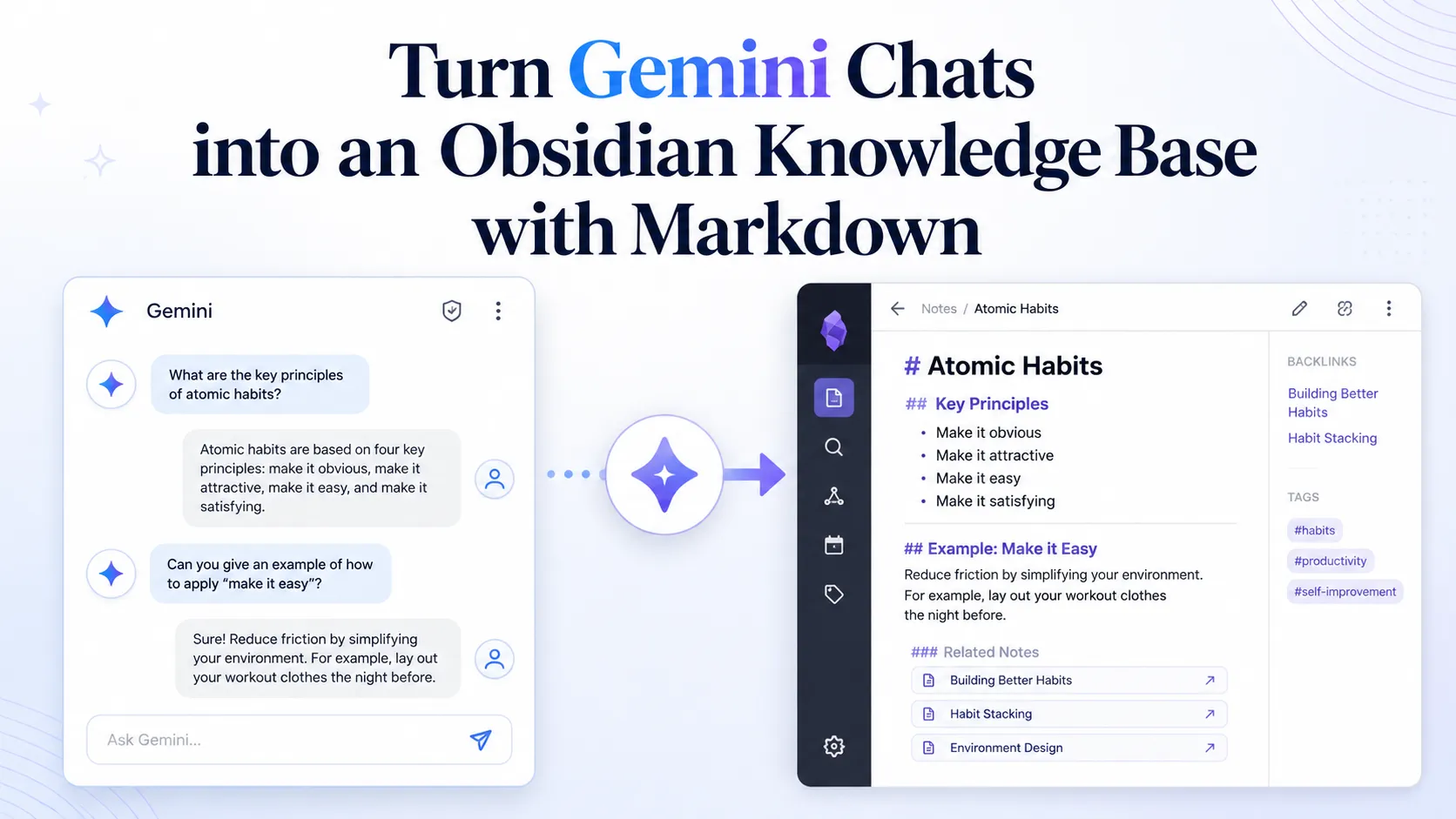
How to Export Gemini Chats to Obsidian as Markdown Files
Gemini conversations can be extremely valuable.
They may contain research notes, writing ideas, code explanations, study summaries, product decisions, meeting preparation, or project planning details.
But if those conversations stay inside Gemini history, they can be hard to organize, search, reuse, or preserve long term.
A better workflow is to export important Gemini chats as Markdown files and save them directly inside Obsidian.
This tutorial shows how to turn Gemini conversations into clean Obsidian-ready Markdown notes.
Watch the Tutorial
In this video, you will see how to export a Gemini conversation as a Markdown file and use it directly inside an Obsidian vault.
Why Export Gemini Chats to Obsidian?
Gemini is useful for generating answers, summaries, code explanations, and research notes.
But Gemini history is not a long-term knowledge management system.
When useful AI conversations stay inside chat history, several problems appear:
- Old answers become difficult to find
- Important insights get buried in long conversation lists
- Copy-pasting can break formatting
- Code blocks, headings, tables, and structure may become messy
- It is difficult to connect Gemini answers with existing notes
Obsidian solves a different problem.
It gives you a local Markdown-based knowledge base where you can search, edit, link, organize, and reuse your notes over time.
By exporting Gemini chats to Obsidian, you can turn temporary AI conversations into long-term knowledge assets.
What This Workflow Does
The workflow is simple:
Gemini conversation
        |
Markdown export
        |
Obsidian vault
        |
Local AI knowledge base
Instead of manually copying and pasting Gemini responses, you can export a full Gemini conversation as a clean Markdown file.
The exported note can include:
- Conversation title
- Metadata
- Tags
- Message count
- User and Gemini message structure
- Headings
- Lists
- Code blocks
- Tables
- Markdown formatting
If your Gemini conversation includes images, they can also be saved locally and linked from the Markdown note.
Gemini Chat Exported Inside Obsidian
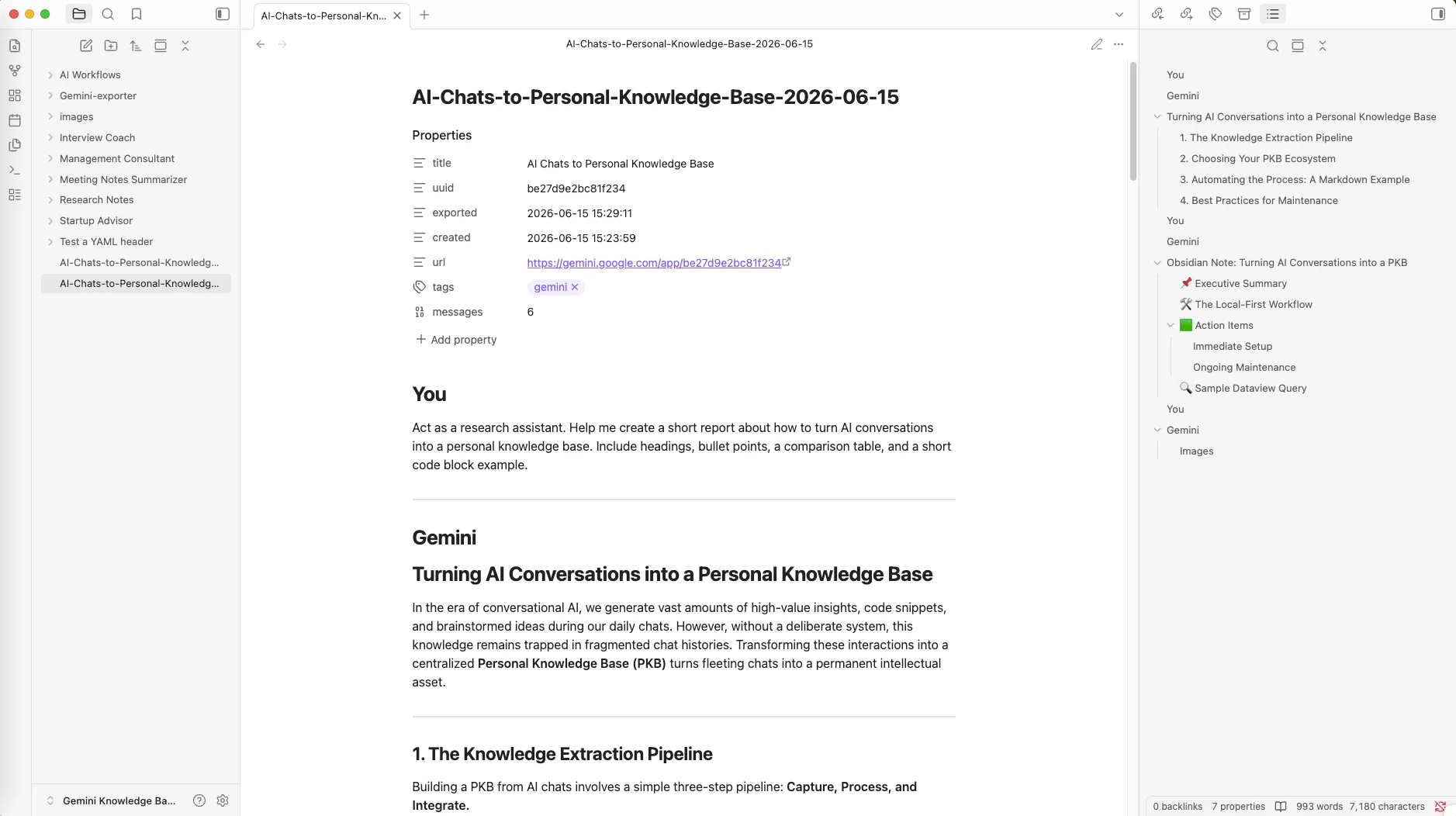
A Gemini conversation exported as a clean Markdown note inside Obsidian.
Step 1: Prepare a Gemini Conversation
First, open a Gemini conversation that you want to save.
This can be a conversation about:
- Research notes
- Technical explanations
- Writing drafts
- Study summaries
- Project planning
- Code examples
- AI workflow ideas
For the tutorial video, the example conversation is about turning AI conversations into a personal knowledge base.
This type of conversation is a good example because it contains headings, structured content, and a code example.
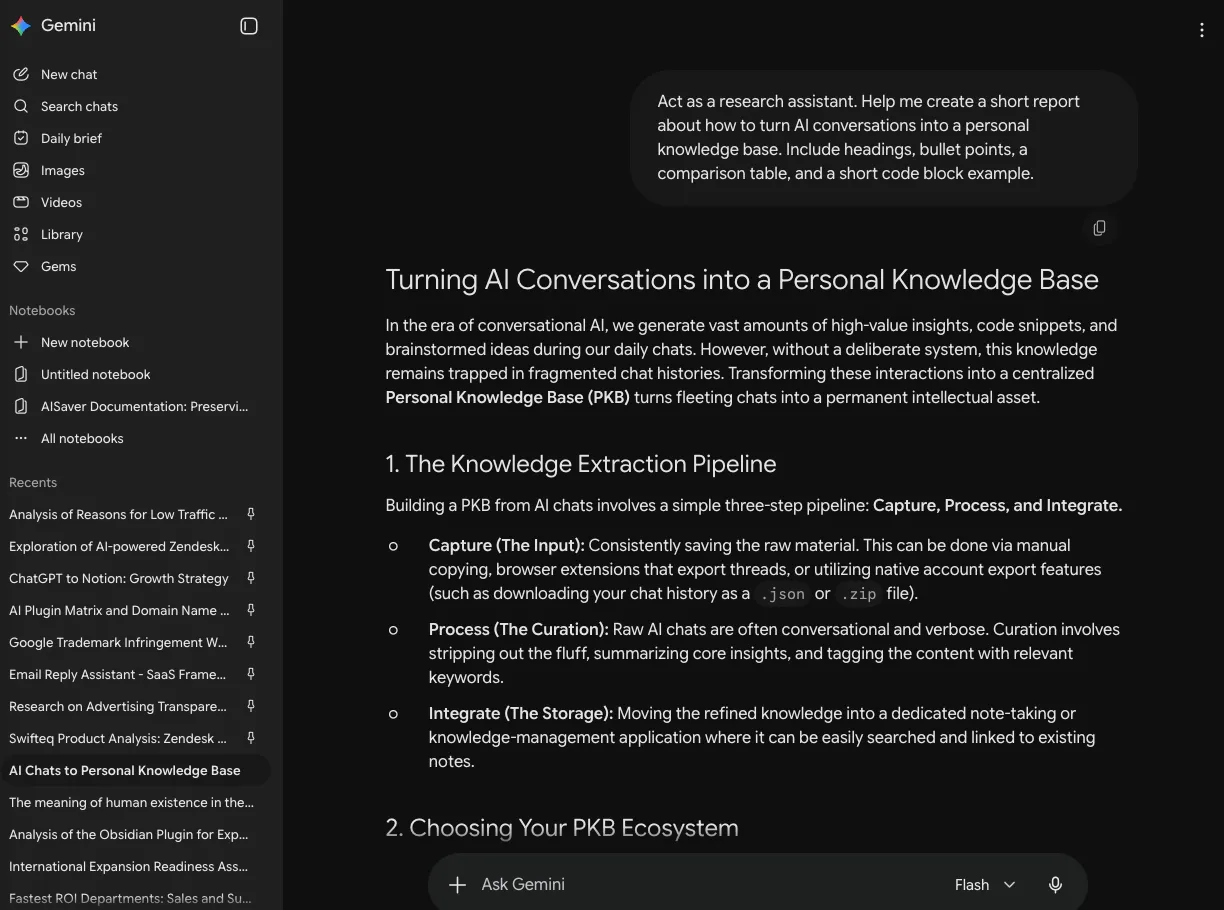
The original Gemini conversation before exporting it to Markdown.
Step 2: Export the Current Gemini Chat as Markdown
Next, click the Export Gemini to Obsidian extension from your browser.
Choose the option to export the current Gemini chat as a Markdown file.
For an Obsidian workflow, you can use your export folder as an Obsidian vault. This means every exported Markdown file can appear directly inside Obsidian without manually moving files later.
This makes the workflow much smoother:
Click export
        |
Markdown file is saved
        |
Obsidian automatically detects the note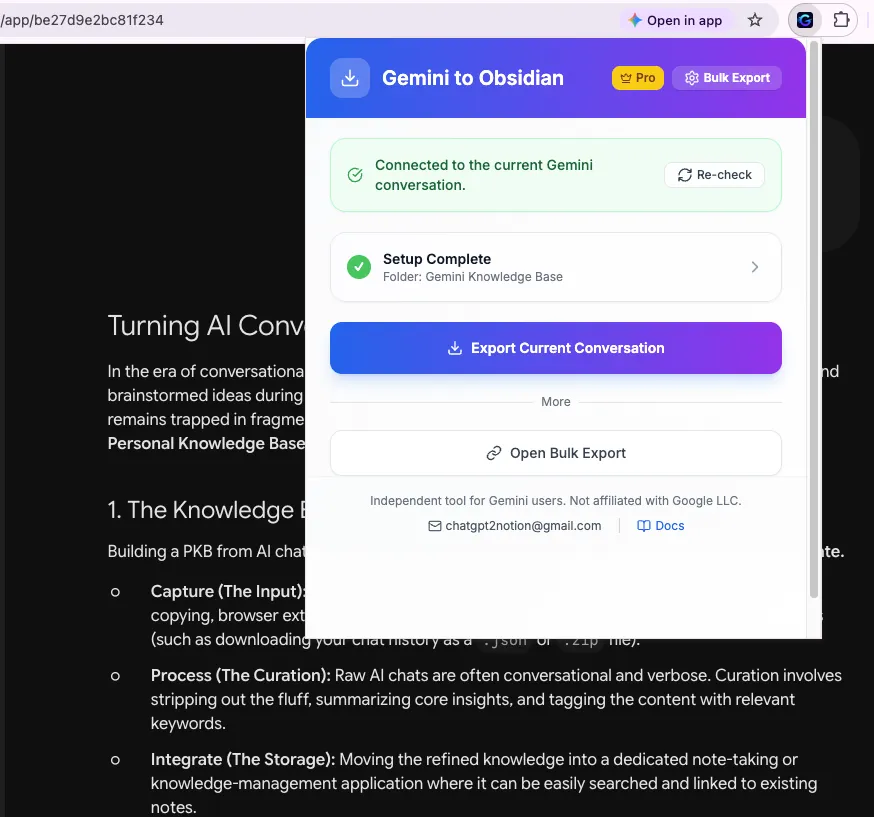
Exporting the current Gemini chat as an Obsidian-ready Markdown file.
Step 3: Open the Exported Note in Obsidian
After export, go back to Obsidian.
If your export folder is already used as your Obsidian vault, the new Markdown file should appear directly inside Obsidian.
Open the exported note.
You should now see the Gemini conversation as a normal Obsidian Markdown note.
The note can be searched, edited, tagged, linked, organized, and reused just like any other note in your vault.
What Gets Preserved?
The exported Markdown note is designed to keep the conversation readable and useful.
Depending on the conversation content, the export can preserve:
- The original Gemini conversation title
- Created and exported time
- Source URL
- Tags
- Message count
- User prompts
- Gemini responses
- Headings
- Bullet points
- Numbered lists
- Code blocks
- Tables
- Markdown structure
- Locally saved images when available
This is especially useful for people who use Gemini for serious work and want to keep a reliable local archive.
Who Is This Useful For?
This workflow is useful for several types of Gemini users.
Researchers
Save Gemini research sessions as structured Markdown notes and connect them with your existing research vault.
Developers
Export coding explanations, debugging notes, architecture discussions, and prompt experiments with code blocks preserved.
Writers
Save outlines, drafts, brainstorming sessions, and editing suggestions directly into your writing system.
Students
Turn Gemini study sessions into searchable notes for review and long-term learning.
Consultants and Knowledge Workers
Keep project-related Gemini conversations organized by client, topic, or workflow.
Why Use Obsidian for Gemini Conversations?
Obsidian is based on local Markdown files.
That makes it a strong choice for long-term AI conversation management because your notes are:
- Local
- Portable
- Searchable
- Editable
- Linkable
- Easy to back up
- Not locked inside a single chat interface
When you export Gemini chats into Obsidian, your AI conversations become part of your own knowledge system.
They are no longer trapped inside Gemini history.
Markdown Export vs Manual Copy-Paste
You can manually copy and paste Gemini responses into Obsidian, but this quickly becomes painful.
Manual copy-paste can cause problems:
- It takes more time
- Formatting may break
- Code blocks may not copy cleanly
- Long conversations are hard to copy completely
- Images may be missed
- Metadata is not preserved
- Repeating the process for many chats is inefficient
A Markdown export workflow makes the process cleaner and more repeatable.
Instead of copying one response at a time, you can save the conversation as a structured Markdown note.
Recommended Workflow
A simple Gemini-to-Obsidian workflow can look like this:
1. Use Gemini for research, writing, coding, or planning
2. Export valuable conversations as Markdown
3. Save them directly into your Obsidian vault
4. Organize notes by topic, project, or workflow
5. Link related notes together
6. Reuse important Gemini answers later
For example, you can create folders like:
Gemini Exports
Research Notes
AI Workflows
Project Planning
Code Explanations
Images
This keeps your AI conversations organized and easier to reuse.
Final Thoughts
Gemini chats are more valuable than they look.
They often contain ideas, explanations, summaries, decisions, and research that you may want to keep long term.
Instead of leaving those answers buried inside Gemini history, you can export them as Markdown files and turn them into Obsidian notes.
This creates a simple but powerful workflow:
Gemini chats become local Markdown notes.
Markdown notes become part of your Obsidian knowledge base.
Your AI conversations become reusable knowledge.
If you use Gemini for serious work, exporting your conversations to Obsidian is one of the easiest ways to build a personal AI knowledge base.
Start with Export Gemini to Obsidian if you want a one-click Markdown export workflow for Gemini chats.
FAQ
Can I export Gemini chats to Obsidian?
Yes. You can export Gemini conversations as Markdown files and open them directly inside Obsidian.
Can I use the export folder as an Obsidian vault?
Yes. If you use your export folder as an Obsidian vault, exported Markdown files can appear directly inside Obsidian.
Does this work with Markdown?
Yes. The exported files are Markdown files, which can be used in Obsidian and other Markdown editors.
Can Gemini images be exported?
If a Gemini conversation includes images, they can be saved locally and linked from the Markdown note.
Is this only for researchers?
No. This workflow is also useful for developers, writers, students, consultants, product managers, and anyone who wants to organize Gemini conversations.