
Installation
How to install Bulk Export AI Chats from Gemini to PDF from Chrome Web Store
Install from Chrome Web Store
- Visit the Chrome Web Store
- Search for “Bulk Export AI Chats from Gemini to PDF”
- Click “Add to Chrome”
- Confirm the installation when prompted
Required Permissions
The extension requires the following permissions:
- debugger: Required for Chrome’s PDF generation API
- downloads: To save PDF files to your computer
- tabs: To detect and connect to Gemini pages
- storage: To track exported conversations and settings
- host_permissions: Access to gemini.google.com
About the Debugger Permission
You may see a debugger-related notification during PDF export. This is normal and expected behavior.
Chrome’s PDF generation API requires the debugger permission to capture page content and convert it to PDF. This is a standard requirement for extensions that generate PDFs from web pages.
Important: The extension only uses this permission for PDF generation. Your data never leaves your browser.
Verify Installation
After installation, you should see the Bulk Export AI Chats from Gemini to PDF icon in your Chrome toolbar.
If you don’t see the icon:
- Click the puzzle piece icon in your toolbar
- Find “Bulk Export AI Chats from Gemini to PDF” in the list
- Click the pin icon to pin it to your toolbar
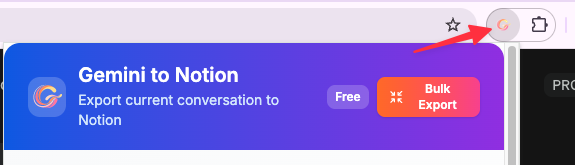
First Launch
- Click the extension icon
- You’ll see the extension popup with:
- Connection status
- Export buttons
- Daily usage counter (5/5 for free users)
Browser Compatibility
- Chrome: Fully supported (version 88+)
- Edge: Fully supported (Chromium-based)
- Brave: Fully supported
- Opera: Fully supported (Chromium-based)
- Firefox: Not supported (uses different extension API)
- Safari: Not supported
System Requirements
- Chrome browser version 88 or higher
- Active internet connection (for accessing Gemini)
- Sufficient disk space for PDF files
Next Steps
Once installed, learn how to export your first conversation.
Need more help? Contact Support
Independent tool notice
Built for exporting from Google Gemini. This project is independent and is not affiliated with Google LLC.