
Bulk Download
Bulk export selected ChatGPT conversations, history pages, Projects, Group Chats, Library files, Images, and Archived Chats with ChatGPT to Obsidian v8.4
Bulk Download is the extension’s full-page export workspace. It supports seven content modes and keeps local progress, results, successful records, failed records, and sync history.
Prerequisites
- ChatGPT to Obsidian
8.4.0installed - A valid relative Download Folder
- An active ChatGPT login
- At least one open and refreshed ChatGPT tab
- A
https://chatgpt.com/librarytab for Library Files - A
https://chatgpt.com/images/tab for Images
Open Bulk Download
Use either entry:
- Click Bulk Download in the popup header
- Click Bulk Page under Export Actions
Both open options.html in a new tab.
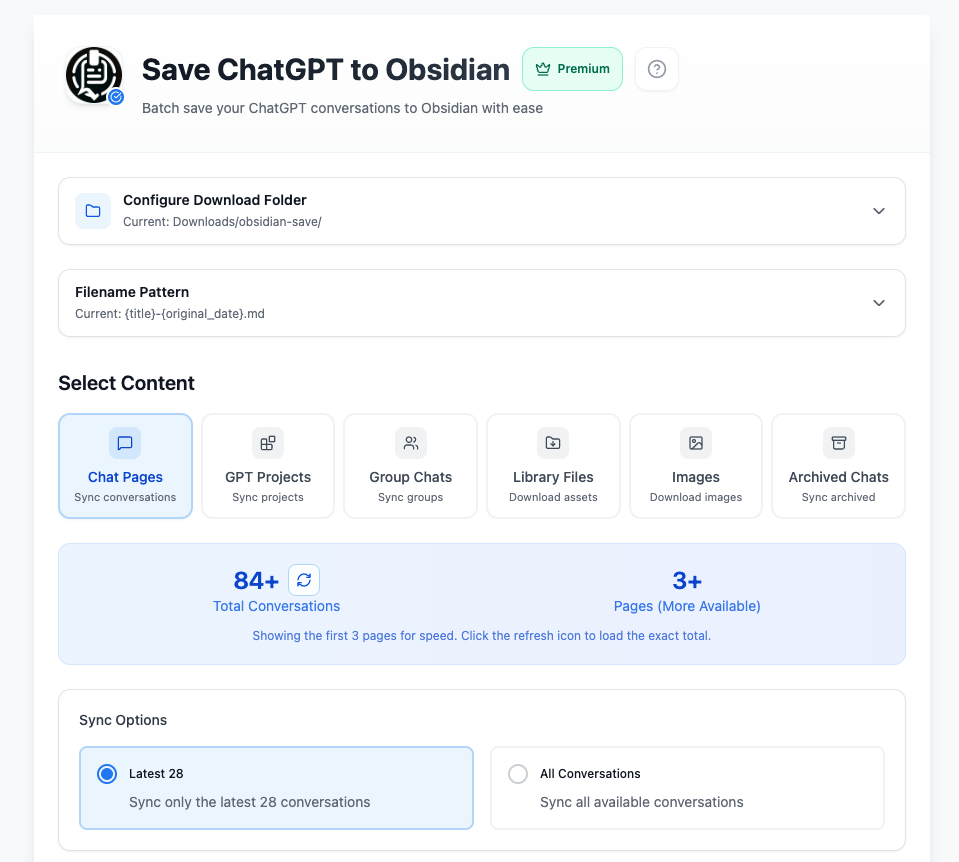
Connection Status
The page checks all open ChatGPT tabs and prefers the most relevant connected tab for the selected mode. If it shows that ChatGPT needs a refresh:
- Refresh a ChatGPT tab.
- Wait for the page to load.
- Return to Bulk Download and refresh its connection state.
Configure Markdown Downloads
The Download Folder and Filename Pattern sections are collapsible.
- Download Folder controls where conversation Markdown is saved.
- Filename Pattern controls the date/title order.
Library Files and Images use separate default subfolders:
{download-folder}/chatgpt-library{download-folder}/chatgpt-images
Select Content
Chat Pages
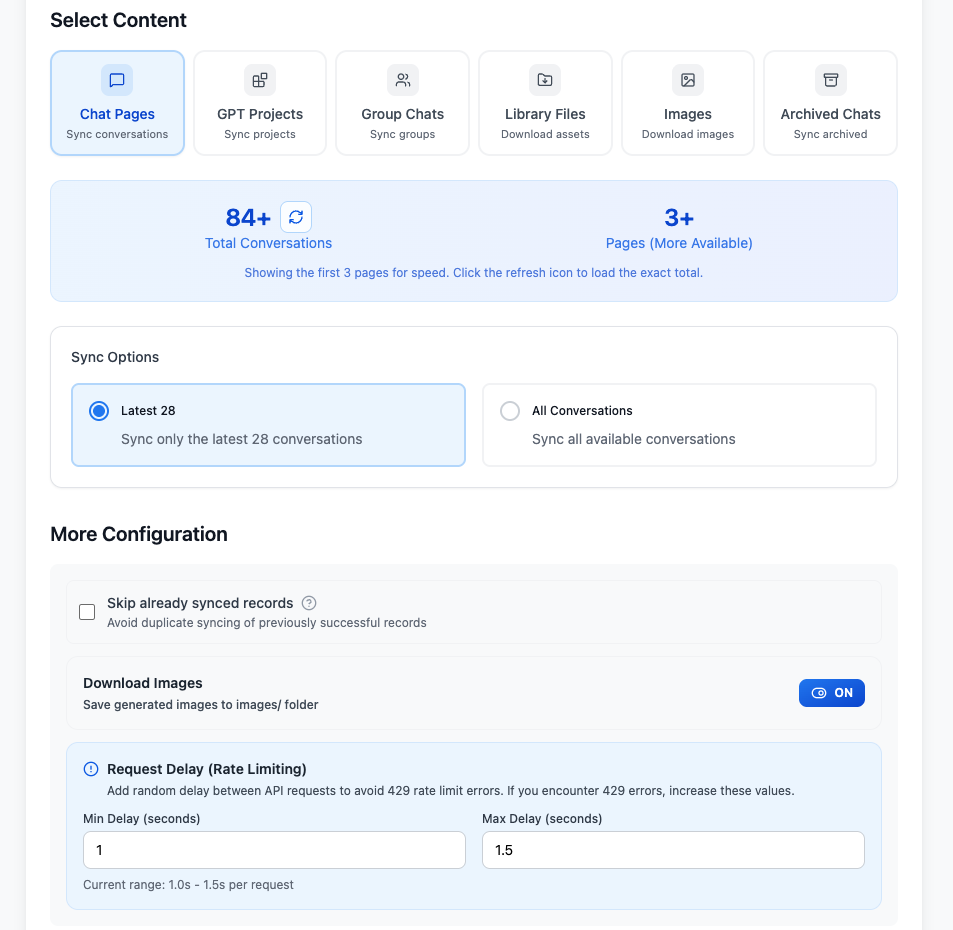
Choose:
- Latest 28
- All Conversations
The summary initially checks up to three pages for speed. Click the refresh icon to calculate an exact count, or select All Conversations to export until the conversation history is exhausted.
Selective Export
Use this mode to export complete Markdown files for specific conversations instead of taking the latest page or your full history.
- Click Refresh to reload the first conversation page.
- Click Load Next Page to add one more page, or Load All to continue until the history is exhausted.
- Search the loaded conversation titles if you need to narrow the visible list.
- Select individual conversations, or use Select All and Deselect All.
- Review the loaded and selected counts, then click Begin Sync.
Each row shows its updated date when available. Conversations already found in local success history display an Exported badge. The badge helps with selection, while Skip already synced records still controls whether an unchanged conversation is skipped during processing.
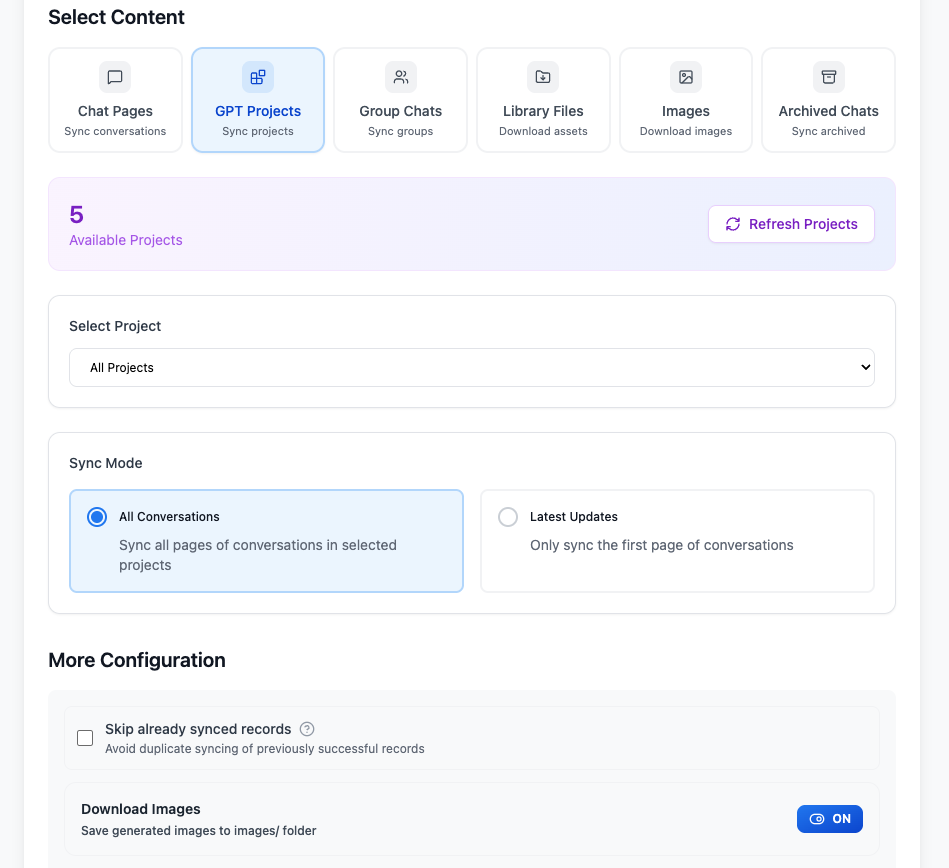
GPT Projects
The extension loads the available Project list and lets you choose:
- One Project or All Projects
- All Conversations
- Latest Updates (first page only)
Project conversations can be organized under project-named folders, and the Project name is written into exported metadata when available.
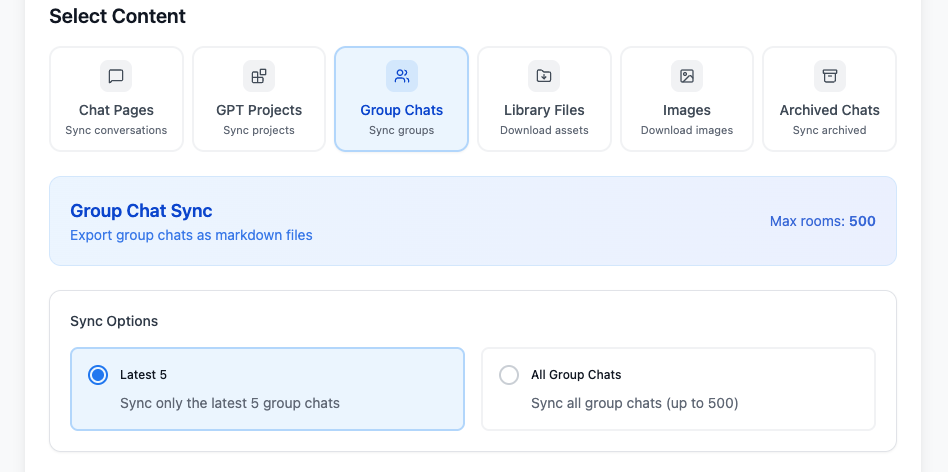
Group Chats
Choose:
- Latest 5
- All Group Chats
The all-groups scan is capped at 500 rooms. Group Chat Markdown preserves available author names and uses the GroupChat tag.
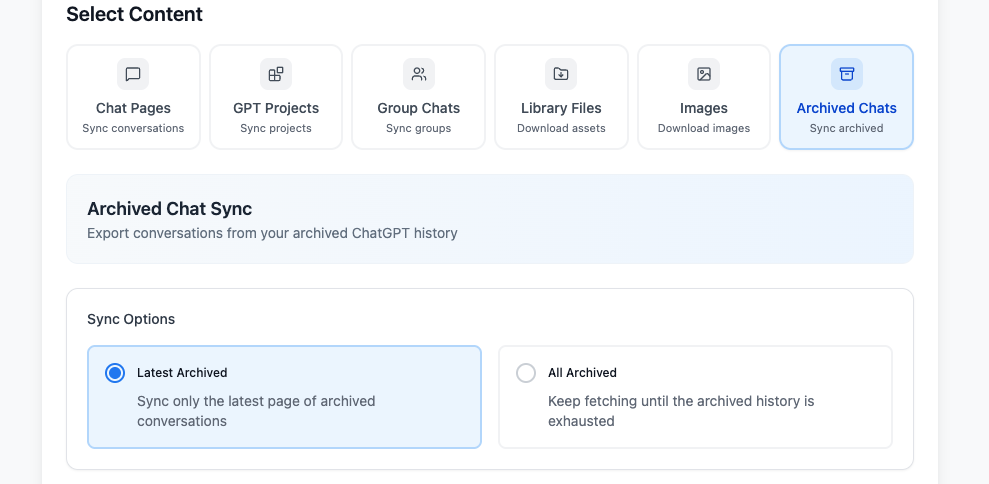
Archived Chats
Choose:
- Latest Archived
- All Archived
Archived exports go under an Archived Chats/ subfolder. Project folders are preserved inside it when project information is available.
Library Files
This mode requires an active https://chatgpt.com/library tab.
The workflow is:
- Open or refresh the Library page.
- Click Load, Load next, or Load all.
- Filter by file type, filename text, or modified-date range.
- Select visible or individual items.
- Configure the folder, download mode, duplicate skipping, and export summary.
- Click Start download.
Download modes:
- Individual files
- ZIP archive
Export summary options:
- Files only
- Markdown summary + HTML index
- HTML index only
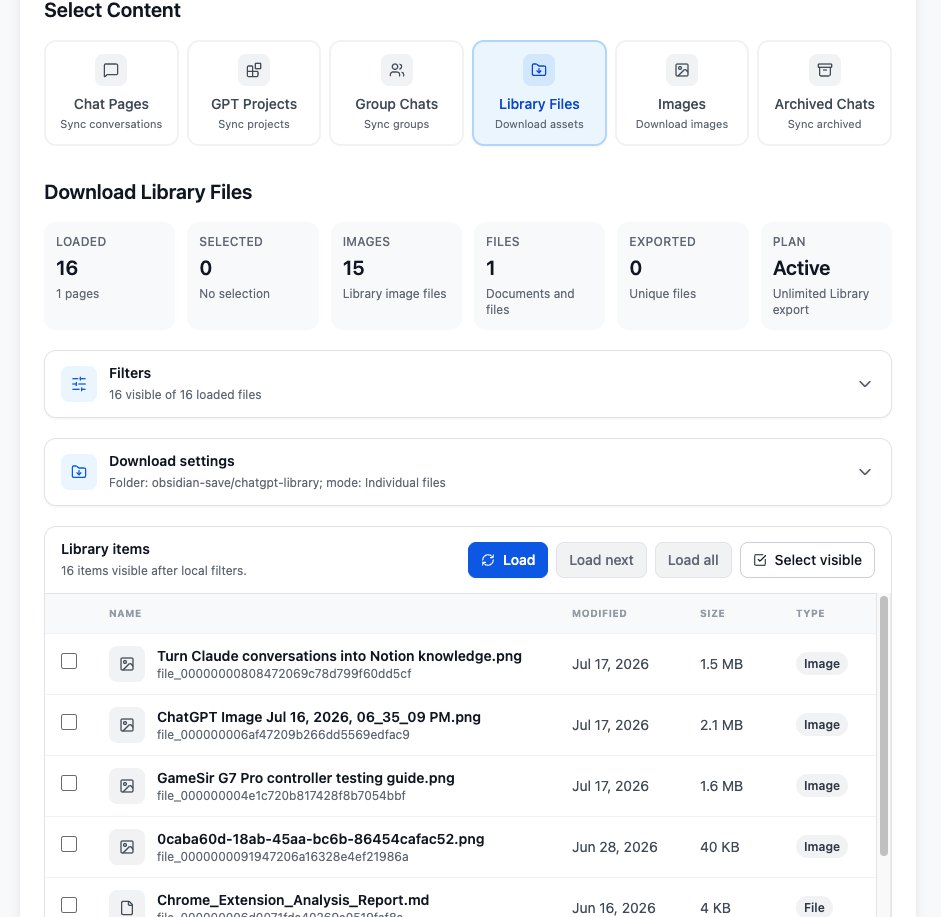
Expand Download settings to choose a relative folder, Individual files or ZIP mode, whether to skip previously downloaded files, and one of the three export-summary formats.
Images
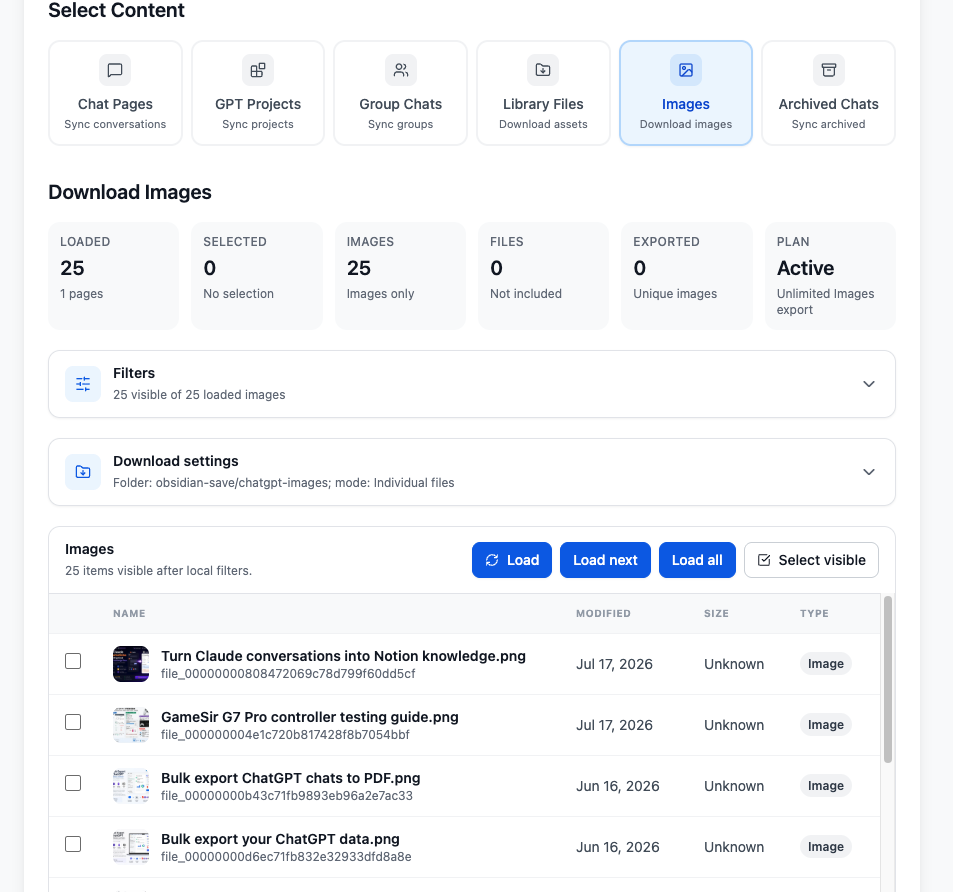
This mode requires an active https://chatgpt.com/images/ tab. It uses the same load, filter, select, individual/ZIP, skip, progress, and summary workflow as Library Files, but only includes generated images.
After loading, the Images mode shows summary cards for loaded and selected items, a thumbnail list with selection controls, filters, download settings, and the Start download action.
More Configuration
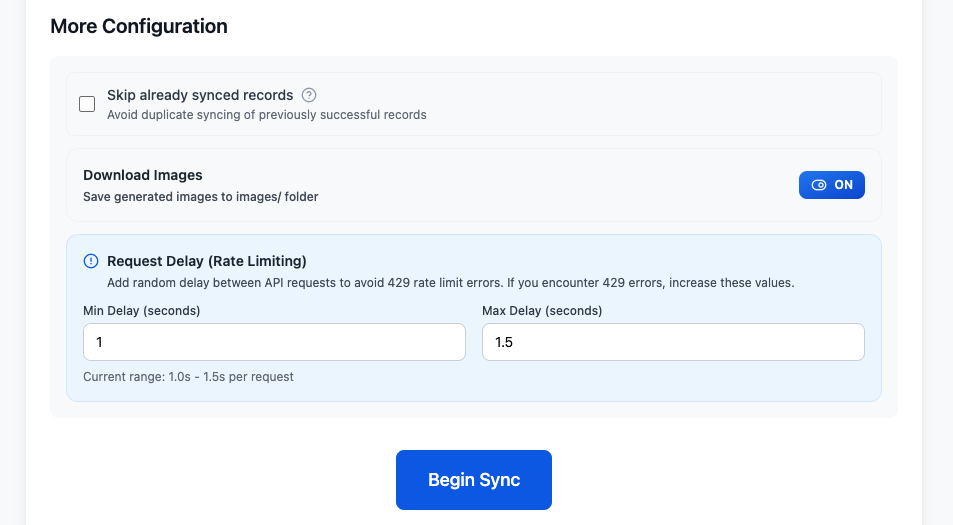
For conversation-based modes, configure:
- Skip already synced records
- Download Images
- Download Files
- Min Delay
- Max Delay
Download Files is off by default. Turn it on to save supported non-image files uploaded by the user or generated by ChatGPT under a files/ subfolder and link them from the exported Markdown. It does not replace the separate Library Files mode.
See Bulk Export Configuration for detailed recommendations.
Start, Monitor, and Cancel
Click Begin Sync for conversation-based modes.
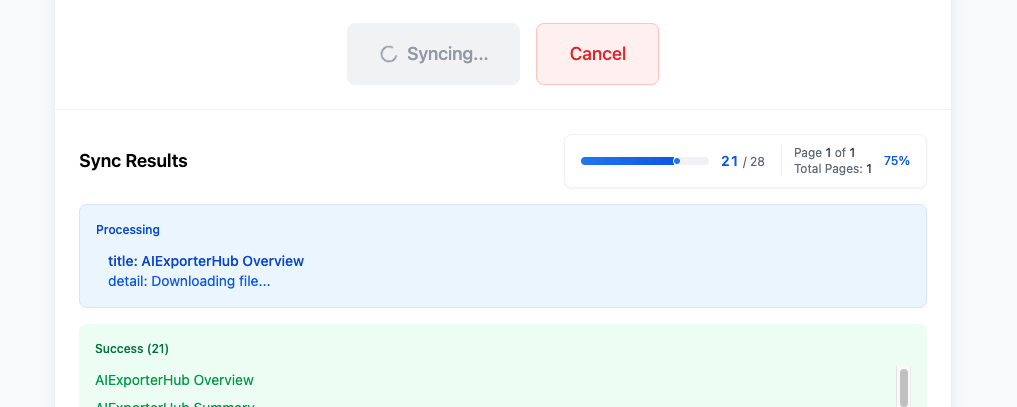
During the run, the page can show:
- Current item and detail
- Processed item count
- Current page
- Progress bar
- Cancel button
Library and Images use Start download and their own item-level progress panel.
Results
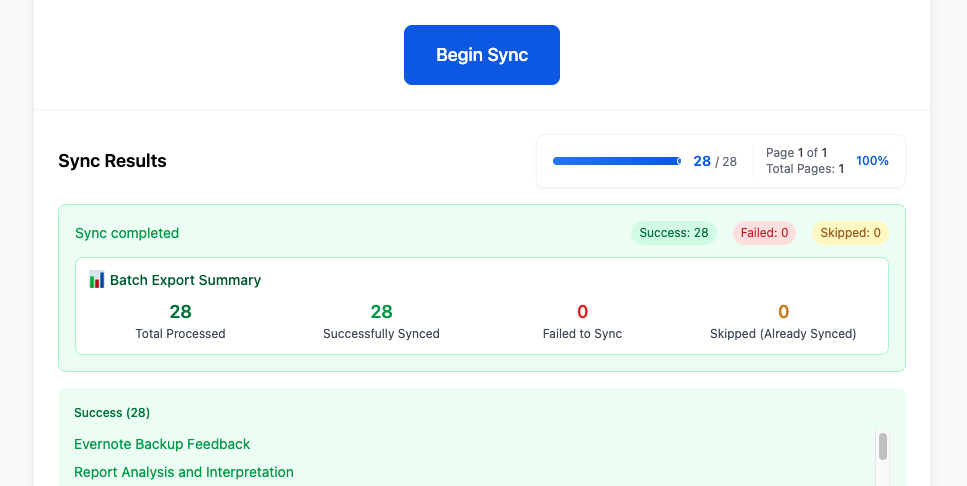
Conversation results include:
- Total processed
- Successfully synced
- Failed to sync
- Skipped as already synced
- Success and failed item lists
- Downloadable or copyable error messages
Library and Images show a last-download summary with total, downloaded, image/document, skipped, and failed counts.
Sync History and Records
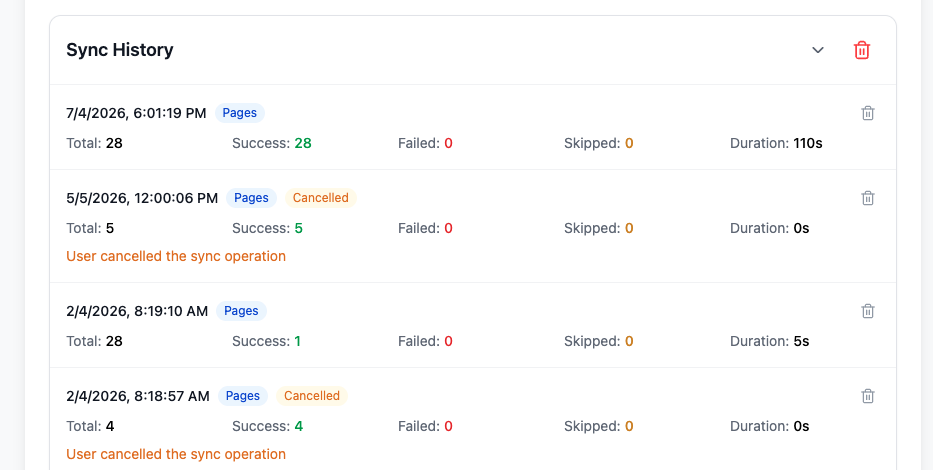
The bottom of the page contains:
- Sync History with source mode, duration, totals, success, failure, and skipped counts
- Failed Records with error text and source links
- Success Records (history) with previously saved items
You can clear history, download failed/success records, and copy error logs.
When failures exist, expand Failed Records to review each title, source URL, error, and timestamp. Use the available actions to download the failure log, copy error details, or clear records after troubleshooting.
Limits
Free access currently allows:
- 5 Chat Pages, Selective Export, Project, or Archived Chat items per day through the shared general allowance
- 2 Group Chat bulk exports per day
- 10 successful unique Library file exports
- 10 successful unique ChatGPT Images exports
Premium unlocks unlimited export access for these workflows.
File Organization
Example:
Downloads/
  obsidian/
    2026-07-29-conversation-title.md
    images/
      generated-image.png
    files/
      uploaded-document.pdf
      generated-spreadsheet.xlsx
    Project Name/
      project-conversation.md
    Archived Chats/
      archived-conversation.md
      Project Name/
        archived-project-conversation.md
    chatgpt-library/
      files...
    chatgpt-images/
      images...
Troubleshooting
No ChatGPT Tab
Open ChatGPT and return to Bulk Download.
ChatGPT Needs Refresh
Refresh one ChatGPT tab, wait a few seconds, and retry.
Library or Images Cannot Load
Open the exact source page in another tab, let it finish loading, then click Refresh in the mode panel.
Export Stops on 429
Follow Rate Limiting & 429 Error Handling.
Chrome Prompts for Every File
Need more help? Contact Support