
Hubs Export
Export active Genspark Hubs, archived Hubs, whole Hubs, or selected conversations inside a Hub to Markdown
Hubs Export helps you back up Genspark project spaces as Markdown. You can export active Hubs, archived Hubs, entire Hubs, or selected conversations inside a Hub.
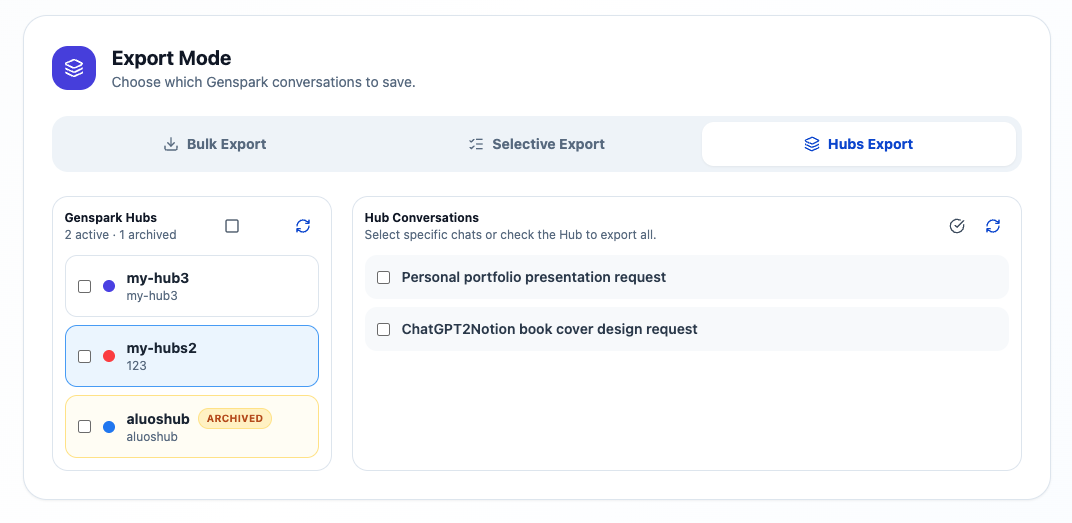
Open Hubs Export
- Click the extension icon.
- Open Bulk Export.
- Choose Hubs Export in the Export Mode section.
- Wait for the Hub list to load.
The Hub list shows active Hubs and archived Hubs. Archived Hubs are marked so older projects are easier to identify.
Export a whole Hub
- Select the checkbox next to a Hub.
- Confirm the save path and export settings.
- Start the export.
Use this when you want to archive an entire Genspark project.
Export selected conversations inside a Hub
- Click a Hub to load its conversations.
- Select individual conversations in the Hub Conversations panel.
- Start the export.
Use this when a Hub contains many chats and you only need a subset.
Export archived Hubs
Archived Hubs can still appear in the Hub list. Select them the same way as active Hubs.
This is useful for:
- Closing old research projects
- Preserving project context before deleting a Hub
- Moving completed work into Obsidian
- Creating a local backup of older Genspark work
What gets saved
For each exported conversation, the extension can save:
- Markdown file
- YAML frontmatter
- Prompts and final answers
- Optional intermediate progress
- Optional tool calls
- Generated images when available
- Presentation notes, slides, and manifests when available
Related assets are organized into conversation-specific folders when they are downloaded.
Tips for Obsidian organization
Create a folder for each Hub, for example:
Genspark/
  Market Research Hub/
  Course Notes Hub/
  Presentation Projects Hub/
Keep generated asset folders next to the Markdown files so image and slide links remain valid.
Need more help? Contact Support