
Hubs Export
Export active Genspark Hubs, archived Hubs, whole Hubs, or selected conversations inside a Hub to Markdown
Hubs Export helps you back up Genspark project spaces as Markdown. You can export active Hubs, archived Hubs, entire Hubs, or selected conversations inside a Hub.
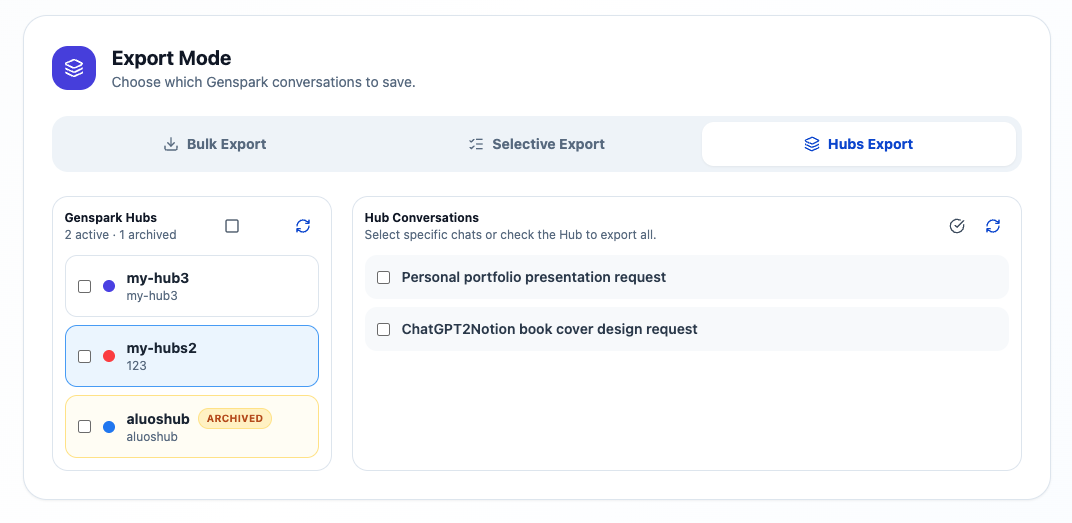
Open Hubs Export
- Click the extension icon.
- Open Bulk Export.
- Choose Hubs Export in the Export Mode section.
- Wait for the Hub list to load.
The Hub list shows active Hubs and archived Hubs. Archived Hubs are marked so older projects are easier to identify.
Export a whole Hub
- Select the checkbox next to a Hub.
- Confirm the save path and export settings.
- Start the export.
Use this when you want to archive an entire Genspark project.
Export selected conversations inside a Hub
- Click a Hub to load its conversations.
- Select individual conversations in the Hub Conversations panel.
- Start the export.
Use this when a Hub contains many chats and you only need a subset.
Export archived Hubs
Archived Hubs can still appear in the Hub list. Select them the same way as active Hubs.
This is useful for:
- Closing old research projects
- Preserving project context before deleting a Hub
- Moving completed work into Obsidian
- Creating a local backup of older Genspark work
What gets saved
For each exported conversation, the extension can save:
- Markdown file
- YAML frontmatter
- Prompts and final answers
- Optional intermediate progress
- Optional tool calls
- Generated images when available
- Presentation notes, slides, and manifests when available
Related assets are organized into conversation-specific folders when they are downloaded.
Tips for Obsidian organization
Create a folder for each Hub, for example:
Genspark/
  Market Research Hub/
  Course Notes Hub/
  Presentation Projects Hub/
Keep generated asset folders next to the Markdown files so image and slide links remain valid.
Ready to try Genspark To Obsidian?
Open the product page for feature details, screenshots, pricing, and the Chrome Web Store install link.