
Troubleshooting & FAQ
Fix common Genspark to Obsidian export, preview, Hubs, image, slide, and Markdown issues
Use this guide when the extension cannot detect a page, exports fail, Markdown is missing content, or generated assets do not appear.
Popup says the page is not ready
Try these steps:
- Make sure the active tab is a Genspark conversation page.
- Refresh the Genspark tab.
- Wait until the conversation finishes loading.
- Reopen the extension popup.
- If needed, close and reopen the browser.
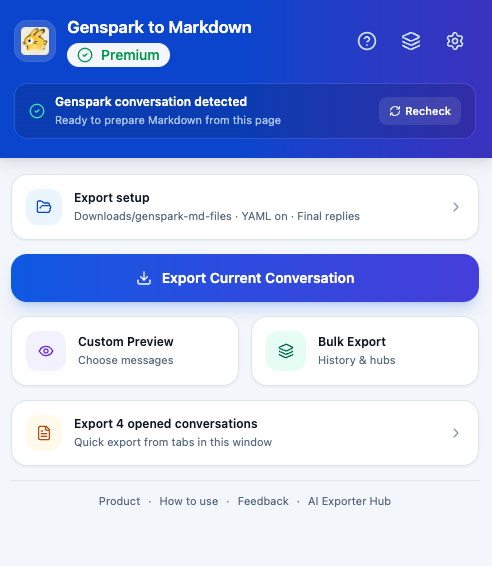
The popup should show a detected conversation status before current-chat export or Custom Preview.
Export button does not work
Check:
- You are signed in to Genspark.
- The conversation URL is open and loaded.
- Chrome Downloads are not blocked.
- The save path is not empty.
- The extension still has access to Genspark.
If the problem continues, refresh the Genspark page and try exporting one current conversation first.
Custom Preview is empty
Custom Preview needs the current conversation detail to load successfully.
Try:
- Refresh the Genspark conversation.
- Reopen the popup.
- Click Custom Preview again.
- If the conversation is very large, wait a few seconds before opening preview.
If only some messages are missing, check whether your preview filters excluded prompts, responses, intermediate progress, or tool calls.
Bulk Export cannot connect
The export page needs a live Genspark tab.
Fix:
- Open Genspark in another tab.
- Make sure you are signed in.
- Refresh the Genspark tab.
- Return to the Bulk Export page.
- Use the refresh action in the connection or statistics area.
Some records failed
A few failed records can happen during large exports.
Common causes:
- Temporary network interruption
- Genspark conversation failed to load
- Browser download was interrupted
- The asset URL expired or was protected
- Genspark changed the data structure for a specific conversation type
Retry failed records after refreshing the Genspark tab. If only a single conversation fails, open it directly and export it from the popup.
Generated images are missing
Generated images can be exported when the image data is available and accessible.
Try:
- Open the original Genspark conversation.
- Confirm the image still loads in Genspark.
- Re-export the conversation.
- Keep the generated asset folder next to the Markdown file.
Supported image formats include JPEG, PNG, WebP, GIF, AVIF, and SVG.
Presentation slides are missing
Presentation export depends on whether Genspark exposes the slide data and asset URLs.
Try:
- Reopen the presentation conversation in Genspark.
- Confirm the slides load.
- Export again with default final answers enabled.
- Keep slide HTML files, manifests, and asset folders together with the Markdown file.
Mermaid diagrams do not render in Obsidian
The extension exports Mermaid content as Markdown code blocks when it is present in the conversation.
In Obsidian:
- Update Obsidian to a recent version.
- Confirm Mermaid rendering is enabled in your setup.
- Check whether the diagram code is valid.
- Re-export with tool calls enabled if the diagram was created during tool activity.
Markdown has too much process detail
Turn off:
- Intermediate assistant progress
- Tool calls
Then export again. This creates a cleaner note focused on prompts and final Genspark answers.
Markdown is missing process detail
Turn on:
- Intermediate assistant progress
- Tool calls
Then export again. This is useful for technical work, file-writing tasks, slide generation, or workflows where the working process matters.
Files are hard to find
Set a stable save path under Downloads, such as:
genspark-md-filesChrome saves exported files under that folder name. Related generated assets are grouped into conversation-specific folders when available.
FAQ
Can I export all Genspark conversations?
Yes. Use Bulk Export and choose all-history export.
Can I export only selected conversations?
Yes. Use Selective Export to search and choose records.
Can I export active and archived Hubs?
Yes. Use Hubs Export.
Can I preview Markdown before saving?
Yes. Use Custom Preview from the popup.
Can I use the files outside Obsidian?
Yes. The exported Markdown works in Notion import, Logseq, VS Code, Git repositories, and other Markdown editors.
Is my data processed on an external server?
Conversation parsing, Markdown generation, preview rendering, and download preparation happen inside your browser. Files are saved locally through Chrome Downloads.
Ready to try Genspark To Obsidian?
Open the product page for feature details, screenshots, pricing, and the Chrome Web Store install link.