
How to Back Up Claude Chats, Projects & Artifacts in 2026 (Before You Need Them)
You may have spent months building a research project in Claude: asking follow-up questions, testing code, comparing sources and refining drafts. Somewhere inside those conversations are decisions and work you may need again.
What happens if you can’t open that workspace when you need it?
The safest time to organize a backup is while your account and conversations are still accessible. You don’t have to stop using Claude. You simply need a second home for the information that matters.
Anthropic announced a 2026 Usage Policy update on October 8, effective November 12. The announcement does not mean ordinary users are being banned en masse; it describes policy clarifications and narrow restrictions. Still, the discussion is a useful prompt to think about data portability—not a reason to panic.
This guide covers the official Claude export and three practical ways to make selected chats easier to reuse: Markdown for Obsidian, pages in Notion and readable PDF files.
Quick answer: For an account-level archive, start with Claude’s official Settings → Privacy → Export data. For notes you want to search, edit and reference outside Claude, create a second, human-readable archive using Markdown, Notion or PDF.

Watch the 30-second Claude backup demo
This short demonstration shows the actual workflow: select Claude conversations, export Markdown files and open the exported notes in Obsidian. It does not claim that the plugin automatically creates a folder for each Claude Project.
Watch the Claude backup YouTube Short
Watch the Full Step-by-Step Tutorial
Watch the Full Step-by-Step Tutorial
Need an individual PDF or Markdown file right now? Our four-method Claude export comparison focuses on file formats, free extension alternatives, and repeatable export steps. This article explains the wider account and Projects backup strategy.
Why a Claude chat history isn’t the same as a knowledge archive
Claude is useful precisely because work accumulates over many conversations. A Project might include:
- Research notes with citations and unanswered questions.
- Code examples, debugging attempts and implementation decisions.
- Draft documents that went through several revisions.
- Artifacts and iterations worth revisiting later.
- Project context and conversations connected to a long-running topic.
A list of chat titles is convenient when you are signed in. A good backup is useful without relying on the original chat interface. It should let you find a topic, inspect important details, and—where the export supports it—retain formatting such as code blocks and links.
The simplest approach is to combine a first-party account archive with working copies of high-value conversations in a format you already use.
Method 1: Request Claude’s official data export
Anthropic offers data export for individual Free, Pro and Max users. Its help article describes an export that includes conversation data and account information.
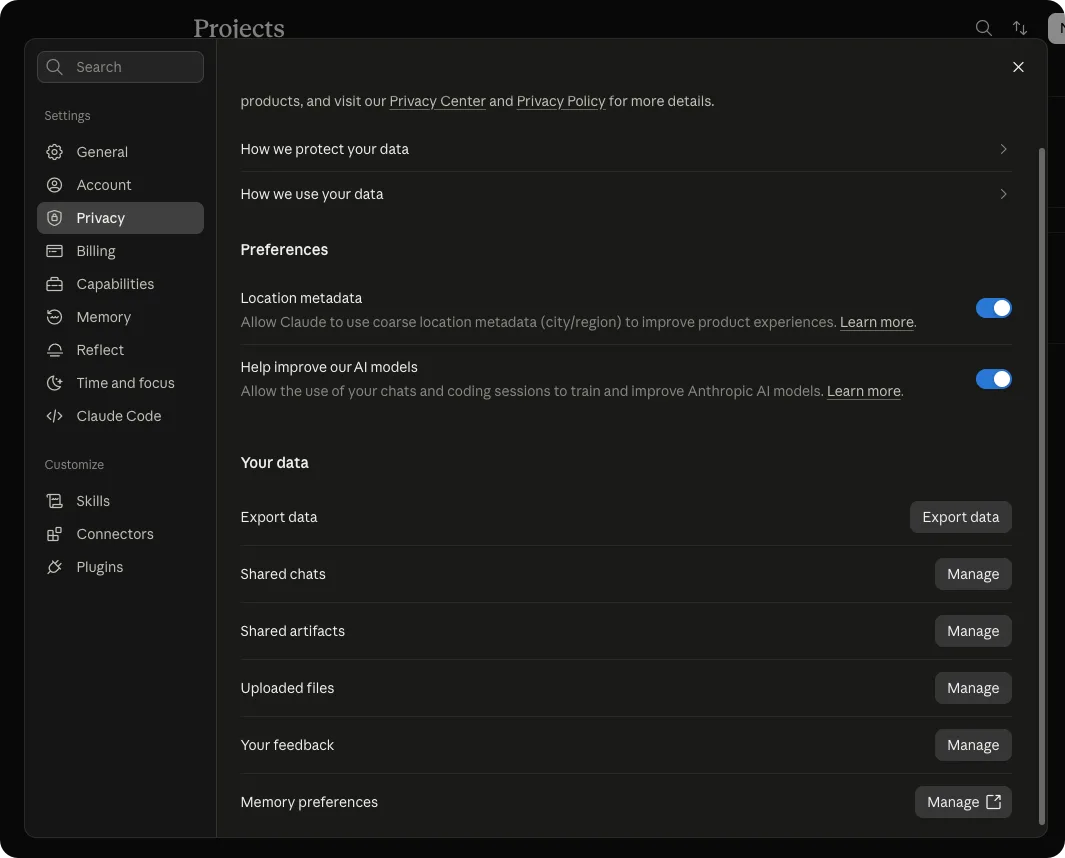
To request an export on the web or Claude Desktop:
- Sign in to your Claude account.
- Open your account menu and select Settings.
- Open Privacy.
- Select Export data.
- Wait for the download link delivered to your account email, then save the file securely.
The official guide says that the email link expires after 24 hours and that you must be signed in to download. For Team and Enterprise organizations, the Primary Owner controls organization data exports. This is not an export you can initiate from the iOS or Android app.
Can you export Claude data after an account suspension?
In some cases, yes. Anthropic’s safeguards and appeals guidance says banned Free, Pro and Max users can still access self-service data-export options after signing in; what they can export may be restricted depending on the reason for enforcement. An appeal path is also documented.
This is important: do not assume suspension always means instant loss of every export option. But also don’t build your only backup strategy around emergency access. A regular archive is easier to check, organize and reuse.
An independent browser exporter cannot unlock or bypass an inaccessible Claude account. It works only with the content available to an authorized session.
Is Claude’s official data export the same as migrating to a new account?
No. Anthropic says an official export cannot be imported into another personal Claude account. That’s one reason a separate collection of readable, portable notes can be useful.
Method 2: Export Claude chats to Markdown and read them in Obsidian
For developers, researchers and people who prefer local files, Markdown is a practical archive format. It works in Obsidian and ordinary text editors, is easy to copy to another computer, and can be included in your regular file backup.
The Claude to Obsidian extension supports downloading the currently open conversation and batch-exporting accessible chat history to Markdown, including supported structured content and Artifact history.
Here is a straightforward workflow:
- Open Claude in Chrome and make sure you are signed in.
- Open one important conversation, or open the extension’s Bulk Export page.
- Select the conversations you want to back up and start the export.
- Wait for the completion report and inspect any failed records.
- Find the downloaded
.mdfiles in the configured Chrome download folder. - Open your Obsidian vault, move or copy the Markdown files into it, and check the results.
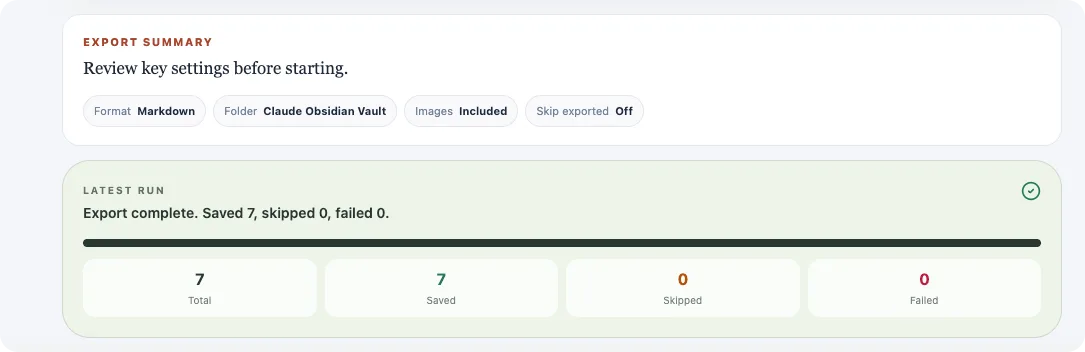
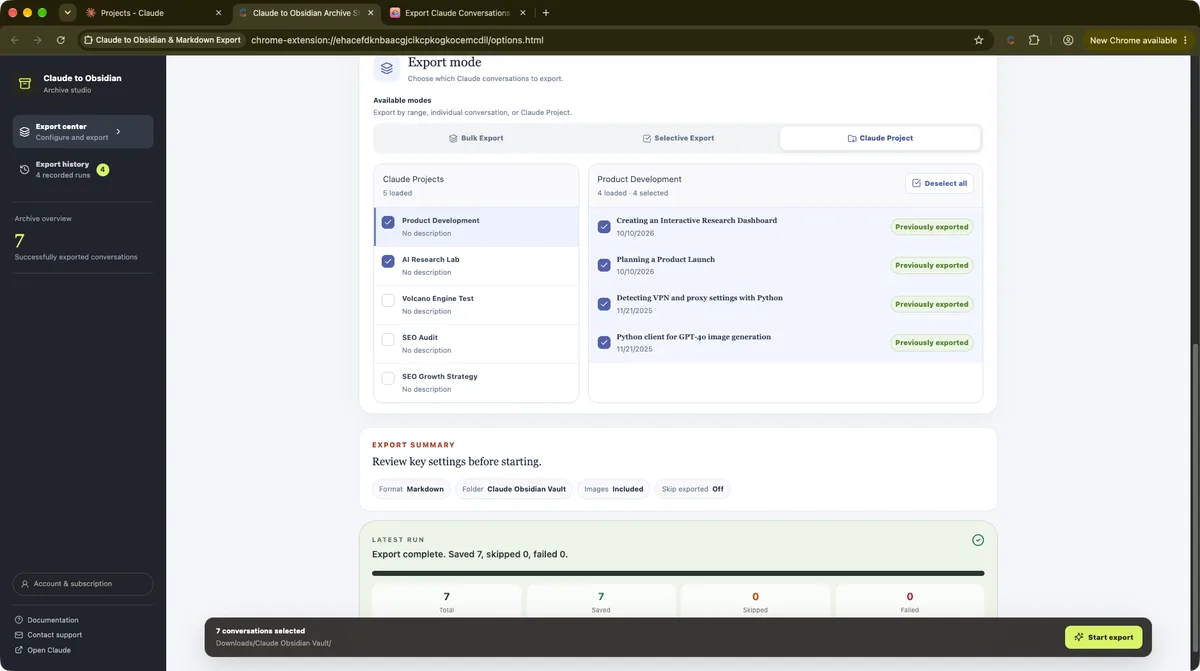
What does the result look like?
In the companion video, multiple Claude conversations become local Markdown files. In Obsidian, you can open research notes, follow headings and revisit code or mathematical explanations.
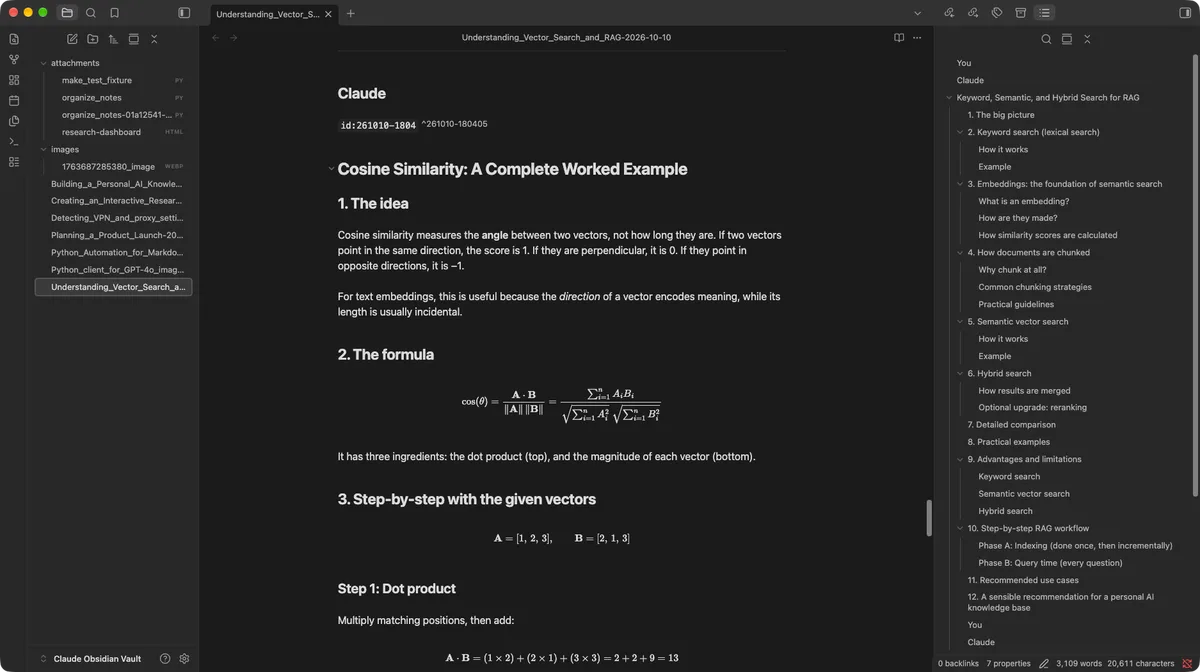
About Claude Projects: You can organize related exported notes by Project yourself in Obsidian if your workflow requires it. In the demonstrated version, exported Markdown files are saved together in the configured download location; automatic per-Project folder restoration is not demonstrated.
The goal is to verify content you can actually read and search. If Artifact versions, images or attachments are essential to you, test representative examples before relying on a large backup.
For the details of working with Artifacts, see How to Export Claude Artifacts to Notion or Obsidian.
Method 3: Save Claude research in Notion
Choose Notion when you want a database-oriented research archive, shared workspace pages, or a destination for drafts and project documentation.
Claude to Notion documents single-chat, selected-history, bulk and Claude Project export workflows, including supported metadata and Artifact content.
A typical setup looks like this:
- Connect your Notion workspace and choose the intended database.
- Choose the Claude conversations or Project content available to your session.
- Review the export settings, including how existing pages will be handled.
- Export and inspect the resulting Notion pages.
- Repeat for important updates, taking care not to overwrite notes you’ve edited manually.
This route is particularly useful when research must be discoverable to colleagues or organized with other project records.
Method 4: Keep a readable PDF copy
PDF is useful for a finished research brief, client handoff or long conversation you want to read and share in a stable layout.
Claude to PDF describes exporting individual chats, selected conversations and available Claude Project material into formatted PDFs.
Use a PDF archive alongside—rather than necessarily instead of—an editable knowledge-base format. The two serve different purposes.
Which Claude backup method should you use?
| What you want | Good starting point | Why |
|---|---|---|
| A first-party copy of account data | Claude’s official export | Account-level record provided by Anthropic |
| Editable local research notes | Markdown + Obsidian | Open files, local storage and reusable notes |
| Structured team or project knowledge | Notion | Pages, databases and sharing |
| Fixed-format reference or handoff | Consistent reading and printing |
These options complement each other. For important work, you might periodically request the official export while also saving the key conversations you actively revisit as Markdown or Notion pages.
A 10-minute backup habit you can actually maintain
Rather than exporting everything every day, try a lightweight weekly checklist:
- Pick the important chats. Start with research, code decisions, final drafts and long-running work.
- Export before a major transition. Do it before changing workspaces, accounts, devices or Project structure.
- Keep filenames understandable. Use the topic and date when possible.
- Open the files. Verify a few representative exports before assuming the archive is complete.
- Save a second copy. Use a separate drive or trusted backup destination, with access controls for sensitive notes.
- Repeat after meaningful work. Old backups cannot preserve new conversations automatically.
Remember to respect confidentiality and obtain permission before exporting chats that contain another person’s sensitive or organizational information.
Frequently asked questions
Does the October 2026 Claude policy update mean mass account bans?
No. The October 8 Anthropic announcement describes policy changes effective November 12 and does not announce mass bans of ordinary users.
Can I use an exporter after my Claude account becomes inaccessible?
Not as an account-unlocking tool. Browser exporters need authorized access to the source conversation. Anthropic’s own self-service export may still be available for certain banned accounts, subject to restrictions.
Can I import an official export into a second Claude personal account?
No. Anthropic’s help documentation says that importing official exports into another personal Claude account is not supported.
Does Claude to Obsidian automatically create a folder per Project?
The recording in this guide shows exported Markdown files in the configured download location; it does not demonstrate automatic Project folders. If you want a separate folder per Project, organize your exported files in Obsidian after download.
Does a backup preserve all Artifacts and attachments perfectly?
Don’t assume so. Support varies by content type, source availability and extension version. Validate your own important conversations, attachments and Artifact versions after exporting.
Make your Claude work portable
You can keep using Claude while making sure the work you care about also exists in places you control and understand.
Compare Claude export tools for Obsidian, Notion and PDF →
Watch the 30-second Claude backup demo →
AI Exporter Hub provides independent third-party browser extensions and is not affiliated with Anthropic or Claude. Always use authorized access and check exported files for completeness.