
Claude to PDF
Turn Claude conversations into polished PDF archives—export the active chat, every open Claude tab, selected history, complete history, or conversations from Claude Projects.
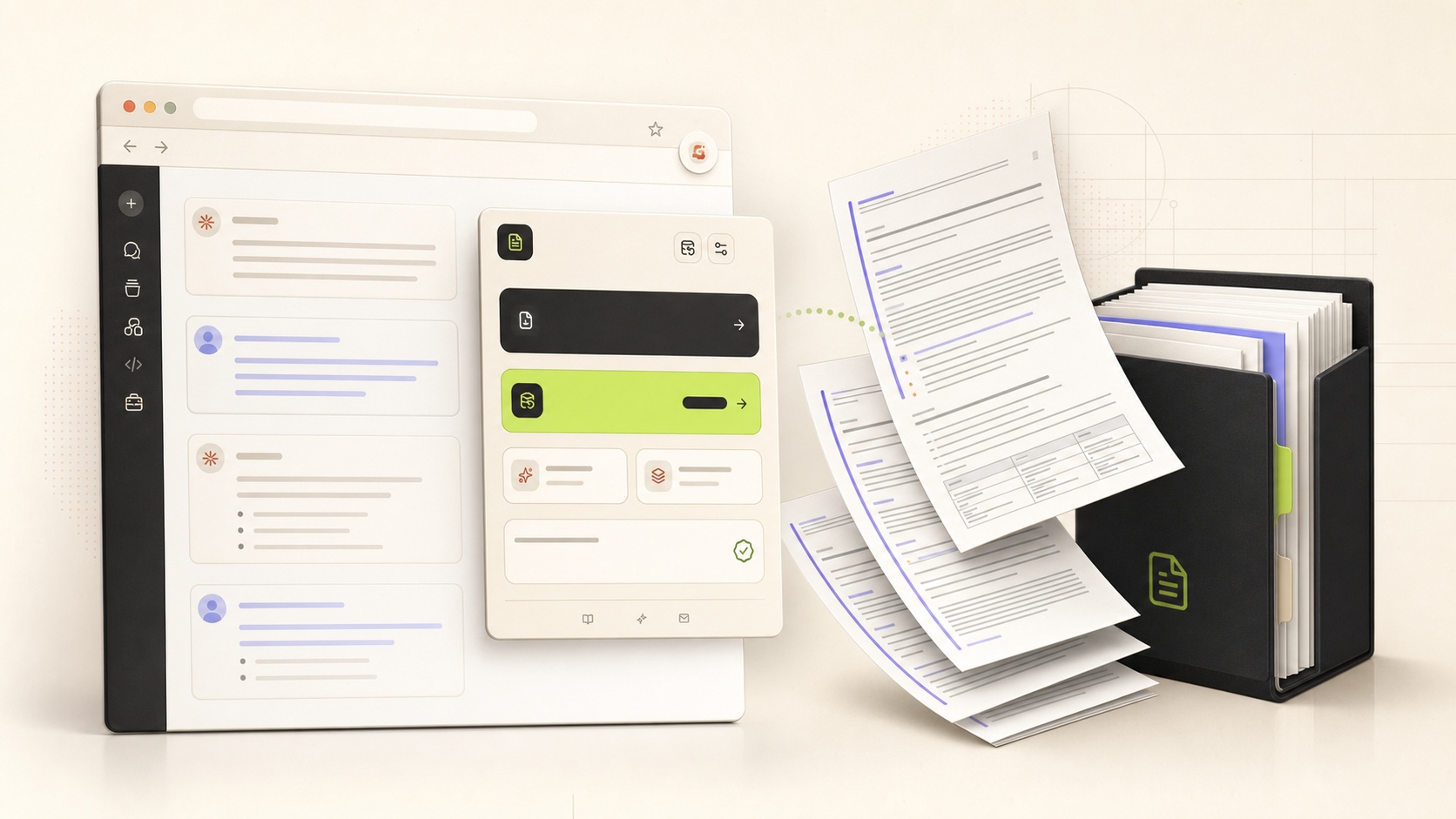
Built for both quick saves and deliberate archives—from one message selection to a complete Claude history.
Compatibility matrix
What Claude to PDF can export
A practical support table for real content types and destination behavior.
| Content type | Support | Export result | Notes |
|---|---|---|---|
| Active Claude conversations | Supported | Exports the currently open chat from the popup. | No special setup required. |
| Multiple open Claude tabs | Supported | Exports all open tabs that point to valid Claude conversations. | No special setup required. |
| Loaded and complete history | Supported | Exports the visible history page or progressively processes the complete conversation list. | No special setup required. |
| Selected history items | Supported | Search and select individual conversations in the Export Center. | No special setup required. |
| Claude Projects | Supported | Exports complete Projects or chosen conversations from a Project. | No special setup required. |
| Markdown, code, tables, and links | Supported | Renders structured content into readable PDF sections. | No special setup required. |
| Images and attachment references | Supported when available | Embeds supported images and saves available conversation assets alongside the PDF. | Availability depends on what the signed-in Claude session exposes for the source conversation. |
| Claude Artifact version history | Supported when available | Includes Artifact versions found in the conversation data. | Some conversations do not contain Artifacts or expose complete version data. |
Output proof
Real export examples
Use these examples to verify what exported files, folders, or destination pages look like before installing.
Linked outline and metadata
The first page can include dates, model, message count, source URL, and a linked conversation outline.
Readable message cards
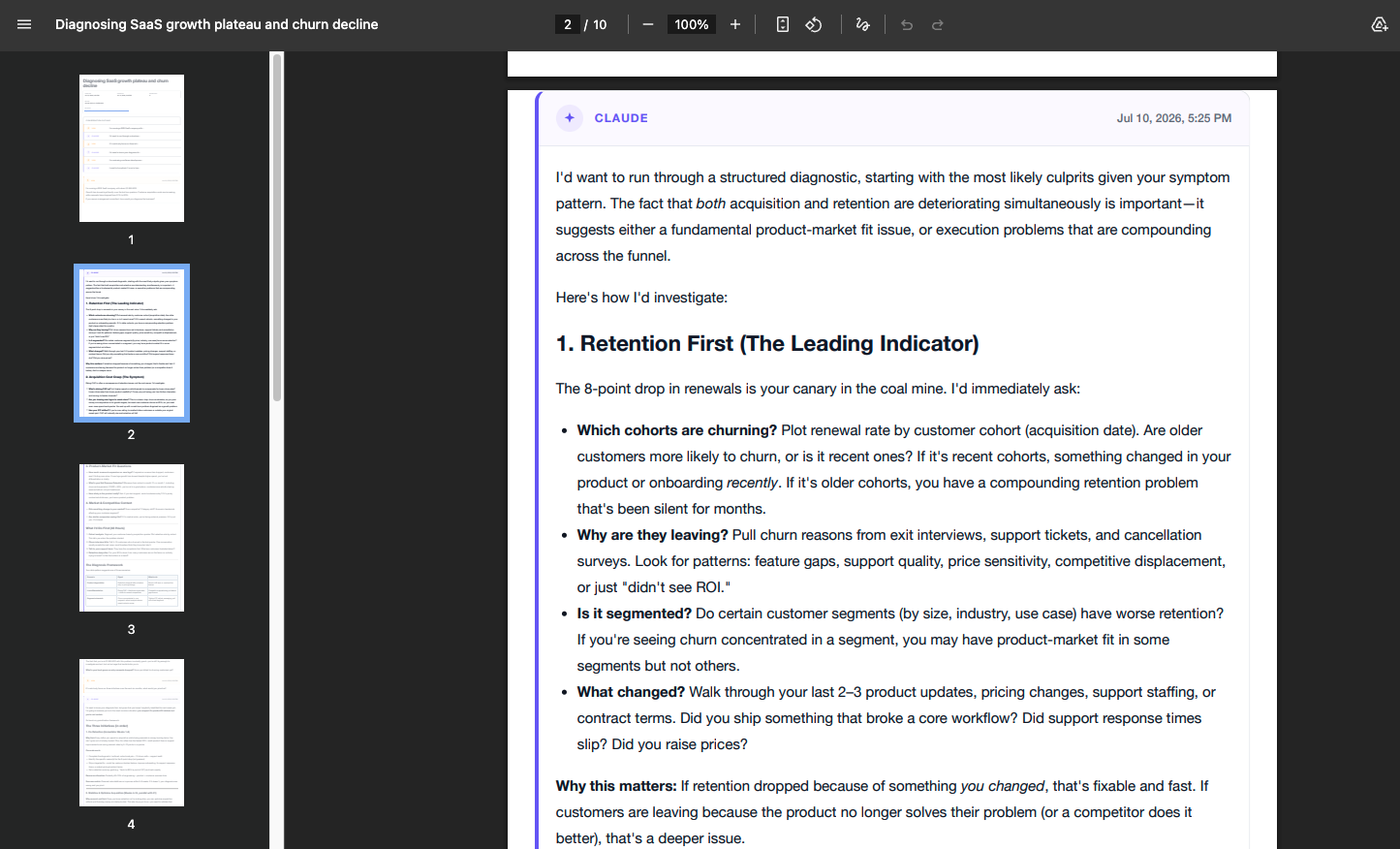
User and Claude messages remain clearly separated in long-form PDF output.
Finished multi-page PDF
A real ten-page export shown in Chrome's PDF viewer.
Key Features
One extension, four quick paths
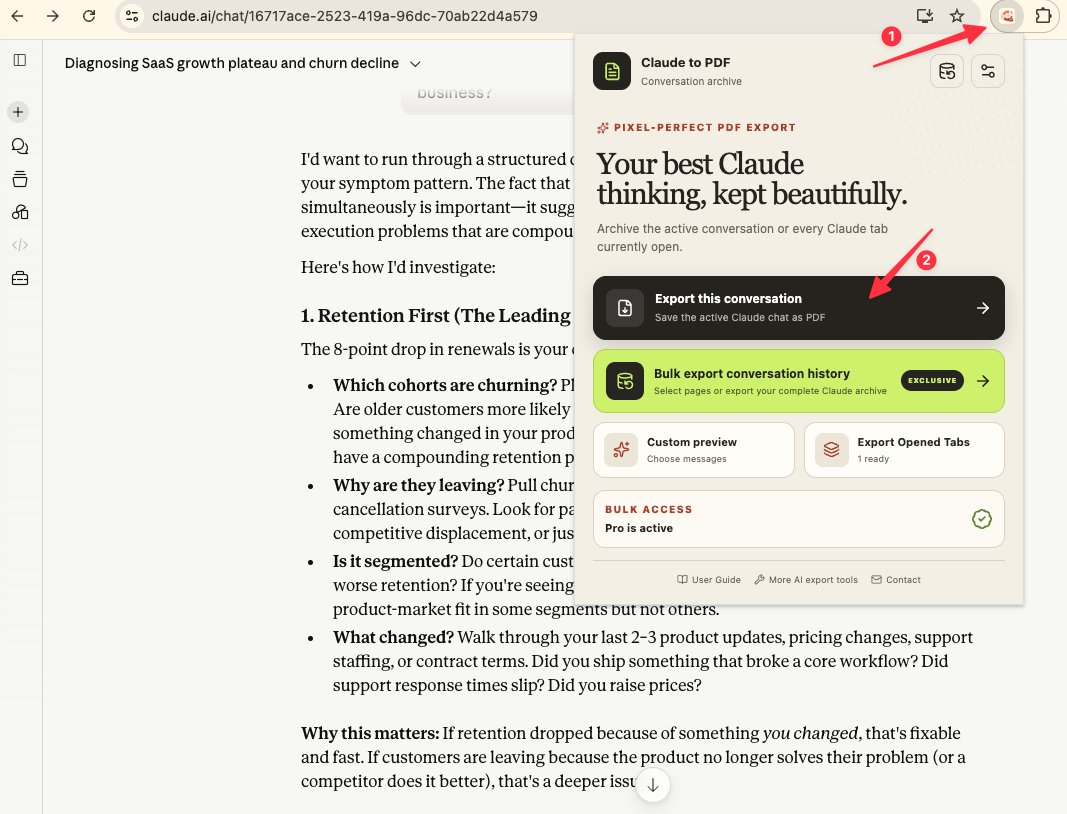
From the popup, export the active conversation, open Custom Preview, save every open Claude conversation tab, or move into the Export Center for larger archives. Use this screen when you want the fastest route from an open Claude chat to a PDF.
A real workspace for repeatable backups
The Export Center brings PDF style, color theme, download folder, metadata, duplicate handling, progress, and recent export history into one workspace before you choose a bulk, selective, or Project export.
Select conversations instead of exporting everything
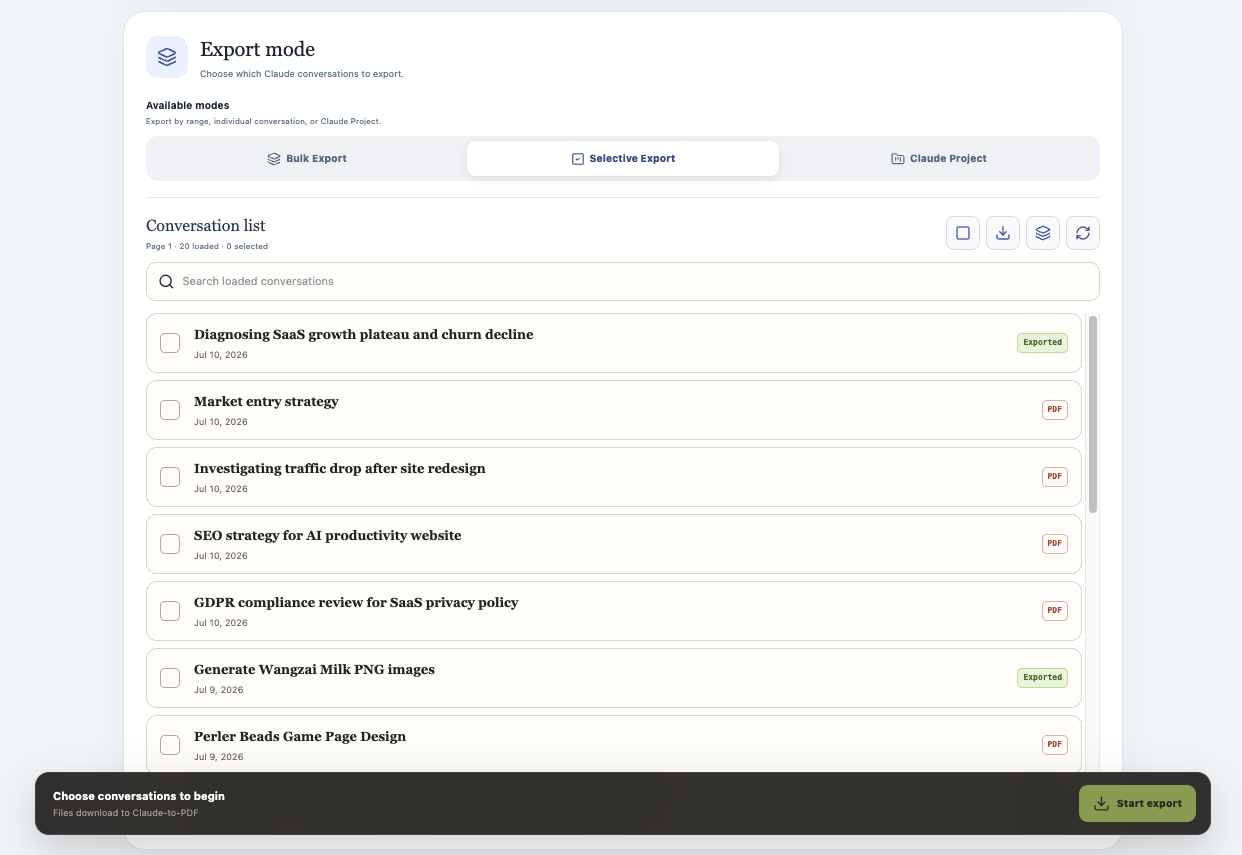
Selective Export loads Claude history into a searchable checklist. Mark only the conversations you need, identify items already labeled Exported, and start a focused run without downloading the rest of the account.
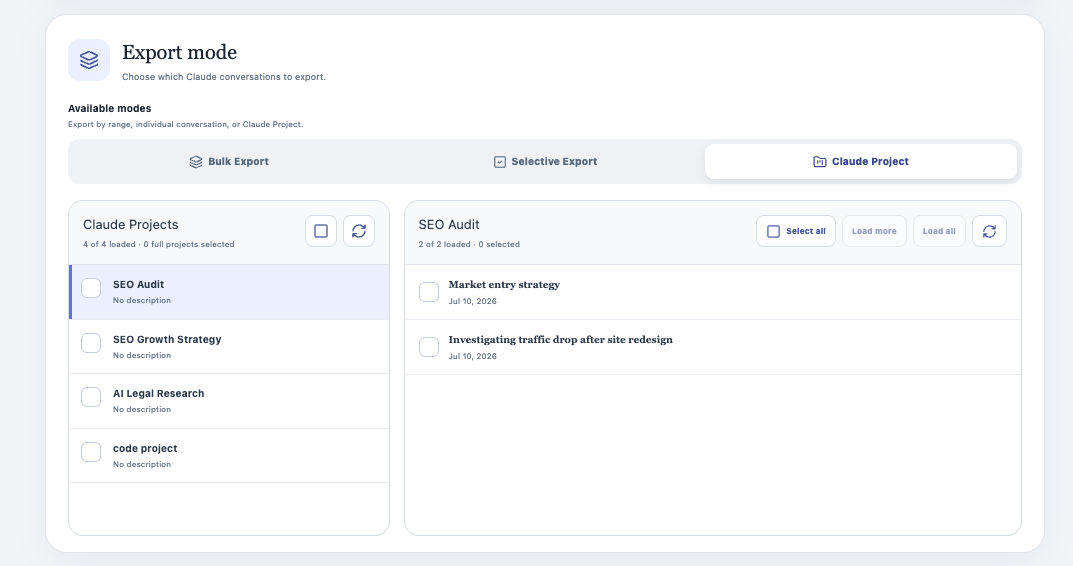
Keep Claude Projects together
Choose a Claude Project in the left column, review its conversations on the right, and export the complete Project or only selected conversations. This keeps project-based research and handoffs grouped by their original context.
Readable PDFs with an outline and metadata
The finished PDF can begin with creation and update dates, model, Project, message count, and source URL, followed by a linked conversation outline. Clearly separated user and Claude cards make long archives easier to scan.
Key Features of Claude to PDF
Everything you need to organize your Claude conversations quickly and efficiently.
Current Conversation Export
Save the active Claude conversation as a PDF without leaving the page.
Export Opened Tabs
Convert every open Claude conversation tab in one action, useful for wrapping up a focused research session.
Custom Preview
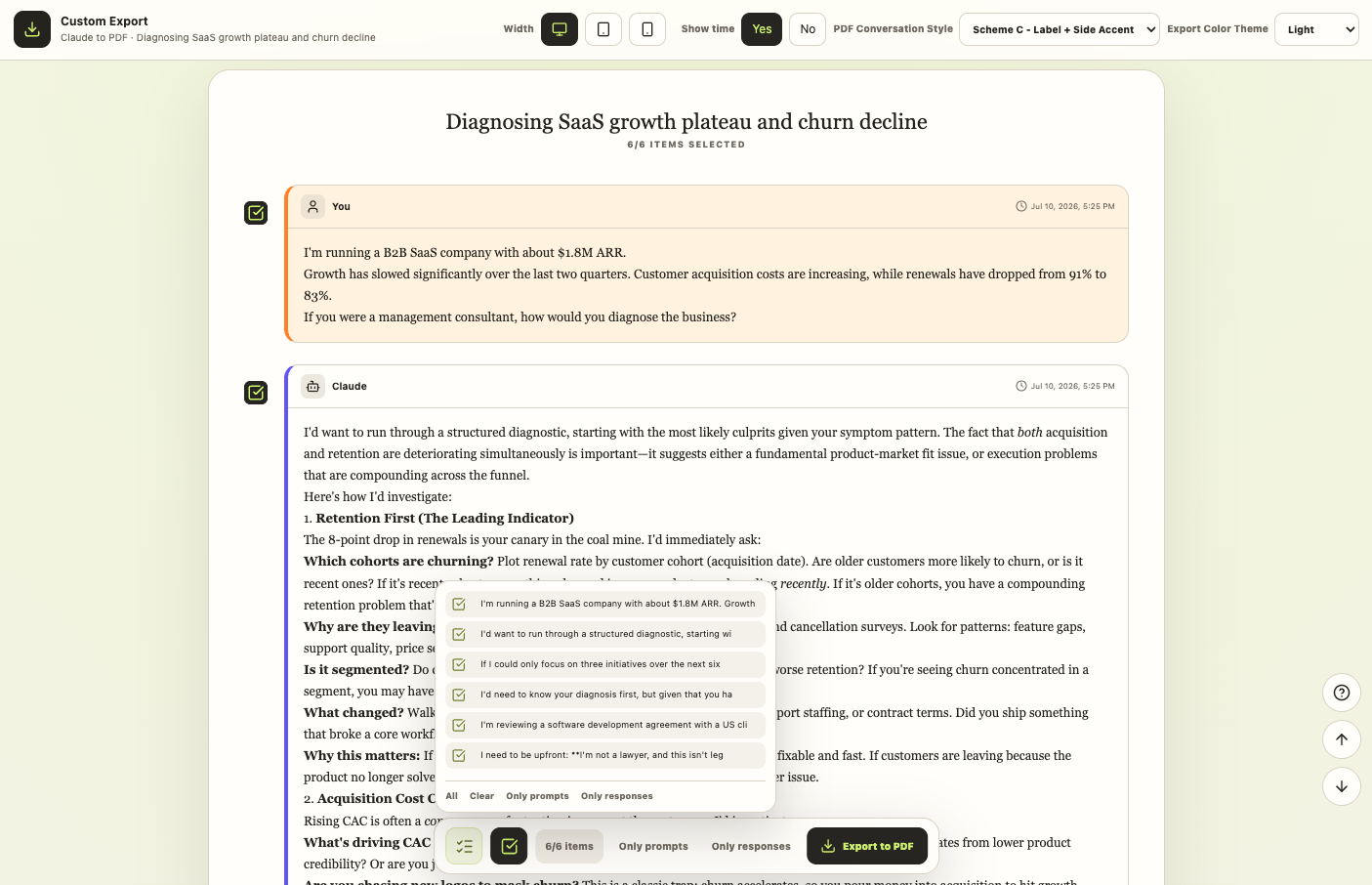
Review the parsed conversation, select individual messages, or filter to prompts or responses before creating the PDF.
Bulk History Export
Export the currently loaded history page for a quick run or progressively load the complete conversation history for a broader backup.
Selective Export
Search loaded conversations and choose exactly which history items to save instead of exporting the entire account.
Claude Projects Export
Load Claude Projects, open a specific project, and export all or selected conversations from that project.
Artifacts and Rich Content
Preserve headings, lists, links, code blocks, tables, images, attachment references, and Claude Artifact version history when the source conversation exposes them.
Linked Conversation Outline
Navigate long PDF archives from an automatically generated outline that links back to individual messages.
Themes, Styles, and Metadata
Choose Light, Dark, or Eye-care themes, three message-card styles, and optional dates, model, project, message count, and source URL.
Export Tracking
Track progress, inspect recent results, review failure details, and skip conversations already saved in an earlier run.
Known limits
Export boundaries and fixes
Clear limits build trust. These are the cases to check before running large exports.
A signed-in Claude session is required
The extension reads conversations through the Claude session already open in Chrome.
Sign in at claude.ai, keep a Claude tab open, and refresh that tab before retrying.
Troubleshooting guideChrome may show a debugger notification during PDF creation
The extension uses Chrome's print-to-PDF capability, which requires the debugger permission during export.
The notification is expected and disappears after the local PDF step finishes.
Troubleshooting guideArtifacts, images, and attachments depend on source availability
The final PDF can only include media and Artifact data that Claude exposes to the signed-in browser session.
Let the conversation finish loading and check the Custom Preview before exporting.
Troubleshooting guideThe free plan includes five successful exports per local day
Successful single, preview, open-tab, and batch items count toward the same daily allowance.
Use Selective Export and Skip Already Exported to spend the allowance on the conversations you need.
Troubleshooting guideHow it Works
Related resources Claude to PDF
Use these guides and docs to solve common export, backup, and troubleshooting workflows.
Guides
Export Claude Chats to PDF or Markdown: 4 Methods Compared
Learn when to use official Claude export, browser printing, free alternatives, or a dedicated PDF/Markdown workflow.
How to Export Claude Conversations to PDF
Choose the right workflow for one chat, selected messages, open tabs, full history, or Claude Projects.
How to Archive Claude Projects and Artifacts
Build a cleaner project archive without losing Artifact, media, and metadata context.
What's New
Initial release with active-chat export, opened-tab export, Custom Preview, bulk and selective history export, Claude Projects, three themes, metadata, and export tracking.
Frequently Asked Questions About Claude to PDF
Have another question? Contact us on Discord or by email.
How do I export a Claude chat to PDF without copy and paste?
Open the chat at claude.ai, select Export this conversation in Claude to PDF, and check the saved file. For many chats, use Bulk or Selective Export; available Claude Projects controls depend on the current page layout.
Will Claude Artifacts, equations and attachments render perfectly in PDF?
Supported Artifact content, formulas, code, tables and image references can appear in a readable PDF, but results depend on the source content. Verify important LaTeX equations and downloaded attachments in the finished export; the original uploaded files are not guaranteed to be embedded.
Can I export Claude Projects to PDF?
Claude to PDF provides a Projects export workflow for supported Claude page layouts. If the Projects control is unavailable, open a conversation within the project and check the export options. Claude interface changes may affect project detection; share the browser URL and a screenshot with support if it fails.
What happens to Claude Artifacts and attached files in a PDF backup?
The extension can include supported content and images in the PDF and handle available non-image attachments separately. Verify the generated files and attachment downloads before assuming a Project archive is complete.
How do I export the Claude conversation I am viewing?
Open the conversation on claude.ai, click the Claude to PDF extension, and choose Export this conversation. The finished PDF is saved through Chrome's download manager.
Can I export only part of a Claude conversation?
Yes. Open Custom Preview, then select individual messages or use the Only prompts and Only responses filters before exporting.
Can I export several open Claude tabs at once?
Yes. Export Opened Tabs processes valid Claude conversation tabs that are currently open in the same Chrome profile.
Can I back up my complete Claude history?
Yes. In the Export Center, Bulk Export can process the currently loaded page or progressively load All History.
Does it support Claude Projects?
Yes. Choose Claude Project in the Export Center, select a Project, and export all or selected conversations inside it.
What does the PDF preserve?
The exporter is designed to preserve readable Markdown, headings, lists, links, code blocks, tables, images, attachment references, metadata, and Claude Artifact versions when those items are available.
Why does Chrome show a debugger notification?
Chrome's local print-to-PDF pipeline requires the debugger permission during export. The notification is expected and does not mean the conversation is being uploaded to an external PDF service.
Does the extension upload my Claude conversations?
The PDF generation pipeline runs locally in Chrome. Subscription verification may contact the product service, but export preferences, usage status, duplicate records, and export history are stored in Chrome local storage.
How many exports are included for free?
The free plan includes up to five successful conversation exports per local day. Pro unlocks unlimited exports.
How do I avoid duplicate PDFs during recurring backups?
Keep Skip Already Exported enabled. The extension records exported conversation IDs locally and marks previously saved items in the selective list.
Continue with larger exports
Need exports beyond the free allowance? Review this product's current plan and the supported workflows and limits above before upgrading.
View Plans