
Gemini Export Failed: “Failed to Fetch Conversation Page: HTTP 400”
You open a Gemini conversation, click export, and the panel sits on Loading conversation for a few seconds before failing with:
Failed to fetch conversation page: HTTP 400:No file is produced. Refreshing does not help. Trying a different conversation produces the same error, and every other AI platform exports normally.
This is not a problem with your browser, your network, or your account. It is a specific failure mode that appears when Gemini changes how its conversation page is delivered and an older version of an export extension keeps asking for it the old way.
This guide explains what the error actually means, how to confirm that this is the problem you are hitting, and how to get your conversations out.
What “HTTP 400” actually means here
A browser extension that exports a full conversation cannot rely on the visible page alone. Long Gemini chats are rendered lazily, so the HTML in your tab only contains the messages currently on screen. To capture the whole thread, exporters request the conversation data directly from Gemini’s own backend, using the same internal requests the Gemini web app uses.
That means the exporter is making an HTTP request on your behalf, and that request can succeed or fail on its own terms.
HTTP 400 is Bad Request. The server understood the request, looked at its contents, and rejected it as invalid — wrong parameter names, a missing field, an identifier that no longer exists, or a payload shape it no longer accepts.
The distinction matters, because each status code points at a completely different fix:
| Status code | Meaning | Typical cause | What to do |
|---|---|---|---|
| 400 | Bad Request — malformed request | Exporter sends an outdated request format after a platform change | Update the exporter |
| 401 | Unauthorized | Session expired, signed out | Sign in to Gemini again |
| 403 | Forbidden | Workspace admin policy, blocked endpoint | Check account restrictions |
| 404 | Not Found | Conversation deleted or URL changed | Verify the conversation still opens |
| 429 | Too Many Requests | Rate limiting after bulk exports | Wait and retry |
| 5xx | Server error | Gemini-side outage | Retry later |
If your error message says 400, signing out and back in will not help. Neither will clearing your cache, switching browsers, or reinstalling Chrome. The request format is the problem, and only the extension can change it.
Why this started happening
Gemini periodically revises the internal responses its web app depends on — field names, response envelopes, identifiers, and how conversation turns are assembled. When that happens, the public page keeps working normally for you, but any extension that was built against the previous shape starts sending requests that Gemini no longer accepts.
From the outside the symptoms look identical to a network failure, which is why the first instinct is usually to refresh. But a refresh cannot help: the page loads fine, and only the export request is rejected.
For AI Exporter Hub, this specific breakage was reported in late October 2026, traced to a change on Gemini’s side, and fixed in version 8.7.0. If you are on an earlier build, the error is expected behavior, not a bug you can work around.
Confirm it is this bug, not something else
Before you start changing settings, check these five signals. If most of them match, you are looking at a version problem.
- The error appears quickly — usually within one or two seconds of clicking export
- The panel shows Loading conversation and never resolves
- It happens on every conversation, including short new ones
- Exporting from ChatGPT, Claude, or Perplexity still works normally
- The message contains the exact text
HTTP 400
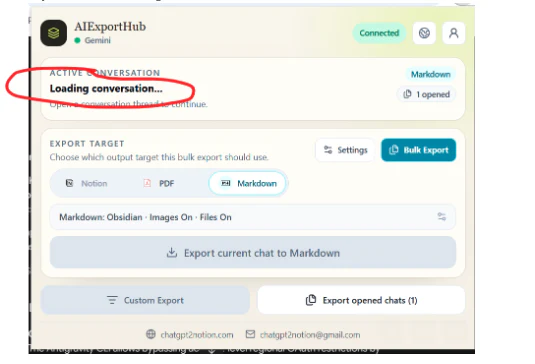
If instead only one very long conversation fails, or the export succeeds but the file is missing messages, you are dealing with a different issue — see why some AI chat exporters miss long conversations.
Fix 1: update the extension
This is the actual fix, and for most people it is the only step required.
- Open
chrome://extensions - Turn on Developer mode in the top right
- Click Update at the top of the page
- Confirm the version number is 8.7.0 or later
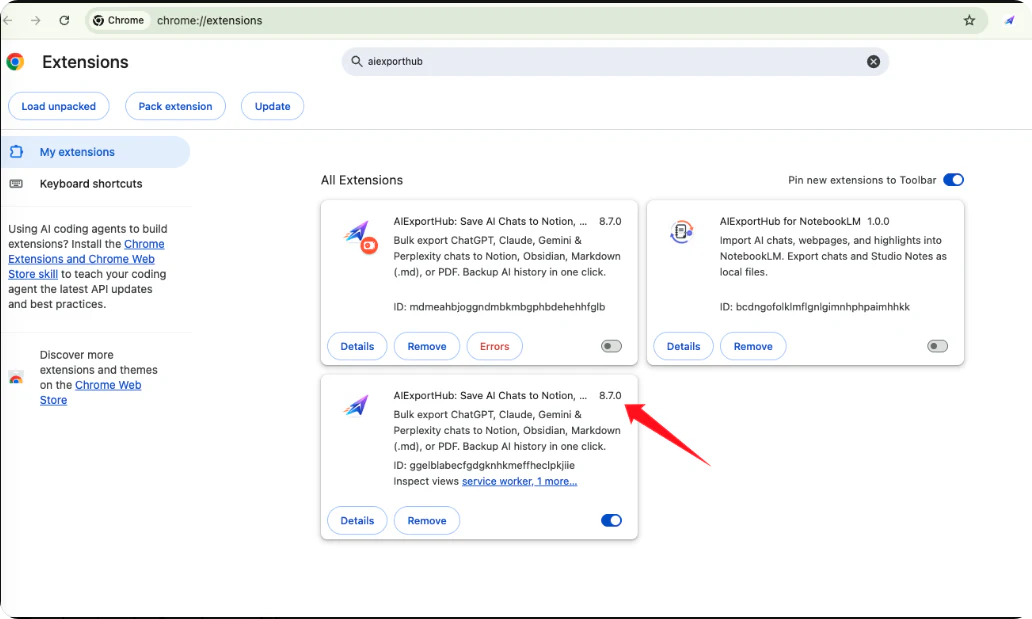
Chrome does not always push extension updates immediately. It checks periodically, and a browser that has been open for days can sit on a stale build for hours. Clicking Update forces the check.
If the version number does not change after clicking Update, remove the extension and install it again from the Chrome Web Store. Reinstalling always pulls the current build. Your settings are stored per extension, so you may need to sign in to your AI Exporter Hub account again afterward.
Fix 2: reload the Gemini tab
Updating an extension does not retroactively change code that is already running in an open tab.
Content scripts are injected when a page loads. A Gemini tab that has been open since before the update is still running the old script, and it will keep failing until the page reloads.
After updating, do a hard reload with Ctrl + Shift + R (Windows) or Cmd + Shift + R (macOS). Then try the export again. If you keep a Gemini tab pinned for days at a time, this step alone explains a lot of “it says it updated but nothing changed” reports.
Fix 3: verify you are signed in and the conversation loaded
There is a second, unrelated cause of a panel stuck on Loading conversation: an expired Gemini session.
Check that the conversation list in Gemini’s own sidebar is populated. If the sidebar is empty or the page is asking you to sign in, the exporter has nothing to fetch, and the failure can surface in a similarly confusing way.
A session failure does announce itself differently once you look at the export log. If your error reads Gemini credentials are unavailable rather than HTTP 400, the request format is fine and your login is not — sign in to Gemini again instead of updating the extension:
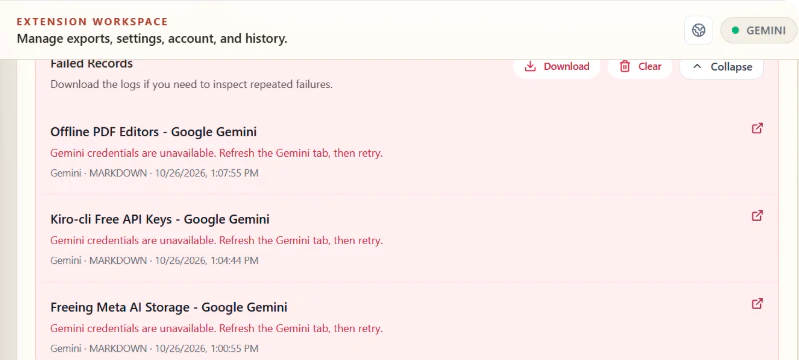
Sign out of Gemini, sign back in, open the conversation normally, confirm the messages are visible, and then export.
Fix 4: rule out Workspace restrictions
If you are on a Google Workspace account managed by an organization, an administrator can restrict which extensions may run or which endpoints they may reach. On a managed account, an export that fails consistently across every conversation — while working fine on a personal account — is worth testing with a personal login before you spend time troubleshooting the extension.
Fix 5: use a standalone Gemini exporter as a bridge
If you need your conversations out today and the update has not reached you yet, the standalone Gemini exporters use a different code path and are not affected by the same failure at the same time.
- Gemini to Obsidian — Markdown files, best for a local knowledge base
- Gemini to Notion — structured pages in a Notion database
- Gemini to PDF — print-ready documents for sharing or archiving
This is a temporary route, not a replacement. Once the all-in-one extension is updated, AI Exporter Hub handles Gemini alongside every other platform with one interface and one set of export options.
Fix 6: export manually as a last resort
Gemini’s own share and copy functions still work when an extension does not. Select the conversation text and paste it into a document, or use the browser’s print dialog to save the page as a PDF.
Be aware of what you lose: code blocks lose their syntax fencing, tables collapse into plain text, and images and attachments are not carried over. Manual copying is acceptable for a one-off short chat. It is a poor method for anything you intend to search, quote, or reuse later — which is the entire reason to export in the first place.
If it still fails, this is what support needs
If you have updated, reloaded, and confirmed your session, and the error persists, the fastest path to a fix is a report with enough detail to reproduce it. The five things that actually matter:
- The exact error text, including the status code
- The extension version, from
chrome://extensions - Your OS and browser — for example, Windows 11 with Chrome 141
- The conversation URL, to confirm it follows the expected
gemini.google.com/app/...pattern - Whether every conversation fails, or only some
A screenshot of the panel is helpful. A short screen recording that shows the click, the loading state, and the error is better, because it removes any ambiguity about which step failed.
The short version
HTTP 400 from a Gemini export means the request was rejected as malformed, and in practice that almost always means your exporter is older than Gemini’s current page format. Update to 8.7.0 or later, hard reload the Gemini tab, and export again. Signing out, clearing cache, and switching browsers do not address this class of failure, because none of them change the request the extension sends.
The broader lesson is worth keeping in mind: browser-based AI exporters depend on interfaces they do not control. When a platform revises its conversation delivery, every exporter built against the old shape breaks at once, and the fix always ships as an extension update rather than a setting you can change. Keeping automatic updates enabled is the cheapest protection available.