
Installation
How to install Bulk Export AI Chats from Gemini to Obsidian from Chrome Web Store
Install from Chrome Web Store
- Visit the Chrome Web Store
- Search for “Bulk Export AI Chats from Gemini to Obsidian”
- Click “Add to Chrome”
- Confirm the installation when prompted
Verify Installation
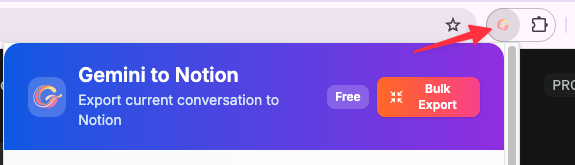
After installation, you should see the extension icon in your Chrome toolbar.
To pin the extension for easy access:
- Click the puzzle piece icon in your Chrome toolbar
- Find “Bulk Export AI Chats from Gemini to Obsidian” in the list
- Click the pin icon next to it
Required Permissions
The extension requires the following permissions:
- downloads: To save Markdown files to your computer
- storage: To track exported conversations and save settings
- host_permissions: Access to
https://gemini.google.com/*to read conversation data
All data processing happens locally in your browser. No data is sent to external servers.
Browser Compatibility
- Chrome (recommended)
- Edge (Chromium-based)
- Brave
- Other Chromium-based browsers
Next Steps
Once installed, you can:
- Export individual conversations with one click
- Batch export your history to build a complete archive
- Configure custom download directory to point to your Obsidian vault
Troubleshooting Installation
Extension not appearing in toolbar:
- Refresh your browser
- Check Chrome extensions page (
chrome://extensions/) - Ensure the extension is enabled
Permission errors:
- Make sure you clicked “Add to Chrome” and confirmed permissions
- Try removing and reinstalling the extension
For more help, visit our Troubleshooting Guide.
Need more help? Contact Support
独立工具说明
本产品用于导出 Google Gemini 内容,为独立项目,与 Google LLC 不存在关联。