
Batch Export & Backup
Efficiently export multiple Gemini conversations to Markdown files in one operation
Batch Export allows you to export multiple Gemini conversations to Markdown files in one operation, creating a complete backup of your chat history.
Access Batch Export
Step 1: Open Extension Options
Right-click the extension icon in your Chrome toolbar and select “Options”.
Or click the extension icon and select “Go to Options” from the popup.
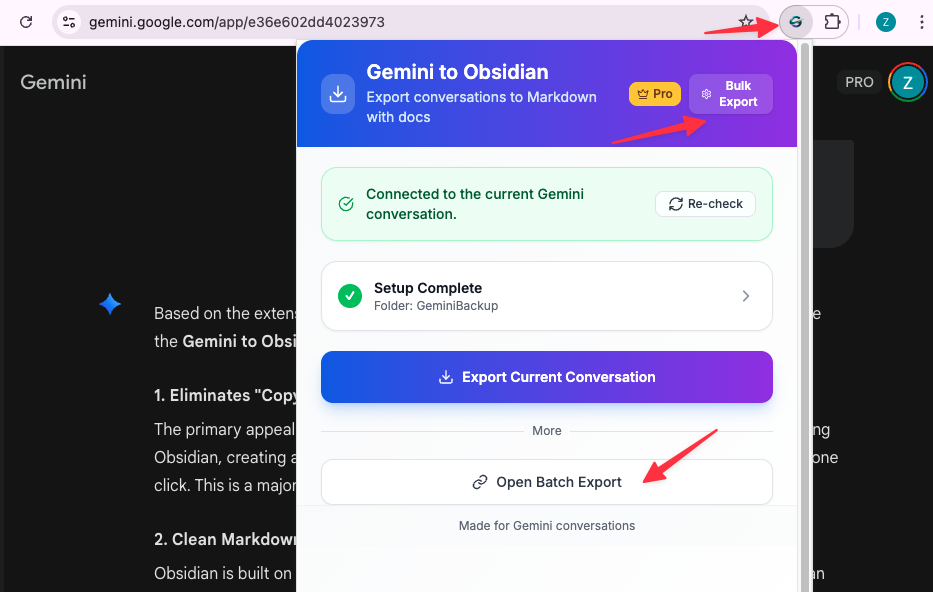
Step 2: Navigate to Batch Export
The options page opens with the batch export interface.
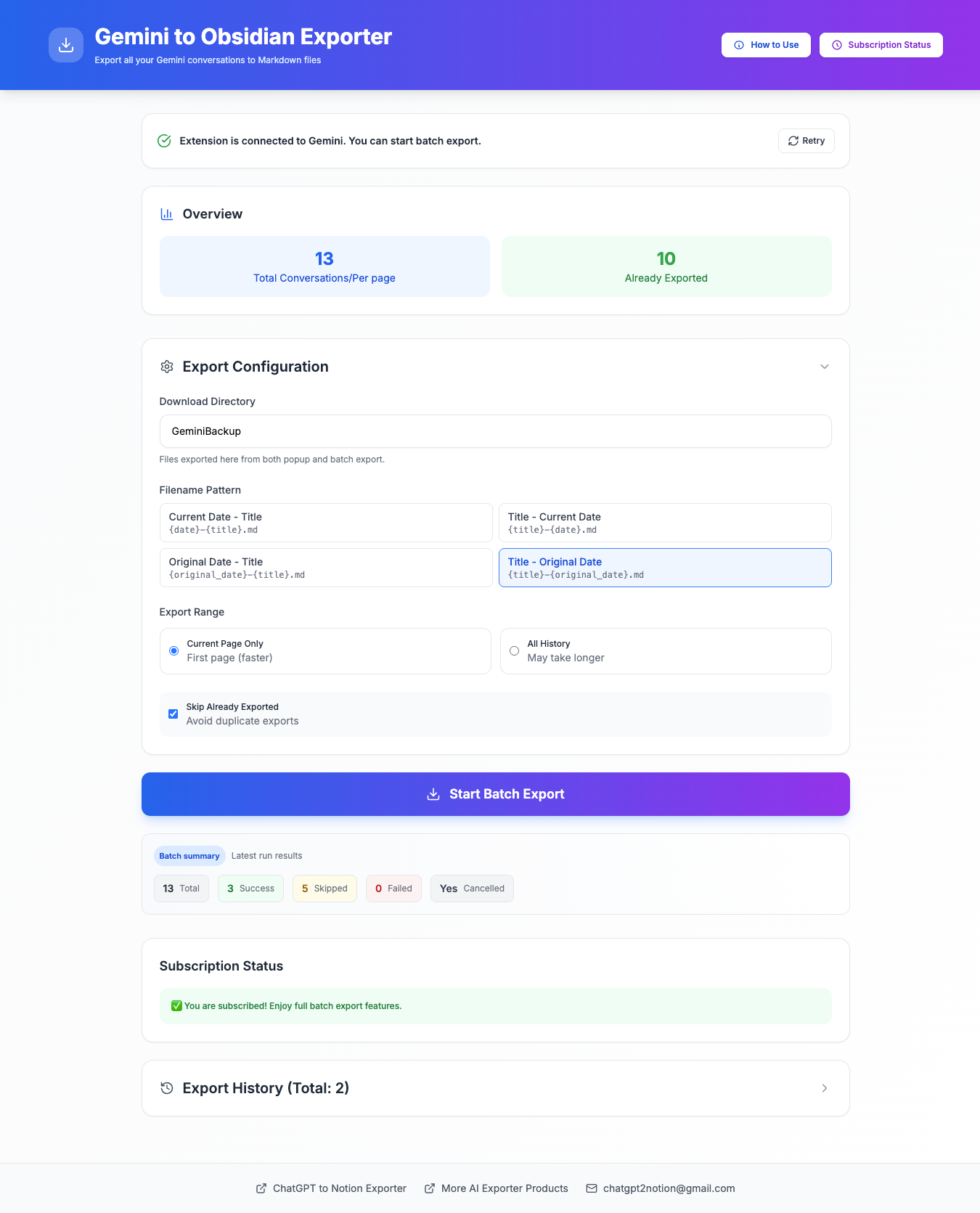
Configure Batch Export
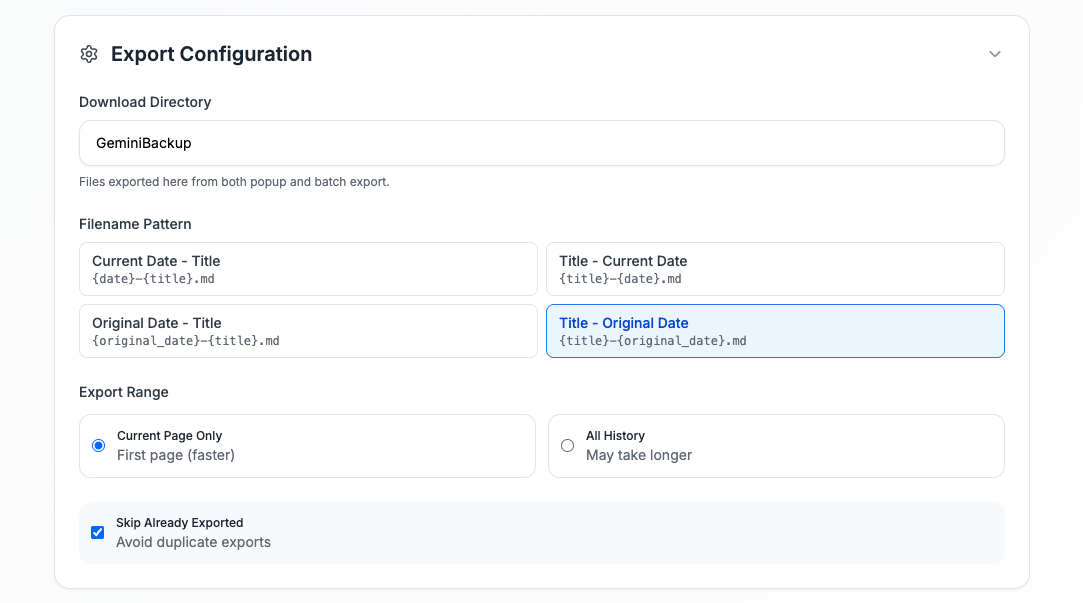
Select Export Range
Choose what to export:
Current Page (First Page):
- Exports conversations visible on the current page
- Typically includes the most recent ~20 conversations
- Fastest option for quick backups
All History (All Pages):
- Fetches and exports your entire Gemini chat history
- Automatically paginates through all pages
- Takes longer but creates a complete archive
Configure Deduplication
Skip Already Exported Records (Recommended):
- Enabled: Skips conversations you’ve already exported
- Disabled: Re-exports all conversations in the selected range
The extension tracks exported conversation IDs to prevent duplicates.
When to enable:
- Regular incremental backups
- Syncing only new conversations
- Preserving your existing exports
When to disable:
- Fresh export of everything
- Re-exporting after conversation updates
- Creating a new backup from scratch
Set Download Directory
Configure where files are saved:
- Enter your desired directory name (e.g.,
ObsidianVault/GeminiChats) - Leave blank to use browser’s default Downloads folder
- Setting applies to both single and batch exports
Start Batch Export
Step 1: Review Configuration
Verify your settings:
- Export range (current page or all history)
- Deduplication preference
- Download directory
Step 2: Begin Export
Click the “Start Batch Export” button.
Step 3: Monitor Progress
Watch the real-time progress display:
- Progress bar: Visual indication of completion
- Status message: Current operation (fetching, exporting, etc.)
- Counts: Success, failed, and skipped items
- Percentage: Overall completion
Important: Keep the options page open during export. Do not close the browser or navigate away.
Step 4: Review Results
After export completes, you’ll see a summary:
- Success Count: Conversations exported successfully
- Failed Count: Conversations that failed to export
- Skipped Count: Already-exported conversations (if deduplication enabled)
- Total Time: Duration of the export operation
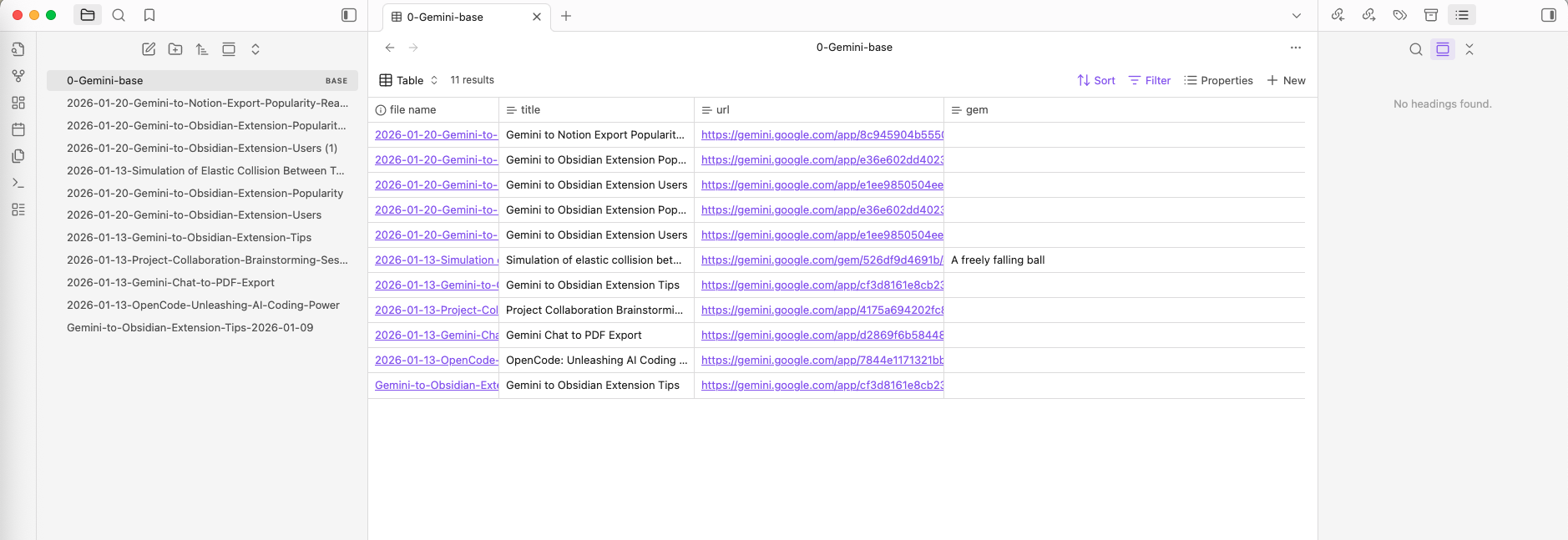
Export History
View all past export operations:
Access History
Scroll down to the “Export History” section on the options page.
History Details
Each history entry shows:
- Timestamp: When the export occurred
- Export Type: Single export or batch export
- Range: Current page or all history
- Success/Failed/Skipped: Detailed counts
- Actions: View details or delete record
Manage History
Available actions:
- View Details: Expand to see full export information
- Delete Record: Remove individual history entry
- Clear All History: Remove all history records
- Clear Failed Only: Remove only failed export records
Performance & Limits
Free Tier
- Batch export limit: 10 conversations per session
- Daily limit: Resets every 24 hours
- Single exports: Unlimited
Pro Version
- Unlimited batch exports: No session or daily limits
- Priority support: Faster response to issues
- Early access: New features before public release
Performance Tips
Average export speed: ~2-3 seconds per conversation
For large batches (100+ conversations):
- Ensure stable internet connection
- Keep the options page active and visible
- Don’t put your computer to sleep
- Consider exporting in smaller chunks if you encounter issues
Optimize for speed:
- Use “Current Page” for quick incremental backups
- Enable deduplication to skip already-exported conversations
- Export during off-peak hours for better Gemini API responsiveness
Best Practices
- Start small: Test with “Current Page” first
- Enable deduplication: Prevents duplicate files and saves time
- Regular backups: Schedule periodic exports to keep your archive up to date
- Monitor progress: Don’t close browser during export
- Check results: Review export history after completion
- Organize in Obsidian: Use tags, folders, and links to organize exported chats
Troubleshooting
Export stops midway:
- Check internet connection
- Ensure Gemini page is accessible
- Refresh the options page and retry
Some conversations failed:
- Check export history for error details
- Failed items can be retried individually
- May be due to rate limits or network issues
“Gemini page required” error:
- Open https://gemini.google.com/ in a tab
- Refresh the page
- Return to options and retry
Deduplication not working:
- Verify “Skip Already Exported Records” is enabled
- Check that conversation IDs are being tracked
- Clear export history and start fresh if needed
Files not downloading:
- Check browser download settings
- Verify download directory permissions
- Ensure downloads are not blocked by browser
For more help, visit our Troubleshooting Guide.
Ready to try Export Gemini to Obsidian?
Open the product page for feature details, screenshots, pricing, and the Chrome Web Store install link.
Independent tool notice
Built for exporting from Google Gemini. This project is independent and is not affiliated with Google LLC.