
Installation
How to install Bulk Export AI Chats from Gemini to Obsidian from Chrome Web Store
Install from Chrome Web Store
- Visit the Chrome Web Store
- Search for “Bulk Export AI Chats from Gemini to Obsidian”
- Click “Add to Chrome”
- Confirm the installation when prompted
Verify Installation
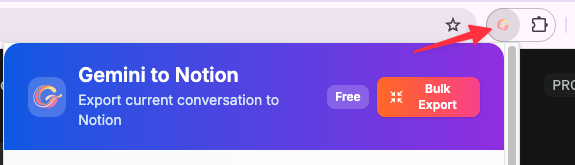
After installation, you should see the extension icon in your Chrome toolbar.
To pin the extension for easy access:
- Click the puzzle piece icon in your Chrome toolbar
- Find “Bulk Export AI Chats from Gemini to Obsidian” in the list
- Click the pin icon next to it
Required Permissions
The extension requires the following permissions:
- downloads: To save Markdown files to your computer
- storage: To track exported conversations and save settings
- host_permissions: Access to
https://gemini.google.com/*to read conversation data
All data processing happens locally in your browser. No data is sent to external servers.
Browser Compatibility
- Chrome (recommended)
- Edge (Chromium-based)
- Brave
- Other Chromium-based browsers
Next Steps
Once installed, you can:
- Export individual conversations with one click
- Batch export your history to build a complete archive
- Configure custom download directory to point to your Obsidian vault
Troubleshooting Installation
Extension not appearing in toolbar:
- Refresh your browser
- Check Chrome extensions page (
chrome://extensions/) - Ensure the extension is enabled
Permission errors:
- Make sure you clicked “Add to Chrome” and confirmed permissions
- Try removing and reinstalling the extension
For more help, visit our Troubleshooting Guide.
Ready to try Export Gemini to Obsidian?
Open the product page for feature details, screenshots, pricing, and the Chrome Web Store install link.
Independent tool notice
Built for exporting from Google Gemini. This project is independent and is not affiliated with Google LLC.