
Exporting Individual Conversations
Learn how to export single Gemini conversations to PDF with one click
Quick Start
After installing the extension, you can export any Gemini conversation to PDF with a single click.
Prerequisites
- Extension installed and pinned to toolbar
- Active Gemini conversation open at gemini.google.com
- Available daily export quota (5 for free users)
Export Current Conversation
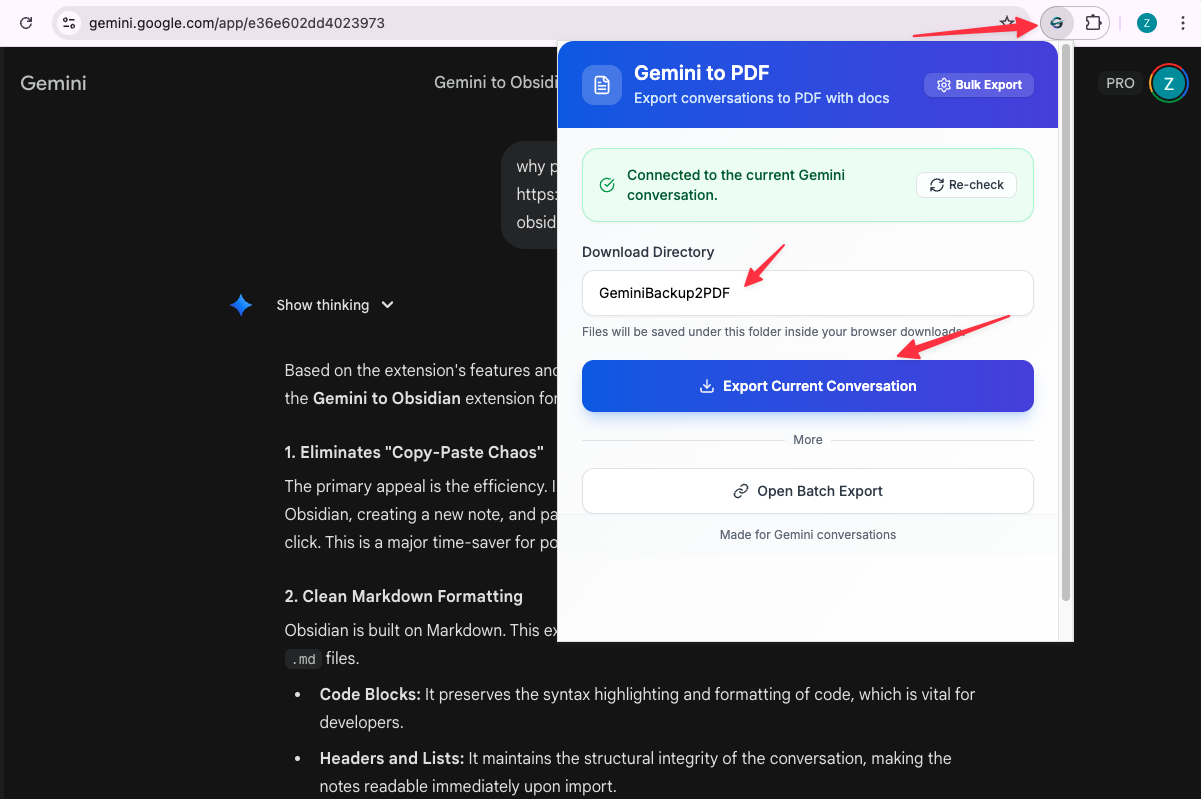
Method 1: Extension Popup (Recommended)
- Open any Gemini conversation
- Click the Gemini to PDF extension icon in your toolbar
- Verify the connection status shows “Connected to Gemini”
- Click the “Export Current Chat” button
- Wait for the PDF to generate (usually 2-5 seconds)
- The PDF will automatically download to your browser’s download folder
Method 2: Keyboard Shortcut (Coming Soon)
Quick export via keyboard shortcut will be available in a future update.
Connection Status
Before exporting, check the connection status in the extension popup:
✅ Connected to Gemini
- Extension is ready to export
- Current conversation detected
- Proceed with export
❌ Not Connected
- Gemini page not detected
- Refresh the page and try again
- Ensure you’re on gemini.google.com
⚠️ Connection Error
- Extension can’t communicate with the page
- Close and reopen the Gemini tab
- Reinstall the extension if problem persists
Export Progress
During export, you’ll see:
- Preparing: Extension is analyzing the conversation
- Generating PDF: Chrome is converting content to PDF
- Downloading: PDF is being saved to your computer
Daily Export Limit
Free users can export 5 conversations per day. The counter resets at midnight (local time).
In the popup, you’ll see:
- “Daily Exports: 3/5” (3 exports used, 2 remaining)
- Counter updates after each export
- Automatic reset at midnight
When limit is reached:
- Export button becomes disabled
- Message shows “Daily limit reached (5/5)”
- Upgrade prompt appears for unlimited exports
What Gets Exported
Each PDF includes:
Conversation Content
- All user prompts
- All Gemini responses
- Timestamps for each message
- Conversation title
Formatting
- Markdown formatting (bold, italic, lists)
- Code blocks with syntax highlighting
- Images and diagrams
- Tables
- LaTeX equations
- Links (clickable in PDF)
Sub-Documents
- Linked documents automatically embedded
- Attachments included in the PDF
- Complete, self-contained archive
File Naming
Exported PDFs are automatically named using this format:
Gemini_[Conversation-Title]_[YYYY-MM-DD].pdfExamples:
Gemini_Python-Tutorial_2025-01-15.pdfGemini_Research-Notes_2025-01-15.pdf
If a file with the same name exists, Chrome will add a number:
Gemini_Python-Tutorial_2025-01-15 (1).pdf
Download Location
PDFs are saved to your browser’s default download folder.
To change download location:
- Open Chrome Settings
- Go to “Downloads”
- Change “Location” setting
- Or enable “Ask where to save each file before downloading”
Tips for Best Results
Before Exporting
- Scroll through the conversation: Ensure all content is loaded
- Wait for images to load: Images must be visible before export
- Expand collapsed sections: Some content may be hidden by default
For Long Conversations
- Long conversations (100+ messages) may take 10-20 seconds to export
- Keep the Gemini tab active during export
- Don’t navigate away or close the tab
For Code-Heavy Conversations
- Code blocks are preserved with syntax highlighting
- Long code blocks may span multiple pages
- Line numbers are preserved if present in Gemini
Troubleshooting
”Not Connected to Gemini”
Solution:
- Ensure you’re on gemini.google.com
- Refresh the page
- Wait 2-3 seconds for connection
- Try export again
”Export Failed”
Possible causes:
- Internet connection lost
- Gemini page crashed
- Browser out of memory
Solution:
- Refresh the Gemini page
- Try exporting again
- If problem persists, restart Chrome
”Daily Limit Reached”
Solution:
- Wait until midnight for reset
- Or upgrade to unlimited exports
PDF is Blank or Incomplete
Solution:
- Scroll through entire conversation before export
- Wait for all images to load
- Ensure conversation is fully loaded (not lazy-loaded)
- Try export again
Images Missing in PDF
Solution:
- Ensure images are visible in Gemini before export
- Wait for images to fully load (no loading spinners)
- Check internet connection
- Try export again
Viewing Your PDFs
After export, you can:
- Open in browser: Double-click the PDF file
- Open in PDF reader: Adobe Acrobat, Preview (Mac), etc.
- Share: Email, cloud storage, messaging apps
- Print: Use your PDF reader’s print function
- Search: Use Ctrl+F (Cmd+F on Mac) to search within the PDF
Next Steps
Learn how to batch export multiple conversations to save time.
Need more help? Contact Support