
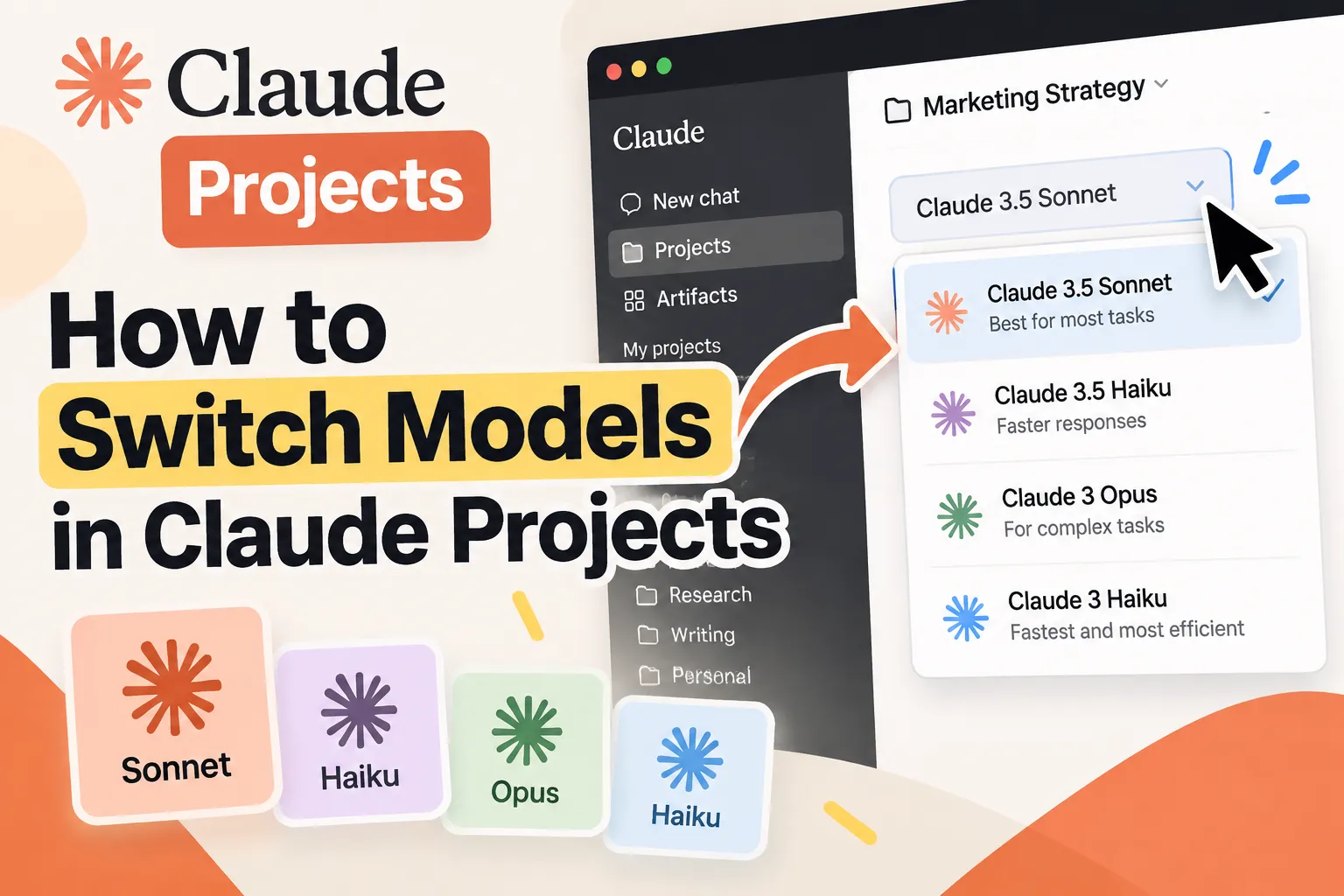
How to Switch Claude Models in Projects
If you are looking through Claude Project settings for a global model switch, you can stop searching.
Claude currently lets you choose a model for each chat inside a Project. The Project can still provide shared instructions and files, but the model choice is made from the conversation itself.
How to switch models in a Claude Project
- Open your Project. Start a new chat, or open an existing conversation inside the Project.
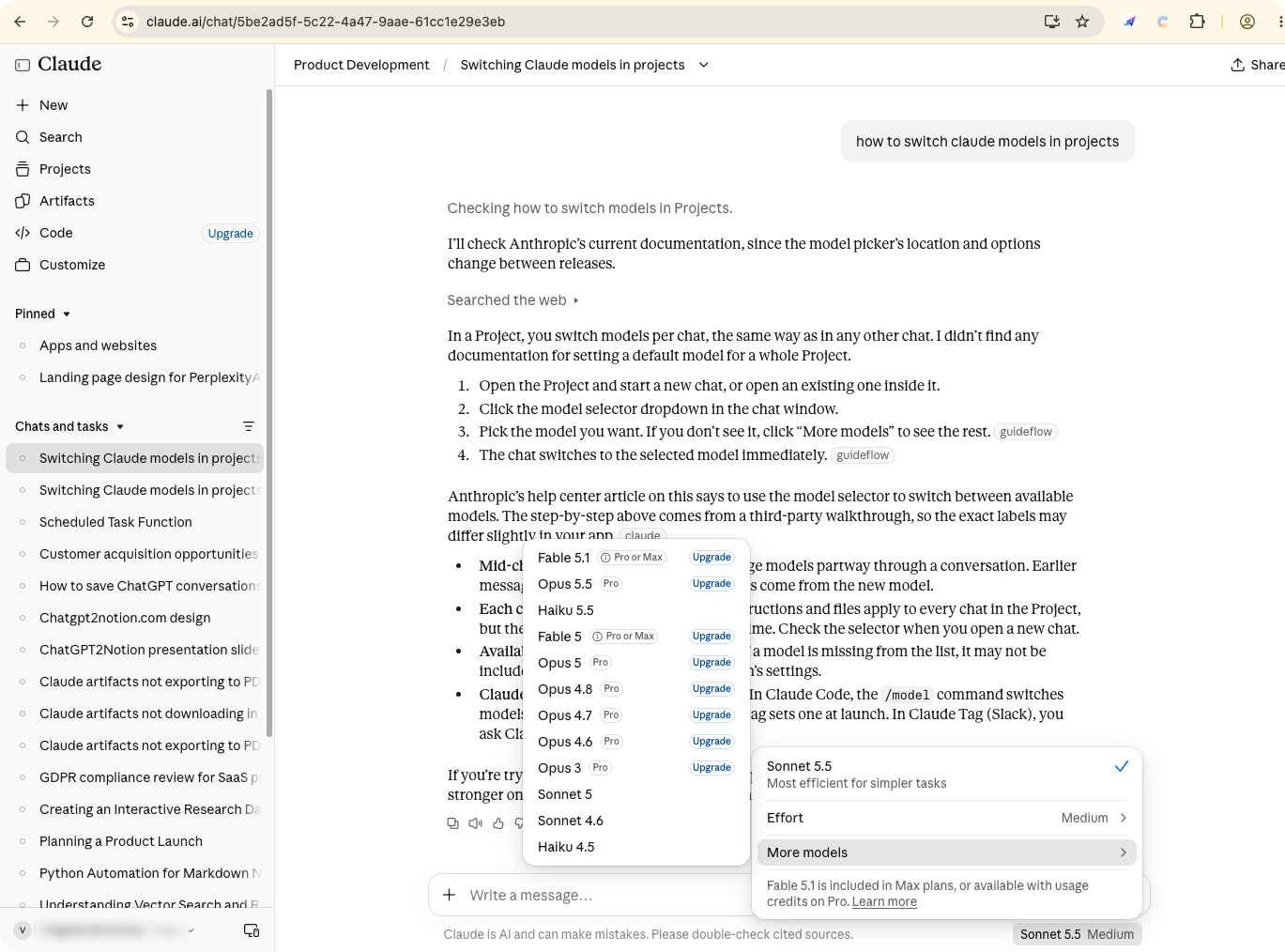
- Find the model selector. Look along the bottom of the chat window near the message box. The selector shows the model currently being used.
- Choose a model. Click the selector and pick the model that fits your task. The available names and plan labels can change as Anthropic updates Claude.
- Open the full list when needed. If the model you want is not visible, choose More models to see additional options.
- Continue the conversation. The new selection applies immediately to the next response.
You do not need to create a new Project just to try another model.
Can you switch models halfway through a conversation?
Yes. You can change the model after a conversation has already started.
Earlier messages remain in the same chat. New replies are generated with the model you select. That makes it practical to use one model for quick exploration, then move to a stronger model for a difficult analysis, a long draft, or code that needs another pass.
The exact selector position and model names may change with Claude’s interface. If the menu looks different, look for the model name or dropdown attached to the message composer rather than searching Project settings.
Project settings and model settings are different
This distinction is easy to miss:
- Project settings control the shared workspace, such as Project instructions and knowledge files.
- Model selection controls which Claude model generates the next response in a particular chat.
Changing the model does not remove the Project’s shared context. It changes the model handling the next turn.
A simple way to choose a model
Use a faster, more efficient model when you are brainstorming, rewriting a short paragraph, or asking a straightforward question.
Choose a more capable model when the task involves long context, careful reasoning, difficult code, or a final version that needs another quality check.
You can also compare outputs inside the same Project. Ask the first model to produce a draft, switch models, and ask the second one to review or improve it. Keeping both attempts in one conversation makes the comparison easier to follow.
Save the useful result before you move on
Model switching is useful when you are experimenting, but good answers can disappear into a long Project history.
If you want to keep a finished Claude conversation, code block, or research thread, export it while the context is still easy to find:
- Claude Export helps you compare the available Claude export destinations and workflows.
- Claude to Notion saves conversations to a searchable Notion workspace.
- Claude to Obsidian saves supported chats as local Markdown files.
- Claude to PDF creates a readable document for sharing or archiving.
- AI Exporter Hub is the broader option when you also work across multiple AI platforms.
For a broader comparison of official export, browser printing, free exporters, and dedicated workflows, see How to Export Claude Chats to PDF or Markdown.
Quick recap
To switch Claude models in Projects, open the conversation, click the model selector near the message box, choose a model, and use More models if necessary. You can switch during an existing conversation, and the Project’s shared instructions and files remain available.
Claude Projects give you the shared context. The chat-level selector lets you choose how the next answer is produced.