
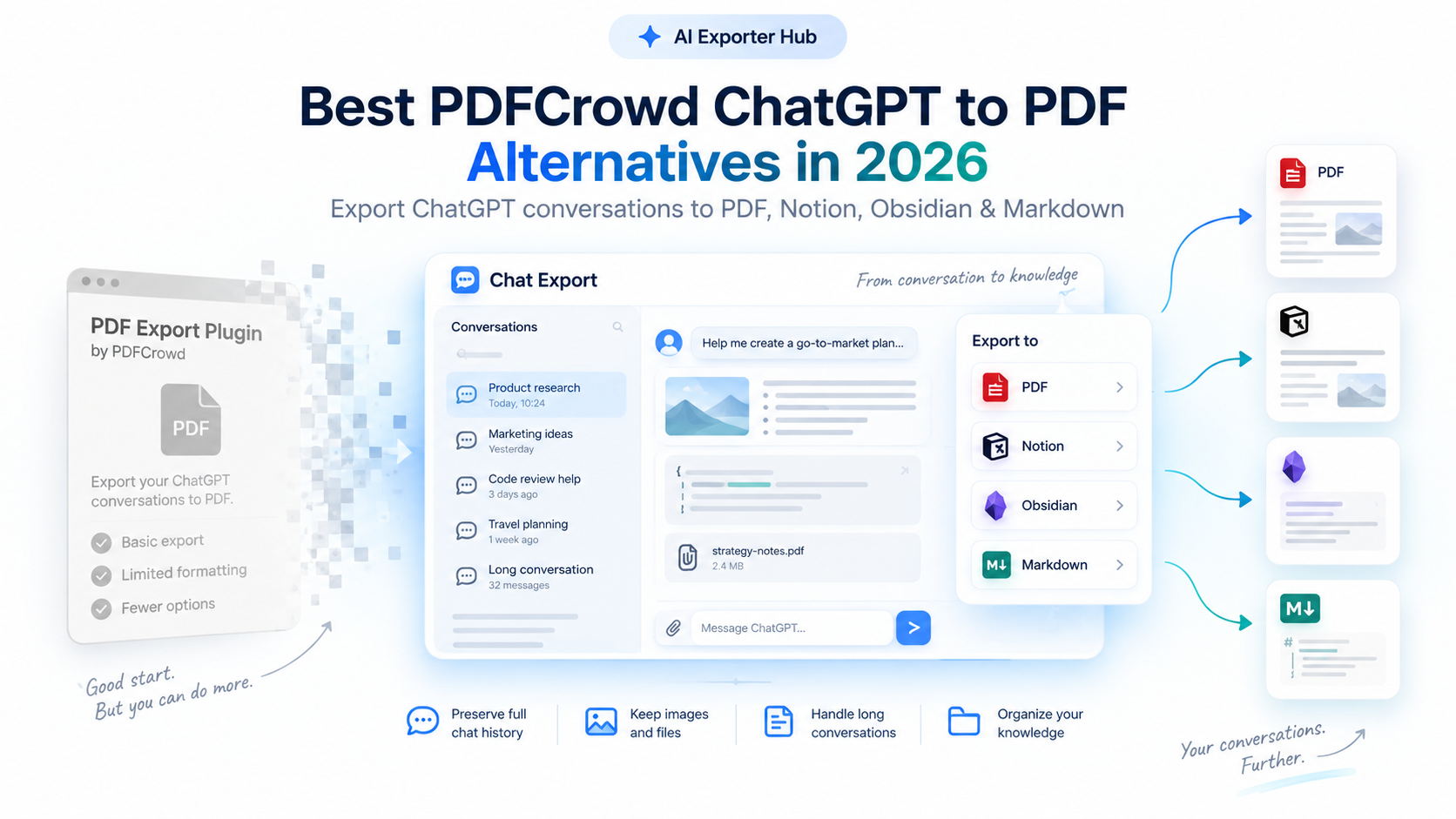
Looking for a working replacement for the PDFCrowd ChatGPT to PDF extension?
On September 3, 2026, PDFCrowd officially discontinued its popular ChatGPT to PDF Chrome extension, ending all updates and technical support due to the ongoing maintenance costs of keeping up with ChatGPT’s frequent webpage structure changes.
If your daily AI export workflow suddenly broke—or if you are tired of missing images, cut-off code blocks, and failed exports—you don’t need to settle for broken browser printouts.
Quick Summary — Choose Your Replacement:
- 👉 Need a direct 1-to-1 PDF exporter? Use ChatGPT to PDF for clean, print-ready PDFs with full support for images, long chats, Projects, and batch history.
- 👉 Want an all-in-one AI knowledge workflow? Upgrade to AI Exporter Hub to export conversations from ChatGPT, Claude, Gemini, Perplexity, and Grok directly into PDF, Notion, Obsidian, and Markdown.
Why Users Are Switching from Legacy ChatGPT PDF Exporters
When PDFCrowd first launched, ChatGPT threads were mostly simple text exchanges. A basic HTML-to-PDF snapshot was enough.
In 2026, however, OpenAI frequently updates its React frontend and DOM structure while adding complex workspace features. Traditional single-purpose PDF scrapers fail today for three main reasons:
1. Rich Media & Complex Formatting Get Stripped
Modern ChatGPT conversations include generated images, uploaded file attachments, wide Markdown tables, and multi-language code blocks. Legacy exporters either fail to render these elements or slice code blocks in half across page breaks.
2. Growing Chat History & ChatGPT Projects
Power users no longer just save a single active tab. You often need to back up hundreds of archived conversations or batch-export an entire ChatGPT Project folder without opening threads one by one.
3. Static PDFs Are Hard to Reuse
While PDFs are great for sharing and archiving, many researchers and developers want their AI outputs stored in a searchable knowledge system—like Notion, Obsidian, or local Markdown files—rather than sitting untouched in a Downloads folder.
PDFCrowd vs. AI Exporter Hub: Feature Comparison
Here is how our actively maintained export suite compares to the discontinued PDFCrowd extension:
| Feature | PDFCrowd (Legacy) | ChatGPT to PDF / AI Exporter Hub |
|---|---|---|
| Maintenance Status | ❌ Discontinued (Sept 2026) | ✅ Actively Maintained (2026 UI Ready) |
| ChatGPT to PDF Export | ✅ Yes | ✅ Yes (High-precision layout) |
| Images & Attachments | ⚠️ Limited / Often broken | ✅ Full Preservation |
| Code Blocks & Tables | ⚠️ Prone to page-break cutoffs | ✅ Clean Syntax & Table Rendering |
| Long Conversations | ⚠️ Truncation issues | ✅ Full-Length Thread Support |
| Batch History & Projects Export | ❌ No | ✅ Supported |
| Notion & Obsidian Sync | ❌ No | ✅ Supported (via AI Exporter Hub) |
| Markdown (.md) Export | ❌ No | ✅ Supported |
| Multi-AI Support (Claude, Gemini, Perplexity, Grok) | ❌ ChatGPT Only | ✅ All 5 Major AI Platforms |
Detailed Breakdown: Which Tool Should You Install?
We offer both a focused PDF tool for users who want simplicity and a comprehensive hub for multi-platform knowledge management.
1. For Dedicated PDF Users: ChatGPT to PDF
If you loved PDFCrowd because it did one job simply and reliably, ChatGPT to PDF is your exact drop-in replacement—built specifically to handle ChatGPT’s modern interface.
Key Capabilities:
- Pixel-Perfect PDF Formatting: Automatically removes sidebar clutter and preserves conversation titles, timestamps, and structured layouts.
- Complete Content Retention: Keeps generated visuals, uploaded files, complex math formulas, code blocks, and tables intact.
- Built for Scale: Seamlessly exports ultra-long debugging or research threads, existing conversation history, and organized ChatGPT Projects.
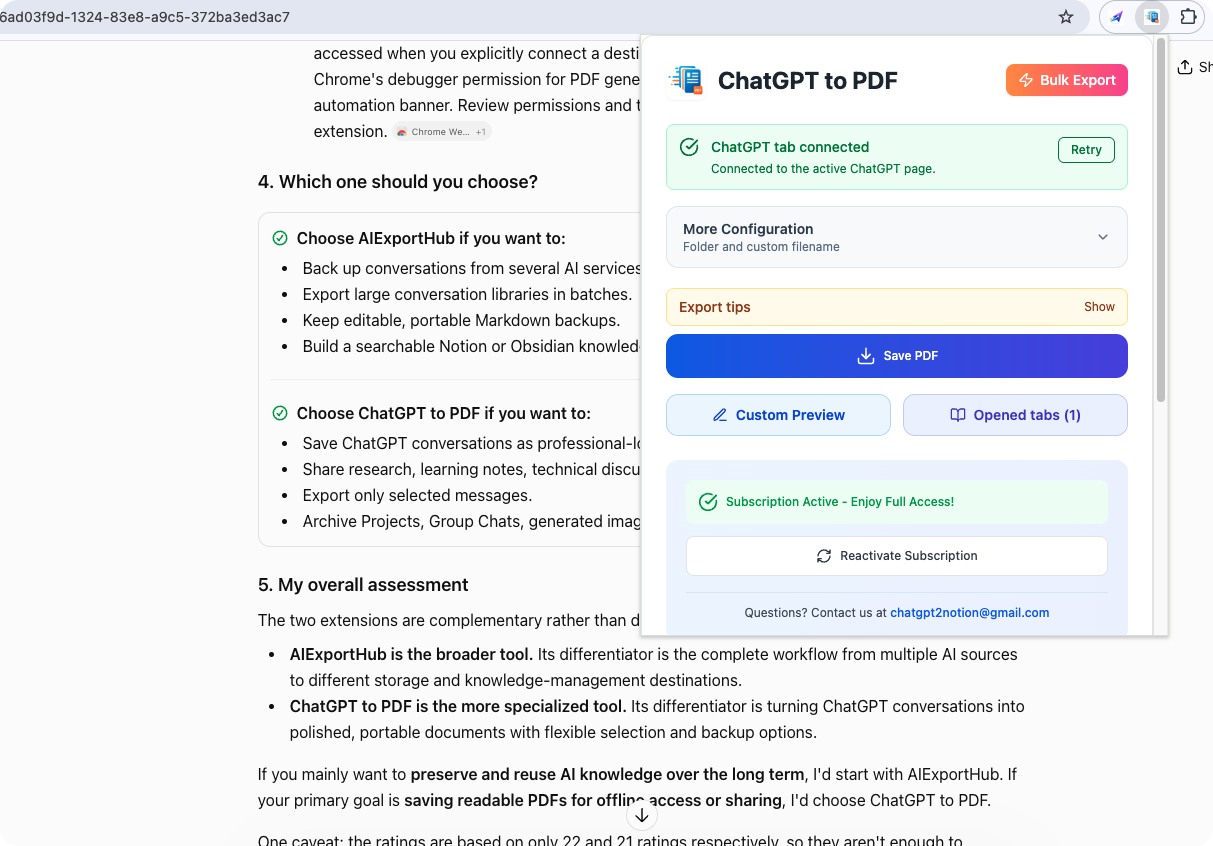
The popup works directly on the open ChatGPT tab: verify the green ChatGPT tab connected status, optionally expand More Configuration for output folder and custom filenames, then hit Save PDF. Custom Preview lets you export only selected messages, while Bulk Export opens the full workspace shown below.
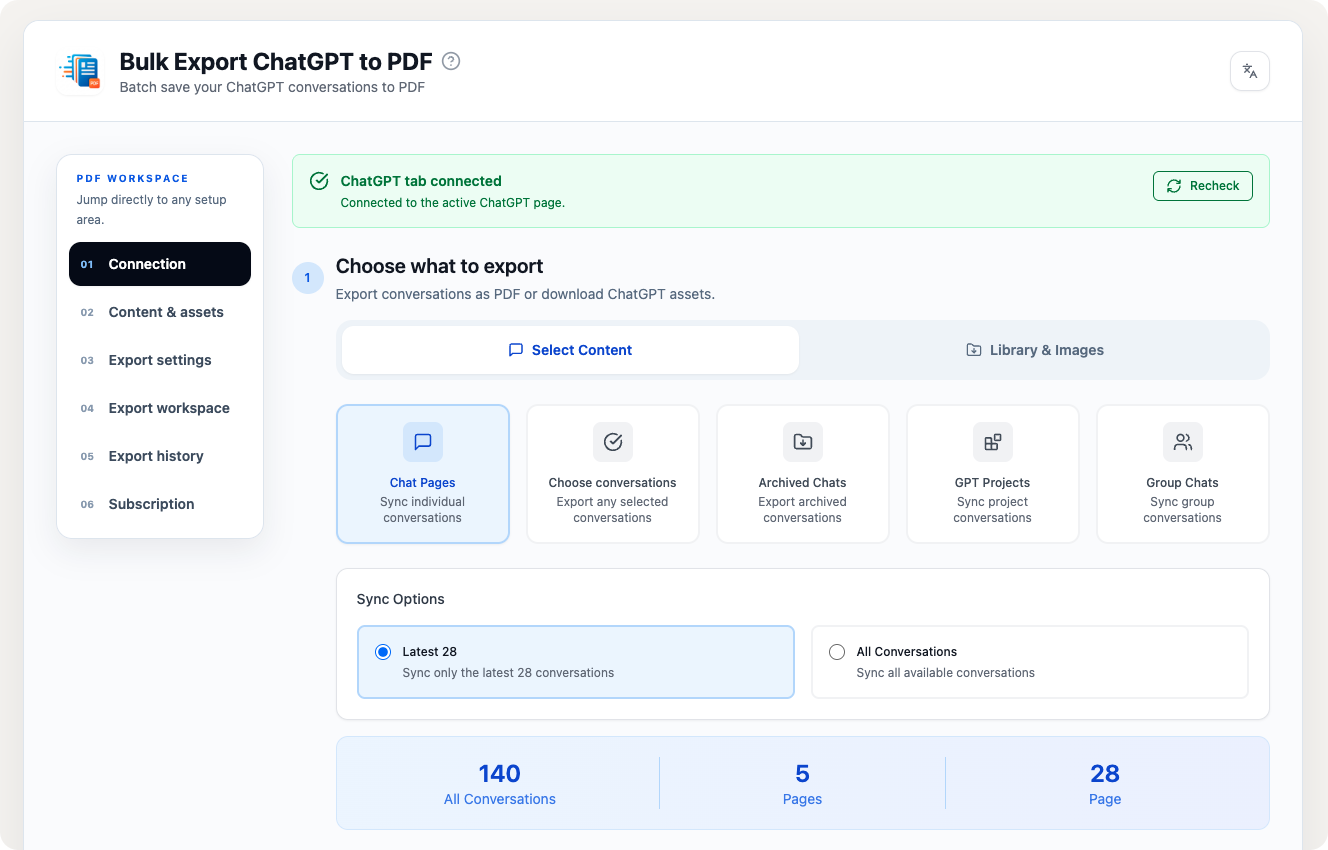
The bulk workspace is where history and Projects export happens. Pick individual Chat Pages, pull in Archived Chats, sync entire GPT Projects or Group Chats, then choose between the latest conversations (e.g., latest 28) or All Conversations for a complete archive—no need to open each thread manually.
2. For Knowledge Base Builders: AI Exporter Hub
If you want to turn temporary AI chats into permanent intellectual assets, AI Exporter Hub takes you beyond static files.
Key Capabilities:
- 4 Export Formats in 1 Tool: Export any conversation to PDF, sync directly to your Notion workspace, save to your Obsidian vault, or download standard Markdown files.
- 5 AI Platforms Supported: Use the exact same one-click workflow across ChatGPT, Claude, Gemini, Perplexity, and Grok.
- Complete ChatGPT Export Suite: You can also explore our full line of specialized ChatGPT backup tools on the ChatGPT Export Overview Page.
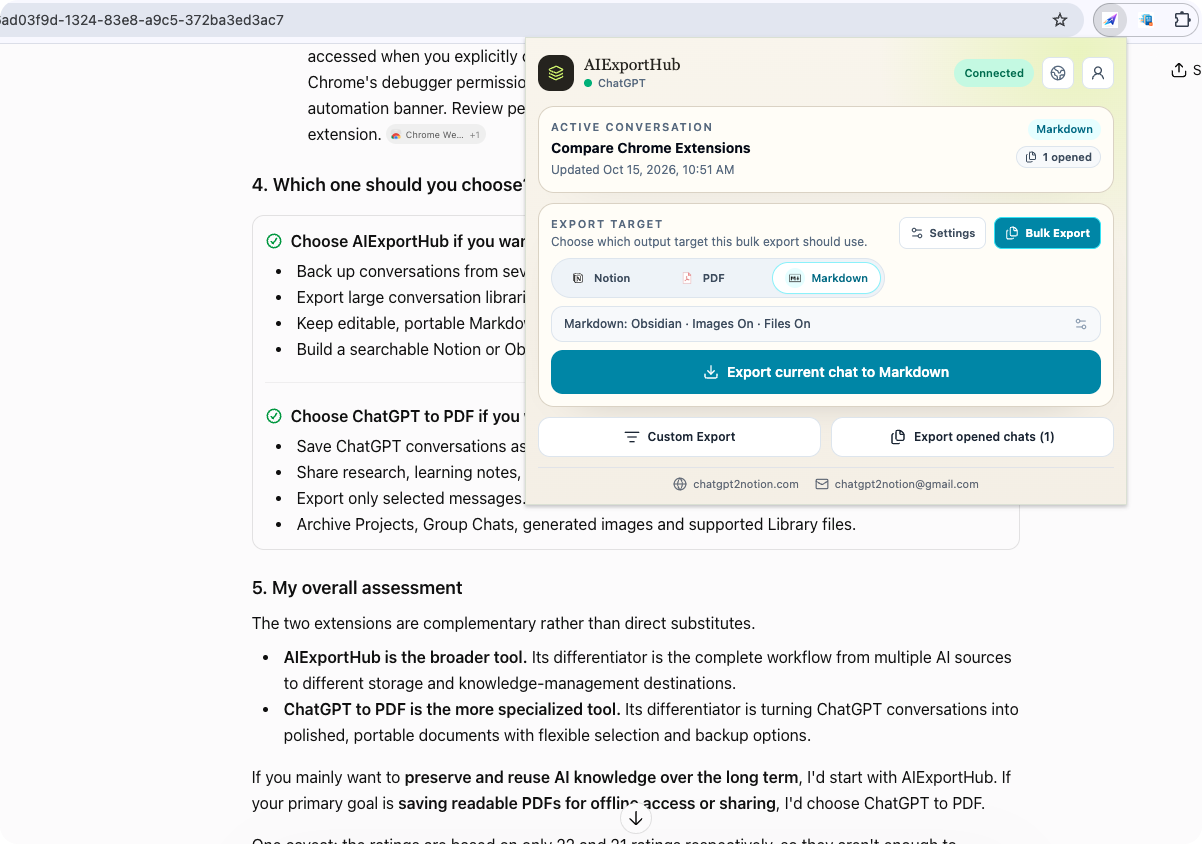
The same popup handles every destination. On the active conversation, switch between Notion, PDF, and Markdown (with Obsidian-compatible image and file options), and either export the current chat or queue opened chats via Bulk Export.
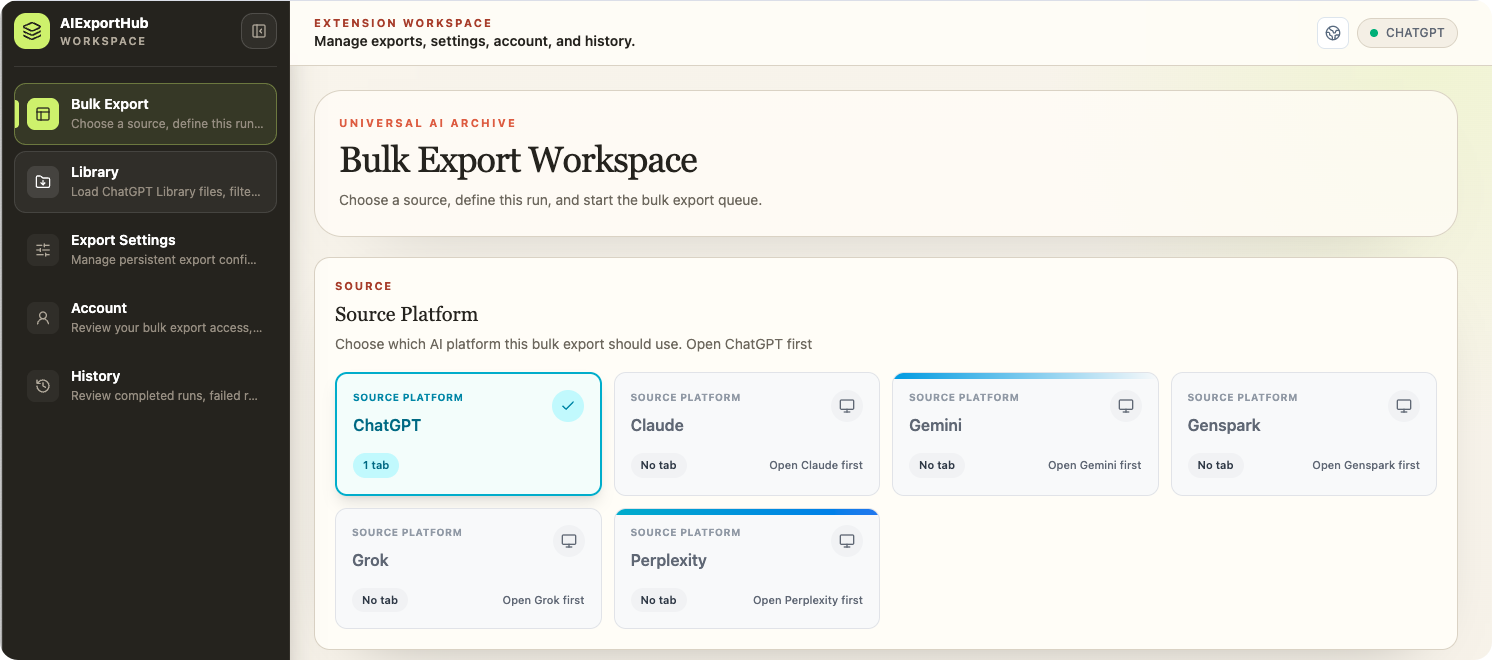
For large-scale archives, the Bulk Export Workspace asks only for a source platform and a destination: select ChatGPT, Claude, Gemini, Perplexity, Grok, or others, define the run, and start the queue. Your library files, settings, and run history stay organized in the same workspace.
👉 Explore AI Exporter Hub Here
How to Migrate from PDFCrowd in 3 Simple Steps
Switching your workflow takes less than 60 seconds:
- Install the Extension: Choose either ChatGPT to PDF (for PDF-only workflows) or AI Exporter Hub (for PDF + Notion/Obsidian/Markdown).
- Open Your ChatGPT Conversation: Open any current thread, historical chat, or ChatGPT Project folder.
- Click Export: Select Export to PDF (or choose Notion, Obsidian, or Markdown) to save your conversation with all images, code, and formatting preserved.
Frequently Asked Questions (FAQ)
Is the PDFCrowd ChatGPT to PDF extension still available?
No. PDFCrowd officially ended support and maintenance for its ChatGPT to PDF extension on September 3, 2026, after serving around 100,000 users. Because ChatGPT frequently updates its web structure, unmaintained extensions quickly lose compatibility.
What is the best PDFCrowd alternative in 2026?
For users who only need reliable PDF exports—including support for images, long threads, and batch history—ChatGPT to PDF is the best direct replacement. For users who want to export across multiple formats (PDF, Notion, Obsidian, Markdown) and multiple AI tools (ChatGPT, Claude, Gemini, Perplexity, Grok), AI Exporter Hub is the best all-in-one alternative.
Can I export old ChatGPT conversations and Projects?
Yes. Unlike basic webpage printers that only capture what is visible on your screen, our export tools support exporting existing ChatGPT conversation history and Projects, allowing you to batch-archive your past work safely.
Will my images, attachments, and code blocks look right in the exported PDF?
Yes. Our export engine is actively updated to parse ChatGPT’s latest UI elements, ensuring that syntax-highlighted code blocks, wide tables, generated images, and file references render cleanly without awkward page-break cutoffs.