
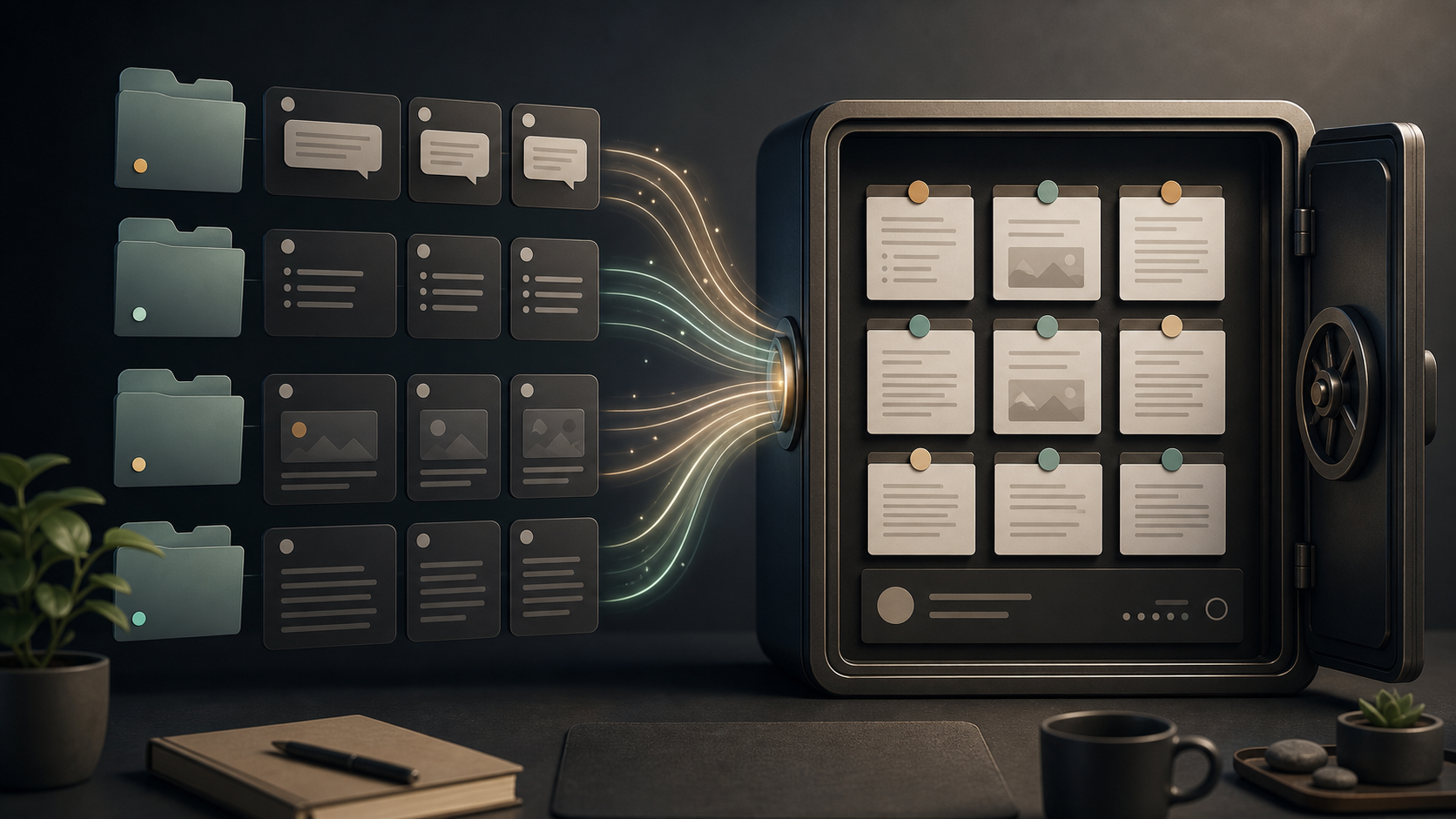
How to Back Up ChatGPT Projects to Obsidian
ChatGPT Projects are where a lot of real work now happens.
You may have project instructions, long-running conversations, research threads, coding decisions, uploaded files, and follow-up tasks all grouped under one project. That makes Projects valuable, but it also means they should be backed up somewhere durable.
This guide explains how to back up ChatGPT Projects to Obsidian using ChatGPT to Obsidian.
Why Back Up ChatGPT Projects
Projects are different from one-off chats.
They usually contain:
- A specific work context
- Multiple related conversations
- Reusable instructions
- Research or planning history
- Decisions you may need later
- Files or generated assets connected to the work
If you only export random individual chats, you lose the project-level structure. Obsidian can help preserve that structure as folders, links, and metadata.
The Important Metadata: projectName
When exporting ChatGPT Projects, keep YAML frontmatter enabled.
The projectName field is especially useful:
---
title: "Homepage copy revision"
date: 2026-07-06
originalDate: 2026-07-02
updatedDate: 2026-07-06
platform: ChatGPT
sourceUrl: https://chatgpt.com/c/...
sourceId: conversation-id
messageCount: 29
tags:
  - chatgpt
  - project
projectName: "Website Refresh"
---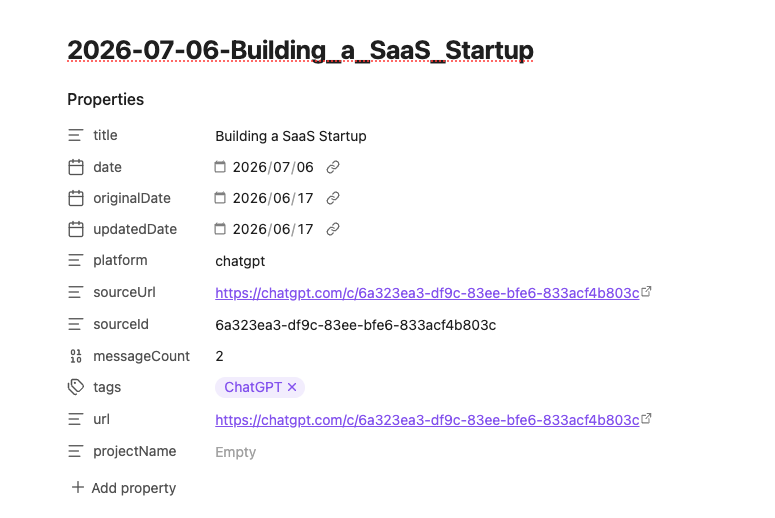
This lets you search or filter every exported note that belongs to the same ChatGPT Project.
Recommended Folder Structure
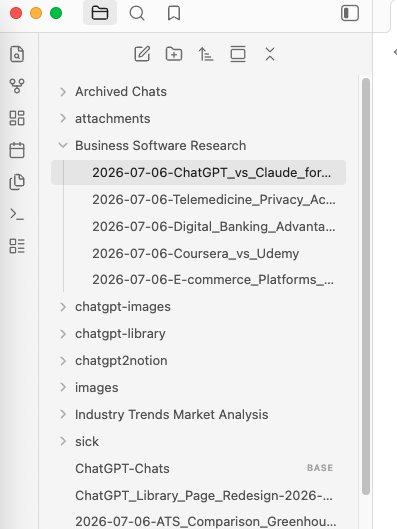
Start with one folder per project:
AI Projects/
  Website Refresh/
    Conversations/
    Deep Research/
    Assets/
    Decisions.md
  Product Launch/
    Conversations/
    Images/
    Library Files/
    Decisions.md
This keeps your vault close to how ChatGPT organizes the work, while still giving you Obsidian links and search.
Step-by-Step Backup Workflow
1. Open Bulk Download
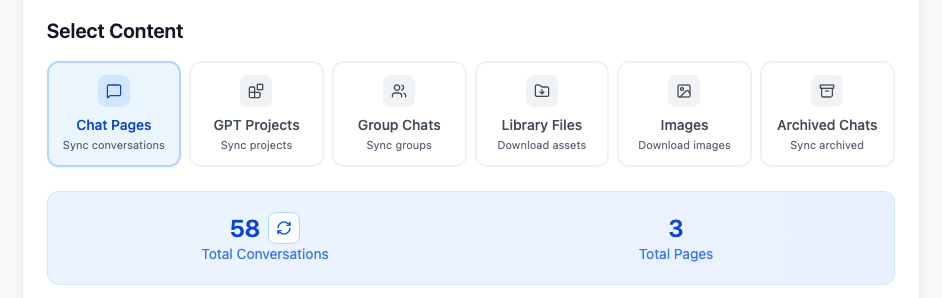
Use ChatGPT to Obsidian and choose the Projects export mode.
2. Select the project conversations
Export the conversations you want to preserve. For active projects, include anything that contains decisions, source material, implementation details, or final outputs.
3. Keep frontmatter enabled
Do not strip metadata. projectName, sourceUrl, updatedDate, and messageCount are useful later.
4. Move files into the matching project folder
After download, move exported Markdown files into the right Obsidian project folder.
5. Add a project index note
Create a simple index note:
# Website Refresh

## Key Conversations
- [[Homepage copy revision]]
- [[Pricing page positioning]]
- [[Technical SEO checklist]]

## Decisions
- Use product-first hero copy.
- Keep screenshots above generic illustrations.
- Track source URLs for every AI-generated recommendation.
The index note gives you a stable entry point for the project.
Use updatedDate for Active Projects
Projects change. A conversation exported last week may be updated today.
If your exporter can compare updated times, use that to avoid two bad outcomes:
- Missing revised conversations
- Re-exporting every unchanged conversation again
For active Projects, filename patterns based on updated date are useful:
{updated_date} - {title}.md
{title} - {updated_date}.md
What to Include in a Project Backup
A complete project backup should include:
- Main conversations
- Final decisions
- Deep Research reports
- Library files used by the project
- Generated images
- Archived conversations if older work was hidden
- Source URLs for traceability
- YAML metadata for filtering
You do not need to keep every low-value prompt. Export the conversations that explain what happened and why.
Obsidian Tips for Project Archives
Use tags for status:
tags:
  - project
  - active
  - chatgpt
Use links for decisions:
Related: [[Decision log]], [[Launch checklist]], [[Pricing page]]Use search for source tracing:
sourceUrl:chatgpt.com projectName:"Website Refresh"Final Thought
Backing up ChatGPT Projects to Obsidian gives you a local record of the work behind the final output.
Export the project conversations, keep projectName metadata, organize files by project, and link the most important decisions into your vault.