
How to Export ChatGPT Images and Library Files to Obsidian
ChatGPT is no longer only a text chat tool.
Your work may include generated images, uploaded documents, Library files, and visual assets from the ChatGPT Images page. If those files are part of a project, they should live next to your notes in Obsidian.
This guide explains how to export ChatGPT Images and Library files for an Obsidian vault using ChatGPT to Obsidian.
What Counts as an Asset
There are several kinds of assets you may want to keep:
- Images generated inside ChatGPT conversations
- Images from the ChatGPT Images page
- Files stored in ChatGPT Library
- Documents connected to a conversation
- Images referenced by an exported Markdown note
The right workflow depends on where the file lives.
Export Images From Conversations
If an image belongs to a conversation, keep the Markdown note and image together.
Recommended structure:
AI Chats/
  ChatGPT/
    Design ideas.md
    images/
      design-ideas-01.png
      design-ideas-02.png
When the Markdown links to the local image, Obsidian can render the visual asset inside the note.
Export From the Images Page
Use Images mode when you want to batch export from ChatGPT’s Images page.
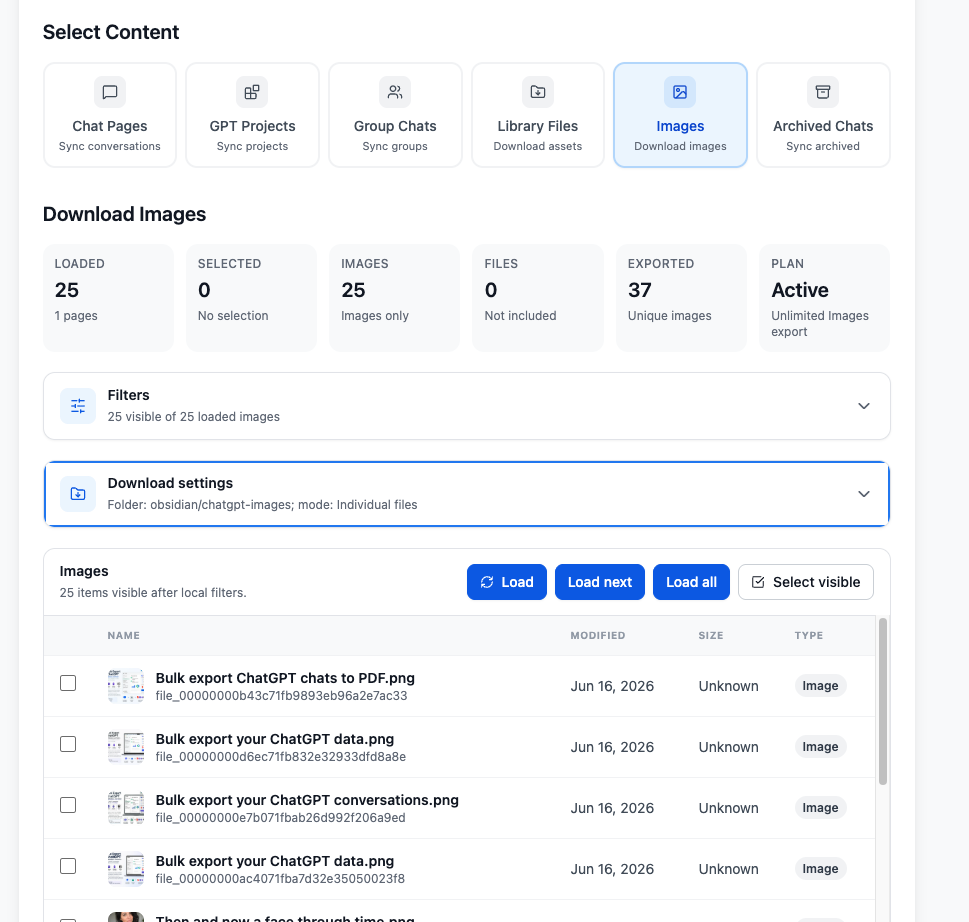
This is useful when you generate many visual options and want to keep the best outputs in your local asset library.
Good folder names:
AI Assets/
  ChatGPT Images/
    2026-07-product-mockups/
    2026-07-blog-covers/
    2026-07-ad-concepts/
Export Library Files
Use Library Files mode when the files live in ChatGPT Library.
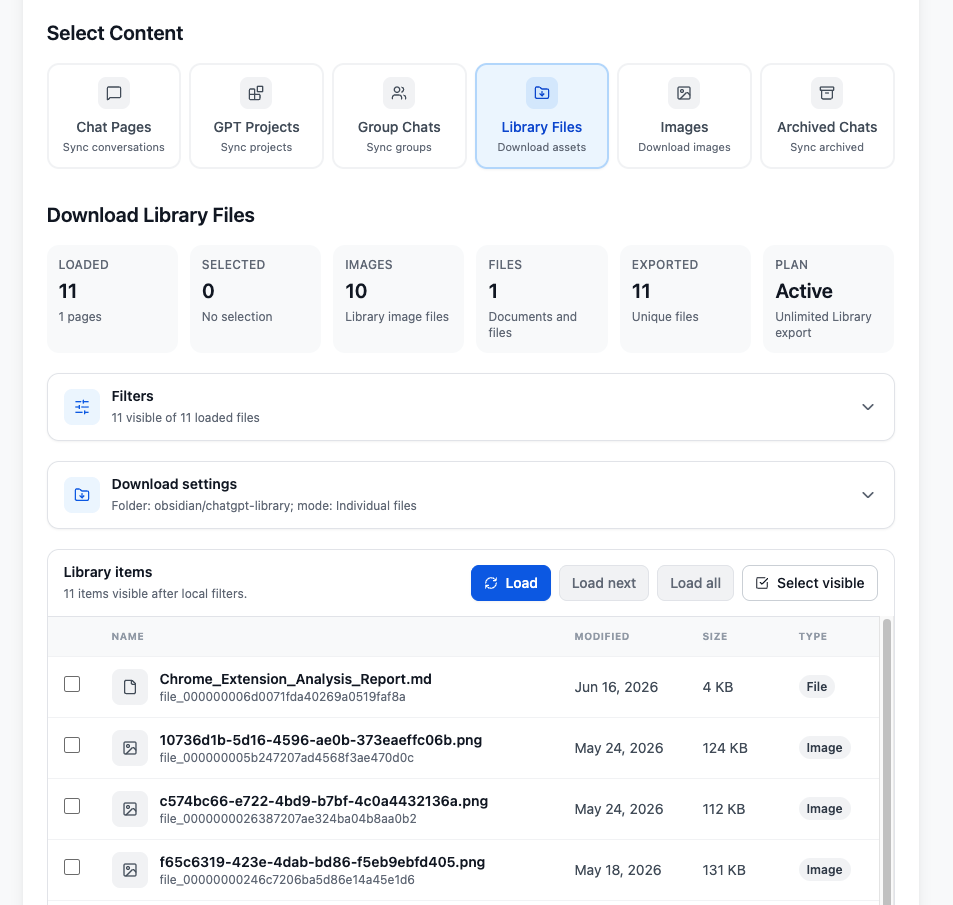
Library files can be downloaded as individual files or as a ZIP archive, depending on the workflow. For Obsidian, individual files are usually easier to place next to related notes.
ZIP or Individual Files?
| Option | Best for |
|---|---|
| Individual files | Active Obsidian vaults where you want assets next to notes |
| ZIP archive | One-time backup, transfer, or cold storage |
If you plan to link files from Markdown, individual files are easier. If you are backing up everything for safekeeping, ZIP can be cleaner.
Suggested Obsidian Structure
For project work:
Projects/
  Website Refresh/
    Notes/
    Images/
    Library Files/
    Exports/
For a general AI asset library:
AI Assets/
  Images/
  Library Files/
  Source Notes/
Keep asset folders predictable. The goal is to make images easy to find even when you revisit the project months later.
Metadata Still Matters
If an image or Library file came from a conversation, keep the related Markdown export too.
Useful fields include:
---
title: "Landing page image concepts"
platform: ChatGPT
sourceUrl: https://chatgpt.com/c/...
updatedDate: 2026-07-06
tags:
  - images
  - design
projectName: "Website Refresh"
---
The image file gives you the asset. The Markdown note gives you the prompt, decision context, and source link.
What to Check After Export
After exporting assets, check:
- Images open locally.
- ZIP archives extract correctly.
- Markdown notes link to the right image path.
- Library documents are in the expected folder.
- Asset names are readable enough for future search.
- Related conversations still include
sourceUrlmetadata.
When to Export Assets Separately
Export assets separately when:
- You generated many images in one session.
- You want to keep raw visual options.
- The image matters more than the conversation.
- A Library file is reused across multiple projects.
- You want a full local backup of ChatGPT visual work.
Export the conversation too when the prompt history or decision context matters.
Final Thought
Images and Library files are part of your AI work, not separate clutter.
Use ChatGPT to Obsidian to download them locally, organize them beside your Markdown notes, and keep source context when it matters.