

How to Export ChatGPT to Obsidian as Markdown
If you use ChatGPT for research, coding, writing, or project work, your best answers should not stay buried in the ChatGPT sidebar.
Obsidian is a strong destination because it stores notes as local Markdown files. You can search them, link them, version them, and keep them in a private vault.
This guide explains how to export ChatGPT to Obsidian Markdown using ChatGPT to Obsidian, including conversations, Projects, Group Chats, Deep Research reports, Library files, Images, and Archived Chats.
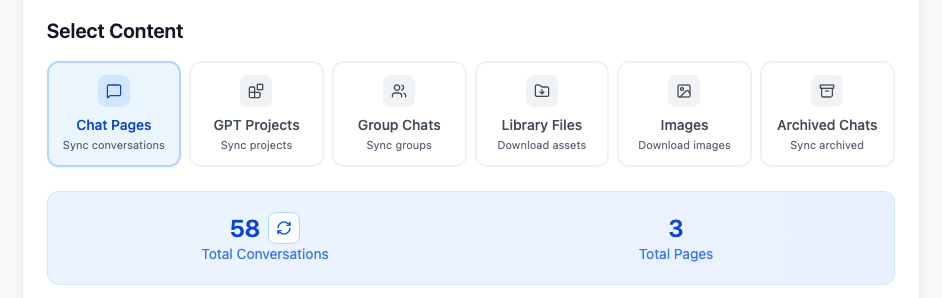
What You Can Export
ChatGPT to Obsidian can export more than one visible chat page.
The current workflow supports:
- Chat Pages
- GPT Projects
- Group Chats
- Deep Research reports
- Library files
- ChatGPT Images
- Archived Chats
That matters because a real ChatGPT archive is usually spread across multiple surfaces. Research may live in Deep Research. Client work may live inside Projects. Older reference chats may be archived. Generated images and uploaded Library files may be separate from the conversation itself.
Step 1: Install ChatGPT to Obsidian
Start from the product page:
Install the Chrome extension, then open ChatGPT in the browser. The extension downloads Markdown and local assets directly to your machine. It does not send your conversations through an external server.
Step 2: Choose What to Export
For one conversation, open the chat and export it as Markdown.
For a larger backup, open Bulk Download and choose the content mode you need:
| Mode | Use it for |
|---|---|
| Chat Pages | Regular ChatGPT conversations |
| GPT Projects | Project-specific conversations |
| Group Chats | Shared chats with author names |
| Library Files | Images and documents in ChatGPT Library |
| Images | Assets from the ChatGPT Images page |
| Archived Chats | Older chats hidden from the main sidebar |
If you are building an Obsidian vault from scratch, start with Chat Pages and Projects. Then add Archived Chats if you want older context, and add Library or Images if visual assets matter to your workflow.
Step 3: Keep YAML Frontmatter Enabled
A Markdown export is much more useful when it includes metadata.
ChatGPT to Obsidian can include Obsidian-friendly YAML frontmatter such as:
---
title: "API migration plan"
date: 2026-07-06
originalDate: 2026-06-28
updatedDate: 2026-07-05
platform: ChatGPT
sourceUrl: https://chatgpt.com/c/...
sourceId: conversation-id
messageCount: 38
tags:
  - chatgpt
  - project
projectName: "Website Migration"
---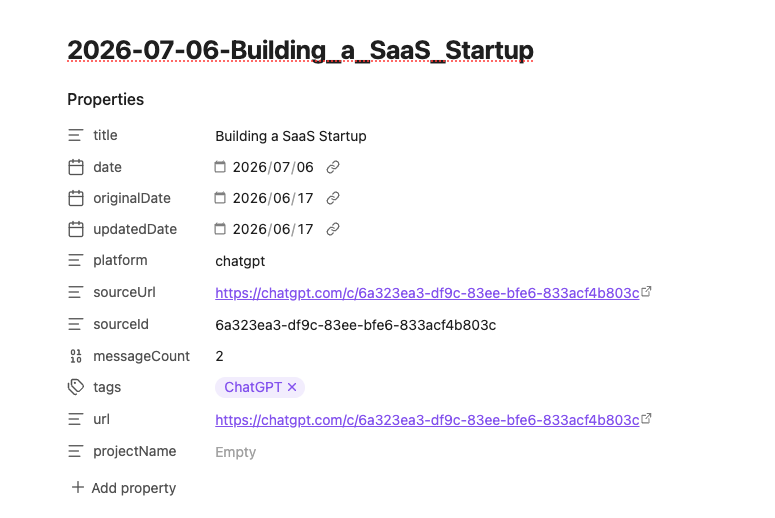
These fields make exported notes easier to search, sort, and connect later.
For example:
- Use
sourceUrlto return to the original ChatGPT conversation. - Use
originalDateto know when the conversation started. - Use
updatedDateto track revised chats. - Use
messageCountto spot long conversations. - Use
projectNameto keep GPT Projects grouped in Obsidian.
Step 4: Pick a File Naming Pattern
Good filenames make your vault easier to maintain.
Useful patterns include:
- Current Date - Title
- Title - Current Date
- Original Date - Title
- Title - Original Date
- Updated Date - Title
- Title - Updated Date
For active work, Updated Date - Title is often the safest pattern because it reflects the newest version of the conversation. For permanent archives, Original Date - Title keeps chronology stable.
Step 5: Move Files Into Your Obsidian Vault
ChatGPT to Obsidian downloads files locally. You can save them into a downloads folder and then move them into your vault.
A simple structure works well:
AI Chats/
  ChatGPT/
    Chat Pages/
    Projects/
    Deep Research/
    Group Chats/
    Archived Chats/
    Library Files/
    Images/
You do not need a complex folder system at the beginning. Start simple, then let Obsidian links, properties, and search do most of the work.
What Good Markdown Should Preserve
A useful ChatGPT to Obsidian export should preserve:
- Message order
- User and assistant roles
- Headings and lists
- Tables
- Code fences
- Links
- Images where supported
- Source URL
- YAML frontmatter
- Project or archive context
If the export is just plain text, it will be harder to reuse later.
Common Mistakes
Copying Only the Final Answer
The final answer is not always enough. The conversation often contains constraints, rejected options, debugging history, or source context. Export the full thread when you may need the reasoning later.
Ignoring Archived Chats
Archived chats often contain older decisions and reference material. Use Archived Chats mode when you want a more complete backup.
Skipping Metadata
Without frontmatter, every exported file looks similar. Keep metadata enabled so Obsidian can filter by date, source, tags, and project.
Mixing Assets Without Folders
Generated images and Library files should sit next to the related notes or in a predictable assets folder. Otherwise, the Markdown note becomes hard to reconstruct later.
When to Use Obsidian Instead of Notion or PDF
Use Obsidian when you want:
- Local Markdown files
- Private long-term storage
- Backlinks and graph view
- Git or file-system backup
- A developer-friendly archive
- Notes you can edit in any Markdown editor
Use Notion when you need a shared team database. Use PDF when you need a fixed document for sharing or printing.
For a broader comparison, read How to Export ChatGPT to Notion, Obsidian, or PDF.
Final Checklist
Before you finish an export, check:
- The Markdown opens correctly in Obsidian.
- Code blocks and tables are readable.
- YAML frontmatter appears at the top.
sourceUrlpoints back to ChatGPT.- Images or Library files are stored in the expected folder.
- Archived Chats are separated from active chats.
- Updated conversations can be exported again when they change.
Final Thought
Exporting ChatGPT to Obsidian is not just a backup task. It is how you turn AI conversations into a local knowledge base.
Start with ChatGPT to Obsidian, export your most important chats as Markdown, and keep the metadata intact.