

How to Import ChatGPT Conversations into Logseq as Markdown
Logseq works especially well with structured notes.
ChatGPT conversations are also structured: prompts, answers, follow-up questions, lists, code blocks, and summaries.
That makes Markdown a practical bridge between ChatGPT and Logseq.
Instead of leaving useful AI chats inside ChatGPT history, you can export them as Markdown files and add them to a Logseq graph.
The workflow is simple:
ChatGPT conversation
        |
Export as Markdown
        |
Add to a Logseq graph folder
        |
Search, link, tag, and reuse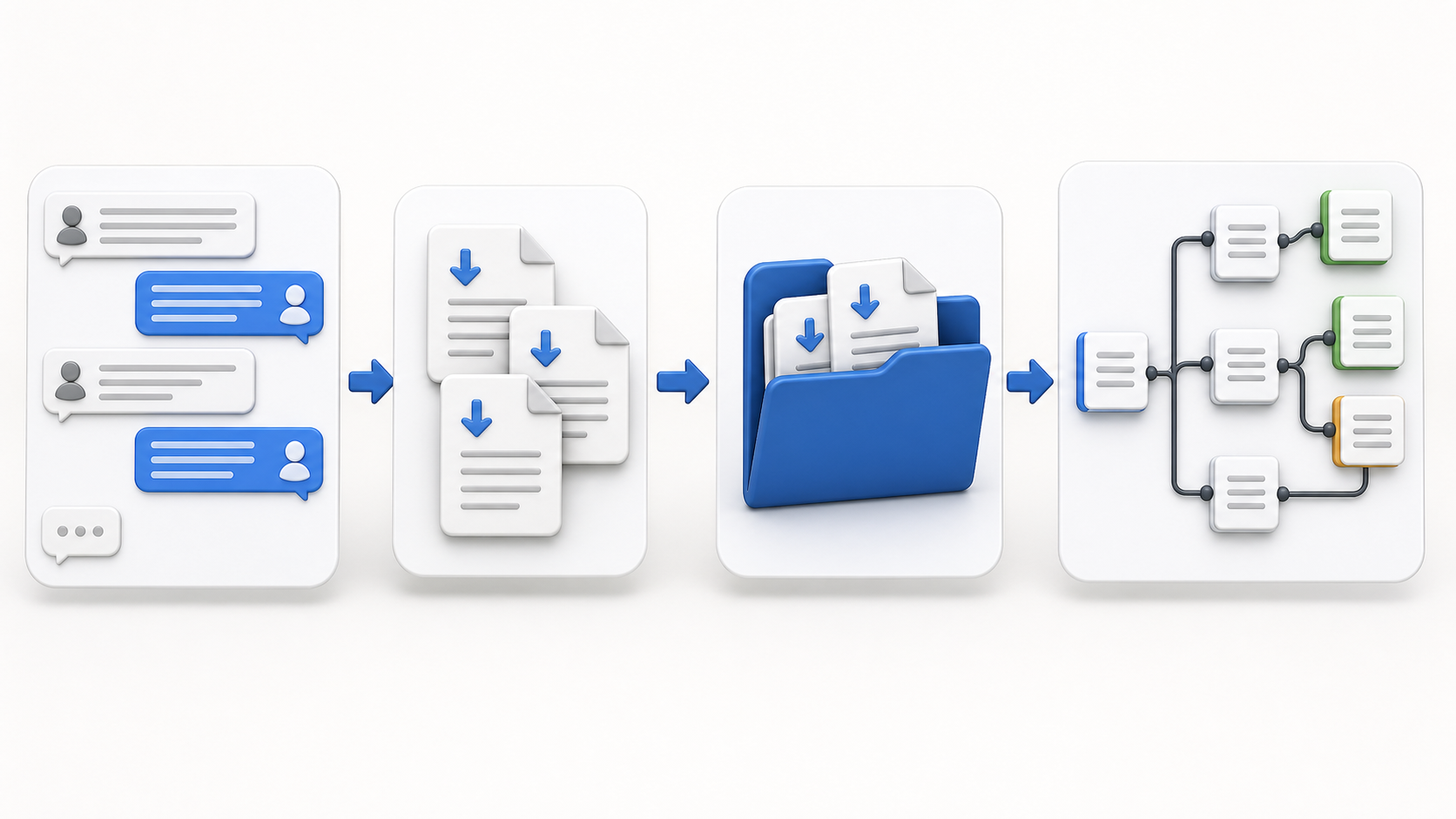
Why Use Logseq for ChatGPT Conversations?
Logseq is built for outlines, backlinks, journals, and local knowledge graphs.
That makes it a strong destination for ChatGPT conversations that are part of ongoing work:
- Research logs
- Class notes
- Prompt libraries
- Product thinking
- Engineering notes
- Meeting preparation
- Writing outlines
- Personal knowledge management
If a ChatGPT conversation is only useful once, you may not need to save it.
If it contains reusable thinking, it belongs in your knowledge base.
Why Markdown Is the Right Bridge
Logseq can work with Markdown files in a graph directory. Its documentation on creating a graph from existing Markdown files explains that you can start from an existing directory of Markdown files, and Logseq will create graph folders such as journals, pages, and assets.
That means a clean ChatGPT Markdown export can become part of your Logseq system without inventing a custom format.
Markdown is useful because it keeps:
- Headings
- Bullet lists
- Nested structure
- Code blocks
- Links
- Tables
- Plain-text portability
It is also easy to review before you bring it into Logseq.
Step 1: Export the ChatGPT Conversation as Markdown
Open the ChatGPT conversation you want to keep.
Use ChatGPT to Obsidian to export the chat as a Markdown file.
The name says Obsidian, but the file format is the important part. A .md file is useful across many Markdown-based knowledge tools, including Logseq.
Good candidates for Logseq export include:
- Long research conversations
- Technical explanations with code
- Study sessions
- Prompt experiments
- Strategy discussions
- Project planning chats
Avoid exporting every casual chat. Logseq works best when the notes are intentional.
Step 2: Clean the Markdown Before Import
Before adding the file to Logseq, open it in a text editor.
Check that the content is readable and complete.
You may want to adjust the file before importing:
- Rename the file with a clear title.
- Remove raw YAML frontmatter if you do not want it visible.
- Convert metadata into Logseq properties.
- Shorten very long headings.
- Split giant conversations into several pages.
Example:
title:: ChatGPT Research Session
source:: ChatGPT
tags:: ai-chat, research, markdown

- Summary
  - The conversation explored...
- Original prompts
  - How should I structure...
- Key ideas
  - ...
- Follow-up questions
  - ...
This format is closer to Logseq’s outline style than a flat document.
Step 3: Add the Markdown File to Logseq
There are two common ways to use existing Markdown files with Logseq.
Option A: Create a New Graph from a Markdown Folder
If you are starting a fresh AI chat archive:
- Create a folder for your AI chat Markdown files.
- Put your exported
.mdfiles in that folder. - Open Logseq.
- Create or open a graph using that folder.
- Let Logseq index the files.
This is useful when you want a dedicated graph for AI conversations.
Option B: Add Files to an Existing Graph
If you already have a Logseq graph:
- Open your graph folder in Finder or your file manager.
- Add the exported Markdown file to the graph’s
pagesfolder. - Return to Logseq.
- Re-index or refresh if the page does not appear.
- Open the imported page and clean the outline.
The same Logseq documentation thread notes that individual Markdown files can be placed in the pages folder and then re-indexed so they appear in the graph.
Step 4: Turn the Chat into a Useful Logseq Page
A raw transcript is only the starting point.
After the Markdown appears in Logseq, make it easier to reuse:
- Add page references such as
[[Project Name]] - Add tags like
#researchor#prompt-library - Move action items into tasks
- Split long answers into smaller blocks
- Link useful concepts to existing pages
- Move reusable prompts into a prompt library page
Example structure:
- [[ChatGPT Research Session]]
  - source:: ChatGPT
  - type:: AI chat export
  - project:: [[AI Knowledge Base]]
  - Summary
    - ...
  - Useful prompts
    - ...
  - Decisions
    - ...
  - Follow-up tasks
    - TODO ...
This makes the exported conversation useful inside Logseq instead of just archived.
What Formatting Usually Transfers Well
Markdown export is a strong fit for Logseq when the conversation contains:
- Bullet lists
- Numbered steps
- Headings
- Code blocks
- Short paragraphs
- Links
- Tables
- Prompts and responses
Code-heavy conversations are especially worth exporting because manual copy-paste often breaks indentation.
What May Need Cleanup
Logseq is an outliner, not a traditional document editor.
Expect to adjust:
- Long paragraphs
- Deep Markdown nesting
- YAML frontmatter
- Tables that should become simpler blocks
- Very long transcripts
- Image references and attachments
For very long conversations, consider splitting the export into:
- Summary page
- Full transcript page
- Prompt library page
- Follow-up tasks page
Suggested Folder and Page Naming
Use predictable names so Logseq pages stay readable.
Good file names:
2026-07-04-chatgpt-ai-research-workflow.md
2026-07-04-chatgpt-product-strategy-notes.md
2026-07-04-chatgpt-code-review-checklist.md
Good page names:
ChatGPT AI Research Workflow
ChatGPT Product Strategy Notes
ChatGPT Code Review Checklist
Avoid names like:
conversation.md
chat-export.md
untitled.md
When Logseq Is Better Than Notion or Joplin
Use Logseq when you want:
- Local-first Markdown files
- Outline-based thinking
- Daily notes
- Backlinks
- Graph-based knowledge work
- Fast capture and later restructuring
Use Notion when you want databases and team sharing.
Use Joplin when you want a more traditional notebook archive.
Use Obsidian when you want a local Markdown vault with a larger plugin ecosystem.
FAQ
Can ChatGPT export directly to Logseq?
ChatGPT does not provide a native Logseq export option. The practical workflow is to export as Markdown, then add the .md file to your Logseq graph.
Where should I put exported Markdown files?
For an existing graph, put curated files in the pages folder and re-index or refresh Logseq if needed. For a new graph, start with a folder that contains your Markdown files.
Should I export every ChatGPT conversation?
No. Export the conversations that contain reusable knowledge. A curated Logseq graph is more useful than a huge archive full of low-value chats.
Does this work for Claude, Gemini, Perplexity, and Grok too?
Yes, if you can export the conversation as clean Markdown. The same Markdown-first workflow can work across AI platforms.
Final Thought
Logseq does not need a special ChatGPT-only format.
If your AI conversation can become a clean Markdown file, it can become part of your Logseq graph.
Start with one useful ChatGPT thread, export it as Markdown, add it to Logseq, and turn the result into linked blocks, tasks, and reusable prompts.