
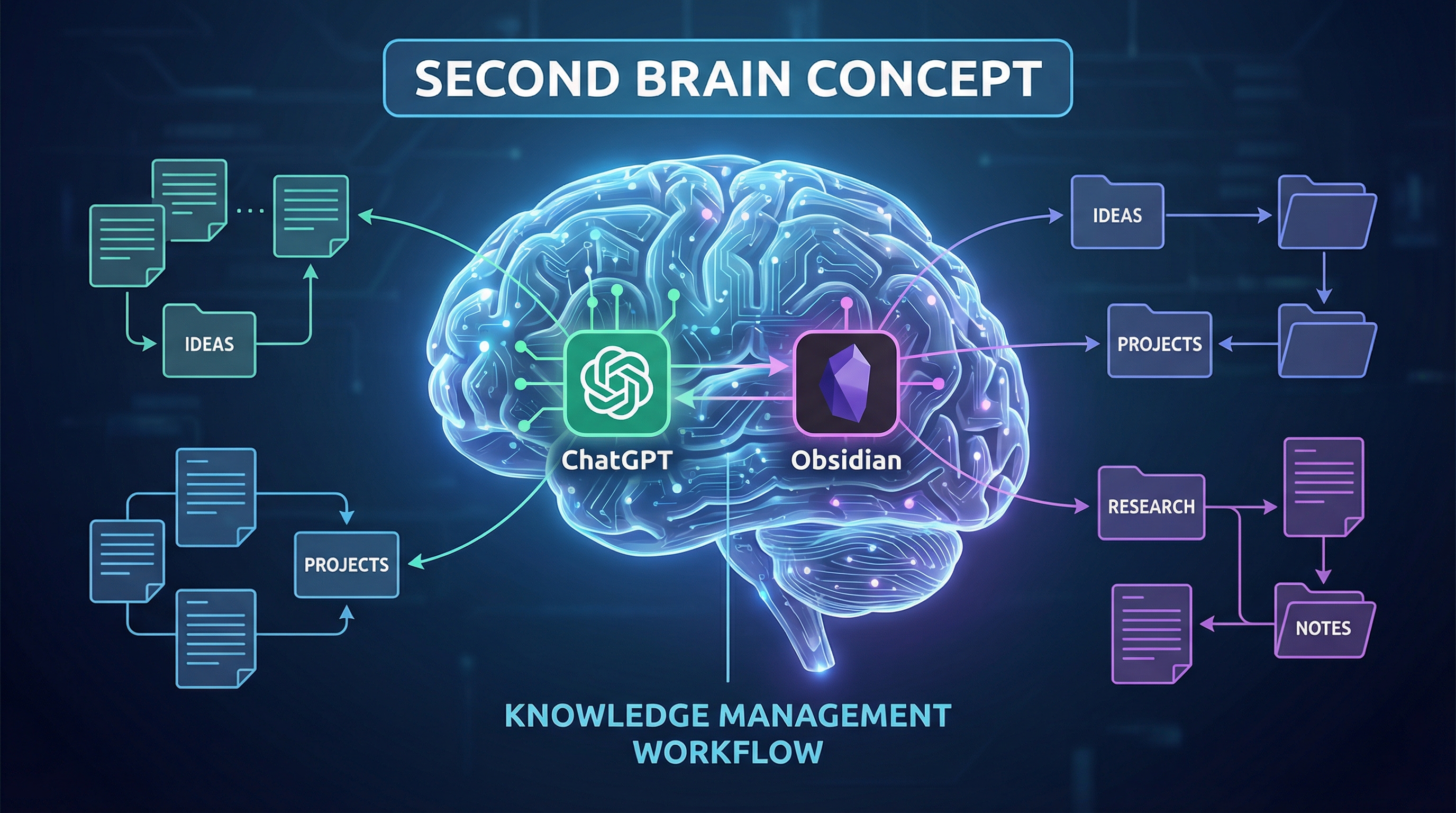
If you’re using ChatGPT for research, coding, or deep thinking—but struggling to organize those conversations into your knowledge base—you’re not alone.
The problem isn’t ChatGPT. It’s the gap between AI conversations and your Personal Knowledge Management (PKM) system.
This guide shows you how to build an automated workflow that turns ChatGPT conversations into searchable, well-formatted notes in Obsidian (or Notion)—without the manual copy-paste nightmare.
The Problem: Why Manual Copy-Paste Fails
Issue #1: Formatting Chaos
When you copy-paste from ChatGPT to Obsidian, here’s what breaks:
- ❌ Code blocks lose syntax highlighting
- ❌ Tables turn into unreadable text
- ❌ Lists lose their structure
- ❌ LaTeX equations become gibberish
- ❌ Images disappear
The result? Notes you can’t use.
Issue #2: Inconsistent Structure = Broken Search
As one Reddit user (u/No-Strategy-2618) put it:
“Weeks later I need to recall the method, so I need consistent tags and maybe a searchable note. The main difference vs ChatGPT is you don’t need to prompt it, and the structure stays consistent so recall or search works better later.”
Every time you manually format a conversation, you do it slightly differently. This breaks your ability to search and find information later.
Issue #3: Silent Data Loss
If you’re using Notion AI, there’s an even bigger problem: 30-day deletion.
Reddit user u/tconcordio shared their story:
“I just lost critical work, and I don’t want this to happen to anyone else. Notion deletes these chats after 30 days silently. There is no countdown inside the chat. There is no ‘Archiving’ warning. It just vanishes.”
Your “Second Brain” shouldn’t have amnesia.
The Goal: An Automated, Format-Perfect Knowledge Base
Here’s what a proper ChatGPT → Obsidian workflow should look like:
✅ Perfect formatting - Code blocks, tables, LaTeX, images all preserved
✅ Consistent structure - Every export follows the same format
✅ One-click export - No manual copy-paste
✅ Searchable - Find conversations from months ago in seconds
✅ Permanent storage - Never lose your work
The Solution: Automated Export with Browser Extensions
The key is using a browser extension that handles the export automatically, preserving all formatting and structure.
Option 1: ChatGPT to Obsidian (Local & Private)
Best for: Privacy-conscious users, local-first workflows, Zettelkasten practitioners
ChatGPT to Obsidian downloads conversations directly to your local machine as clean Markdown files.
Key Features:
- Local & Private - Everything stays on your machine
- Markdown Format - Clean .md files compatible with any editor
- Bulk Download - Export Chat Pages, Projects, Group Chats, Library files, Images, and Archived Chats
- Selective Export - Choose specific Q&A turns to save
- YAML Frontmatter - Preserve title, dates, source URL, project name, message count, and tags
- Deep Research Support - Save final reports, nested Markdown, and code fences cleanly
- Image Download - Save ChatGPT-generated images into an Obsidian-friendly folder
- Group Chat Support - Preserves author names and message order
Option 2: ChatGPT to Notion (Cloud & Collaborative)
Best for: Team collaboration, cloud-based workflows, searchable databases
ChatGPT to Notion exports conversations to permanent Notion pages (not Notion AI chat, which deletes after 30 days).
Key Features:
- Auto-Sync - Schedule automatic backups (daily/hourly)
- Batch Export - Save your entire ChatGPT history in one click
- Smart Formatting - Preserves code blocks, tables, LaTeX, images
- Version Control - Choose to skip, overwrite, or duplicate when syncing
- Group Chats & Projects - Full support for team conversations
- Deep Researcher & TextDocs - Export complex reports as structured sub-pages
Step-by-Step: Building Your Automated Workflow
Step 1: Have Deep Conversations in ChatGPT
Use ChatGPT for what it’s best at:
For Researchers:
- Analyze research papers
- Extract key findings and methodology
- Generate literature review summaries
For Developers:
- Debug complex code
- Explore architectural decisions
- Document API designs
For Writers:
- Brainstorm article outlines
- Refine arguments and structure
- Generate content variations
The key: Don’t worry about formatting or organization yet. Focus on the conversation.
Step 2: Click “Bulk Export” (One Button)
Instead of manually copying and pasting:
For Obsidian users:
- Click the extension icon
- Select “Bulk Download”
- Choose conversations to export
- Files download to your local folder
For Notion users:
- Click the extension icon
- Select “Batch Sync”
- Choose your Notion database
- Conversations export automatically
Time saved: 5-10 minutes per conversation → 5 seconds
Step 3: Find Perfect Markdown Notes in Your Vault
Open Obsidian (or Notion) and see:
✅ Clean Markdown formatting
## Research Paper: Neural Networks for NLP

### Key Findings
- Transformer architecture outperforms RNNs
- Attention mechanism enables parallel processing
- Pre-training on large corpora improves downstream tasks

### Methodology
The authors used...

### Code Implementation
```python
def attention(query, key, value):
    scores = torch.matmul(query, key.transpose(-2, -1))
    return torch.matmul(scores, value)
✅ **Preserved structure** - Headings, lists, code blocks all intact
✅ **Searchable content** - Find it later with Obsidian's search
✅ **Structured YAML metadata** - Filter by source URL, updated date, project, tags, or message count
✅ **Wikilink-ready** - Add [[connections]] to other notes

For example, a ChatGPT export can include frontmatter like this:

```markdown
---
title: "API migration plan"
date: 2026-07-06
originalDate: 2026-06-28
updatedDate: 2026-07-05
platform: ChatGPT
sourceUrl: https://chatgpt.com/c/...
sourceId: conversation-id
messageCount: 38
tags:
  - chatgpt
  - project
projectName: "Website Migration"
---
That metadata is what turns a folder of Markdown files into a second brain you can search, sort, and revisit.
Advanced Workflow: Templates for Consistency
One of the biggest advantages of automated export is consistent structure.
Research Paper Template
Every research paper conversation exports with:
- Abstract summary
- Key findings
- Methodology
- Limitations
- Personal notes
- Related papers (wikilinks)
Code Review Template
Every code review conversation exports with:
- Problem statement
- Solution approach
- Code snippets
- Trade-offs
- Next steps
Meeting Notes Template
Every brainstorming conversation exports with:
- Date and participants
- Key decisions
- Action items
- Follow-up questions
Why this matters: When every note follows the same structure, you can find information instantly—even months later.
Bonus: Universal Pass for Multi-AI Workflows
If you use multiple AI tools (ChatGPT, Claude, Gemini, Perplexity), managing notes across platforms becomes a nightmare.
Universal Pass lets you export from all major AI platforms to Notion or Obsidian:
- ✅ ChatGPT - Conversations, Group Chats, Projects
- ✅ Claude - Conversations and artifacts
- ✅ Gemini - Conversations and generated content
- ✅ Perplexity - Research queries and sources
One workflow, all your AI conversations.
Learn more about Universal Pass
Real-World Use Cases
Use Case #1: Academic Research
Before:
- Copy-paste paper summaries from ChatGPT
- Formatting breaks
- Can’t find notes from last month
- Inconsistent structure
After:
- One-click export to Obsidian
- Perfect Markdown formatting
- Consistent “Research Paper” template
- Search finds everything instantly
Time saved: 2 hours/week
Use Case #2: Software Development
Before:
- Copy code snippets manually
- Syntax highlighting lost
- Context scattered across chats
- Hard to reference later
After:
- Bulk export coding conversations
- Code blocks preserved with syntax highlighting
- Organized by project in Obsidian
- Easy to reference in documentation
Time saved: 3 hours/week
Use Case #3: Content Creation
Before:
- Brainstorm in ChatGPT
- Manually copy outlines to Notion
- Lose track of variations
- Can’t find old ideas
After:
- Auto-sync to Notion database
- All brainstorming sessions saved
- Tagged by topic and date
- Search finds any idea instantly
Time saved: 4 hours/week
Common Mistakes to Avoid
Mistake #1: Waiting Too Long to Export
Problem: ChatGPT conversations pile up, making bulk export overwhelming.
Solution: Export on a weekly cadence and use “skip already synced” for unchanged chats. If a conversation is updated after the first export, the exporter can detect the newer update time so you do not miss revised work.
Mistake #2: Not Using Templates
Problem: Every export has different structure, breaking search.
Solution: Use consistent templates for common conversation types (research, coding, brainstorming).
Mistake #3: Exporting Everything
Problem: Your vault fills with low-value conversations.
Solution: Use selective export. Only save conversations you’ll reference later.
Mistake #4: Ignoring Metadata
Problem: Can’t filter or organize exported notes.
Solution: Preserve YAML frontmatter during export. Title, source URL, original date, updated date, project name, message count, and tags make the vault useful months later.
Comparison: Manual vs. Automated Workflow
| Aspect | Manual Copy-Paste | Automated Export |
|---|---|---|
| Time per conversation | 5-10 minutes | 5 seconds |
| Formatting quality | Broken | Perfect |
| Consistency | Varies | Identical |
| Search effectiveness | Poor | Excellent |
| Bulk operations | Impossible | Easy |
| Data loss risk | High | None |
Getting Started: Your First Export
For Obsidian Users:
-
Install the extension
- ChatGPT to Obsidian
- Free to start, premium for bulk export
-
Configure download folder
- Set to your Obsidian vault location
- Or use Downloads/obsidian/ and move files manually
-
Export your first conversation
- Open ChatGPT
- Click extension icon
- Select “Download as Markdown”
- Or use Bulk Download to export Chat Pages, Projects, Group Chats, Library files, Images, and Archived Chats
-
Open in Obsidian
- See perfect formatting
- Check YAML properties at the top of the note
- Add wikilinks to connect notes
- Start building your knowledge graph
For Notion Users:
-
Install the extension
- ChatGPT to Notion
- Free to start, premium for auto-sync
-
Connect to Notion
- Authorize the extension
- Select your database
-
Export your first conversation
- Open ChatGPT
- Click extension icon
- Select “Export to Notion”
-
Open in Notion
- See formatted page
- Add tags and properties
- Link to other pages
The Bottom Line
Building a Second Brain with ChatGPT isn’t about saving every conversation—it’s about creating a knowledge system that actually works.
Manual copy-paste fails because:
- Formatting breaks
- Structure varies
- Search doesn’t work
- It’s too slow to maintain
Automated export succeeds because:
- Formatting is perfect
- Structure is consistent
- Search finds everything
- It takes 5 seconds
The result? A knowledge base you can actually use—not just a graveyard of broken notes.
Take Action Now
For local, private workflows: → Install ChatGPT to Obsidian
For cloud-based, collaborative workflows: → Install ChatGPT to Notion
For multi-AI workflows: → Get Universal Pass (ChatGPT + Claude + Gemini + Perplexity)
Both options are free to start. Premium features (bulk export, auto-sync) available for power users.
What’s your biggest challenge with organizing AI conversations? Share in the comments below.