
Exporting Individual Conversations
Save the current Gemini chat to Notion with Sync, or use Preview to select messages before a manual export.
Use the extension popup to save the conversation currently open in Gemini. For selecting several whole conversations, use Selective mode on the options page instead.
Initial Setup
- Install and pin the extension.
- Connect Notion and allow access to your destination.
- Open the intended Gemini conversation and wait for it to load.
- Click the extension icon and check the current-conversation connection status. If necessary, use Re-check.
- Expand Notion Connection and confirm the target database.
If several Google accounts are open, check that the popup is connected to the conversation you intend to save.
Export the Current Conversation
- Review Sync Configuration: skip an existing source URL, overwrite its page, or always insert a new page.
- Expand Export Format and review the message filter, toggles, page splitting, and tags.
- Click Sync.
- Keep the Gemini page and export interface open while the export runs.
- Read the result and use View on Notion when available. Compare the saved page with the source chat.
Repeated exports do not necessarily create new pages: the result depends on skip, overwrite, or always-insert settings. Overwrite can replace manual Notion edits; always insert can create duplicates.
Preview and Select Messages
Preview opens a separate custom-export page for the current conversation when your account has access. If a subscription or availability message appears, follow that message rather than assuming access.
- Click Preview from the popup.
- Inspect the loaded conversation and tick the messages you want to keep.
- Review Export Settings, including formatting and page splitting.
- Confirm the selected message count.
- Click Save to Notion, wait for the result, and open the saved page.
Preview chooses messages inside one conversation. Selective chooses whole conversations from a list. Neither workflow starts an unattended sync.
What to Check in Notion
Compare the saved title, source URL, message order, prompts and answers, code blocks, lists, and tables with the original. If you chose a message filter or selected messages in Preview, verify that the saved content matches that selection.
Check tags and child pages when those settings are enabled. Do not assume every image or document was preserved simply because the text export succeeded; test those content types separately.
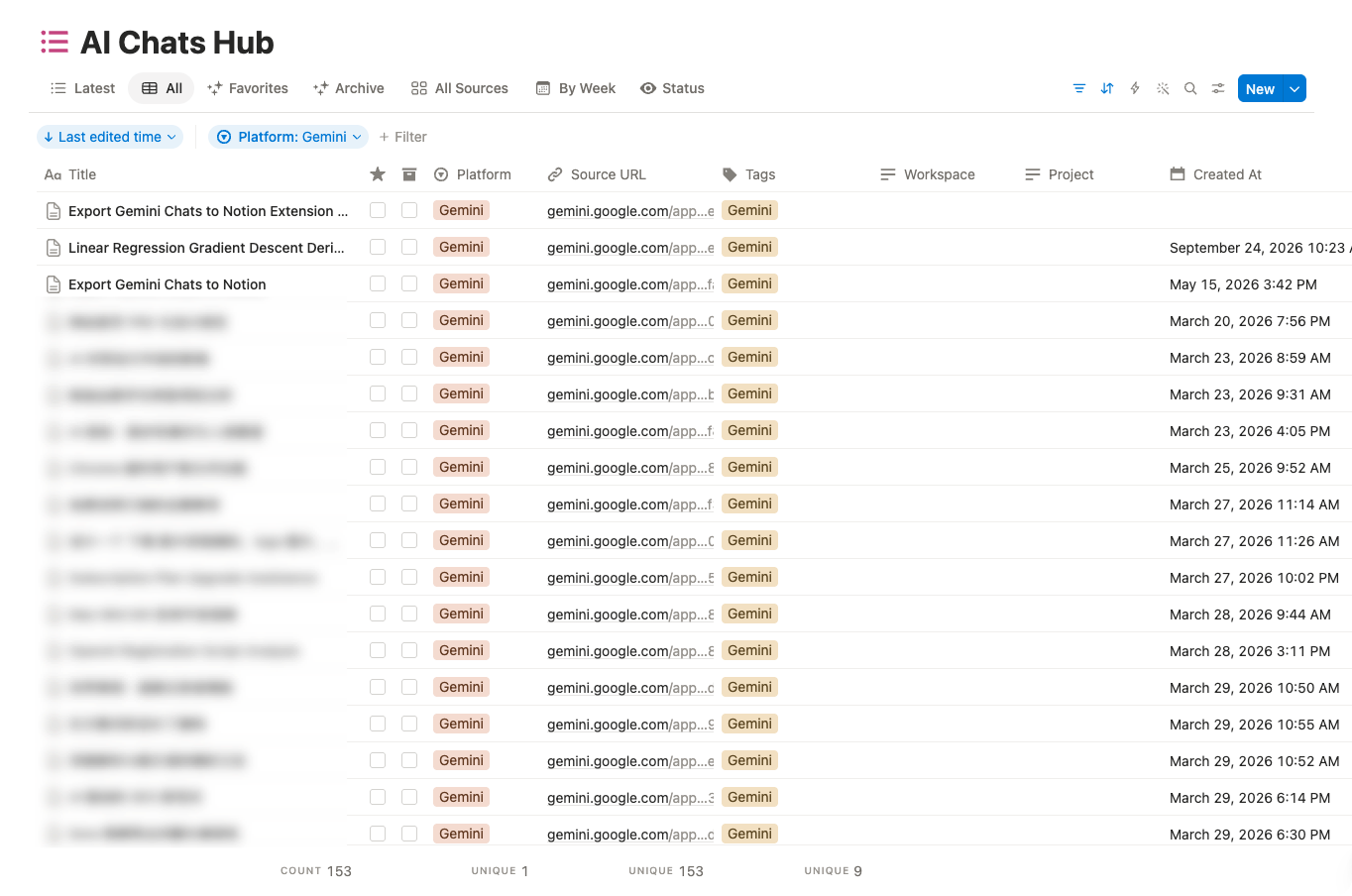
The supplied screenshot below is a database-level example, not a capture of the current-chat popup or proof of image/document export.
Export Status
- Syncing / progress messages: wait and keep the source page available.
- Success: follow the Notion link and inspect the saved content.
- Skipped: review the existing page and duplicate-handling settings before retrying.
- Error: read the message before retrying; a partial save may already exist in Notion.
Free Tier Limits
Free users can:
- Export unlimited individual conversations via popup
- Batch export up to 5 conversations
Troubleshooting
No connected conversation
Open or refresh the intended Gemini conversation, wait for it to load, then reopen the popup and use Re-check. Do not switch accounts during an export.
Missing or inaccessible database
Check Notion authorization, database access, and the selected destination. Reconnect only if access has expired or been revoked.
Preview does not open
Read the availability or subscription message. If access is available but loading fails, refresh the Gemini conversation and try again.
Export fails or the result is incomplete
Keep the error message, inspect the destination for a partial page, and retry a small sample after checking access and network conditions. Review duplicate behavior before repeating the export.
See connection and API troubleshooting or contact [email protected]. Redact private titles, URLs, identifiers, and account details from screenshots or logs.
Next Steps
Need more help? Contact Support
独立工具说明
本产品用于导出 Google Gemini 内容,为独立项目,与 Google LLC 不存在关联。