
Batch Export: Bulk, Selective, Gems & Spark
Manually export Gemini conversations to Notion using Bulk, Selective, Gems, or Spark, with selection, duplicate handling, progress, and cancellation.
Use the options page to choose conversations, review the destination and settings, and start a manual export. This guide describes version 5.0.0; an export is not a background schedule or a guarantee that every item in your account can be recovered.
Prerequisites
- Complete Notion authorization and choose a writable destination database.
- Open a signed-in Gemini page at gemini.google.com and wait for it to load.
- Keep the Gemini tab and options page open throughout the job.
- Start with a small sample and inspect the Notion result before a large export.
Open the Options Page
Open the extension popup and click Bulk Export or Open Batch Export. Expand Notion Connection and check the destination database. Use its refresh control if a newly authorized database is missing.
Step 1: Choose the Mode
Bulk: Current Page Only or All History
Choose Bulk, then select a range:
- Current Page Only loads the first page of the history list; it does not mean only the chat currently open. The number of returned conversations can vary.
- All History continues through the available history pages. Loading can take longer, and unavailable items or account restrictions can still prevent a complete export.
Check the selection, date filter, local export cache, and account limits before starting. These can reduce the number of conversations actually processed.
Selective: Choose Individual Conversations
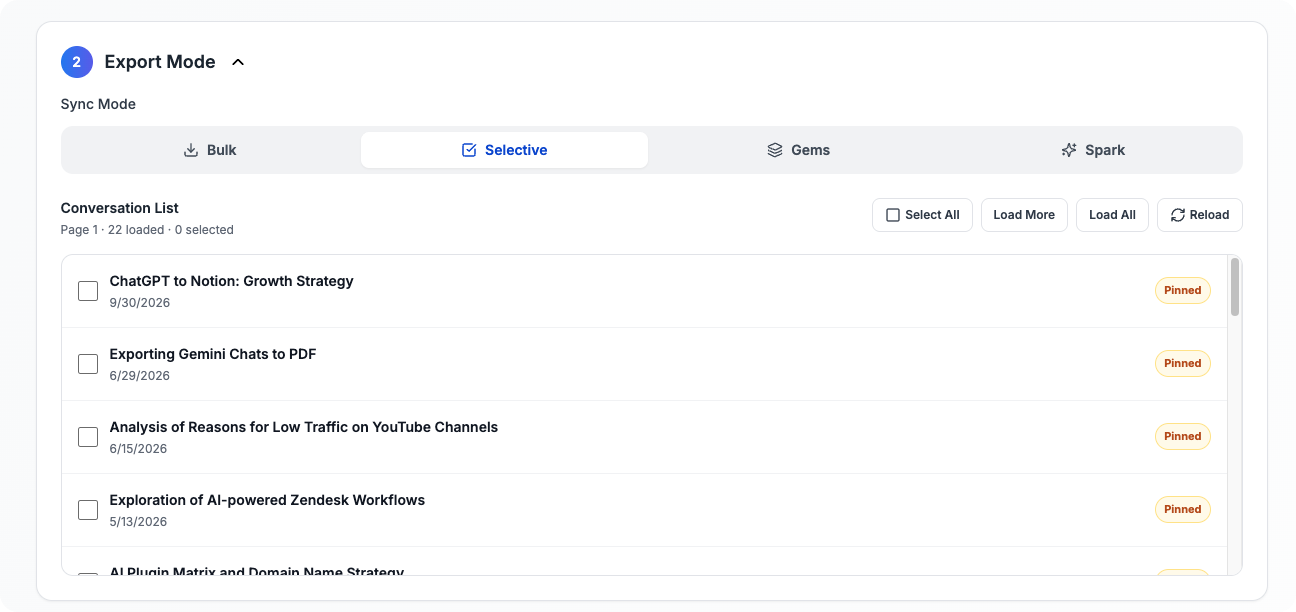
- Choose Selective and wait for the conversation list to load.
- Use Load More to append another page, or Load All to reload and request the available pages.
- After loading finishes, tick individual conversations or use Select All for the currently loaded list.
- Check the selected count before starting.
Select All does not load more conversations. Reload and Load All reset the list and selection, so load first, then select again. Review the titles if you switch modes or accounts.
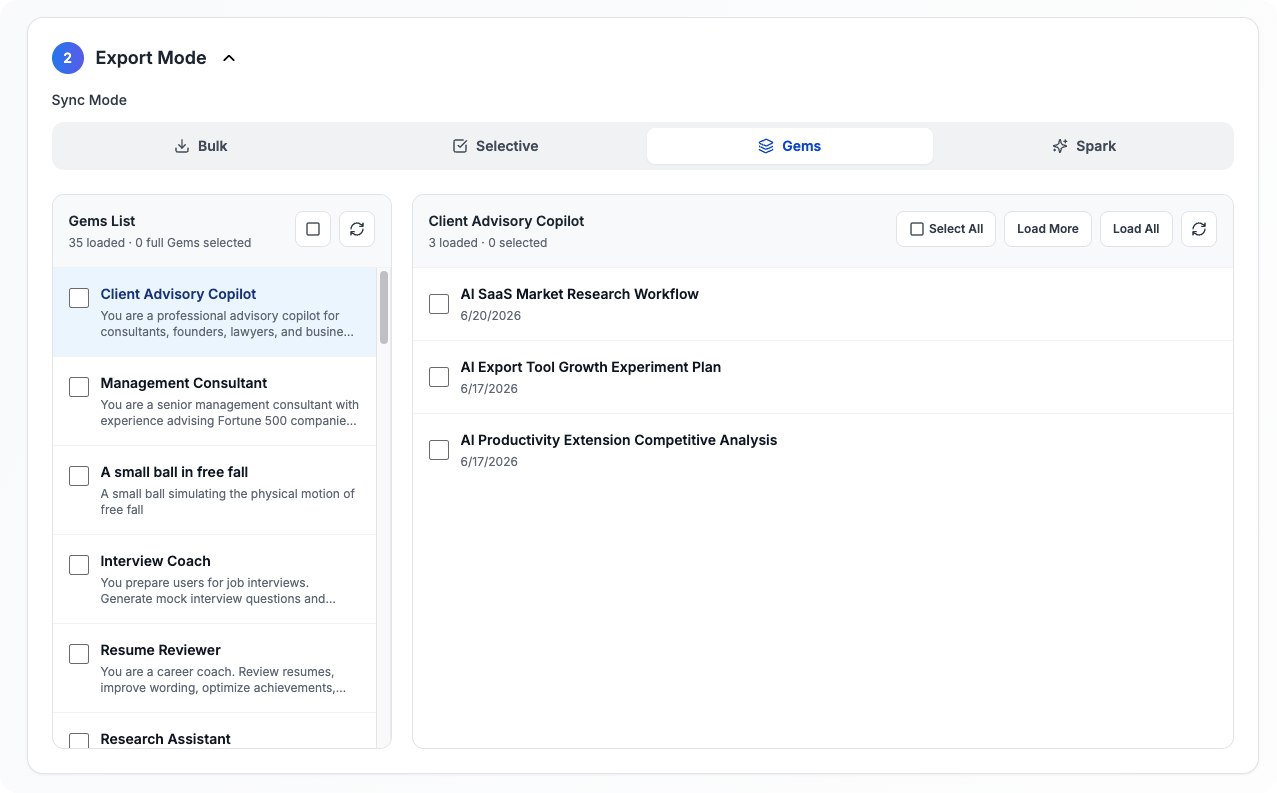
Gems: Whole Gems or Selected Gem Conversations
- Choose Gems and wait for the Gems list.
- Click a Gem’s name to inspect its conversations in the right-hand panel.
- Either tick the Gem’s checkbox to include its available conversations, or tick individual conversations in the right-hand panel.
- Use the conversation panel’s loading controls before selecting additional items.
- Review both whole-Gem and individual-conversation selections before starting.
Opening a Gem is not the same as selecting the whole Gem. A checked whole Gem includes its conversations beyond those currently displayed; leaving it checked while selecting individual chats does not narrow the export to those chats. This workflow exports conversations, not a restorable copy of a Gem’s instructions or configuration.
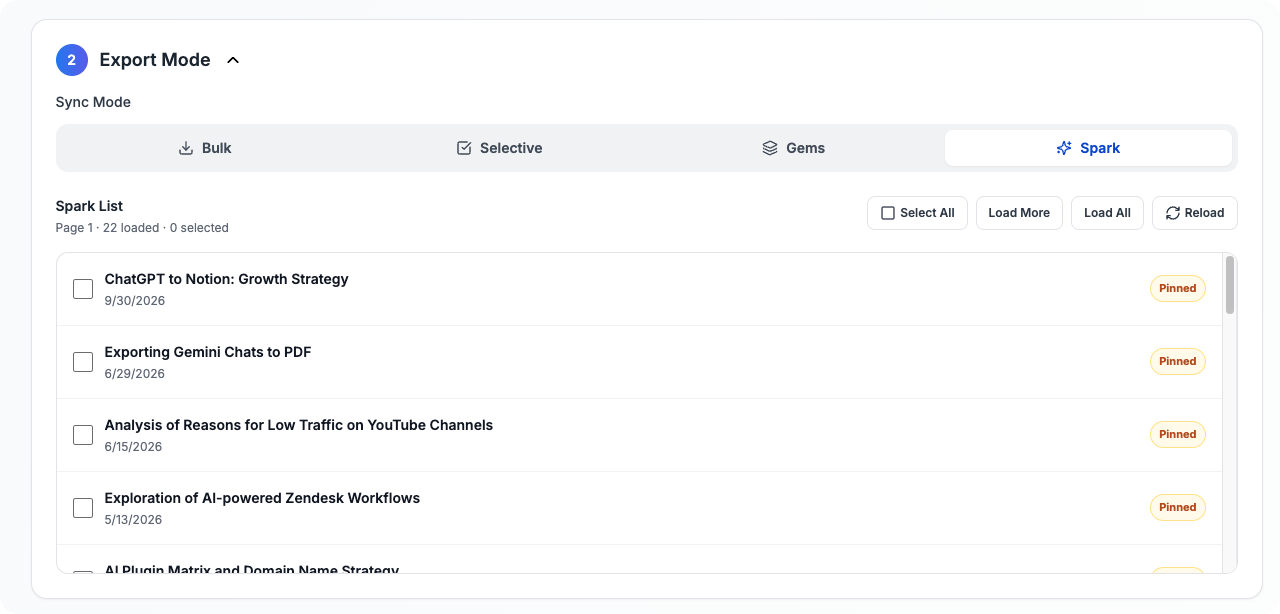
Spark: Review the Listed Items
Choose Spark, load the list, and tick the items you want to save. Select All, Load More, Load All, and Reload follow the same load-then-select pattern described for Selective mode.
Check the displayed titles and selection count carefully. The screenshot shows the interface, not proof that every Spark artifact, application, or asset can be exported or restored.
Step 2: Configure the Export
Duplicate Handling and Local Cache
Two separate checks can affect an export:
| Setting | What it checks | What to consider |
|---|---|---|
| Skip Already Exported | Local records of previously exported conversations | An item may be filtered out before any Notion update is attempted. |
| Skip if exists | An existing Notion page with the same source URL | Leaves that page unchanged. |
| Overwrite if exists | An existing Notion page with the same source URL | Can replace content, including your manual edits. |
| Always insert new | Creates a new Notion page for an item that reaches the save step | Repeating a job can create duplicates. |
To deliberately refresh a previously exported chat, review Skip Already Exported as well as Overwrite if exists. Do not assume choosing overwrite alone bypasses the local cache. Test on a disposable page or keep a copy before replacing manually edited content.
Date, Messages, Formatting, and Tags
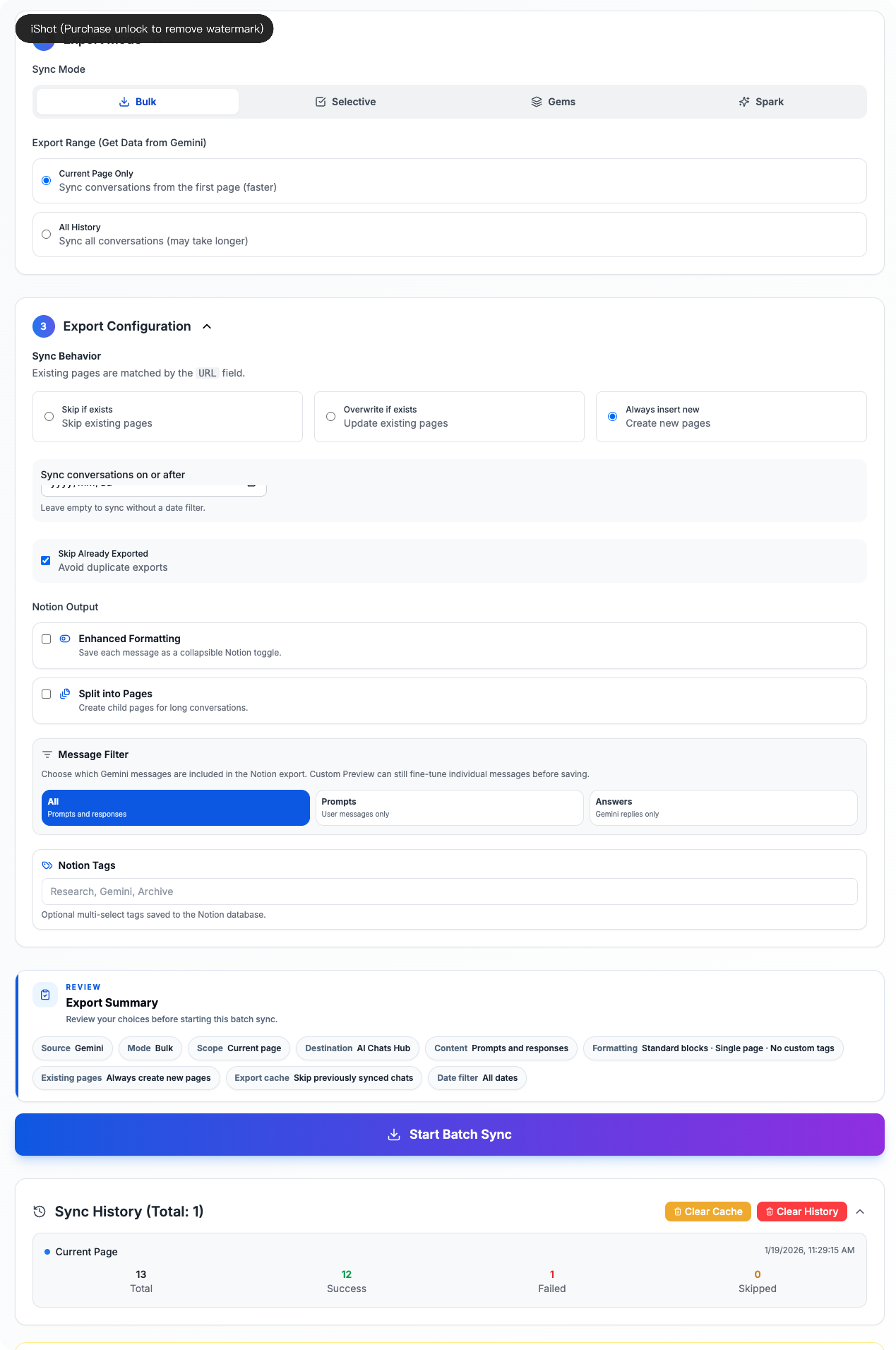
- Sync conversations on or after: apply a date cutoff; leave it empty for no date filter.
- Message Filter: choose All, Prompts, or Answers.
- Enhanced Formatting: save messages as collapsible Notion toggles.
- Split into Pages: create child pages for long conversations and review the messages-per-page setting.
- Notion Tags: enter comma-separated tags.
Some controls can require a subscription. Follow the availability and permission messages shown by the installed extension.
The screenshot below shows Bulk range choices, configuration, the review summary, and an example history entry. Its displayed selection and counts are examples, not recommended defaults or a promised success rate.
Step 3: Review and Start
- Read Export Summary: destination, mode, scope or selection count, duplicate behavior, date cutoff, and message settings.
- Start with the mode-specific button: Start Batch Sync, Sync Selected, Sync Gems, or Sync Sparks.
- Monitor progress and any failure details.
- Keep both pages open; avoid switching the Gemini account or navigating away during the run.
The selected count is not necessarily the completed count: filters, cached records, unavailable conversations, failures, and account limits can change what is processed. Export time varies with conversation size, network conditions, and Notion responses.
Cancel a Running Job
Use Cancel in the options page. Cancellation is not a rollback: saved pages remain in Notion, and an in-flight save may finish. Wait for activity to settle and check results before retrying. Closing the browser or options page is not the recommended cancellation method.
Step 4: Inspect Results
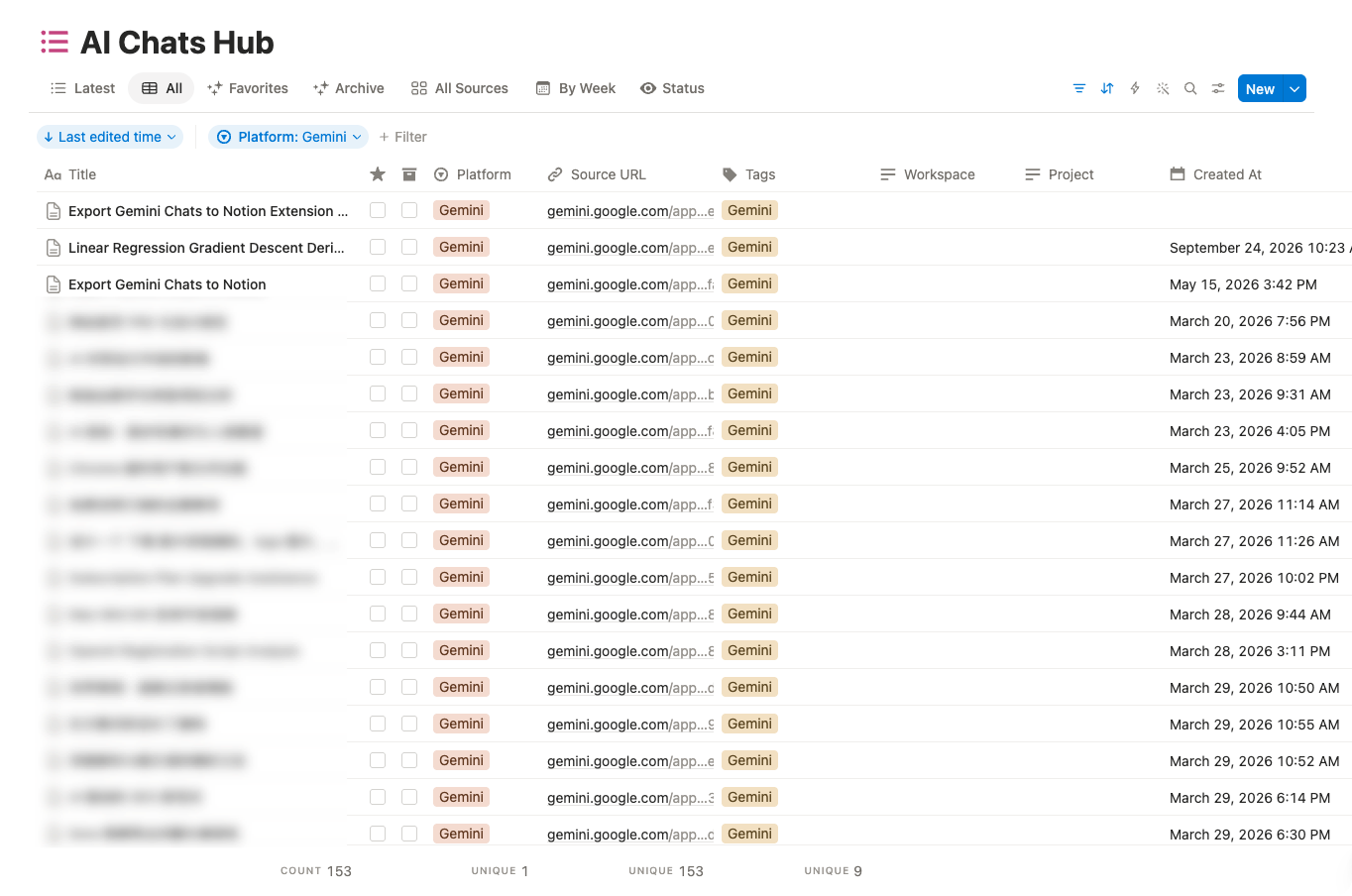
Review Success, Failed, and Skipped counts. Open the destination database and compare a few saved pages with their source chats.
Expand Sync History to inspect timestamps and aggregate counts. History labels are not a substitute for checking the selected mode and actual destination. If Fail History appears, inspect its reasons before retrying a small selection; redact titles, source URLs, and identifiers before sharing a downloaded report.
Cache and History Actions
- Clear Cache removes local exported-item markers. A later job may process those conversations again.
- Clear History removes local run summaries.
- Neither action deletes pages already saved in Notion.
- Do not clear records just to retry: first review failed items, the local skip setting, and Notion duplicate handling.
Performance & Limits
Free Tier:
- Batch export: 5 conversations per session
- One-click export: Unlimited
Subscribed Users:
- Unlimited batch exports
- All premium features
Troubleshooting
No connected Gemini tab found
Open or refresh a signed-in Gemini /app, /gem, or /spark page. Wait for it to load, then reload the list. If several accounts or stale tabs are open, confirm the intended account before retrying.
Empty list or nothing selected
Wait for list loading to finish. Check the current mode and use its loading controls. Select items after a reset or reload; Selective and Spark require a non-empty selection, and Gems requires at least one Gem or conversation.
Nothing is exported even though items are selected
Check the date cutoff, Skip Already Exported, Notion duplicate behavior, and any quota message. A selected item may be intentionally skipped.
Database access or schema error
Verify database access and selection. If a database property-type mismatch is reported, stop and check the destination instead of repeatedly running the whole batch. See connection and API errors.
Partial failure or rate limit
Keep successful Notion pages. Read the failure reason, allow time for a rate limit to clear, and retry a small selection with duplicate handling reviewed. Do not assume rerunning a full batch is safe with Always insert new or Overwrite if exists.
Related Guides
For more help, contact [email protected]. Share the version, error message, and reproduction steps without account credentials or private conversation content.
Ready to try Export Gemini to Notion?
Open the product page for feature details, screenshots, pricing, and the Chrome Web Store install link.
Independent tool notice
Built for exporting from Google Gemini. This project is independent and is not affiliated with Google LLC.