
Overview & Getting Started
Choose a manual Gemini to Notion workflow: current chat, Bulk, Selective, Gems, or Spark, then review settings and saved results.
Bulk Export AI Chats from Gemini to Notion saves Gemini conversations into a Notion database. This guide covers the manually started workflows in version 5.0.0.
Start with one short conversation, check its Notion output, and only then expand the selection. Exporting a list does not guarantee a complete backup of every item in your Gemini account.
Choose Your Workflow
| What you want to save | Entry point | What to select |
|---|---|---|
| The conversation currently open in Gemini | Extension popup → Sync | Current chat |
| A batch from your conversation history | Options → Bulk | Current Page Only or All History |
| Specific conversations | Options → Selective | Individual conversation checkboxes |
| Conversations associated with Gems | Options → Gems | Whole Gems or individual conversations within a Gem |
| Items listed by the Spark workflow | Options → Spark | Check the displayed items before selecting |
Current Page Only and All History are ranges within Bulk mode, not the complete list of export modes. All workflows require you to start the export yourself; there is no unattended or closed-browser synchronization in this workflow.
Set Up Once
- Install the extension.
- Connect your Notion account and allow access to the destination.
- Open a signed-in Gemini conversation and let it finish loading.
- Confirm the target database under Notion Connection.
- Follow the current-chat guide or the batch and selection guide.
Keep the Gemini tab and export page open while a job runs. If several Google accounts are open, verify that the loaded list belongs to the account you intend to export.
Review Before Saving
The popup and options page expose export settings. Check their current values rather than assuming a fresh-install default:
- Sync Behavior: skip an existing URL, overwrite its page, or always create a new page.
- Message Filter: include all messages, prompts only, or answers only.
- Enhanced Formatting: place messages in collapsible Notion toggles.
- Split into Pages: split a long conversation into child pages.
- Notion Tags: add comma-separated tags.
Batch mode also offers a date filter and Skip Already Exported. The latter uses local export records and is separate from checking whether a URL already exists in Notion. See the duplicate-handling explanation before retrying or overwriting.
For message-by-message selection in the current chat, use Preview if your account has access. This is different from Selective mode, which chooses whole conversations.
Check the Notion Result
Open the saved page and compare the title, source URL, message order, code blocks, lists, and tables with the original chat. Confirm that message filters, tags, toggles, and child pages match the settings you chose.
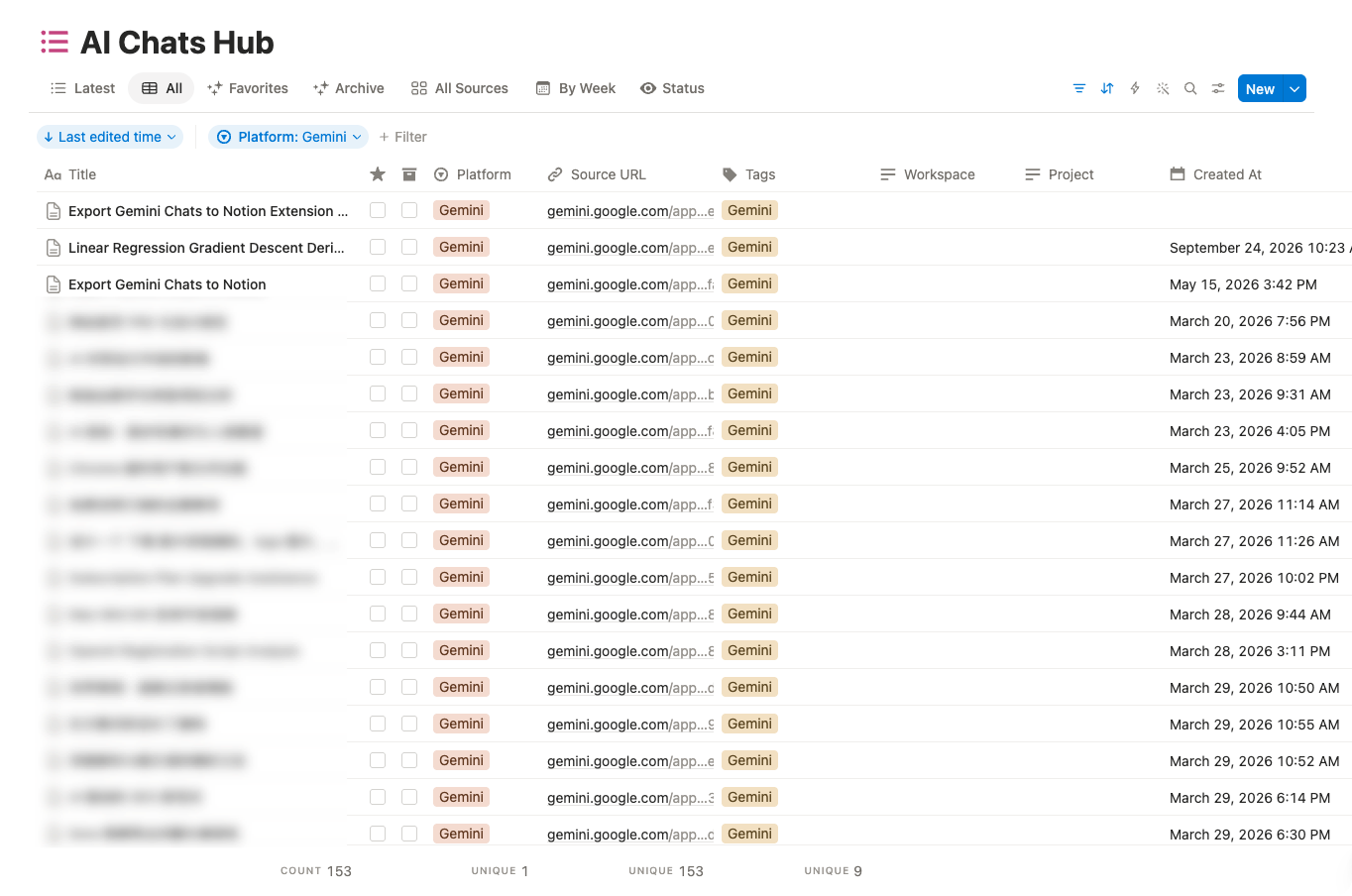
The supplied database screenshot illustrates saved Gemini entries with source links and tags. It is not evidence of successful image or document export; verify those content types with a small sample before relying on them.
Export Local Files Instead
This extension writes to Notion; it does not directly create PDF, HTML, or Markdown downloads.
After saving, you can use Notion’s own page export menu, subject to its plan and permissions. For direct local output, choose Gemini to PDF or Gemini to Obsidian / Markdown and check that product’s supported content and limitations.
Subscription Tiers
Free Tier:
- One-click export for current conversation
- Batch export up to 5 conversations
- All core features included
Pro Tier:
- Unlimited batch exports
- Advanced features
- Priority support
Recent Updates
January 2026: Initial release with one-click export, batch export, and smart sync configuration.
January 2026: Added export history tracking and real-time progress monitoring.
Next Steps
Ready to try Export Gemini to Notion?
Open the product page for feature details, screenshots, pricing, and the Chrome Web Store install link.
Independent tool notice
Built for exporting from Google Gemini. This project is independent and is not affiliated with Google LLC.