
How to Export Claude Chats to PDF or Markdown: 4 Methods Compared
To export a Claude chat right now, start with Print → Save as PDF for a short one-off copy, or use a browser exporter if you want a cleaner PDF, a Markdown file, or repeatable downloads. For a broader account backup, Claude also offers Settings → Privacy → Export data, which emails a data-archive download link. None of those routes is ideal for every task.
This 2026 guide compares four approaches, including genuinely free alternatives. It explains what each method preserves, how to download your conversations, and what changes when you need Claude Projects, Artifacts, code, images, and dozens of chats.
Disclosure: We make Claude to PDF, Claude to Obsidian, Claude to Notion, and the separate AI Exporter Hub extension. We include alternatives because a free tool or browser print might be exactly what you need. Competitor capabilities are based on their public documentation as of October 21, 2026, not an independent full-feature benchmark.
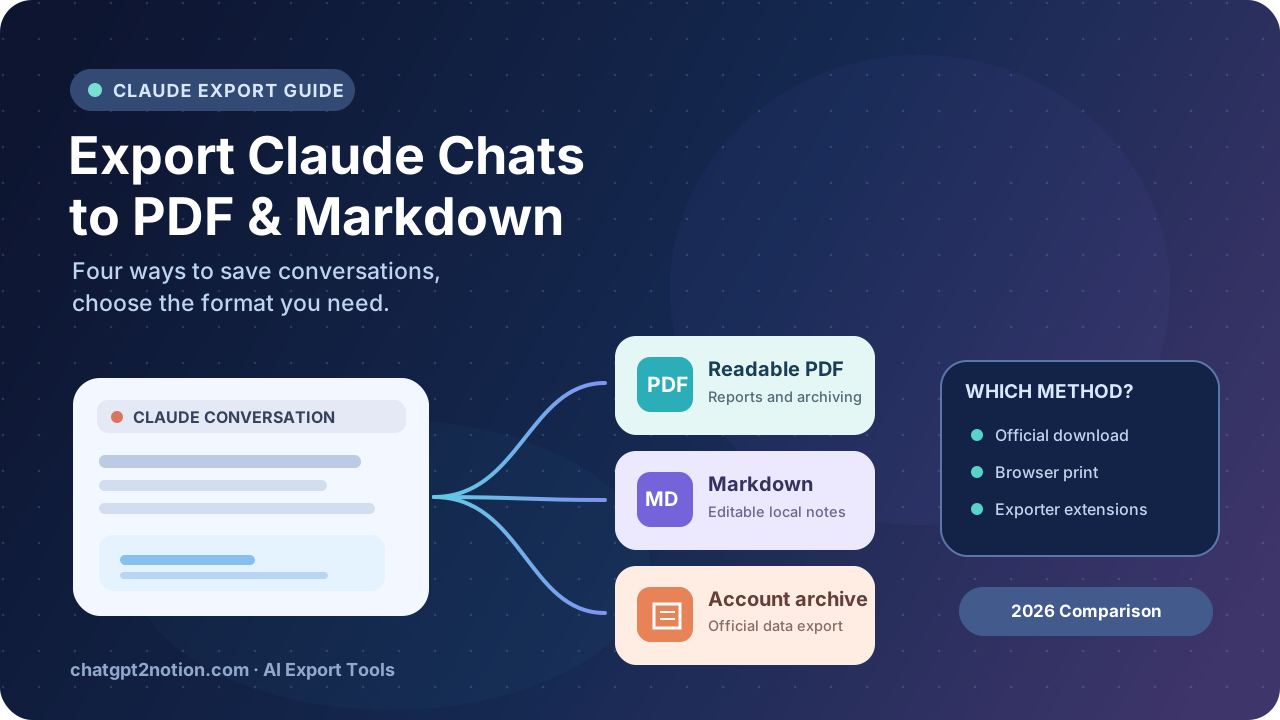
Choose the Claude export method that matches your goal
| Your goal | Best first method | Main trade-off |
|---|---|---|
| Back up account conversation data | 1. Claude’s official data export | Delivered as an archive; not a ready-to-read PDF per chat |
| Share one conversation as a document | 2. Browser print to PDF | Long chats, code, or collapsed sections can print unpredictably |
| Save a single chat as PDF, Markdown, JSON, HTML, or TXT | 3. Free exporter extension | Verify the exact format and image/Artifact behavior |
| Save many chats, selected messages, or a working knowledge archive | 4. Dedicated PDF, Obsidian, or Notion workflow | Batch options vary; some tools have free limits |
There is no universal “perfect export.” Before treating any output as a backup, open it and confirm that the first and last messages, source metadata, important Artifact content, and attachments are where you expect.
Method 1: Export Claude data using the official account tool
Claude’s built-in data export is the right place to begin when your goal is an account-level archive, rather than a PDF you can hand to someone.
- Sign in to Claude in a browser.
- Open your profile menu and go to Settings.
- Choose Privacy → Export data.
- If Claude offers a date range, select the data you need; check what the export includes.
- Request the export, then wait for the email and download the archive from the link.
- Store the downloaded archive securely, and check its contents before relying on it.
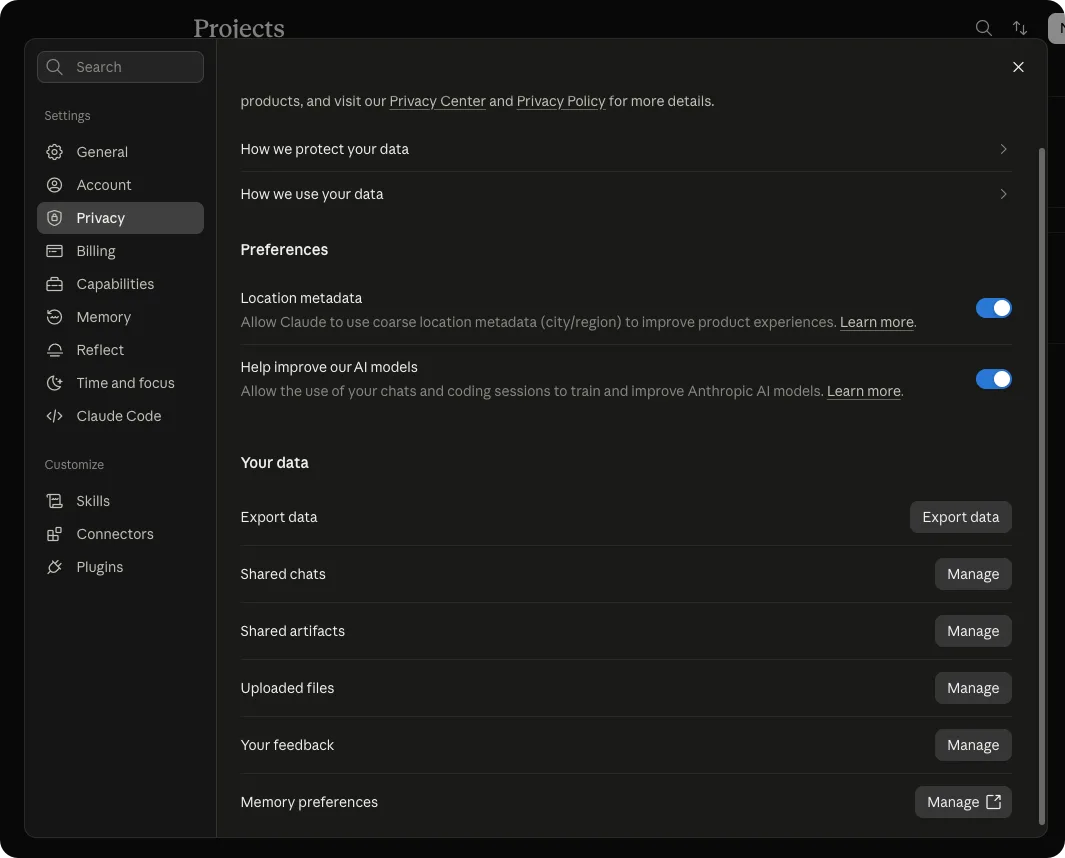
Screenshot: an actual Claude data-export settings view. The controls and available date ranges may change. Claude’s export can include conversation and Project account data; it does not automatically produce separate polished PDF files.
Anthropic’s official help article explains that the emailed download link expires after 24 hours. If it expires, request a new export. Availability and permissions can also differ between individual accounts and managed organizations.
Best for: creating a first-party account archive or retaining a copy of structured account data.
Not ideal for: instantly exporting one current conversation into a neatly formatted PDF or editable Obsidian Markdown note. The account archive may require further processing, and you should not assume that original uploaded attachments are all included in their original form.
For a broader backup plan (not just a file conversion), see our Claude chats, Projects and Artifacts backup guide.
Method 2: Save a Claude chat with browser Print or copy/paste
If you only want one short Claude conversation, first try tools already available in your browser.
Print a Claude conversation to PDF
- Open the exact chat at claude.ai.
- Load the replies you need, expanding any collapsed sections.
- Press Cmd+P on macOS or Ctrl+P on Windows/Linux.
- Select Save as PDF, and review the page breaks.
- Open the resulting PDF and confirm that both the beginning and end of the conversation are present.
Browser printing is free and requires no extension. But a web chat is not the same as a print-ready document: sidebars may intrude, long content may be clipped, and code, tables, or formulas can be difficult to read. Results depend on Claude’s current layout and your browser.
Copy text into a Markdown note
If a single answer is the part you care about, use Claude’s copy action or select the text and paste it into a Markdown editor. Save the note with a helpful title and a link back to its source conversation.
This is fast for code snippets, writing drafts, or a finished answer. It is not a complete chat backup: message order, timestamps, hidden sections, file references, and other turns might not come along.
Best for: occasional excerpts and one-off PDFs.
Not ideal for: hundreds of conversations, reproducible archives, or a document whose content must be complete without manual checking.
Method 3: Try a free Claude exporter extension
Free extensions have become more capable. Some are open source, support several formats, and are all you need for one conversation.
Option A: Claude Exporter (open source)
The MIT-licensed Claude Exporter by bensquire documents these download formats: Markdown, HTML, PDF, JSON, and plain text. It also offers copying as Markdown, formatted rich text, HTML source, or plain text.
To use it:
- Install Claude Exporter on the Chrome Web Store.
- Open your conversation on claude.ai.
- Click the extension icon.
- Select the required download or copy format.
- If exporting PDF, choose Save as PDF in the print dialog and inspect the result.
Its public README describes Artifact versions, thinking content when available, and image previews embedded in HTML/PDF exports. In Markdown and certain other formats, image links may depend on being signed in to Claude. This is different from always including the original full-resolution uploads.
The README focuses on exporting the open conversation. A history-wide batch or Project-selection workflow is not documented there; that is not proof the tool can never add one.
Best for: free, transparent one-chat exports when you want flexibility among PDF, MD, HTML, JSON, and TXT.
Option B: Claude Chat Export
Claude Chat Export advertises formats including Markdown, PDF, TXT, CSV, and JSON. Its publicly described free tier includes unlimited non-PDF downloads and three PDF exports per day at the time of this review.
To try it:
- Read the current Chrome Web Store listing and permissions.
- Install the extension, open an ordinary Claude conversation, and locate its export controls.
- Choose Markdown or PDF, then review any settings for message selection and layout.
- Open the output and confirm whether the features you need actually survived.
Its store description also mentions Artifacts, long conversations, and Projects. Those are vendor claims; exact behaviors should be tested in the installed release before relying on them for a Project archive.
Best for: trying free Markdown exports or a limited number of PDFs without committing to another plan.
Before installing any exporter: Check its requested permissions, whether data is sent off-device, how frequently it is updated, and whether the developer explains failure conditions. A local PDF generation claim does not necessarily mean subscription checks or cloud sync never use network requests.
Method 4: Export Claude conversations to a dedicated PDF, Markdown or Notion workflow
For repeat backups, the output destination matters. A PDF is good for a fixed-format record; Markdown is better for editable files and an Obsidian vault; Notion is useful for structured, searchable pages. Our dedicated Claude tools handle different destinations and should not be confused with one combined license.
Claude to PDF: a readable document and repeatable archive
Claude to PDF offers several documented workflows: Export this conversation, Custom Preview with selected messages, opened tabs, bulk history, selective history, and a Project export view for supported Claude layouts.
- Install the Claude to PDF Chrome extension and open a Claude conversation.
- For one chat, choose Export this conversation. For selected messages, use Custom Preview.
- For multiple conversations, open the Export Center, then choose Bulk Export or Selective Export.
- For Projects, select an available Project or specific conversations; if the controls do not load, Claude may have changed its interface.
- Choose output preferences such as light/dark style, metadata and download options.
- Open the exported PDF and verify the pages, linked outline, code, formulas and necessary attachments.
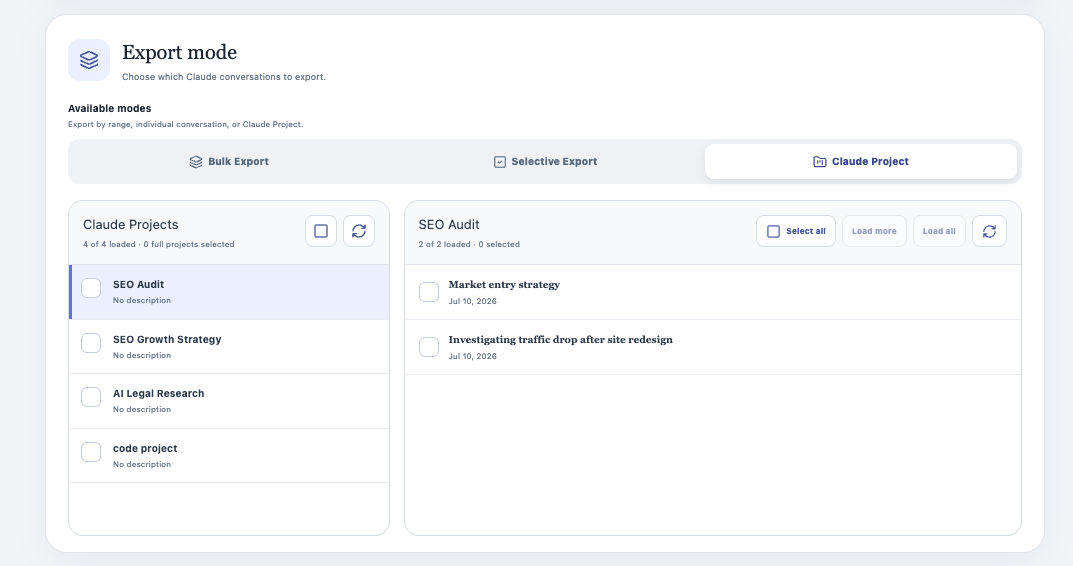
Real product interface: choose a Project or selected conversations. Project detection depends on the version of Claude’s web UI, so test one small Project first.
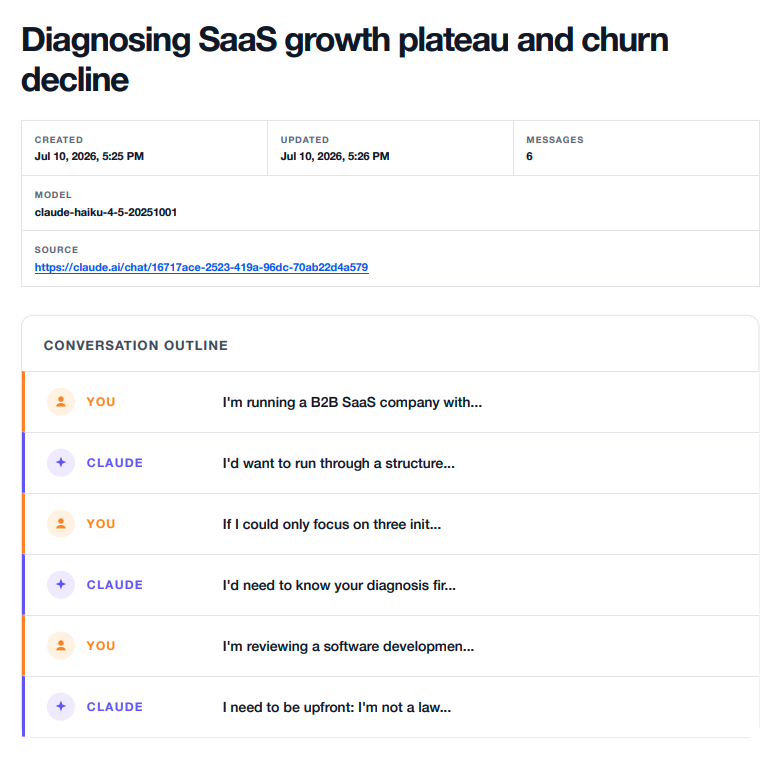
Actual export example: readable PDF with document metadata and navigation. Important formulas and attachment downloads should still be checked in the final files.
Free limit: 5 successful conversation exports per local day, as confirmed for this dedicated product. Larger batches can consume this allowance one successful conversation at a time.
Privacy: PDFs are generated using Chrome’s local print/PDF mechanism. Subscription verification may contact the product service; do not confuse that with uploading the chat to a remote PDF renderer.
For its six detailed PDF workflows, visit the existing How to Export Claude Conversations to PDF tutorial. This comparison deliberately does not repeat that full tutorial.
Claude to Obsidian: editable Markdown and local knowledge management
Claude to Obsidian exports supported conversations into Markdown files suitable for opening in Obsidian, storing in a local folder, or editing in other Markdown tools.
- Install the dedicated extension and open a Claude conversation.
- Choose Save to Markdown for one chat, or open Bulk Export to save multiple conversations.
- Set a download subfolder and naming pattern; decide whether to skip or overwrite existing exports.
- Try a small export, then verify the resulting
.mdcontent. - Move the files into your Obsidian vault and organize by Project, topic, or date.
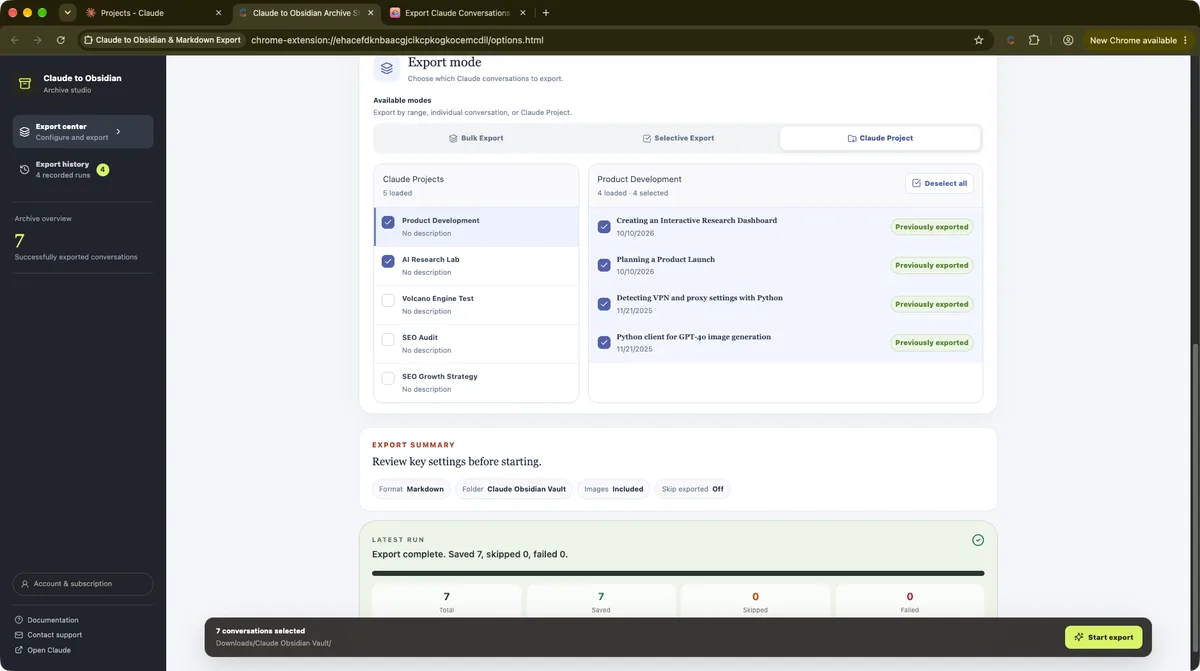
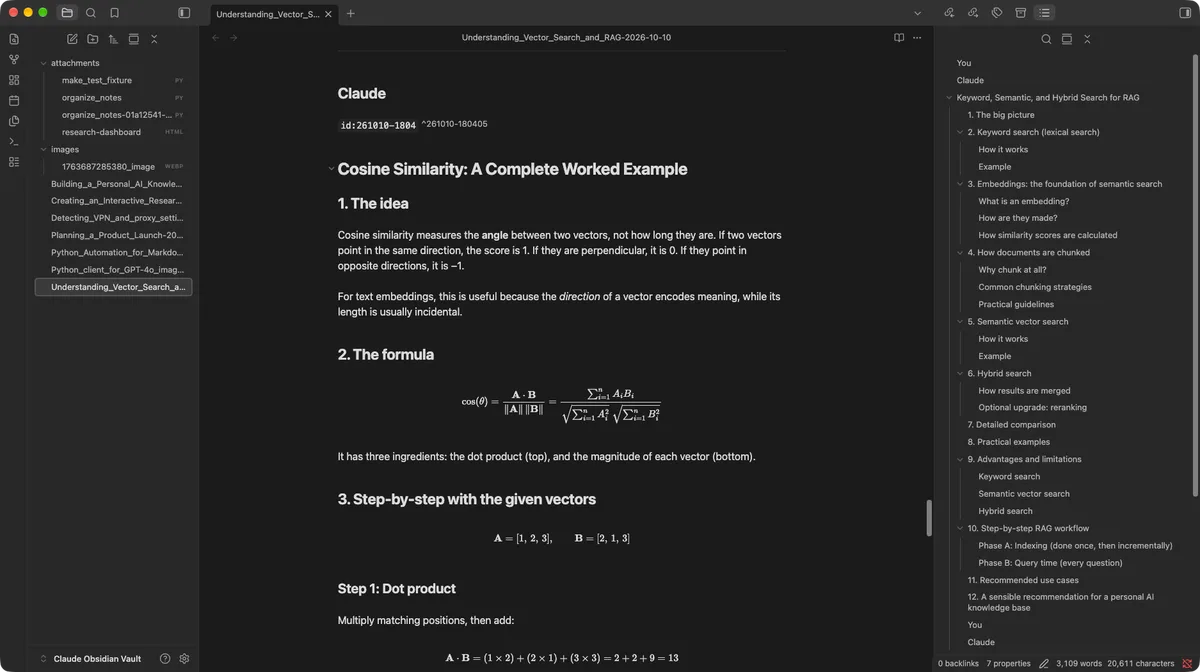
Real workflow: export conversations as Markdown, then inspect the notes in Obsidian. The notes will not automatically recreate every Claude Project folder or original uploaded file.
Free limit: 5 successful conversation exports per day, including successful items within a batch. Its paid standalone extension uses purchase-email activation, not an AI Exporter Hub login.
Important limitation: Source Artifact text and references can often be preserved, but some uploaded files and image sources must be handled separately. Open representative Markdown files to verify headings, code blocks, frontmatter and assets before using them as your only archive.
Claude to Notion: organized pages rather than local files
If the goal is to retain Claude work in a searchable database, Claude to Notion offers single-chat, selected-history and documented Project-related sync options into a Notion workspace you authorize.
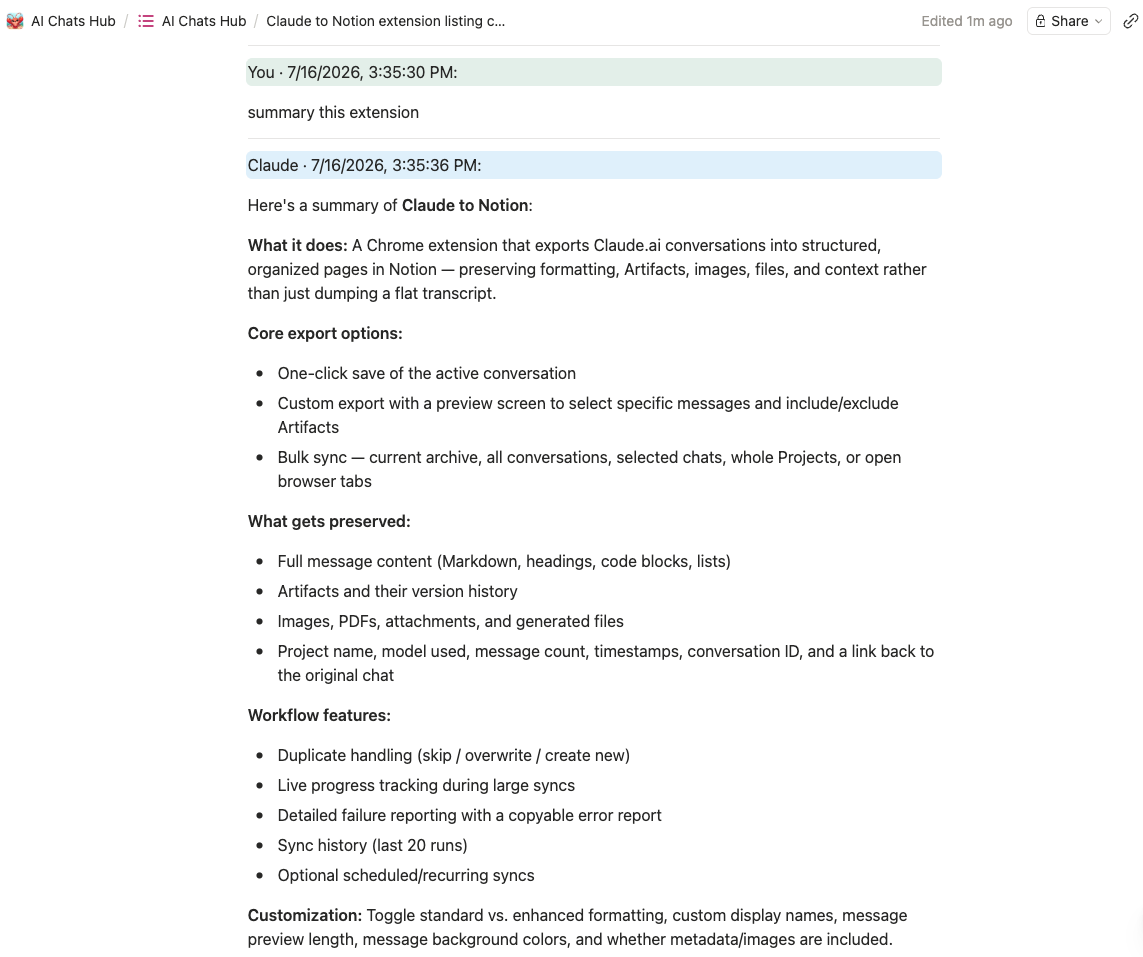
This route is useful when you want a team-readable research knowledge base, properties, and source URLs rather than a PDF download. Confirm which images, files and Artifact objects have actually been transferred.
What if you use more than Claude?
AI Exporter Hub is our separate, all-in-one browser extension for supported workflows across multiple AI platforms. It is not the same purchase as the standalone Claude tools.
Likewise, the Universal Pass applies to eligible standalone exporter plugins and uses purchase-email activation. AI Exporter Hub has its own login-based pricing and activation. Review the specific product’s plan before purchasing.
Claude exporter comparison table
| Method | Markdown / text | Bulk or Project workflow | Artifacts and attachments | Free use | |
|---|---|---|---|---|---|
| Claude official export | Not a polished single-chat PDF | Account archive, convertible | Broad account export | Project/account data; check included files | Available to eligible users |
| Browser Print / Copy | Print to PDF | Manual text copy | Manual per chat | Depends on visible, loaded content | Yes |
| Claude Exporter (open source) | Print-optimized PDF | MD, HTML, JSON, TXT | Open chat documented; batch not documented | Artifact versions and preview images; limits documented | Free / open source |
| Claude Chat Export | Advertised PDF | Advertised MD, TXT, CSV, JSON | Claims need hands-on verification | Vendor lists Artifact compatibility | Free non-PDF; 3 PDFs/day |
| Claude to PDF (ours) | Yes | No native MD output | Bulk, selective, supported Project UI | Rich-content PDF plus file checks | 5 successful chats/day |
| Claude to Obsidian (ours) | No | Markdown | Batch chats; Project organization may be manual | Supported Artifact content; validate file assets | 5 successful chats/day |
| Claude to Notion (ours) | Not a PDF exporter | Editable Notion pages | History and supported Project sync | Depends on supported Notion sync settings | Product-specific free tier |
Methodology: Public documentation and our product pages reviewed October 21, 2026. A store description is not equivalent to independently testing all features. Limits and UI compatibility can change.
How to choose without overpaying
Just saving one short answer? Copy it. For a fixed document with very little formatting, browser Print → Save as PDF is a reasonable first try.
Want multiple file formats for free? Try an open-source exporter first. Inspect its permission model and verify images and Artifacts in your chosen file format.
Building a personal Obsidian knowledge base? Use Markdown exports with clear titles, source links and a predictable folder structure. A daily batch habit can be more useful than a massive one-time download.
Creating a client handoff or readable research report? Use PDF with navigation, metadata and verified page breaks. Exporting only the relevant part of a long chat may make the result easier to share.
Saving many Claude Projects or preparing a compliance archive? Combine an official account export with readable working copies. Check your organization’s data-retention requirements, Project context and original attachments separately. An extension is not by itself a compliance or legal-retention guarantee.
A practical six-point export checklist
Before deleting old conversations or switching accounts, inspect a real exported sample:
- Completeness: Are the earliest and latest required messages present and in order?
- Code and formulas: Do fenced code, tables, and math expressions still make sense?
- Artifacts: Are actual content and any important revisions retained, rather than only an Artifact title?
- Images/files: Are those original binaries, preview images, authenticated links, or filenames only?
- Context: Can you identify the original conversation, Project, date, and source URL?
- Independence: Does the saved file open without requiring an expiring email link or a logged-in Claude session?
A progress bar reading “success” is not proof that the backup includes every asset.
Frequently asked questions
Can I export Claude chats to PDF for free?
Yes. Browser printing is free, and some free extensions can create a PDF. Claude to PDF includes five successful conversation exports per local day before a paid plan is required. Always check what was actually saved.
How do I export a Claude conversation to Markdown?
Use a Markdown-capable exporter, open a Claude conversation and download the .md file. For multiple chats, a batch-capable extension like Claude to Obsidian can help. Verify code fences, image links and metadata in an editor.
Can I export my entire Claude chat history?
Claude’s official Settings → Privacy data export is meant for account data. Some extensions also offer bulk-history exports, but availability depends on current Claude layouts and the selected tool. Test and verify the result before treating it as a complete archive.
Are Claude Artifacts and attachments saved automatically?
Not always. Some exporters capture Artifact content or image previews, while original uploaded files may be missing or represented only by links or names. Check important Artifacts and file downloads separately.
Do I need to upload my Claude conversations to a third-party server?
Not for browser printing or local file export. Some tools still contact services for subscription verification, syncing, or authorization. Review each extension’s privacy statement and requested permissions.
Is AI Exporter Hub the same subscription as Universal Pass?
No. Universal Pass covers eligible standalone plugins and uses purchase-email activation. AI Exporter Hub is a separate all-in-one product with its own account-based purchase and activation model.
Further reading and sources
- Anthropic: Export your Claude data
- Claude Exporter: open-source README and limitations
- Claude Chat Export: Chrome Web Store
- Existing deep-dive: How to Export Claude Conversations to PDF
- How to Back Up Claude Chats, Projects & Artifacts
- Claude Projects Backup Guide
Try the right destination: Claude to PDF · Claude to Obsidian · Claude to Notion · Compare Claude export tools
Reviewed October 21, 2026. Individual product free allowances, Claude UI layouts and competitor features may change.