
Custom Preview and Message Selection
Preview a Grok conversation, select exact prompts or responses, control timestamps and images, and export the curated result to Notion.
Custom Preview is for exporting part of one conversation instead of every message.
Open the preview
- Open the desired conversation on
grok.com. - Open the Grok to Notion popup.
- Choose Custom export.
The full-page preview loads the conversation and the available Notion destinations.
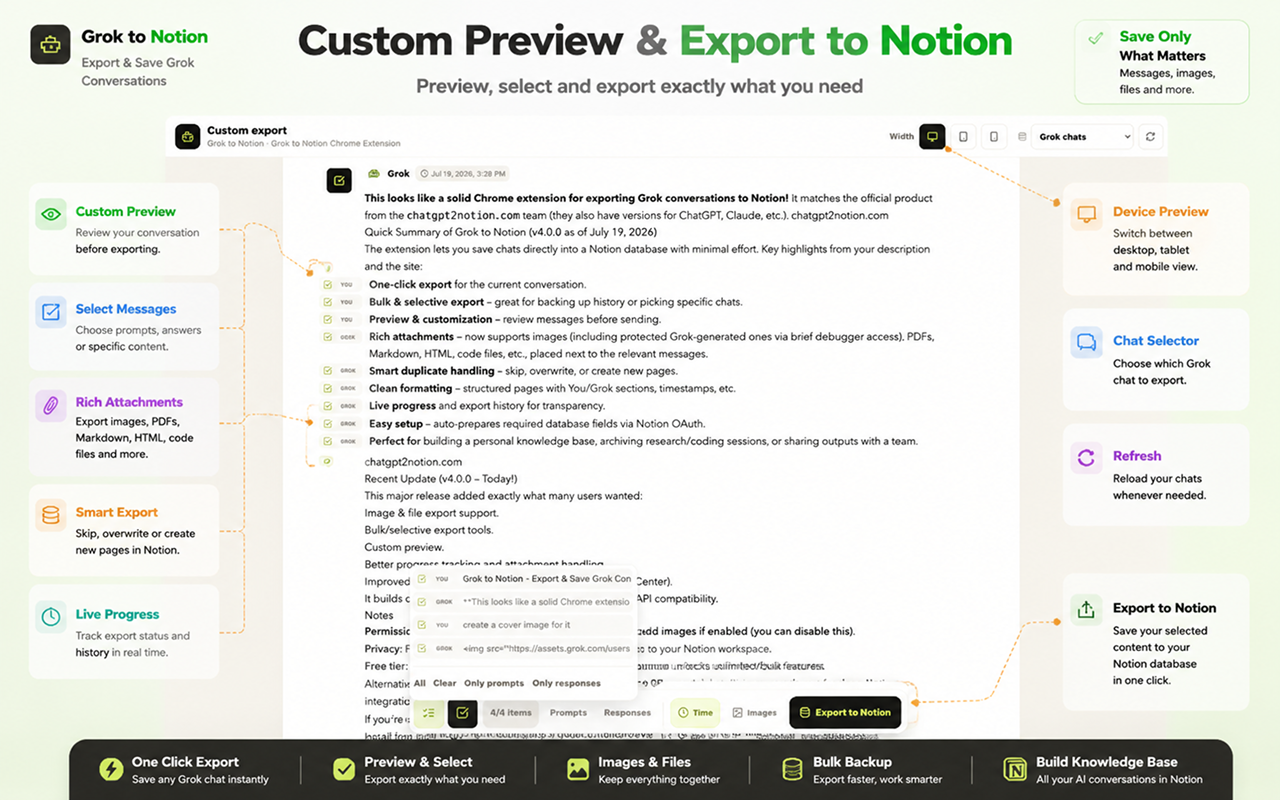
Select messages
Use the selection control to check or clear individual messages. Quick filters can select:
- All messages
- Only prompts
- Only Grok responses
- No messages, so you can build a selection from zero
The export button stays unavailable until at least one message and a Notion destination are selected.
Adjust the preview
- Switch between desktop, tablet, and mobile widths.
- Toggle message timestamps.
- Change the loaded Grok conversation.
- Refresh the conversation list.
- Toggle protected image uploads.
Changing preview width does not alter the resulting Notion content. It helps you review long messages and media at different reading widths.
Export the selection
Choose the destination database and click Export to Notion. Only selected messages are converted, and only media attached to those messages is considered for upload.
Protected images require separate consent. Other enabled attachments follow the selected messages automatically.
Need more help? Contact Support