
Export the Current Grok Chat
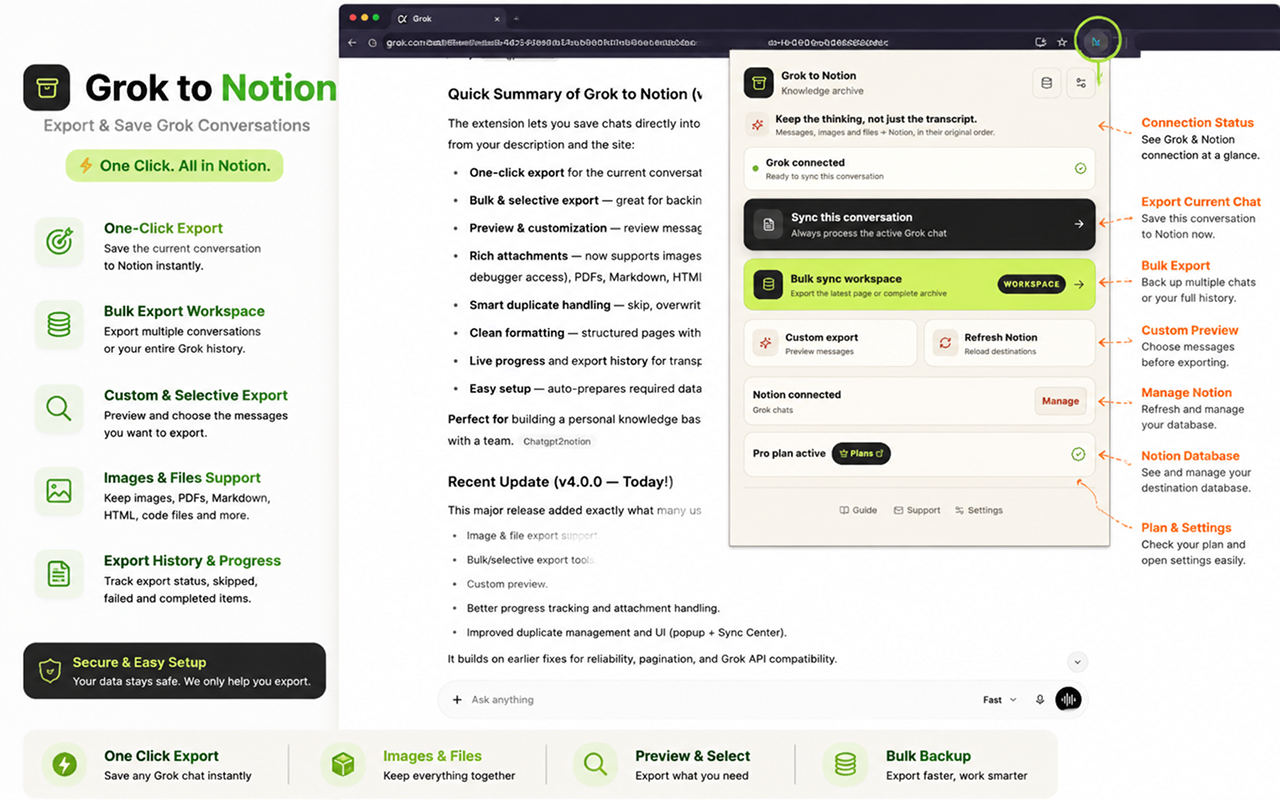
Save the active Grok conversation to Notion from the version 4 popup and verify the structured result.
Before you export
Confirm that:
- A conversation is open on
grok.com. - The popup shows Grok connected.
- Notion is connected and the correct destination is selected.
- The conflict mode matches the result you want.
Save the active conversation
- Open the Grok conversation you want to keep.
- Click the Grok to Notion icon.
- Choose Sync this conversation.
- Keep the Grok tab open while the export runs.
- Follow the live stage shown in the popup.
- Open the completed page in Notion.
Choose what content is included
Open Settings in the popup to review:
- Protected images for generated images that require explicit capture consent
- Attachments for generated and downloadable files
- Skip locally synced for conversations already recorded by the extension
- Conflict mode for matching Notion pages
Protected image capture is optional and off by default. See Exporting Images and Files.
Export only part of the chat
Choose Custom export instead of Sync this conversation when you want to remove messages, keep only prompts or responses, hide timestamps, or review media before export. See Custom Preview and Message Selection.
Verify the Notion page
Check the title, source URL, message order, formatting, and any enabled media. A failed attachment should appear as a warning at its original position instead of stopping the whole page export.
Need more help? Contact Support