
Overview & Getting Started
Learn what Grok to Notion exports, including Projects in version 5.1.0, and how images, files, duplicates, and privacy are handled.
Grok to Notion is a Chrome extension for moving Grok conversations into a Notion database. Save the active chat, selected messages, chosen conversations, a paginated history backup, or Project conversations. Projects export is available in version 5.1.0.
Export workflows
Choose the workflow that matches the amount of content you want to keep:
| Workflow | Use it for |
|---|---|
| Sync this conversation | Export the Grok chat open in the active tab |
| Custom export | Preview one conversation and select exact messages |
| Bulk · Current page | Export the first 60 loaded conversations |
| Bulk · All history | Progressively load and export the complete available archive |
| Selective | Search loaded history and choose individual conversations |
| Projects | Select Projects or individual conversations inside them |
In Projects mode, load the Project list, review the chats inside each Project, then choose Projects or individual chats. This saves conversations, not every Project setting or source file. Existing screenshots below show the earlier version 4 interface.
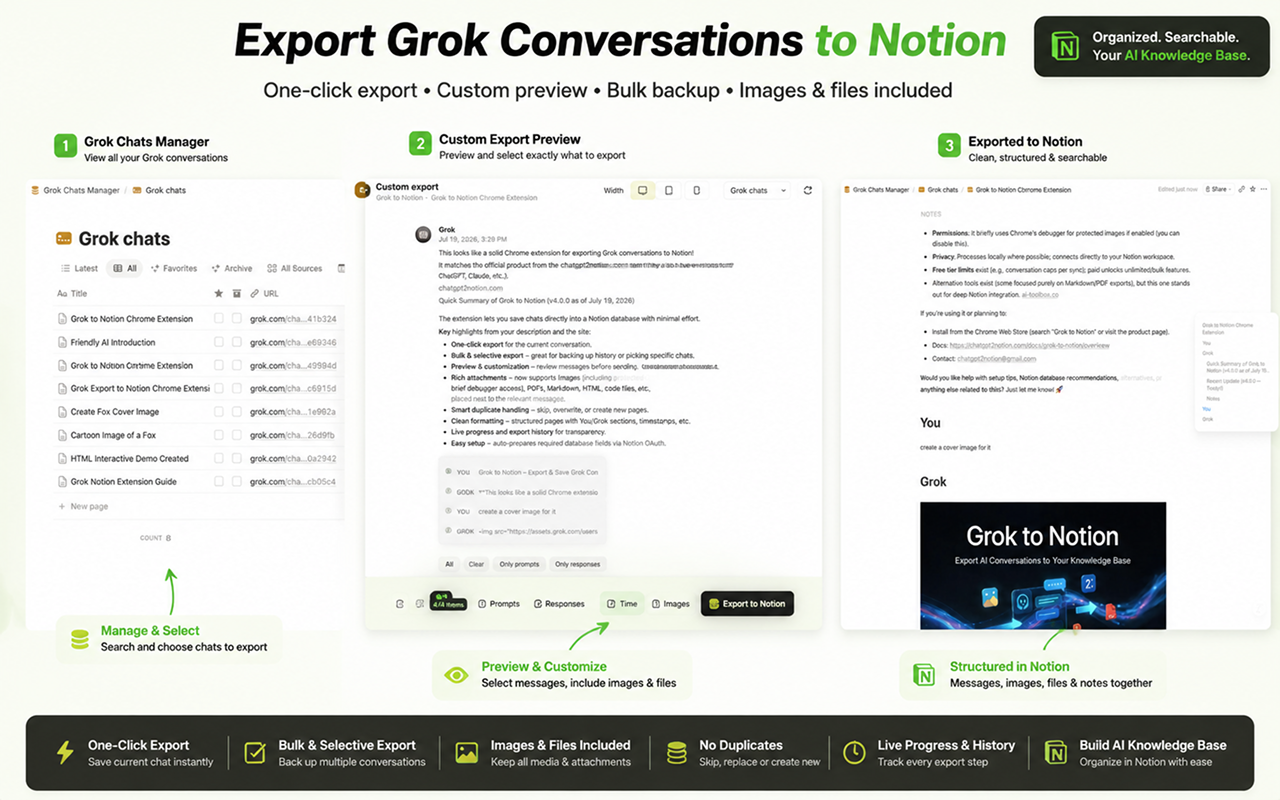
Content preserved in Notion
An exported conversation can include:
- Original title, source URL, and conversation time
- Prompts and Grok responses in order
- Markdown, headings, lists, tables, and code blocks
- Generated and uploaded images
- PDFs and regular file attachments
- Generated Markdown, HTML, and code files
Supported media stays beside the message that produced it. If a media upload fails, the exporter adds an actionable warning at that position and continues exporting the conversation.
Notion page handling
Choose one conflict mode before an export:
- Skip existing leaves a matching Notion page unchanged.
- Overwrite replaces the matching page.
- Always create creates another page even when a match exists.
The separate Skip locally synced setting filters conversation IDs already recorded by the extension.
Protected images and privacy
Some Grok-generated images cannot be retrieved with an ordinary second network request. Protected image export is therefore off by default.
If you enable it, Chrome asks for confirmation before the extension briefly attaches its debugger to the open Grok tab for each protected image. The extension detaches after the capture attempt. You may keep this setting disabled and still export messages and other enabled attachments.
Conversation processing happens in the browser and the export is written to the Notion workspace you authorize. See Exporting Images and Files for the detailed permission explanation and the 20 MB Notion upload limit.
Recommended setup path
- Install the extension.
- Connect Notion and select a destination database.
- Open a conversation on
grok.com. - Export one representative chat and verify its Notion result.
- Configure Bulk and Selective Export for a larger backup.
See the version history for the verified release changes.
Need more help? Contact Support