
Installation
Install Grok to Notion from the Chrome Web Store, pin it, and verify that it can connect to an open Grok tab.
Install from the Chrome Web Store
- Open Grok to Notion in the Chrome Web Store.
- Click Add to Chrome.
- Review the permission summary and confirm the installation.
- Open Chrome’s extensions menu and pin Grok to Notion.
Verify the Grok connection
- Open grok.com in a browser tab.
- Open any conversation.
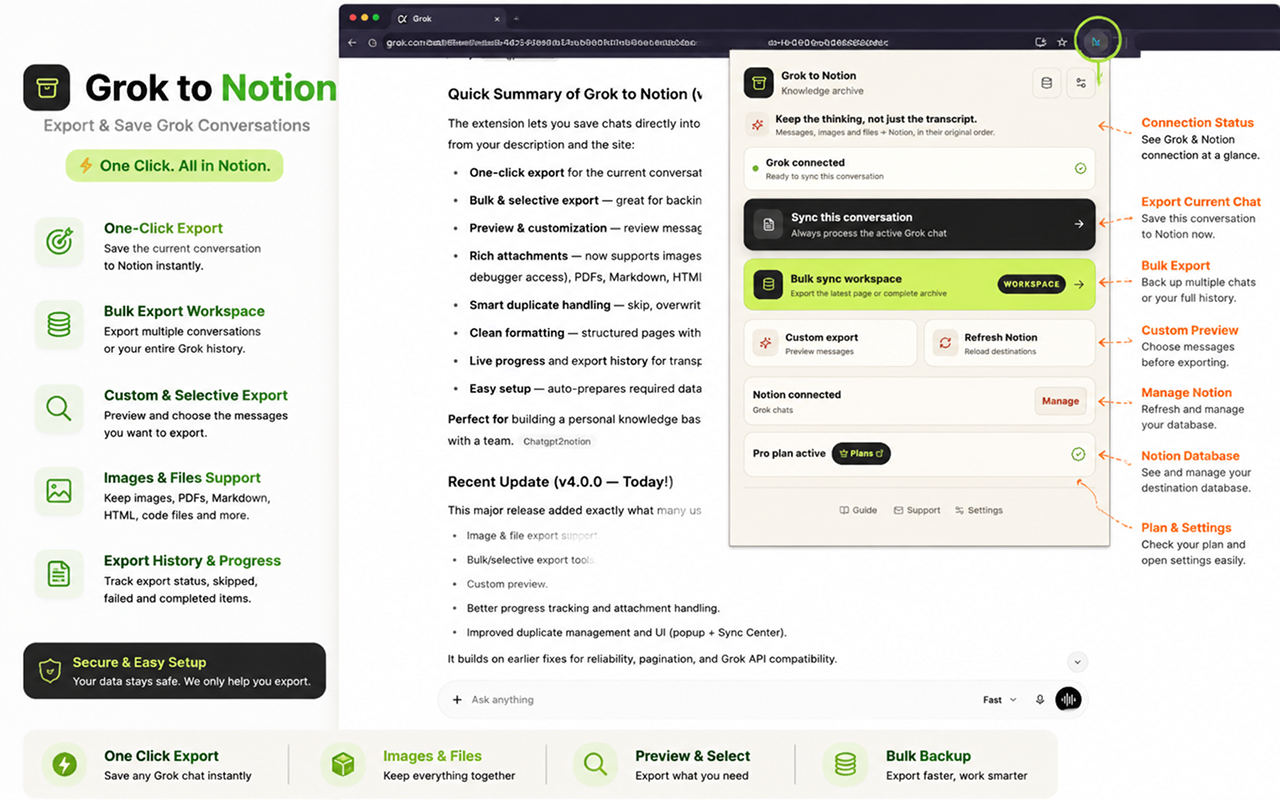
- Click the pinned extension icon.
- Confirm the popup shows Grok connected.
If the popup cannot connect, refresh the Grok tab once so Chrome can load the extension’s page script, then reopen the popup.
About the debugger permission
Chrome may show that the extension has debugger permission. Grok to Notion uses it only after you explicitly enable Protected images and confirm the explanation. It briefly attaches to the open Grok tab while copying a protected generated image, then detaches.
Protected image export is optional and off by default. Read Exporting Images and Files before enabling it.
Next step
Connect your Notion workspace, then test the extension with one conversation before starting a history backup.
Need more help? Contact Support