
Exporting Individual Chats
Save a complete ChatGPT conversation, selected Q&A turns, prompts, responses, images, and files to Notion
Use the extension popup for a complete conversation export or a filtered export. For more control, use the inline Q&A actions or open Custom Export Preview.
Before Your First Export
- Install and pin ChatGPT to Notion from the Chrome extensions menu.
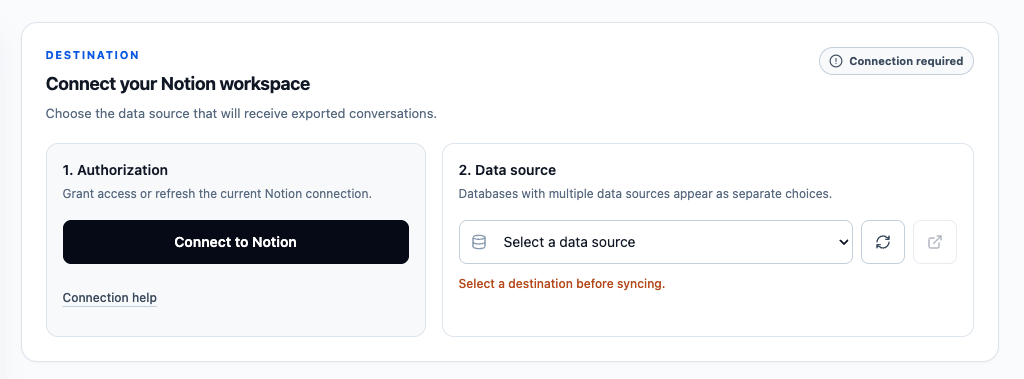
- Connect your Notion workspace.
- Open a conversation on chatgpt.com.
- If the conversation was already open when the extension was installed or updated, refresh the ChatGPT tab.
- Open the extension popup and select a Notion destination.
Method 1: Save the Complete Conversation
- Open the conversation you want to export.
- Open the extension popup.
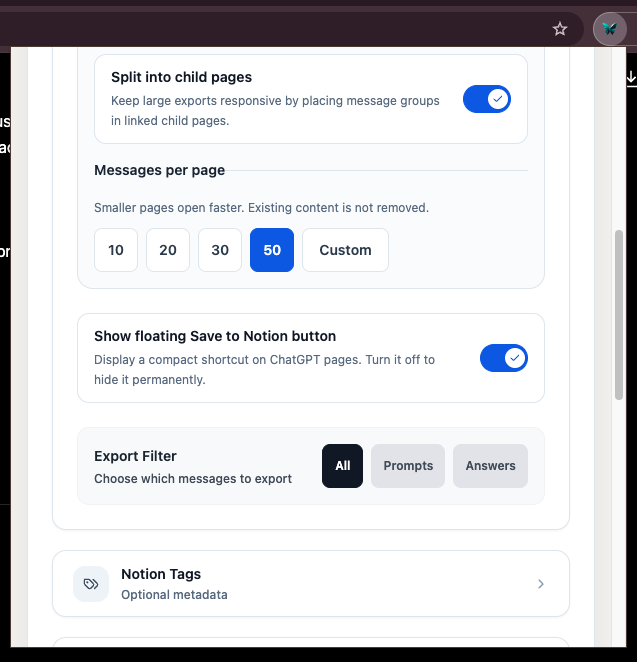
- In Setup, choose:
- Enhanced formatting on or off
- Split into child pages for long conversations, if needed
- Whether to show the floating ChatGPT-page shortcut
- Leave Export Filter set to All.
- Optionally expand Notion Tags and enter comma-separated tags.
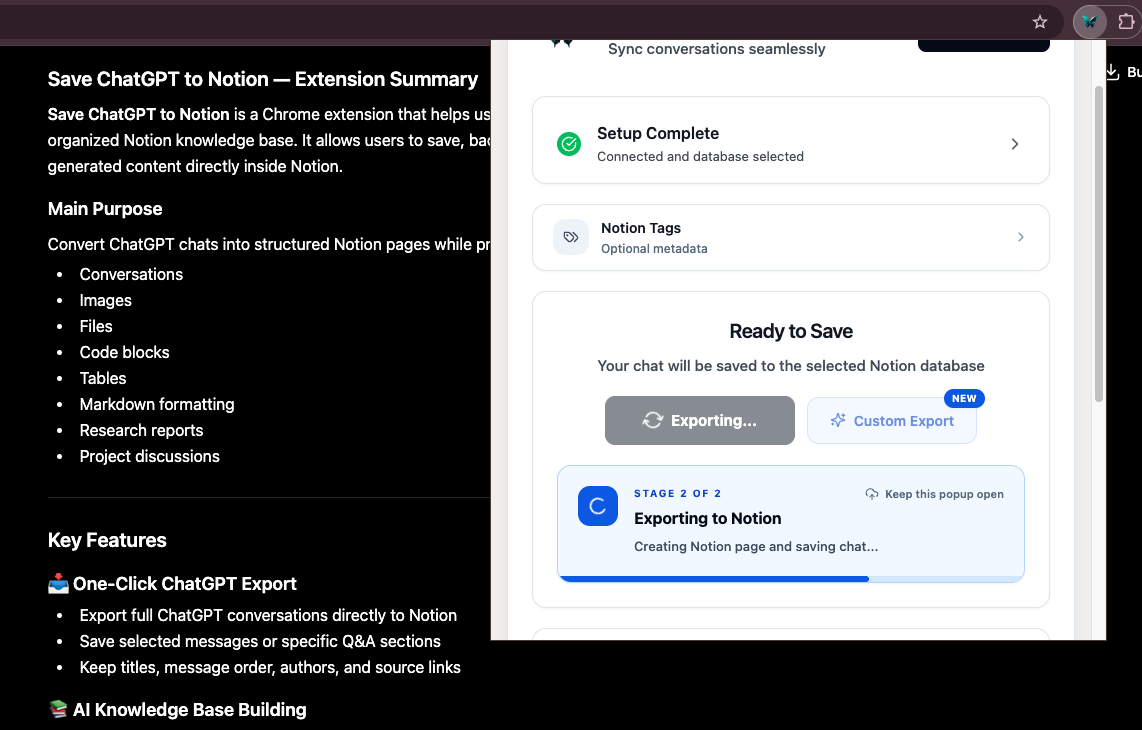
- Click Save to Notion.
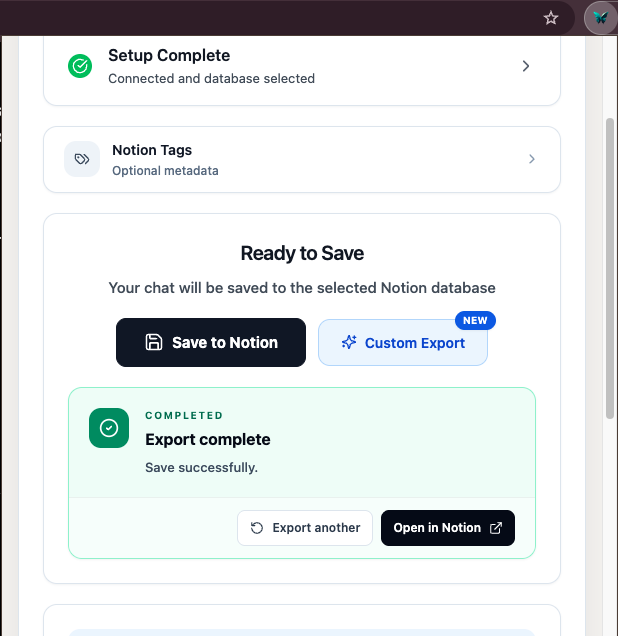
The popup first reads the active ChatGPT conversation, then creates or updates the Notion page. Keep the popup open while the progress panel is running. When finished, use the result link to open the page in Notion.
Free users can save up to 5 regular conversations per day from the popup. Subscription status is verified with the purchase email in the Subscription Status section.
Method 2: Export Only Prompts or Only Answers
The popup’s Export Filter controls which roles are included:
- All exports user prompts and ChatGPT responses.
- Prompts exports only user messages.
- Answers exports only assistant messages.
Choose the filter before clicking Save to Notion. This filter applies to the current popup export; it is different from Custom Export, where you can select individual messages.
Method 3: Save One Q&A Turn
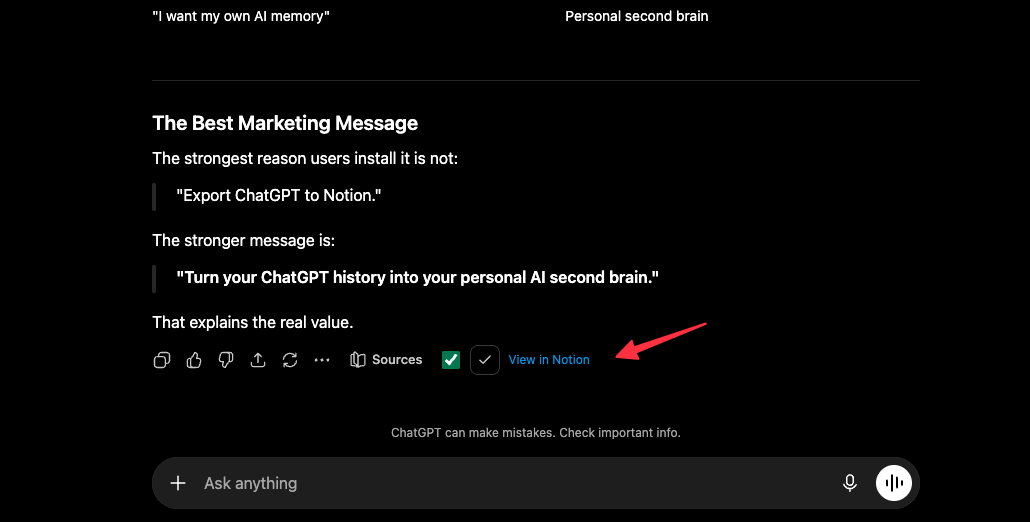
On a standard ChatGPT conversation, each assistant response has a small Notion save action. Clicking it saves that assistant response together with its preceding user prompt.
After a successful save, the inline action shows a View in Notion link. The resulting page is tagged Part when the destination has a compatible Tags property.
Method 4: Save Several Q&A Turns Together
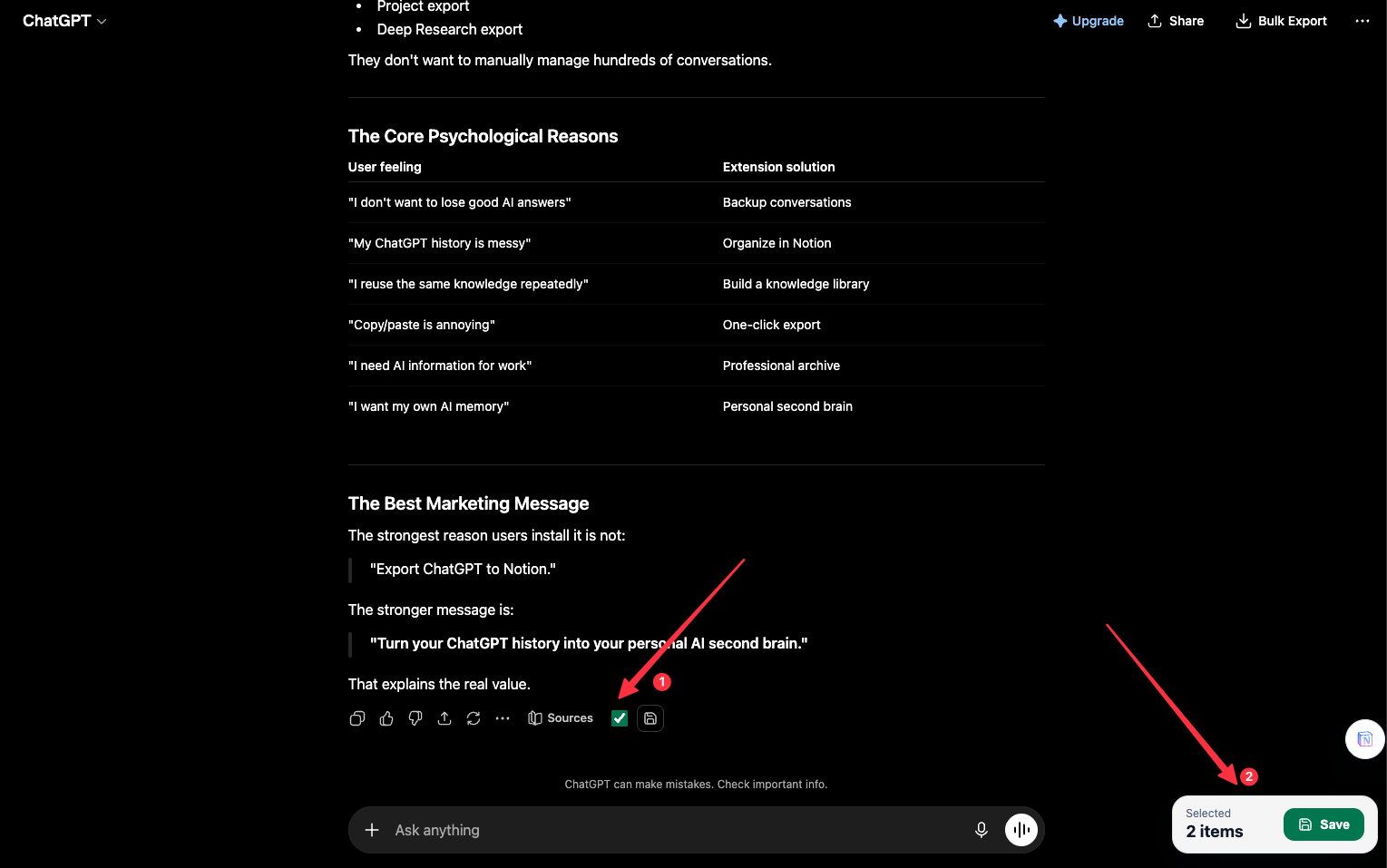
- Use the checkbox beside each assistant response you want to keep.
- A floating selection panel appears after at least one item is selected.
- Confirm the selected count.
- Click Save.
The extension gathers each selected assistant response and its preceding user prompt, keeps the original page order, and saves the selection as one Notion page tagged Part.
Method 5: Use Custom Export Preview
Click Custom Export in the popup to open a local preview page. From there you can:
- Select or deselect individual messages
- Keep only prompts or only responses
- Preview Markdown, images, and file labels
- Show or hide message timestamps
- Switch desktop, tablet, and mobile preview widths
- Adjust formatting and child-page settings before saving
See Custom Export Preview for the complete workflow.
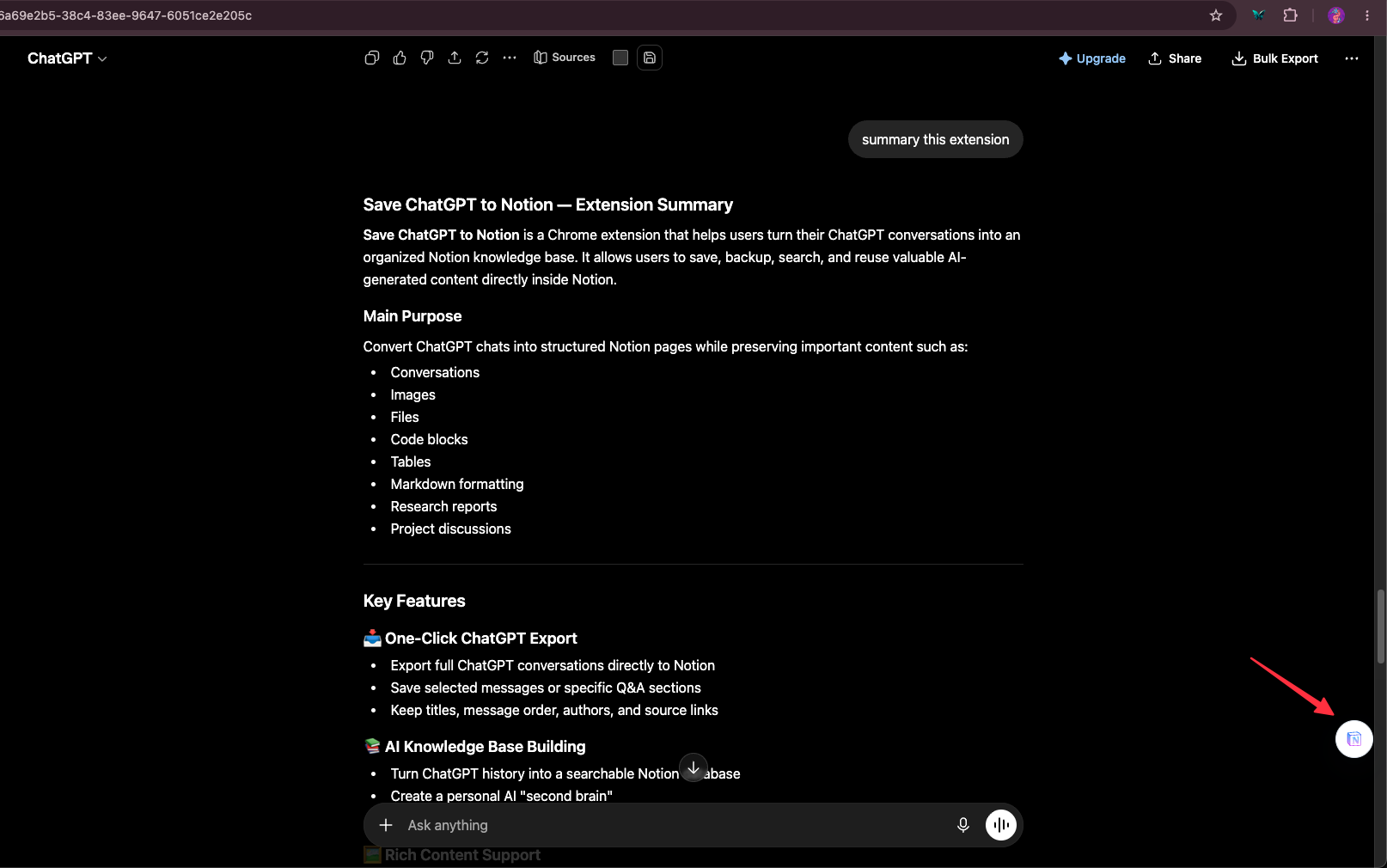
Floating Save to Notion Shortcut
The optional compact shortcut on ChatGPT pages opens the extension popup. It does not bypass destination selection or export settings. Turn it on or off with Show floating Save to Notion button in either the popup or Batch Sync page.
Images and File Attachments
Supported ChatGPT images and files are uploaded to Notion as native blocks. The current implementation supports images, PDFs, audio, video, and general files when the asset is downloadable.
Important limitations:
- Reconnect Notion if the extension reports that file-upload permission is missing.
- Notion workspace file-size limits still apply.
- Some group-chat attachment records do not include a downloadable URL.
- If one attachment fails, the text export continues and an attachment warning is added.
Long Conversations and Repeat Exports
For a long conversation, enable Split into child pages and choose 1–200 messages per child page. Completed batches are checkpointed so an interrupted export can resume when its source, destination, content, and settings match.
When exporting the same source URL again from workflows that expose repeat-export policy:
- Skip complete pages preserves completed exports.
- Update existing page keeps the same Notion page link while replacing its managed content.
- Always create a copy creates a new page.
Group Chats
For /gg/ group-chat URLs, the popup can export the whole room and the page-level actions can select individual group messages. Participant names and message order are preserved when the ChatGPT API provides them.
Free users can export up to 2 group chats per day. Group-chat exports are tagged Group Chat when supported by the destination.
Troubleshooting
- ChatGPT page required: open a
chatgpt.comtab and reopen the popup. - Extension cannot connect: refresh the ChatGPT tab, then reopen the popup.
- Destination missing: update Notion authorization, return to the popup, and refresh the destination list.
- File upload permission error: reconnect Notion and allow file uploads.
- Long export interrupted: keep the same destination and settings, then retry so the partial job can resume.
For additional help, contact [email protected].
Need more help? Contact Support