
Overview & Getting Started
Export ChatGPT conversations, selected messages, projects, group chats, archived chats, images, and files to Notion
ChatGPT to Notion is a Chrome extension for saving individual conversations, selected messages, and larger parts of your ChatGPT history to a Notion data source. It preserves useful structure such as headings, lists, tables, code, links, images, and supported file attachments.
What You Can Export
A Complete Conversation
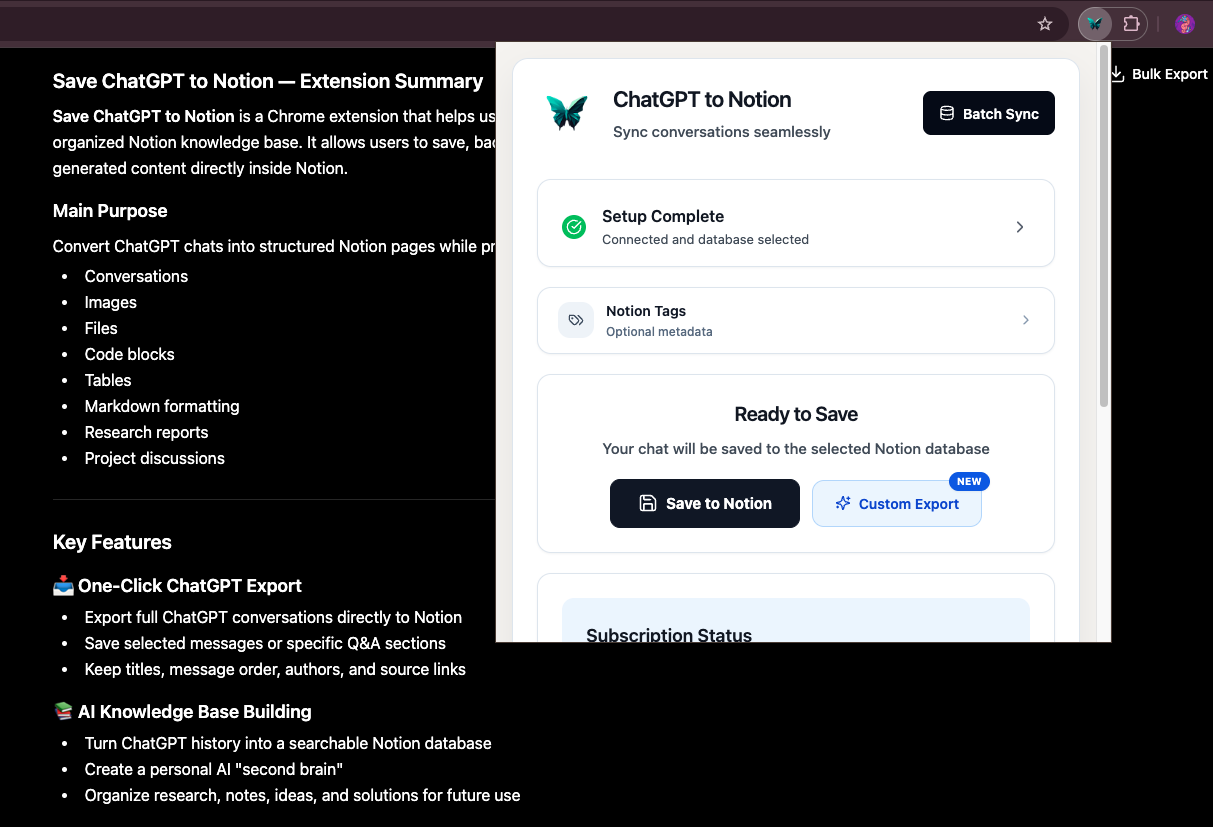
Open a ChatGPT conversation, open the extension popup, choose a Notion destination, and click Save to Notion. The popup keeps preparation progress, Notion write progress, and the final result visible until you dismiss it.
Only the Messages You Need
You have three ways to create a partial export:
- Use Prompts or Answers in the popup’s Export Filter
- Select one or more Q&A turns with the inline checkboxes on a ChatGPT conversation
- Open Custom Export to preview the conversation and choose individual messages before saving
Selective Q&A exports are tagged Part when the destination supports a Tags property.
Batch and Scheduled Exports
The Batch Sync page supports four sources:
- Chat Pages: the latest 28 conversations or all available conversations
- GPT Projects: one project or all projects
- Group Chats: the latest 5 rooms or up to 500 rooms
- Archived Chats: the latest archived page or the complete archived history
Auto Sync can periodically export the latest 28 regular conversations at intervals from 1 to 24 hours. The options page and a connected ChatGPT tab must remain open.
Images, Files, and Research Content
Supported ChatGPT images and files are uploaded as native Notion blocks. This includes images, PDFs, audio, video, and general files when ChatGPT provides a downloadable asset and the Notion connection has file-upload permission.
The exporter also supports:
- Deep Research reports
- ChatGPT-generated documents and TextDocs as child pages
- Media-only messages
- The currently selected branch of regenerated answers
If one attachment cannot be downloaded or uploaded, the conversation continues exporting and the extension adds an attachment warning instead of discarding the rest of the chat.
Export Controls
Formatting and Long Conversations
- Enhanced message formatting groups messages into collapsible Notion sections.
- Split into child pages divides long conversations into linked child pages.
- Page size presets are 10, 20, 30, and 50 messages, with a custom range of 1–200.
- Popup, Batch Sync, and Custom Export share the same formatting and page-splitting settings.
Re-Exporting the Same Conversation
When the destination contains a page with the same ChatGPT source URL, you can choose:
- Skip complete pages: keep completed exports unchanged; partial exports can still resume.
- Update existing page: replace the managed properties and exported content while keeping the same Notion page and link.
- Always create a copy: create another Notion page.
If the previous Notion page is in Trash, it is ignored and a new active page is created.
Reliable Large Exports
Large exports are written in safe batches. The extension records confirmed batches locally, so an interrupted export can resume on the same partial Notion page when the source, destination, content, and export settings still match.
Batch Sync also provides configurable ChatGPT request pacing. Notion requests use a separate automatic limiter and retry policy.
What Is Stored in Notion
The extension always uses the destination’s title property. When compatible properties exist, it also fills:
- URL: normalized ChatGPT source URL, used for navigation and repeat-export matching
- ChatTime: conversation timestamp
- Tags: your optional tags and export-specific tags such as
Part,Group Chat, orArchived - ProjectName: the associated ChatGPT project when available
The extension can add its own sync-status properties to compatible destinations to distinguish complete and partial exports.
Quick Start
- Install the extension.
- Connect your Notion workspace.
- Open or refresh a conversation on chatgpt.com.
- Select a Notion destination in the extension popup.
- Choose your formatting, filter, and optional tags.
- Click Save to Notion, or use Custom Export for message-by-message selection.
Next Guides
Need more help? Contact Support