
Understanding and Recovering from Rate Limits (429 Errors)
Learn why ChatGPT rate limits happen, how to recover with request pacing, and how the extension protects your sync progress
What is a 429 Rate Limit Error?
When you see “HTTP error! status: 429” or “Rate limit (429) detected”, it means ChatGPT is temporarily limiting requests because too many were made in a short period.
This is ChatGPT’s way of protecting their servers from being overwhelmed and ensuring fair usage for all users.
Why Does This Happen?
Rate limits can be triggered by:
- Batch exporting too many conversations - Syncing 50+ conversations rapidly
- Multiple rapid exports - Clicking export repeatedly in quick succession
- Concurrent operations - Running multiple sync operations simultaneously
- Previous rate limit violations - ChatGPT may temporarily restrict your account
How the Extension Handles Rate Limits
Automatic Delay Between Requests
The extension lets you set a minimum and maximum delay between ChatGPT requests. It chooses a random delay within that range for each request, which helps spread out traffic during a bulk export.
For a recovery run after a 429 error, 2-3 seconds is a practical starting range. Larger exports will take longer, but the slower pace reduces request pressure.
Why random delay?
- Prevents synchronized bursts across multiple users
- More natural request pattern
- Spreads requests over time instead of sending them at a fixed interval
- Lets you balance export speed against the risk of another source-side limit
Immediate Stop on 429 Detection
When a 429 error is detected, the extension:
- Stops all sync operations immediately - No further requests are made
- Shows clear error message - Explains what happened and what to do
- Saves sync progress - Records which conversations were successfully synced
- Preserves your data - Already-synced conversations remain in Notion
Why no automatic retry?
- ChatGPT rate limits are long-lasting (minutes to hours)
- Automatic retry would trigger more 429 errors
- Could flag your account for abuse
- Manual retry gives you control over timing
What to Do When You Hit Rate Limit
Step 1: Wait Before Retrying
Recommended wait times:
- First occurrence: Wait 5-10 minutes
- Second occurrence: Wait 30 minutes
- Repeated occurrences: Wait 1-2 hours
Do not keep clicking “Begin Sync” while the rate limit is active. Repeated attempts can extend the interruption.
Step 2: Increase ChatGPT Request Pacing
Before the next bulk export:
- Open the batch export settings
- Find ChatGPT request pacing
- Set Minimum delay to
2seconds - Set Maximum delay to
3seconds
If another 429 occurs at this range, stop testing and wait longer before trying again. You can also use a slower range for the next run.
Step 3: Check Sync History
- Open the extension options page
- Scroll to “Sync History” section
- Find the failed sync operation
- Review which conversations were successfully synced
Step 4: Resume Sync
After waiting, you can safely resume:
- Enable “Skip Synced Records” (recommended)
- Select the same sync range as before
- Click “Begin Sync”
- The extension will skip already-synced conversations
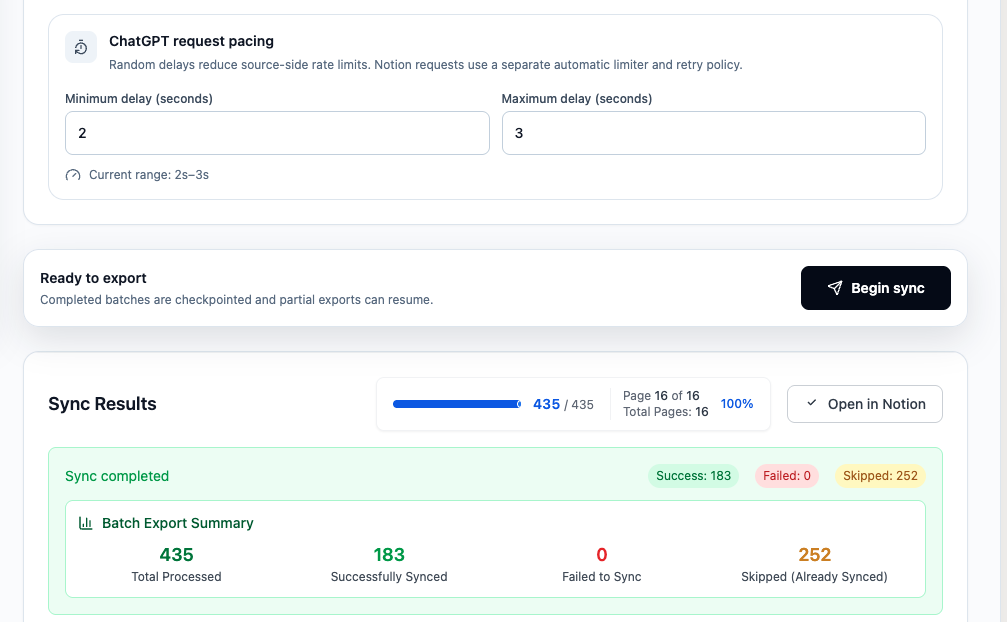
Real Example: Recovering a 435-Record Bulk Export
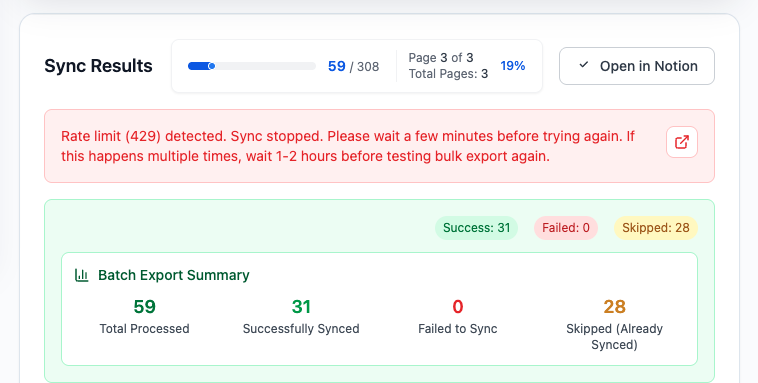
In one bulk export, ChatGPT returned a 429 after 59 of 308 selected records had been processed. The extension stopped immediately with 31 successfully synced, 28 skipped because they were already synced, and 0 failed records.
After waiting, the request pacing was changed to a random 2-3 second delay. A follow-up bulk run then processed 435 records:
- 183 records were successfully synced
- 252 records were skipped because they were already synced
- 0 records failed
- The export reached 100%
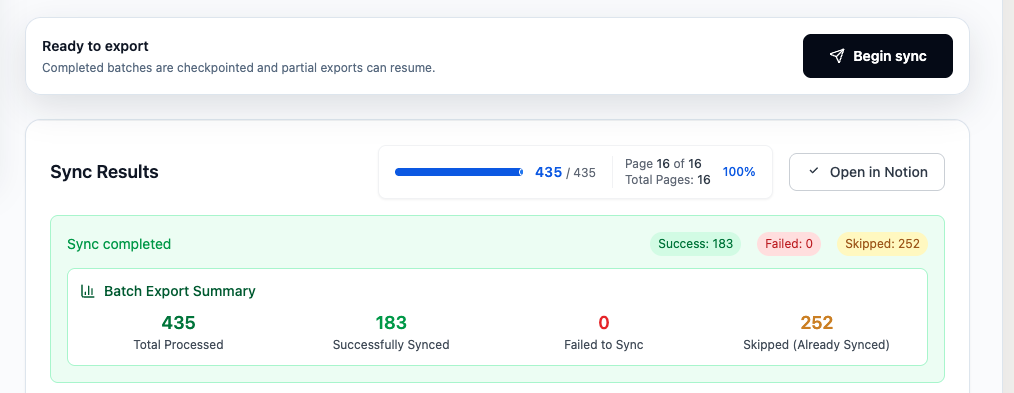
This example shows why checkpointing and “Skip Synced Records” matter: the 429 did not erase completed work, and the slower follow-up run could continue without duplicating records. A 2-3 second delay is not a guarantee for every account or export, so increase the delay or reduce the batch size if the limit returns.
Best Practices to Avoid Rate Limits
1. Use Smaller Batches
Instead of syncing all conversations at once:
- First sync: Latest 28 conversations
- Wait 10 minutes
- Second sync: Next batch with “Skip Synced Records” enabled
2. Enable Skip Synced Records
This prevents re-syncing conversations you’ve already saved:
- Open extension options
- Find “Skip Synced Records” toggle
- Enable it (should be ON by default)
The recovery screenshot above shows the completed-record setting together with the slower request pacing used for the retry.
3. Avoid Concurrent Operations
Don’t run multiple sync operations at the same time:
- ❌ Don’t open multiple browser tabs running sync
- ❌ Don’t click “Begin Sync” multiple times
- ✅ Wait for current sync to complete before starting another
Understanding the Error Message
When you see a 429 error, the extension shows:
Rate limit (429) detected. Sync stopped. Please wait a few minutes before trying again.
If this happens multiple times, wait 1-2 hours before testing bulk export again.
What this means:
- ✅ Your already-synced conversations are safe in Notion
- ✅ The extension stopped to protect your account
- ⏳ You need to wait before retrying
- 🔄 You can resume where you left off
Technical Details
Request Rate
The extension uses these safeguards:
- Delay per ChatGPT request: Randomized between the minimum and maximum values you configure
- Recovery starting point: 2-3 seconds after waiting for a 429 limit to clear
- Notion requests: Use a separate automatic limiter and retry policy
- 429 detection: Immediate stop on first occurrence
Sync Progress Tracking
When sync is interrupted by rate limit:
- Success records are saved to local storage
- Failed items are logged with error details
- Sync history records the interruption
- Next sync can skip successful items
FAQ
Q: How long do I need to wait after a 429 error? A: Start with 5-10 minutes. If it happens again, wait 30 minutes to 1 hour.
Q: Will I lose my synced conversations? A: No. Already-synced conversations remain in Notion. Only the remaining items need to be retried.
Q: Can I sync faster if I’m a paid subscriber? A: No. Rate limits are enforced by ChatGPT’s API, not by the extension. All users face the same limits.
Q: Why doesn’t the extension automatically retry? A: Automatic retry would trigger more 429 errors and could flag your account for abuse. Manual retry gives you control.
Q: How do I know which conversations were synced? A: Check the “Sync History” section in the extension options. It shows detailed results for each sync operation.
Q: Can I increase the delay between requests? A: Yes. Set the minimum and maximum values under “ChatGPT request pacing.” After a 429 error, wait for the limit to clear and try a 2-3 second range. Use a slower range if the problem returns.
Q: What if I keep hitting rate limits? A:
- Wait longer between sync operations (1-2 hours)
- Sync smaller batches (Latest 28 only)
- Use Auto Sync instead of manual batch export
- Contact ChatGPT support if the issue persists
Related Topics
- Batch Sync & Backup - Learn about batch export features
- Auto Sync - Set up scheduled sync
- API Errors - Troubleshoot other API-related issues
Still Having Issues?
If you continue to experience rate limit errors after following these guidelines:
- Check if ChatGPT is experiencing service issues: status.openai.com
- Try syncing from a different network
- Contact us at [email protected] with:
- Screenshot of the error message
- Sync history details
- Number of conversations you’re trying to sync
We’re here to help!
Need more help? Contact Support