
Batch Sync & Backup
Batch export ChatGPT conversations, projects, group chats, and archived chats to Notion with resumable progress
Batch Sync is the extension’s full export workbench. It can save regular ChatGPT history, GPT Projects, Group Chats, and Archived Chats while tracking completed, skipped, and failed items.
Before You Start
Make sure:
- Notion is connected and a writable destination is selected.
- A chatgpt.com tab is open.
- You refreshed the ChatGPT tab after installing, updating, or reloading the extension.
- The Batch Sync options page remains open until the operation completes.
Open the extension popup and click Batch Sync. You can also right-click the extension icon and open its options page.
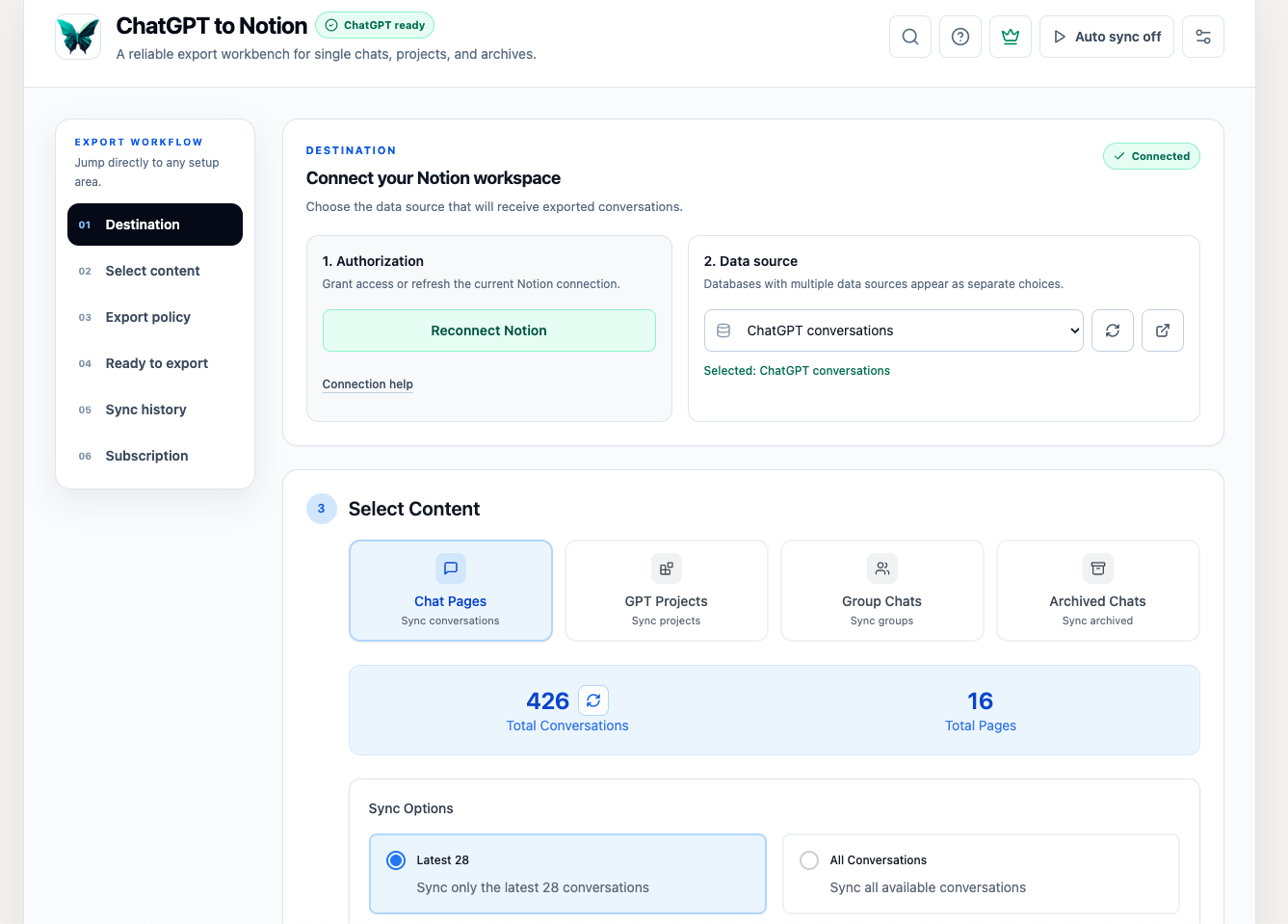
1. Choose a Notion Destination
The Destination section lists the writable Notion data sources available to the integration. Select one before syncing.
- Use the refresh button after authorizing a new Notion page or database.
- Use the external-link button to open the selected destination in Notion.
- If a Notion database contains multiple data sources, each writable data source can appear as a separate choice.
Existing installations may still store a legacy database ID. The extension resolves legacy database IDs and current data-source IDs automatically.
2. Select Content
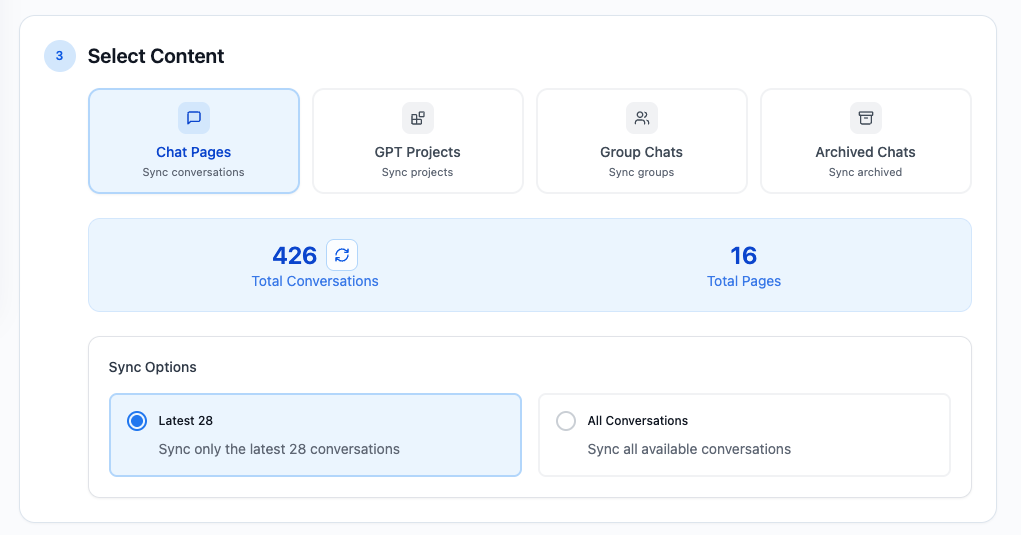
Chat Pages
This is the default mode for regular ChatGPT history.
- Latest 28 reads the first history page.
- All Conversations keeps fetching pages until the available history is exhausted.
For a faster initial load, the total is estimated from the first three pages. A + indicates that more conversations are available. Click the refresh icon beside the total to calculate the exact count.
GPT Projects
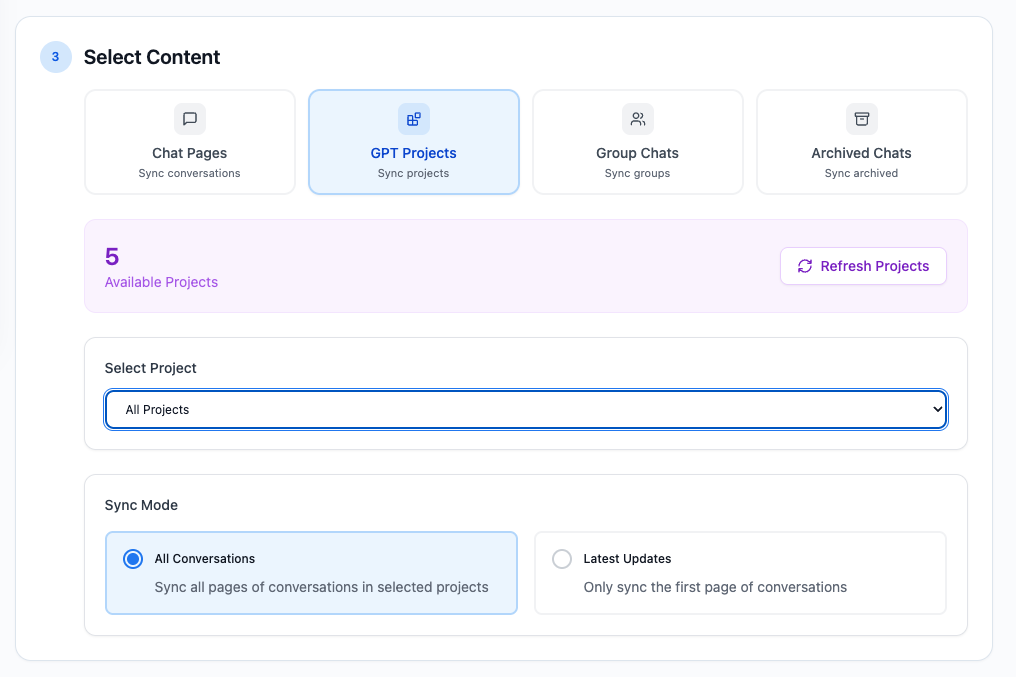
Choose one project or All Projects, then select:
- All Conversations to read all available pages in the selected project or projects.
- Latest Updates to read only the first page for each selection.
Project exports include the project name when the destination has a compatible ProjectName property.
Group Chats
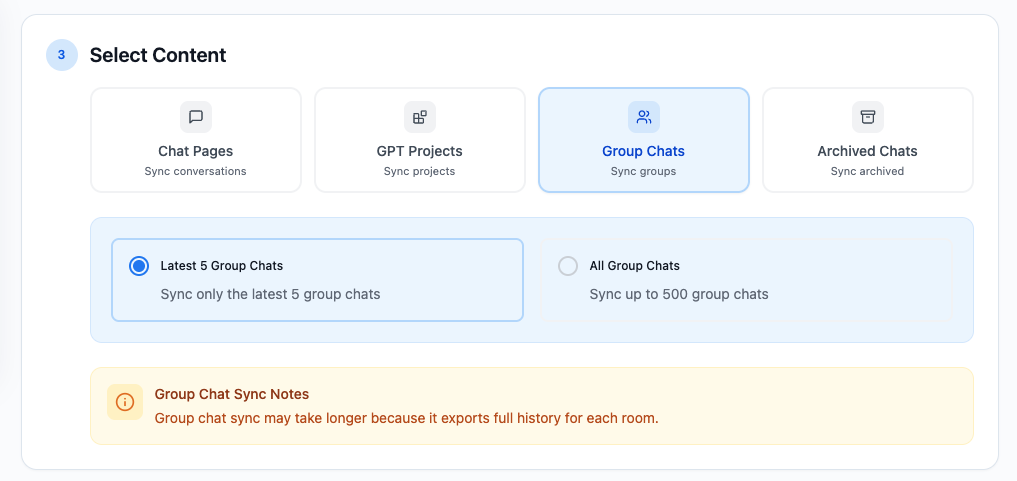
Choose:
- Latest 5 Group Chats
- All Group Chats, capped at 500 rooms
Group-chat exports preserve available participant names, message order, and downloadable attachments. Free users can export up to 2 group chats per day.
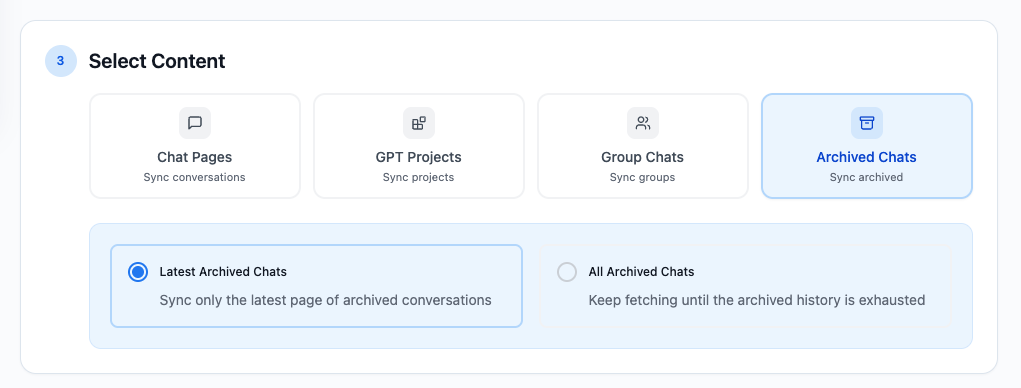
Archived Chats
Choose:
- Latest Archived Chats to read the latest page of archived history.
- All Archived Chats to continue until the archived history is exhausted.
Archived exports receive the Archived tag when the destination supports tags.
3. Set Export Policy
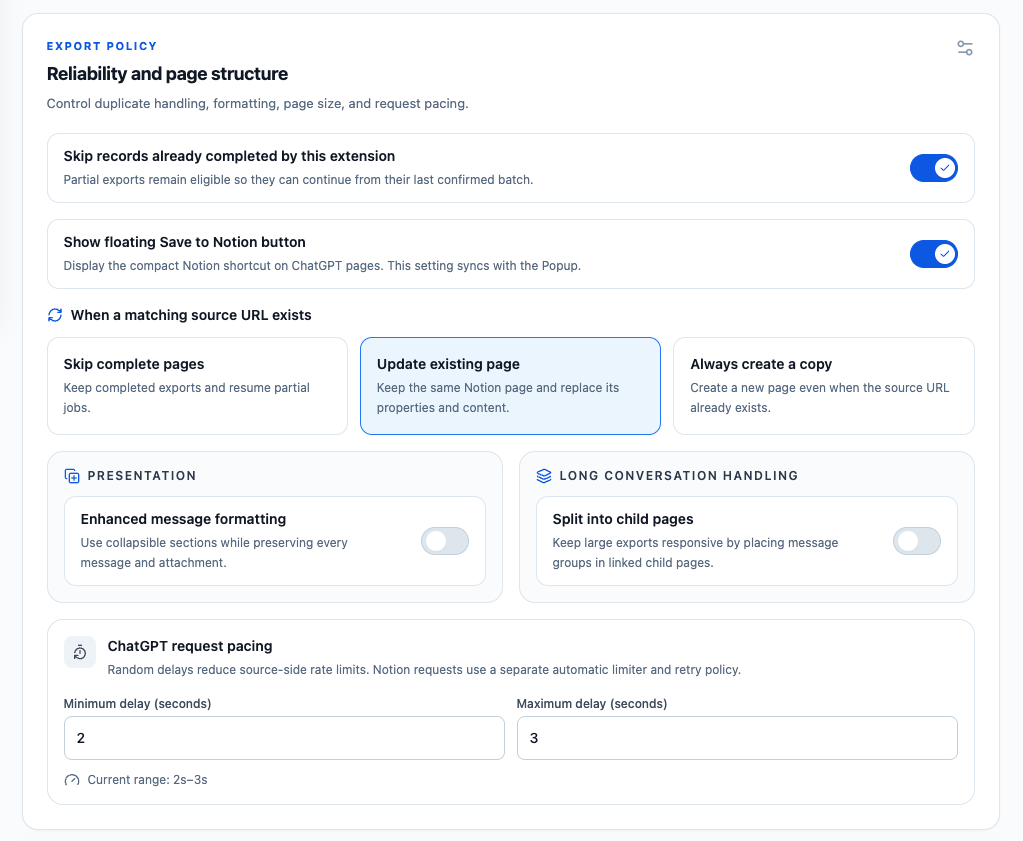
Skip Records Already Completed by This Extension
This switch is enabled by default.
- Completed exports recorded by the extension are skipped.
- Partial exports remain eligible so they can resume from their last confirmed batch.
- Skipping completed records reduces duplicate work and preserves manual edits in those pages.
This switch is separate from the matching-URL action below. Leave it on for normal backups and recovery runs.
When a Matching Source URL Exists
The extension normalizes ChatGPT conversation and group-chat URLs before matching them against the destination’s URL property.
- Skip complete pages keeps completed pages unchanged. A page marked
Partialcan still resume. - Update existing page refreshes the most recently edited active match in place. It keeps the Notion page ID and link instead of moving the old page to Trash.
- Always create a copy creates a new page even when a source URL already exists.
Pages already in Notion Trash are ignored. A new active page is created instead of restoring or updating a deleted page.
Formatting, Attachments, and Long Conversations
- Enhanced message formatting creates collapsible sections while preserving messages and attachments.
- Split into child pages divides the conversation into linked child pages.
- Page-size presets are 10, 20, 30, and 50 messages; custom values can range from 1 to 200.
- Show floating Save to Notion button controls the compact shortcut on ChatGPT pages and is shared with the popup.
Supported ChatGPT images and files are uploaded as native Notion blocks. If an individual attachment fails, the conversation continues and the result reports an attachment warning.
ChatGPT Request Pacing
Set a random minimum and maximum delay from 0–10 seconds between ChatGPT source requests. The default range is 1–1.5 seconds.
If ChatGPT returns a 429 rate-limit error, wait before retrying and start with a slower range such as 2–3 seconds. Notion writes use a separate automatic limiter, retry policy, and adaptive request splitting.
4. Begin Sync
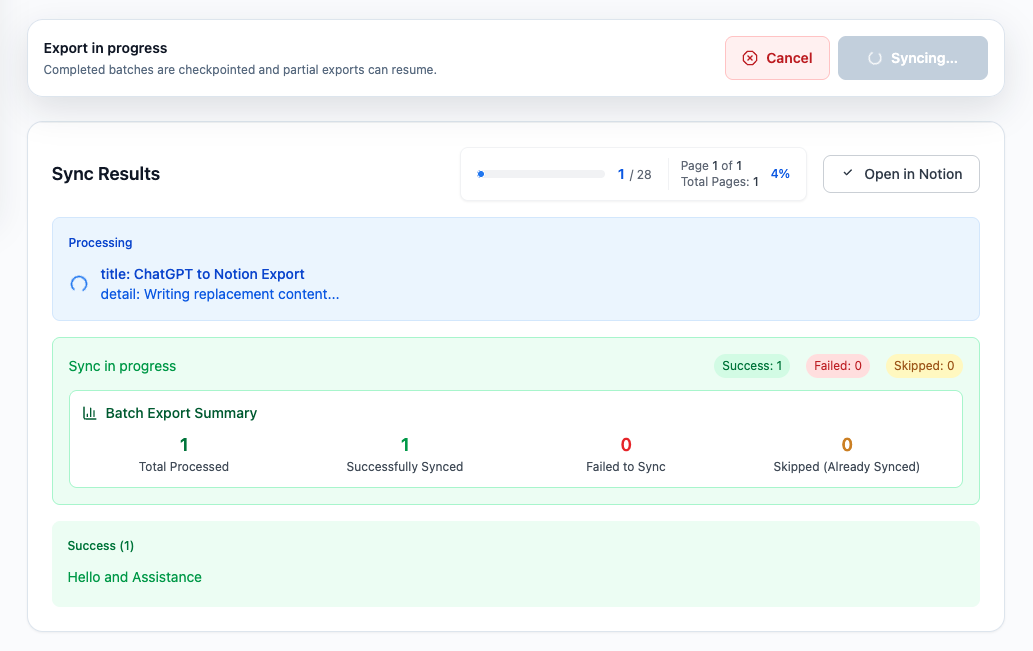
- Review the destination, source, and export policy.
- Click Begin sync.
- Keep the options page open.
- Watch the progress and status messages.
- Use Cancel if you need to stop.
Confirmed Notion batches are checkpointed. If a long export is interrupted, retry with the same source content, destination, and export settings so the extension can reuse the partial page and skip confirmed batches.
Results and Local History
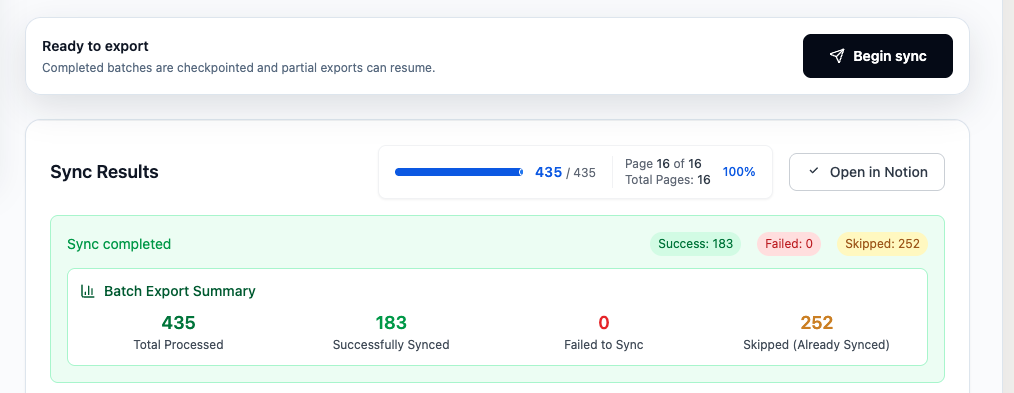
The results section can show:
- Success, failed, and skipped counts
- Links to created or updated Notion pages
- Attachment warnings and error details
- Copy or download actions for result records
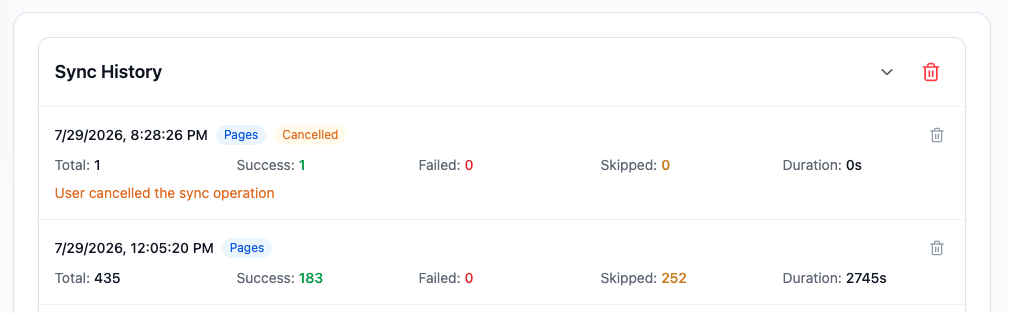
The Sync history section records previous runs and keeps separate success and failure lists. Local retention is capped: sync history keeps the latest 50 entries, while success records, failed records, and resumable sync jobs keep up to 500 entries each.
Limits
- Popup exports for free users: 5 regular conversations per day.
- Batch Chat Pages, Projects, and Archived Chats for free users: up to 10 successfully processed items per run.
- Group Chats for free users: up to 2 per day.
- Group Chat list: up to 500 rooms.
- Custom child-page size: 1–200 messages.
- Notion workspace attachment limits still apply.
Troubleshooting
ChatGPT Page Required
Open ChatGPT in a tab, refresh it, and return to Batch Sync. The page header distinguishes between a missing tab and a tab that needs to be refreshed.
Destination Is Missing
Update Notion authorization so the integration can access the page, then click the destination refresh button.
A 429 Error Stops the Sync
Already confirmed pages and batches remain safe. Wait before retrying, increase ChatGPT request pacing, and keep Skip records already completed by this extension enabled. See the 429 recovery guide.
An Export Stops Midway
Do not delete the partial Notion page. Retry with the same destination and settings so the checkpoint ledger can resume it.
A File Becomes a Warning
Reconnect Notion if file-upload permission is missing. If the source asset is no longer downloadable or exceeds workspace limits, the text export still completes and reports the attachment problem.
For additional help, contact [email protected].
Ready to try Chatgpt To Notion?
Open the product page for feature details, screenshots, pricing, and the Chrome Web Store install link.