
Why Do I Need to Refresh the ChatGPT Page?
Fix the connection between ChatGPT to Notion and an already-open ChatGPT tab after installation or an extension update
Quick Answer
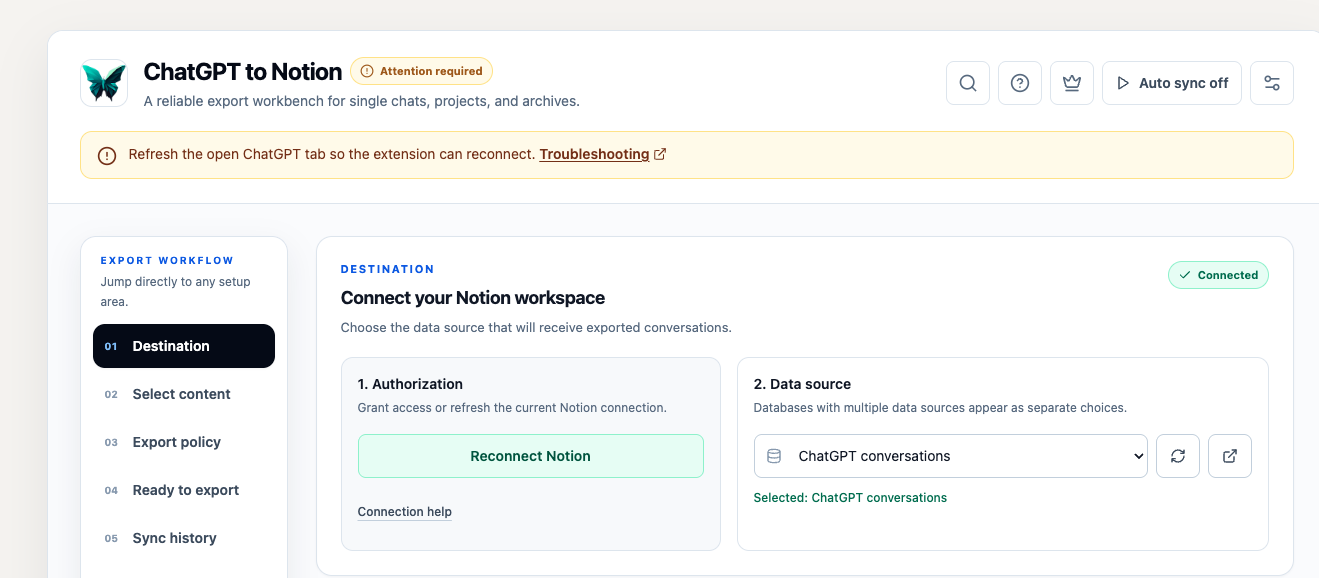
Refresh any ChatGPT tab that was already open when ChatGPT to Notion was installed, updated, or reloaded. The refresh lets the extension attach its page integration to that tab.
The current extension operates on chatgpt.com. References to Perplexity, Gemini, or other websites do not apply to ChatGPT to Notion.
What the Status Means
The popup and Batch Sync page distinguish between two connection problems:
- ChatGPT page required / Open ChatGPT: no usable
chatgpt.comtab was found. - ChatGPT is open, but the extension cannot connect / Attention required: a ChatGPT tab exists, but its extension page script did not respond.
For the first message, open ChatGPT. For the second, refresh the existing ChatGPT tab.
Why Refreshing Works
The extension uses a content script to read the current conversation and add optional page controls such as the floating shortcut and selective Q&A actions. Chrome normally injects this script when a matching page loads.
An already-open tab may still be running the previous version—or no version—of that script after:
- Installing the extension
- An automatic Chrome Web Store update
- Reloading an unpacked development build
- Disabling and re-enabling the extension
Refreshing reloads the page and injects the current script.
How to Reconnect
- Switch to the open chatgpt.com tab.
- Refresh it:
- Windows/Linux:
Ctrl + RorF5 - macOS:
⌘ + R
- Windows/Linux:
- Wait until ChatGPT finishes loading.
- Open the extension popup again, or return to Batch Sync.
If you were on a conversation URL, confirm that the same conversation is still open before exporting.
If Refreshing Does Not Help
- Close every ChatGPT tab.
- Open a new chatgpt.com tab.
- Sign in if needed.
- Open a conversation.
- Reopen ChatGPT to Notion.
For an unpacked local build, also check chrome://extensions/ for errors and make sure only one copy of ChatGPT to Notion is enabled.
ChatGPT Navigation Without a Full Reload
ChatGPT is a single-page application. Moving between conversations may change the URL without a traditional page load. The extension monitors these route changes, including standard conversations and Group Chats, but a full refresh is still the correct first step after an extension installation or update.
For additional help, contact [email protected].
Ready to try Chatgpt To Notion?
Open the product page for feature details, screenshots, pricing, and the Chrome Web Store install link.