
Auto-Sync Setup
Schedule the latest 28 ChatGPT conversations to sync to Notion every 1–24 hours
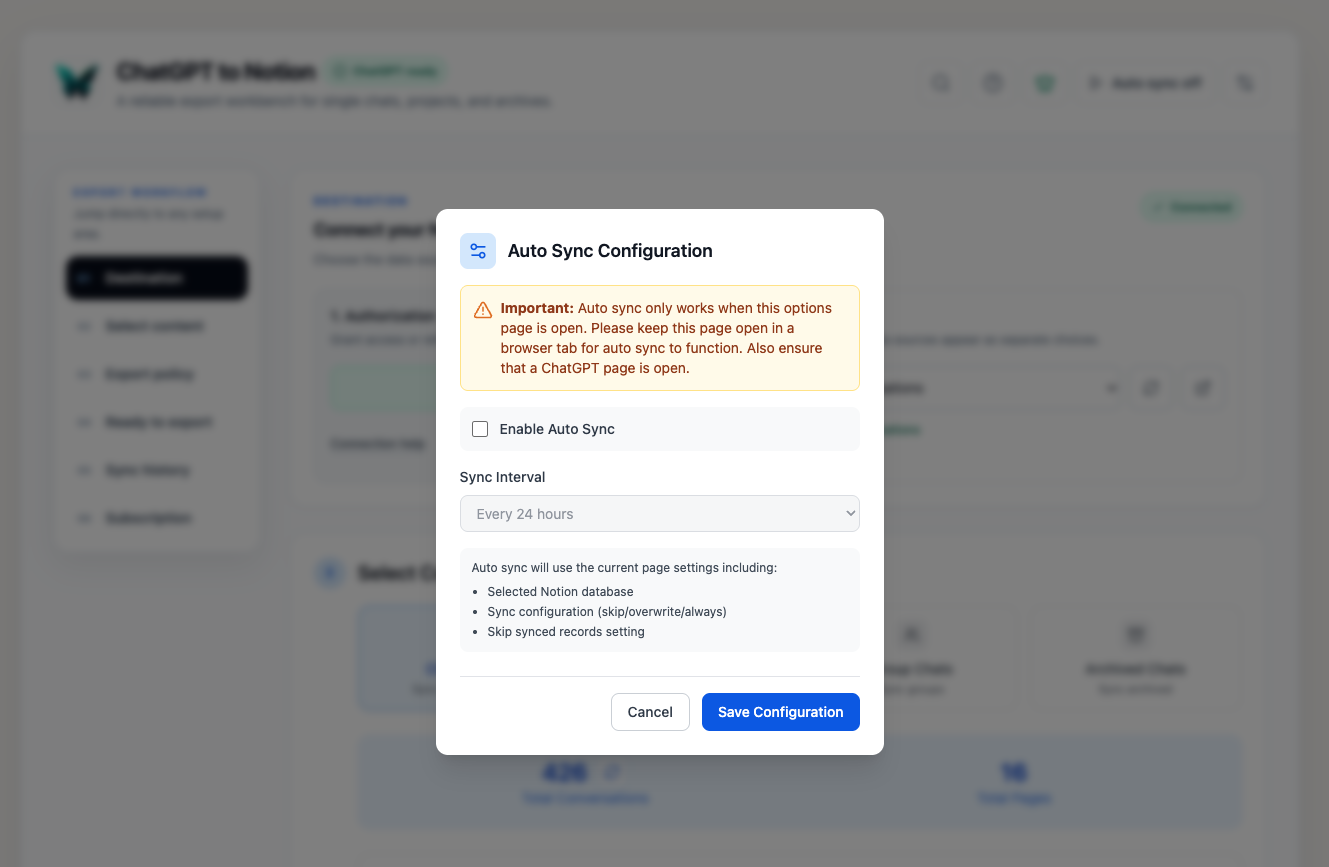
Auto Sync periodically exports the latest 28 regular ChatGPT conversations to the selected Notion destination. It runs from the extension options page, so the browser, options page, and a connected ChatGPT tab must remain open.
What Auto Sync Uses
Each scheduled run uses:
- The currently authorized Notion destination
- The current matching-URL action: skip, update, or create a copy
- The completed-record skip setting
- Shared enhanced-formatting and child-page settings
- The latest 28 regular Chat Pages
Auto Sync does not schedule GPT Projects, Group Chats, Archived Chats, or older history. Use Batch Sync for those sources.
Requirements
- Notion must be connected.
- A writable Notion destination must be selected.
- A chatgpt.com tab must be open and connected to the extension.
- The extension options page must stay open.
- The browser and computer must remain awake.
Enable Auto Sync
- Open the extension popup and click Batch Sync.
- In the page header, click the settings icon beside Auto sync off.
- Enable Auto Sync.
- Choose an interval:
- 1, 2, 3, 4, 6, 8, 12, or 24 hours
- Click Save Configuration.
The dialog shows the calculated Next Sync time and, after a run, the Last Sync time. The header button changes to Auto sync on and can pause the schedule without opening the dialog.
Keep the Required Tabs Open
Auto Sync is driven by a timer inside the options page. Closing that page destroys the timer. The schedule also needs a ChatGPT tab because the extension reads conversation data through the active ChatGPT session.
For reliable scheduled runs:
- Pin the Batch Sync tab.
- Keep one ChatGPT tab open.
- Refresh the ChatGPT tab after an extension update or reload.
- Prevent the computer from sleeping during the desired schedule.
If a scheduled time is missed because the page was closed or the computer slept, reopen the options page and verify the next sync time.
How Existing and Partial Exports Are Handled
Leave Skip records already completed by this extension enabled for routine backups.
- Completed conversations are skipped.
- Partial jobs can resume from their last confirmed Notion batch.
- Update existing page refreshes an active matching page in place and keeps its link.
- A matching page in Notion Trash is ignored and a new active page is created.
Monitor Scheduled Runs
During a run, the regular progress and result sections show processed items and success, failed, and skipped counts. Completed runs are added to Sync history as Auto Sync (Latest 28).
Screenshot placeholder —
auto-sync-v10-result-history-2026-07.pngCapture a completed scheduled run with its result totals and the matchingAuto Sync (Latest 28)history entry visible.
Disable or Reconfigure
- Click Auto sync on in the header to pause it immediately.
- Or open the configuration dialog, clear Enable Auto Sync, and save.
- Changing the interval recalculates the next sync time from the current time.
Limits and Behavior
- Free users can process up to 10 successful items in a scheduled run.
- Skipped items do not need to be exported again.
- A scheduled run fetches the current latest 28, not the same fixed set forever.
- Auto Sync continues on its next schedule after a failed run; review the failed record before relying on a future retry.
- ChatGPT 429 limits are source-side limits and can affect scheduled runs.
Troubleshooting
Auto Sync Does Not Run
Check that the options page is still open, Auto Sync is enabled, a ChatGPT tab is open, and Next Sync shows a future time.
ChatGPT Needs Attention
The page header will tell you whether no ChatGPT tab was found or the existing tab needs a refresh. Follow the displayed action, then leave the tabs open.
Notion Is Not Configured
The run is skipped and the next schedule is calculated. Reconnect Notion, select a destination, and confirm the next sync time.
The Computer Slept
Reopen the browser if needed, refresh ChatGPT, and open the Auto Sync dialog to confirm the updated schedule.
For additional help, contact [email protected].
Ready to try Chatgpt To Notion?
Open the product page for feature details, screenshots, pricing, and the Chrome Web Store install link.